Introduction
The purpose of this task is to export audit data from the database. Once the data has been exported you may optionally purge the deleted data.
Unlike the similar task "Purge old audit trail records", this task performs an export of all records that will be purged prior to purging the old audit trail records (and consequently it runs much slower).
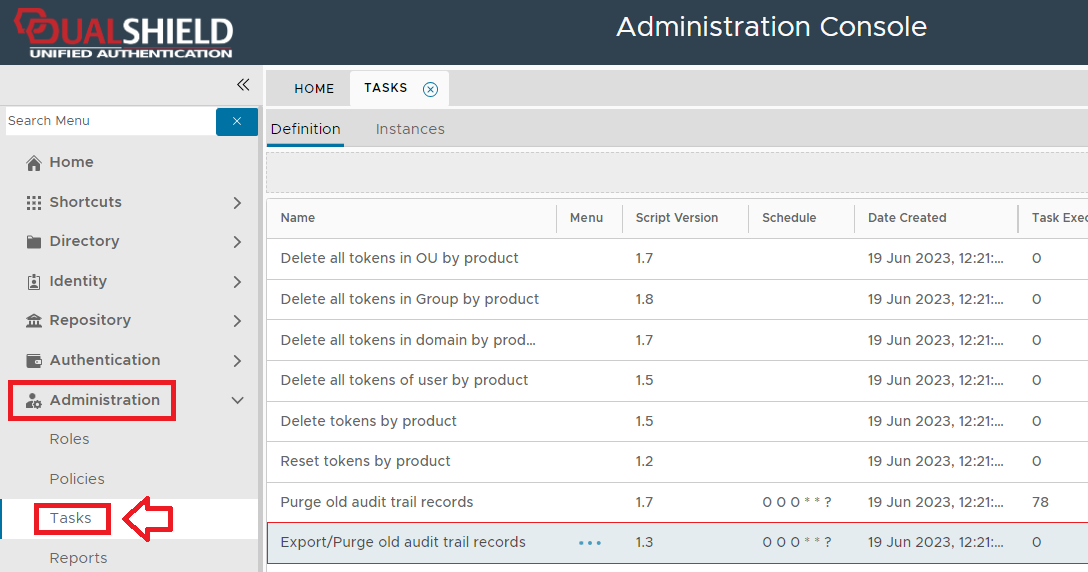
The task can be found by navigating to "Administration | Tasks", then scrolling down to the task "Delete all tokens in OU by product";
Task Parameters
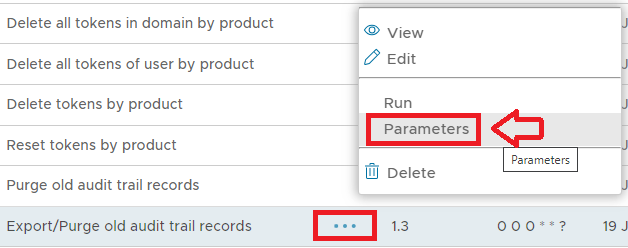
The task parameters are used by the task script to determine which tokens are to be deleted and are edited by left clicking on the context menu of the task and selecting "Parameters";
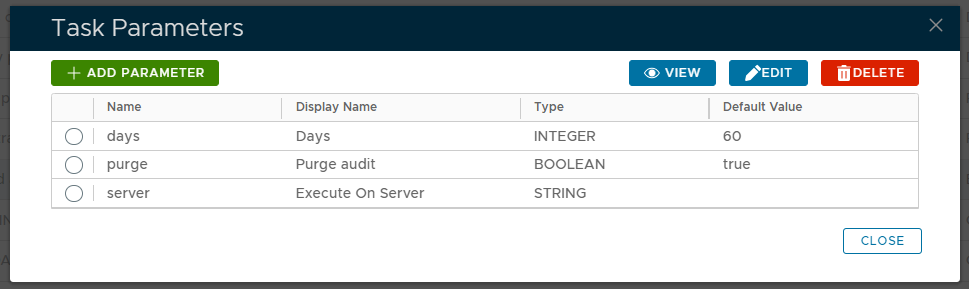
A new window titled "Task Parameters" will now open that lists the parameters making them available for editing, and the default parameters for this task are as follows;
| Section |
|---|
| Column |
|---|
| 
|
| Column |
|---|
|
| Expand |
|---|
|
| Panel |
|---|
| borderColor | grey |
|---|
| bgColor | #F8F8F8 |
|---|
| borderStyle | dashed |
|---|
| Specify the number of days of audit records to retained after the audit log file has been purged. |
|
| Expand |
|---|
|
| Panel |
|---|
| borderColor | grey |
|---|
| bgColor | #F8F8F8 |
|---|
| borderStyle | dashed |
|---|
| This option specifies if the audit is to be purged after the export is performed. |
|
| Expand |
|---|
|
| Panel |
|---|
| borderColor | grey |
|---|
| bgColor | #F8F8F8 |
|---|
| borderStyle | dashed |
|---|
| Specify which server the task is to be executed on. |
|
|
|
The parameters may then be editing by selecting one of the parameters, then clicking on the  button.
| Expand |
|---|
| title | Click here for more information on editing task parameters |
|---|
|
| Include Page |
|---|
| Editing Task Parameters |
|---|
| Editing Task Parameters |
|---|
|
|
Editing and Scheduling the Task
Viewing and Editing the task
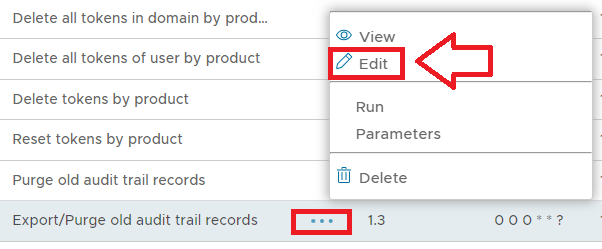
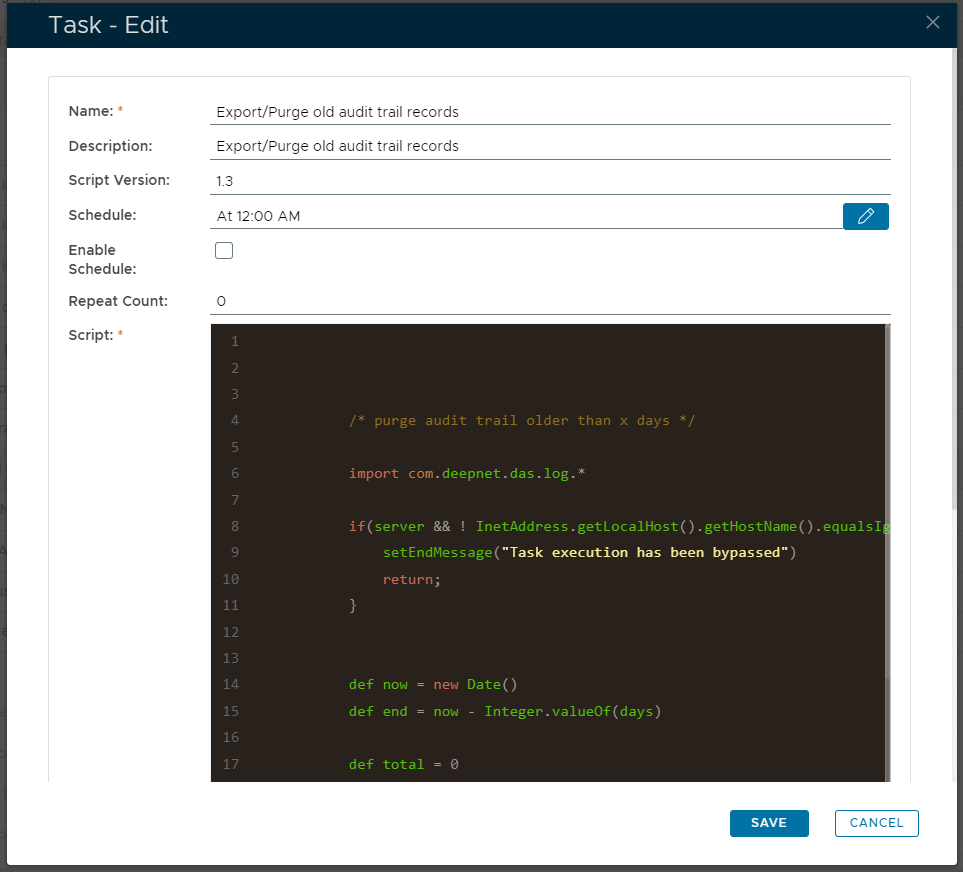
The task can be edited by left clicking on the context menu of the task and selecting "Edit";
A new window will now open titled "Task - Edit";
| Section |
|---|
| Column |
|---|
| 
|
| Column |
|---|
|
| Expand |
|---|
|
| Panel |
|---|
| borderColor | grey |
|---|
| bgColor | #F8F8F8 |
|---|
| borderStyle | dashed |
|---|
| Enter the name to be assigned to the task within the management console. |
|
| Expand |
|---|
| title | Description: (Optional) |
|---|
|
| Panel |
|---|
| borderColor | grey |
|---|
| bgColor | #F8F8F8 |
|---|
| borderStyle | dashed |
|---|
| Enter a description of what the task will do. |
|
| Expand |
|---|
|
| Panel |
|---|
| borderColor | grey |
|---|
| bgColor | #F8F8F8 |
|---|
| borderStyle | dashed |
|---|
| The version number of the task. |
|
| Expand |
|---|
|
| Panel |
|---|
| borderColor | grey |
|---|
| bgColor | #F8F8F8 |
|---|
| borderStyle | dashed |
|---|
| This field is used to specify when the task is scheduled to execute. |
|
| Expand |
|---|
|
| Panel |
|---|
| borderColor | grey |
|---|
| bgColor | #F8F8F8 |
|---|
| borderStyle | dashed |
|---|
| This field will determine if the task schedule is enabled (if enabled the task will execute at the scheduled time). |
|
| Expand |
|---|
|
| Panel |
|---|
| borderColor | grey |
|---|
| bgColor | #F8F8F8 |
|---|
| borderStyle | dashed |
|---|
| Specifies how many times the task should be repeated after the task is executed. |
|
| Expand |
|---|
|
| Panel |
|---|
| borderColor | grey |
|---|
| bgColor | #F8F8F8 |
|---|
| borderStyle | dashed |
|---|
| /* purge audit trail older than x days */ import com.deepnet.das.log.* if(server && ! InetAddress.getLocalHost().getHostName().equalsIgnoreCase(server)){
setEndMessage("Task execution has been bypassed")
return;
} def now = new Date()
def end = now - Integer.valueOf(days) def total = 0 def callback = { n, m ->
total = n;
onProgress(n, m)
} def svc = new LogService()
svc.export(null,end,purge,'CSV',callback) def msg = total + " records exported and purged"
setEndMessage(msg) |
|
|
|
Scheduling the Task
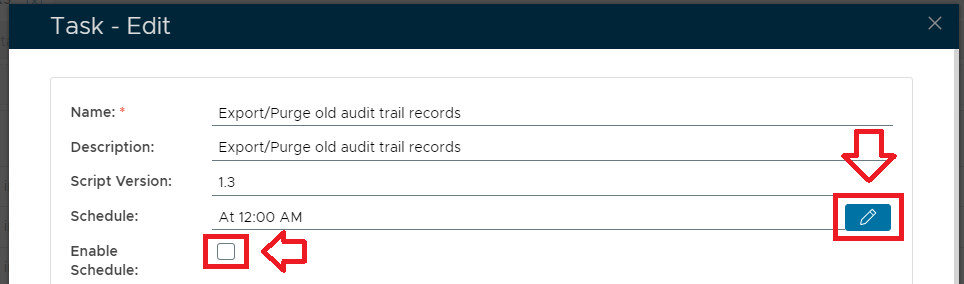
Select the "Enable Schedule" checkbox to ensure the task schedule is activated, then use the pencil icon (" ") to specify the time and frequency settings for automated task execution.
| Expand |
|---|
| title | Click here for more information on Task Scheduling |
|---|
|
| Include Page |
|---|
| Scheduling a Task |
|---|
| Scheduling a Task |
|---|
|
|
Manual Task Execution
The task can be run manually from the management console by left click on the context menu of the task, then selecting "Run";
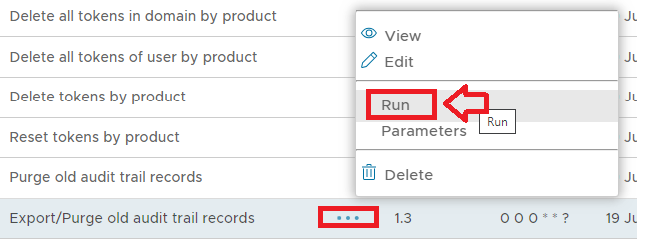
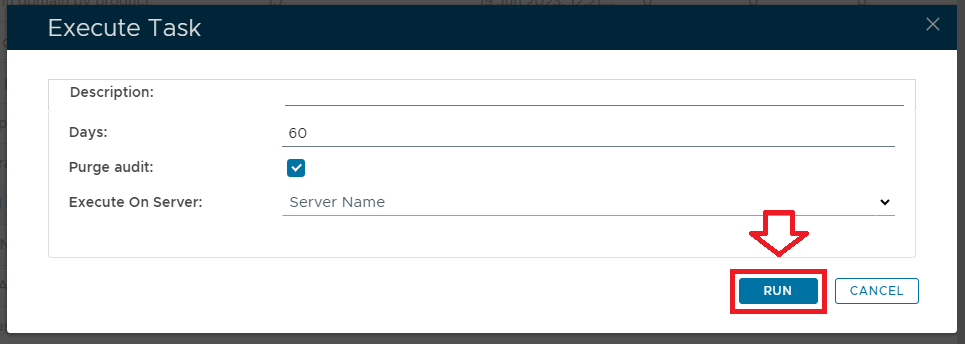
A new window will open titled "Execute Task" will then open (the window will be populated with the default task property values);
| Section |
|---|
| Column |
|---|
| 
|
| Column |
|---|
|
| Expand |
|---|
|
| Panel |
|---|
| borderColor | grey |
|---|
| bgColor | #F8F8F8 |
|---|
| borderStyle | dashed |
|---|
| Provide a brief description that will be used to describe the purpose of the task in the audit log.
|
|
| Expand |
|---|
|
| Panel |
|---|
| borderColor | grey |
|---|
| bgColor | #F8F8F8 |
|---|
| borderStyle | dashed |
|---|
| Specify the number of days of audit records to retained after the audit log file has been purged. |
|
| Expand |
|---|
|
| Panel |
|---|
| borderColor | grey |
|---|
| bgColor | #F8F8F8 |
|---|
| borderStyle | dashed |
|---|
| This option specifies if the audit is to be purged after the export is performed. |
|
| Expand |
|---|
|
| Panel |
|---|
| borderColor | grey |
|---|
| bgColor | #F8F8F8 |
|---|
| borderStyle | dashed |
|---|
| Specify which server the task is to be executed on. |
|
|
|
To execute the task click the  button.
| Expand |
|---|
| title | Click here for more information on manually executing tasks |
|---|
|
| Include Page |
|---|
| Running a Task |
|---|
| Running a Task |
|---|
|
|
| Section |
|---|
The Exported CSV file will be found in C:\Program Files\Deepnet DualShield\export or \opt\dualshield\export on Linux |