...
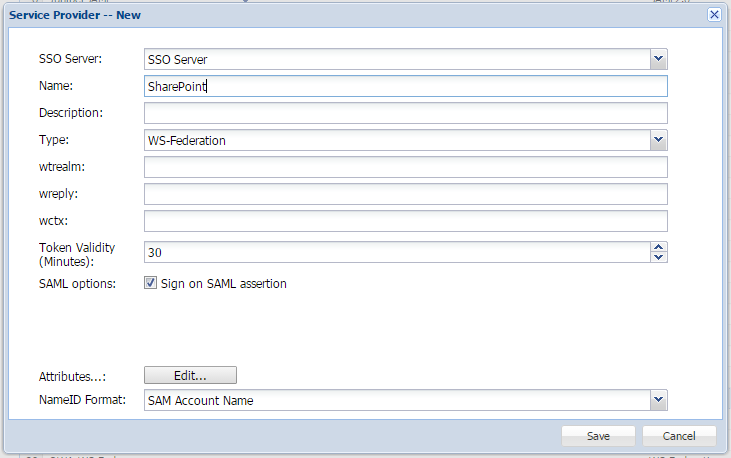
- In the main menu, navigate to "SSO | Service Providers"
- Click the "+ CREATE" button
- Select the "Single Sign-on Server"
- Select the Sharepoint "Application" created previously
- Enter a suitable nt, and enter "Name"
- Select "'Type" ' as "WS-Federation"
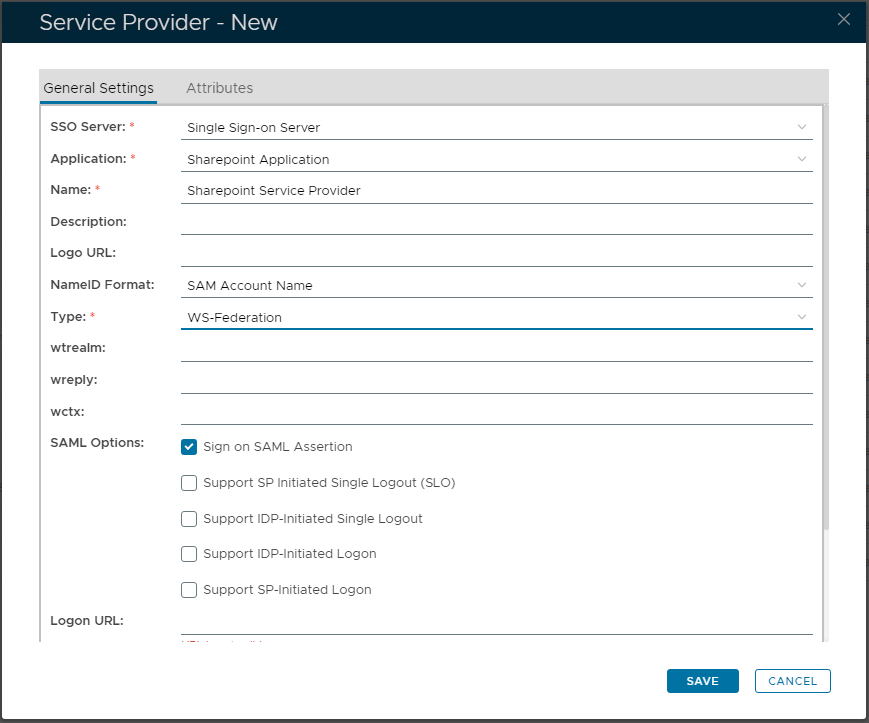
- Click on the 2nd tab named "Attributes"
- Select the "Edit+ CREATE" button to add Attributes
...
You
...
- need to
...
- create an Attribute that matches "RoleClaims" and "Identity Claims", as specified in the
...
- PowerShell scripts that will be
...
- created in the
...
...
- section.
...
- Select '
...
- Location'
...
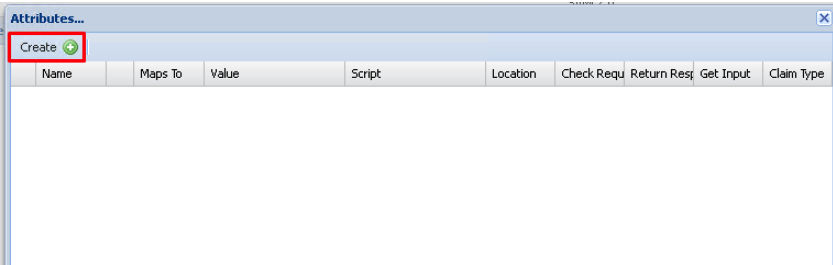
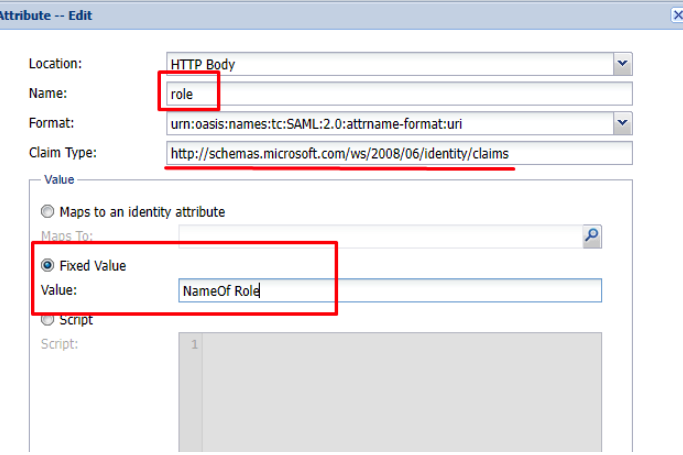
6. Create an attribute for the 'RoleClaims'. This will have a fixed value which will contain the name of the role you have setup in the Link Groups script
...
- as "HTTP Body"
- Enter an appropriate "Name"
- The 'Format' select from the drop-down "attrname-format:url"
- Within 'Value' select "Fixed Value" and set the Value as the actual name specified in the RoleClaims
...
- (replacing "NameOfRole" in this field). As per the following article: Link Groups Script
- From the drop-down, set the 'Claim Type' as setting "http://schemas.microsoft.com/ws/2008/06/identity/claims"
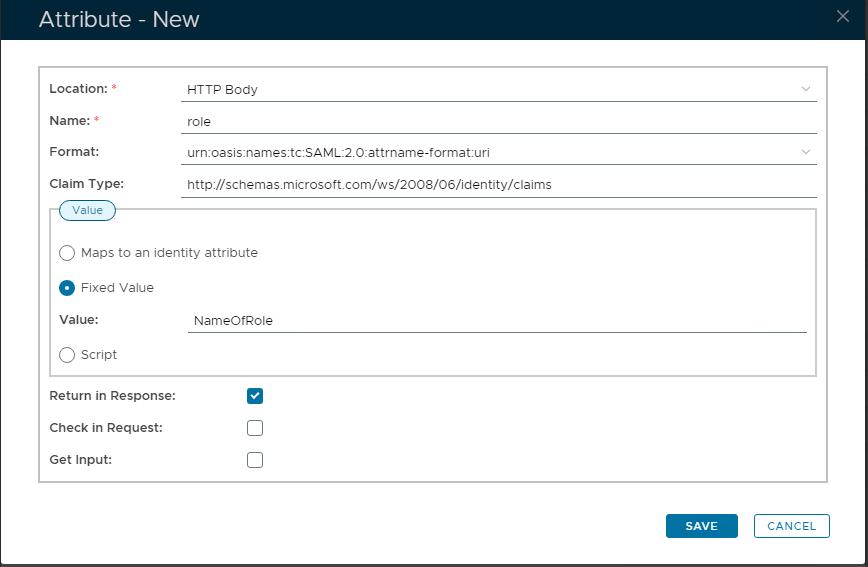
14. Click "SAVE" button to confirm creation of new Attribute.
Next create 'Identity Claims attributes' that will be mapped to AD
...
- Attributes.
...
- There
...
- would usually
...
- be 3 attributes, containing emailaddress,
...
- givenName and
...
- Surname (
...
- see SSO
...
- Script article)
You
...
- are able to map AD Attributes as follows
...
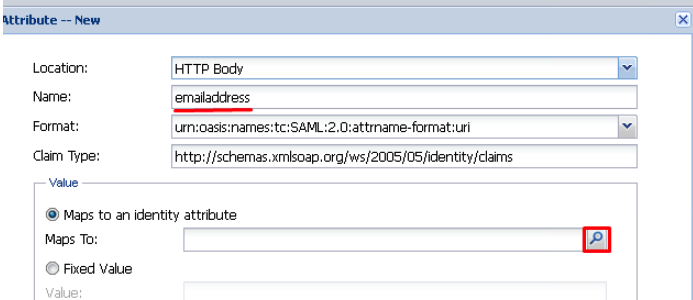
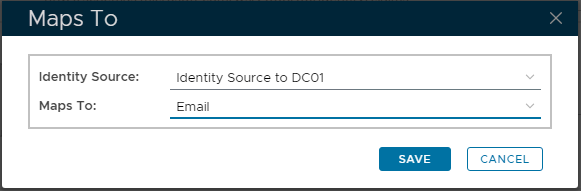
In the "Maps To" section click on the corresponding search button
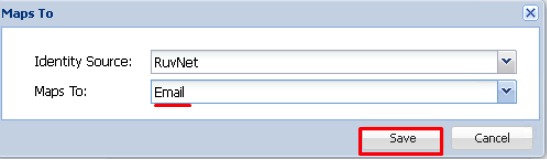
Here you will select the Identity Source corresponding with your domain and choose the Email identity attribute from the drop down list.
...
- .
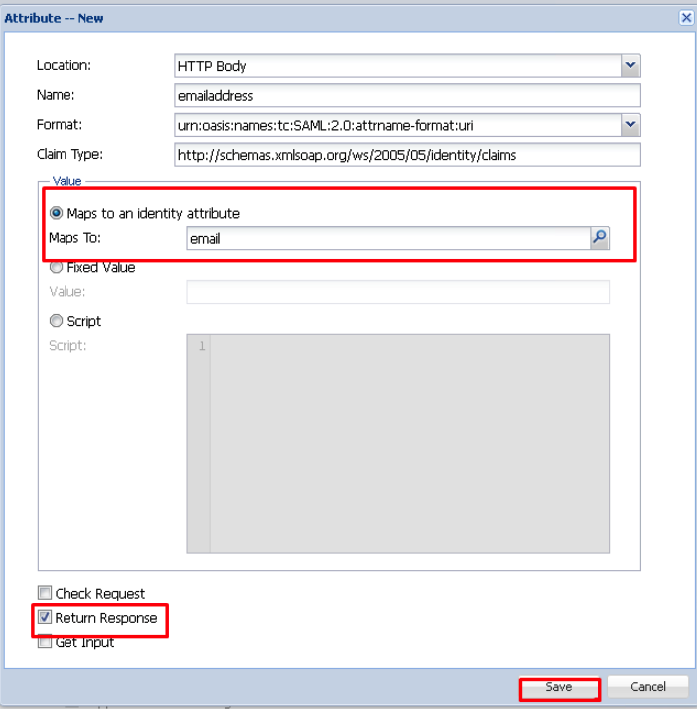
16. Selecting 'Value' as "Maps to an identity attribute"
17. Then click the magnifying glass, to the right of the field....
18. Here you can change "Identity Source" to your internal AD Domain
19. Then "Maps To" you can select a specific Attribute from Active Directory. ie: "Email"....
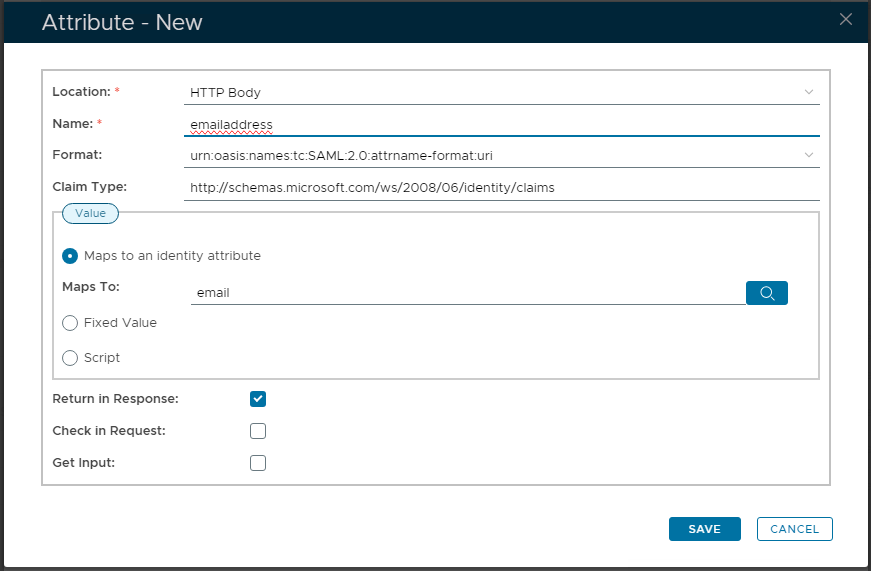
Ensure checkbox "Return in Response" is enabled on all your
...
- Attributes.
Click Save
...
20. Click "SAVE" to create the new Attribute.
21. Repeat
...
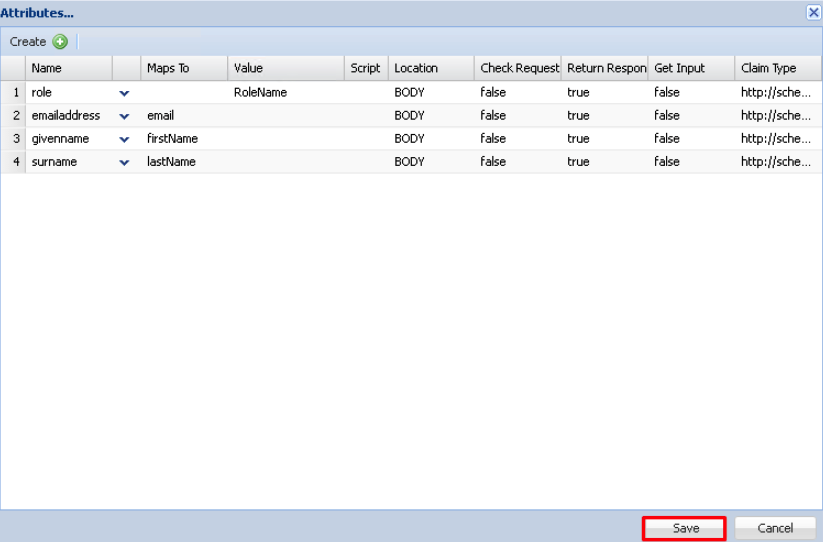
9. Click "Save"
...
- for the other Attributes. Then you should have all 3 setup, like follows:
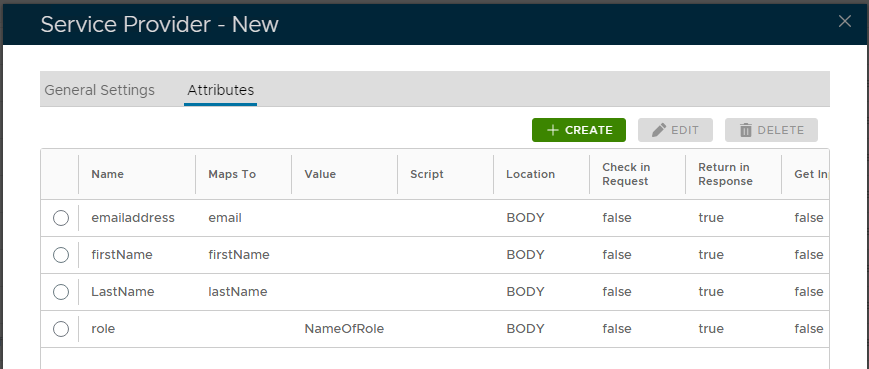
22. Finally click "SAVE" to confirm creation of these new Attributes.