Create a Service Provider
- Login to the DualShield Management Administration Console
- Select Navigate to “SSO | Service Providers”
- Click the “Create”
 Image Removed
“+ CREATE” button in the toolbar
- At the 'SSO Server' drop-down, select "Single Sign-on Server"
- Drop down 'Application' then select the Application name, created previously.
- Enter an appropriate Name for this Service Provider.
- 'Type' should be set as In "Type", select "SAML 2.0"
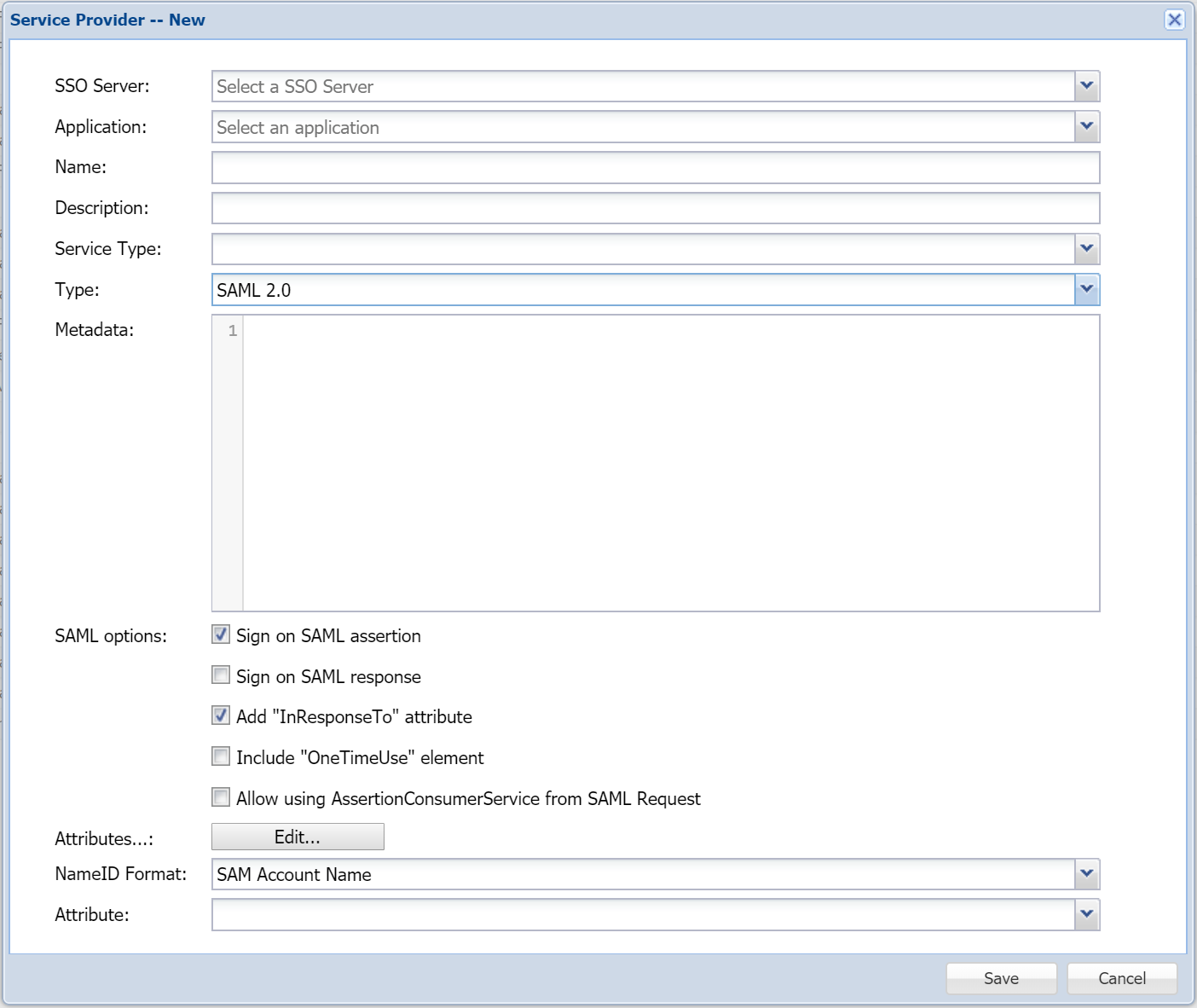 Image Removed
 - Select "SSO Server" and "Application"
- Enter "Name" and "Description"
- Paste the SalesForce's metadata into the “Metadata” field
- In "SAML options", select "Sign on SAML assertion" on
 Image Removed
 - In "Attributes", click the "Edit" button
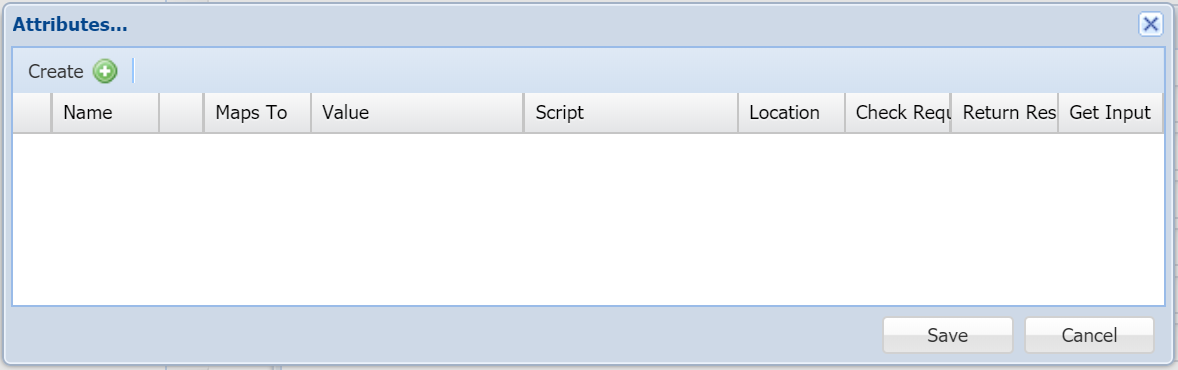 Image Removed
 - Click the "Create" button on the toolbar
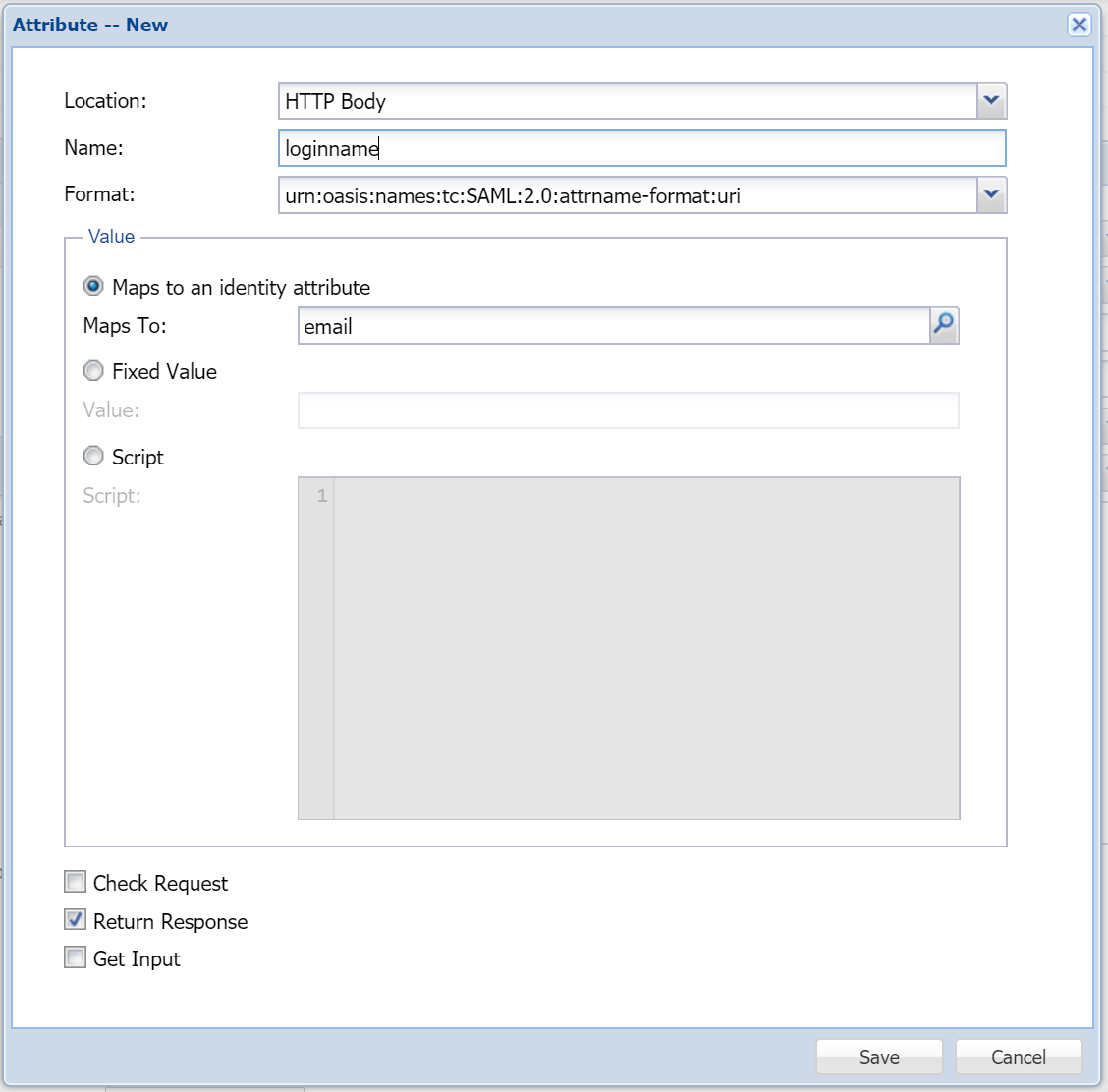 Image Removed
 - In "Location", select "HTTP Body"
- In "Name", enter "loginname"
- tickbox "Sign on SAML Assertion"
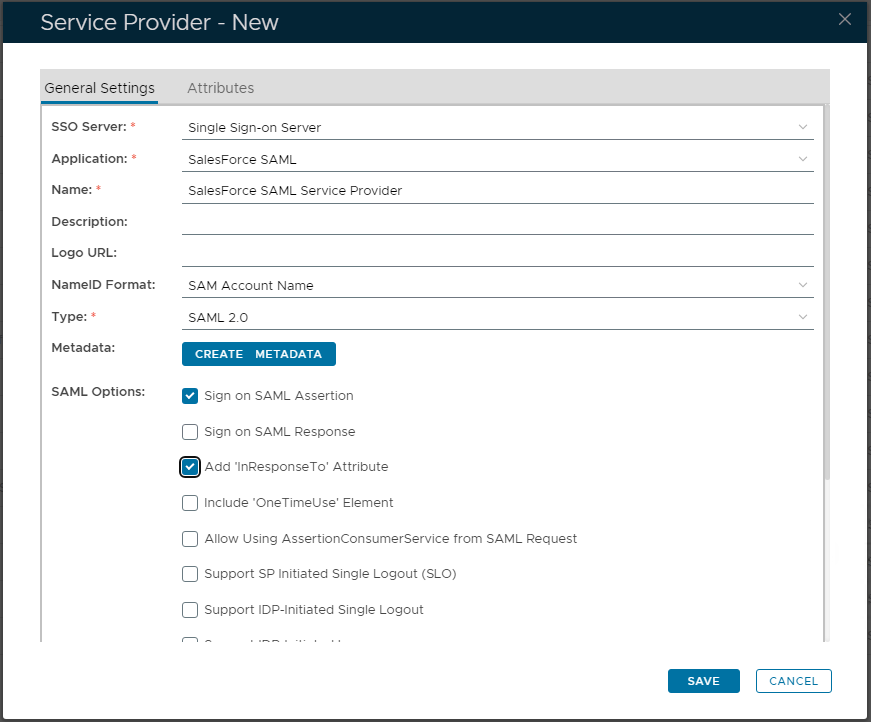 Image Added
- Click the 'CREATE METADATA' button. Paste the SalesForce MetaData saved earlier, in to the large textbox displayed.
- Then click "SAVE" to apply.
- Select the 2nd tab named "Attributes"
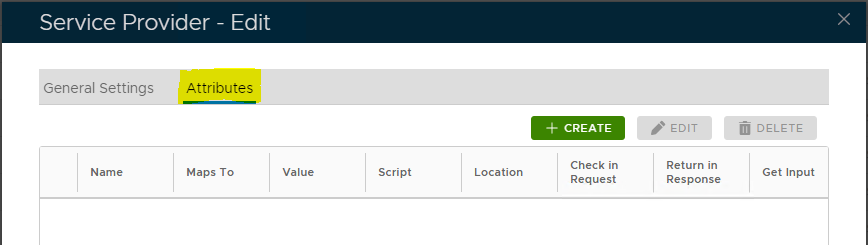 Image Added
- Click "+ CREATE" button to add a new Attribute
- Set 'Location' as "HTTP Body"
- Enter in the 'Name' field the attribute "loginName"
- 'Format' set from the drop-down as "attrname-format:uri"
- Within 'Value' set as In "Maps to an identity attribute", then click the search icon
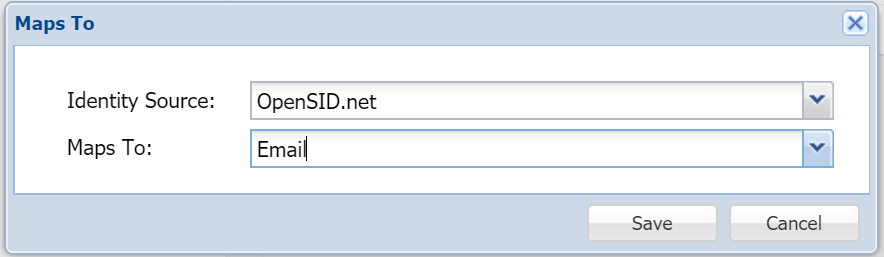 Image Removedmagnifying glass, and locate "Email".
Assuming that your SalesForce loginname is your email address, then map the loginname to email. - Save the attribute
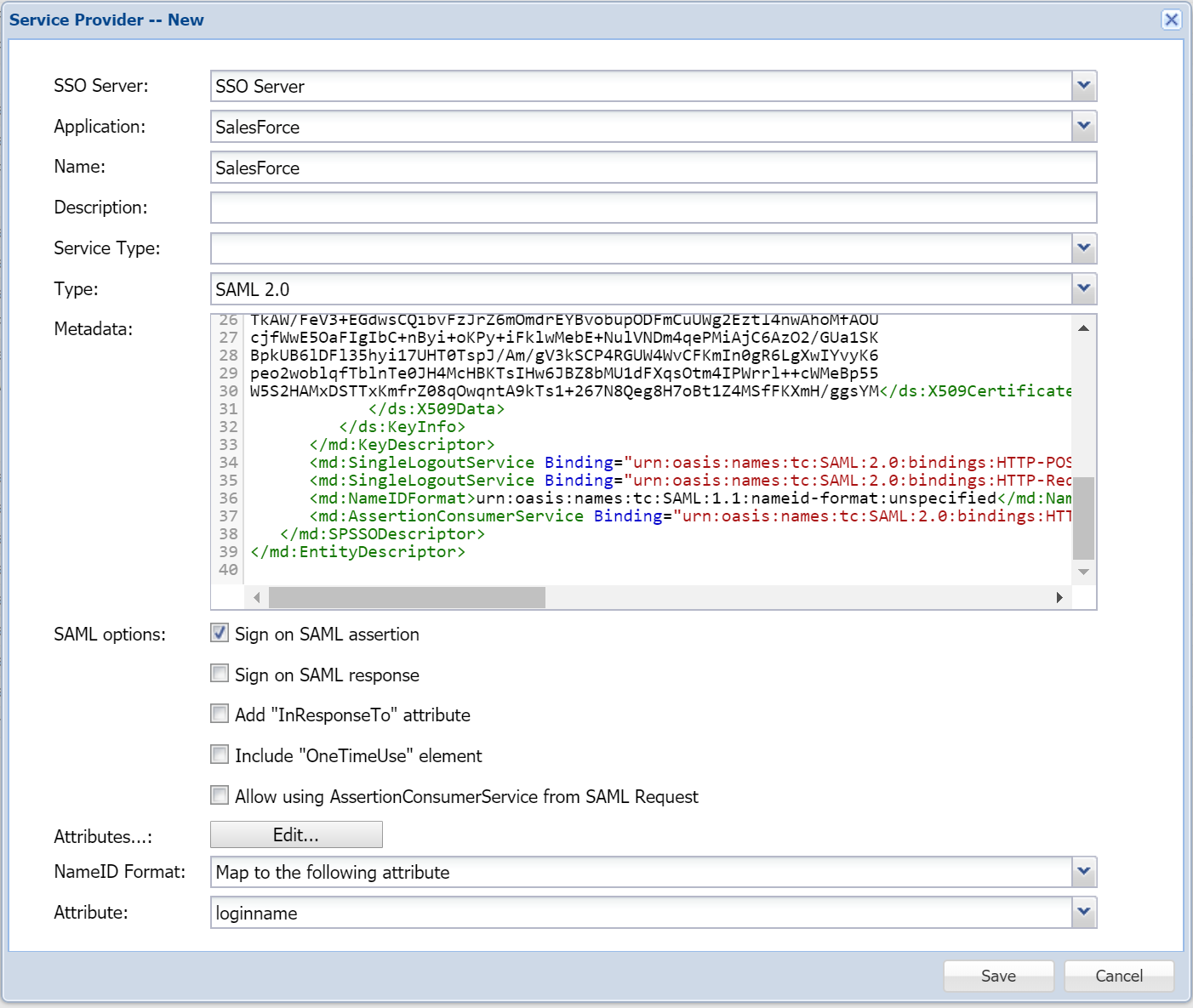 Image Removed
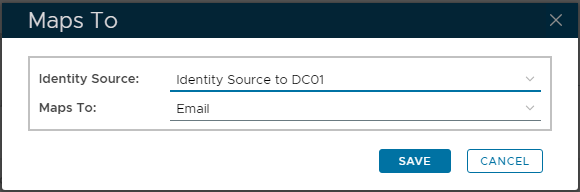 Image Added
- Then select "SAVE" to confirm.
- Now at the primary Service Provider window, drop-down 'NameID Format' and select "Maps In "NameID Format", select "Map to the following attribute"
- In "the next field 'Attribute" select the newly created attribute, i.e."loginname"you will find the custom attribute created, "loginName". Select it.
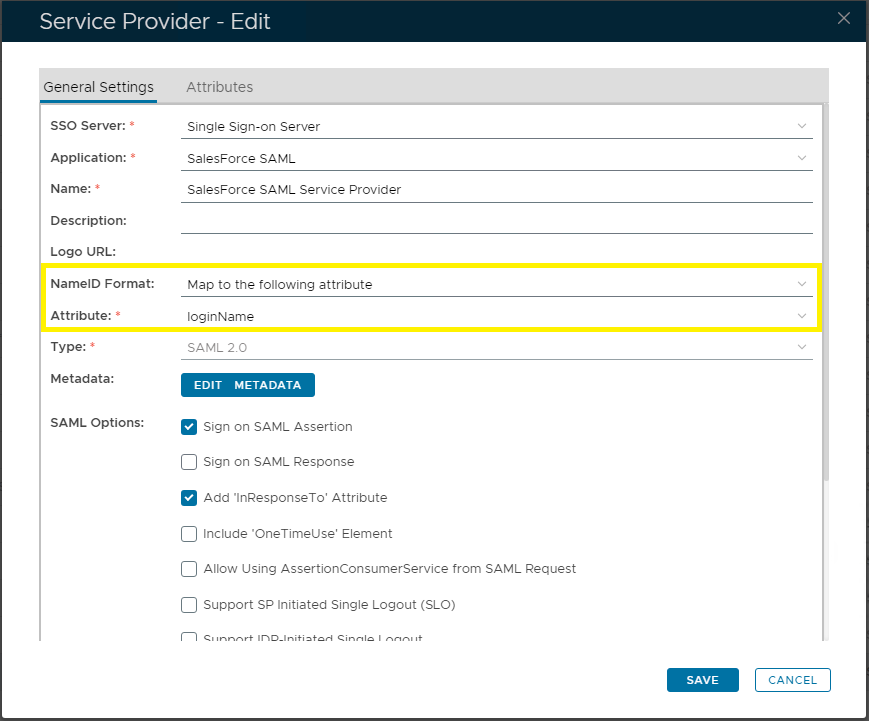 Image Added
- Finally click "SAVE" to create this Service Provider entry.Click "Save"
{"serverDuration": 59, "requestCorrelationId": "331109d37780eaee"}