...
Load up the SSMA for MySQL and start by creating a new project from the "File" menu. Select your destination SQL server version from the "Migrate To" drop-down menu. For this guide, "SQL Server 2017 (Windows) - Preview" has been used.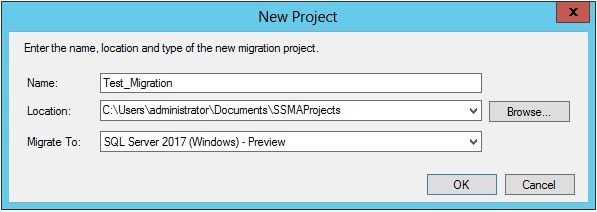
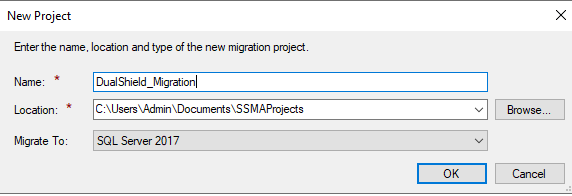
Once that is done, Click the button  at the top of the window. The connection dialog box for MySQL will appear, fill out the appropriate connection details of your existing MySQL server.
Note. You will need to have an MySQL user account with sufficient privileges for this step, if you do not, refer to this link for how to accomplish this. Generally we can use the credential configured in server.xml MySQL Connection String.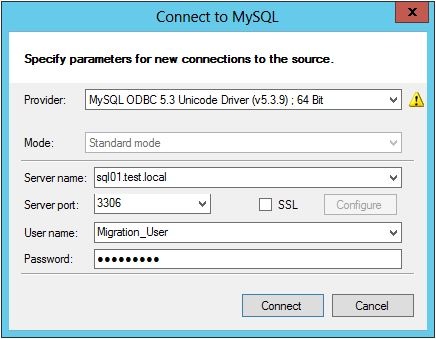
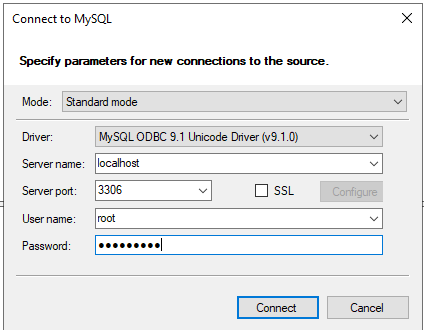
Click the "Connect" button and if successful, you should see text in the Output window stating "Connection to MySQL established successfully". You may need to allow the remote access to MySQL, Please check MySQL: How to allow remote connection to mysql.
Next, connect to the Microsoft SQL server by clicking the  button. Fill out the MSSQL server connection details, making sure to use the Database: Dualshield and using either Windows/SQL Authentication. However, as later on when we configure DualShield, we will require an SQL Authenticated Account so it may be desirable to set this up now. Refer to this link on how to do this.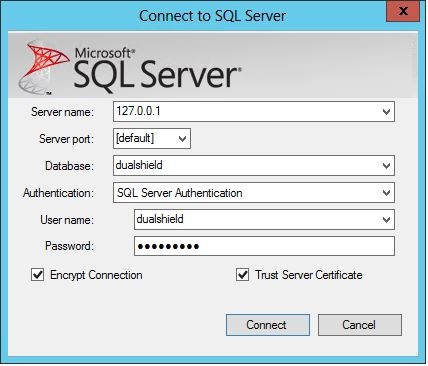
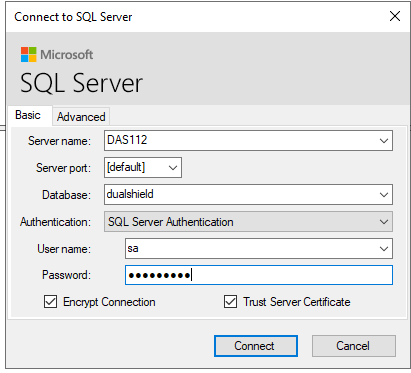
You may get the following error message when connecting. Just click "Yes"
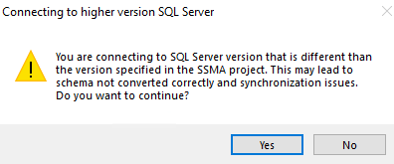
You may get the following error message when connecting, go ahead and click "Yes" so the target Dualshield database will be setup.
...