...
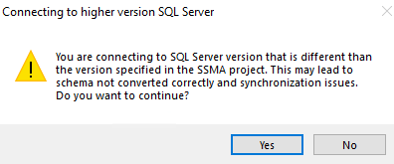
You may get the following error message when connecting. Just click "Yes"
You may also get the following error message when connecting, go . Go ahead and click "Yes" so the target Dualshield database will be setup.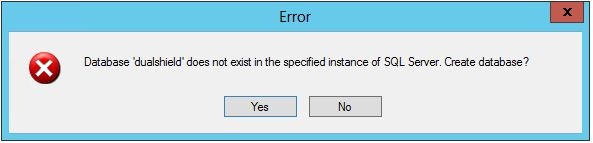

Again, after connecting, you will see an Output confirming successful connection.
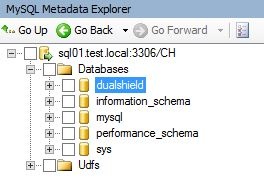
Once both database connections have been setup, we can now start the migration process. Begin by selecting the "Dualshield" database from the "MySQL Metadata Explorer".
Now with the "Schema Mapping" tab selected, click the "Modify" button. On the new popup "Choose Target Schema" window, modify the "Target schema" line to be dualshield.dbo and click "OK" to save. E.g.
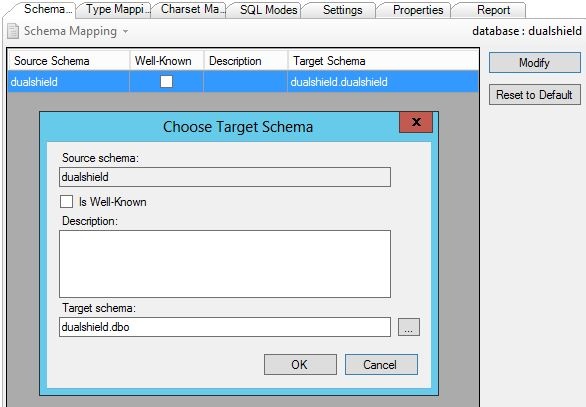
"Target Schema" should now be updated as below.

Now with Dualshield still selected in the list of databases, click the  button to start the schema conversion process. During the conversion, you may see errors
Once conversion has reported it is done in the Output window, proceed to the "SQL Server Metadata Explorer" and find the newly generated schema under <MSSQLHOST> > Databases > dualshield > Schemas > dbo.
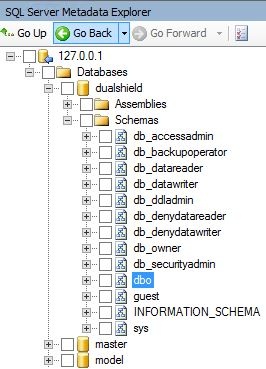
Right-Click the dbo schema and then select "Save as Script" from the context menu.
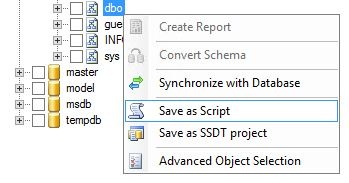
Save this file (dbo.sql) in an accessible location as we will need it for the next step. Leave the SSMA tool open as we will need to come back to it later on to migrate the data over.
...
The tool is available at our downloads page, in the "Tools" section.
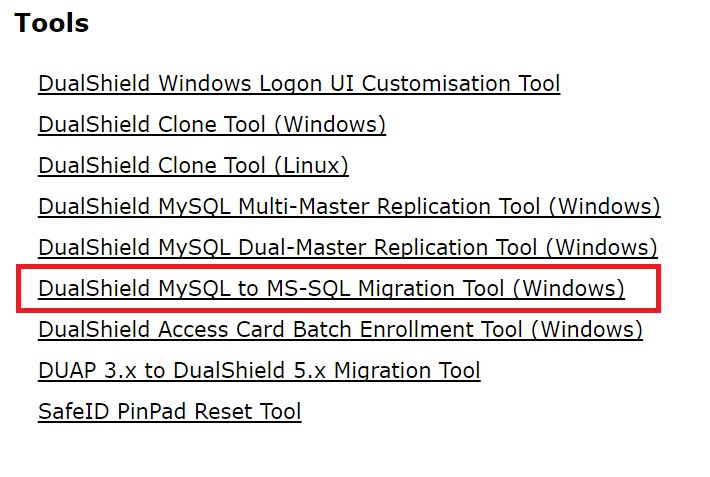
To run the tool on your DualShield server, copy the DSSchemaConvert.jar to your DualShield's jre\bin folder, typically located at C:\Program Files\Deepnet DualShield\jre\bin. Open a command prompt window at that location and then start the tool with the following command:
...
The conversion tool will load up and you should be presented with a GUI.
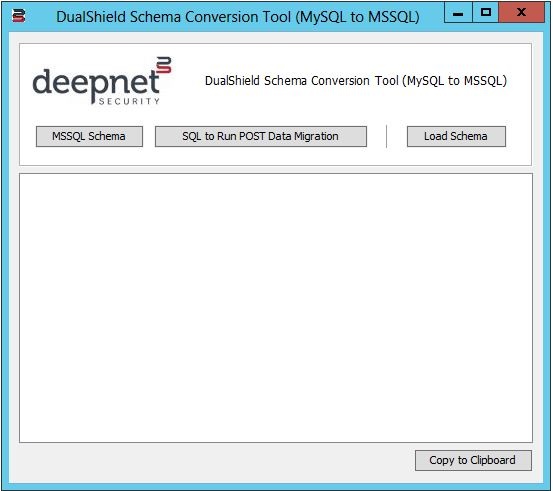
Click the "Load Schema" button and select the dbo.sql file you generated from the SSMA tool in the last section. You should see "Loading...Done!" in appear in the large white text box if loading the schema file has been successful.
...
Head back to the SSMA tool and ensure that the dualshield database is still selected in the "MySQL Metadata Explorer". Then select the  button from the tool bar. You will be prompted to re-connect to both databases again, use the same credentials for both that were used in the previous stages. After connecting again, the tool will start the data migration into the new modified SQL schema we have setup already. You will see a lot of console text cycle in the Output window, wait until you a new window appear called "Data Migration Report". Check through the list and ensure you receive a 100% Success rate for all tables before continuing. E.g.
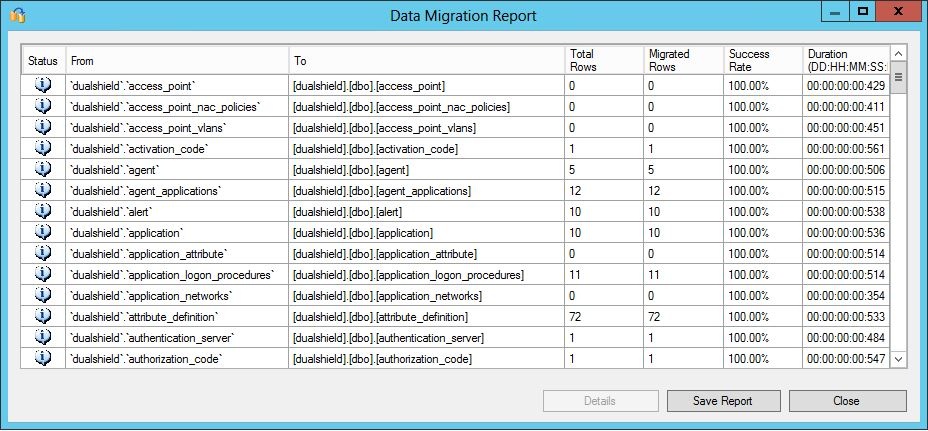
If all tables were migrated successfully, you can go ahead and close the SSMA tool now.
...