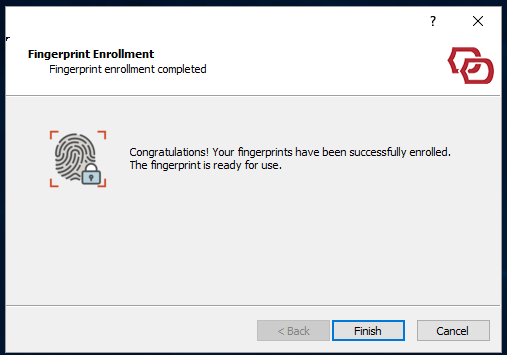
Before you can use your fingerprints for login, you need to must enroll your fingerprints first.
The enrollment process is a self service that is integrated into the Windows login UISelf Service, integrated in to the Windows Login user interface.
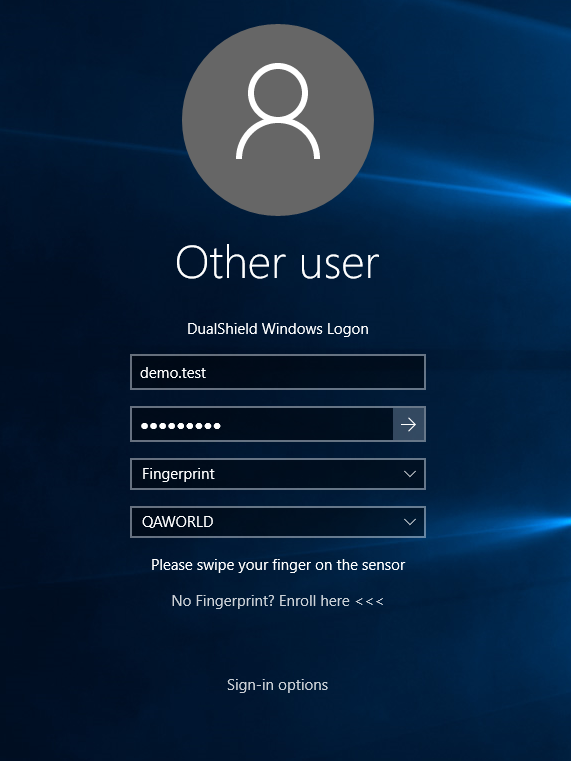
On the logon window, select "Fingerprint" as the authentication method:
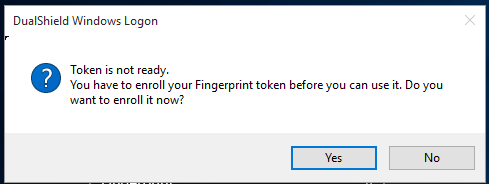
If you attempt to continue, then you will see the message popup below will be displayed:
Or, Alternatively you can simply click the link "No fingerprint? Enroll here" to start the enrollment process...
In the fingerprint Fingerprint policy settings, if the authorisation code is required for enrollment, then you will firstly be asked prompted to enter an authorisation code:
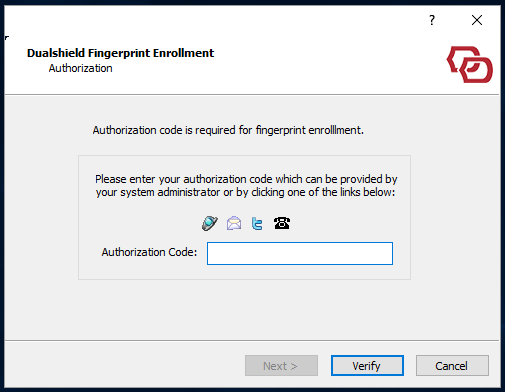
Once you have provided the correct authorisation code, the enrollment process will startresume.
Depending on upon your fingerprint Fingerprint policy settings in DualShield, you might be asked prompted to enroll more than one finger for the purpose of reliability and security.
You'll enroll Enrolling the first finger which can be any finger that you like, will appear as per the following window:
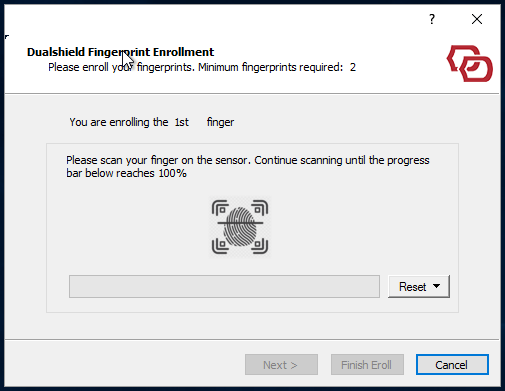
Swipe or scan your finger, depending on the type of the fingerprint Fingerprint reader, until the necessary number of required samples have all be has been successfully collected: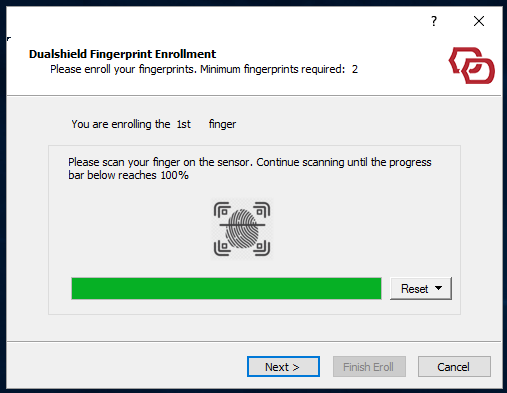
Then click "Next" to enroll the next finger of yours(as / if prompted):
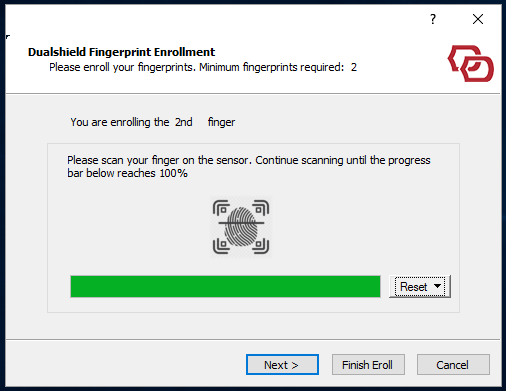
Once the total number of fingers have all been successfully enrolled, you can click "Finish Enrol" to finish complete the enrollment process.
Optionally, you can continue to enrol more fingers by click clicking "Next".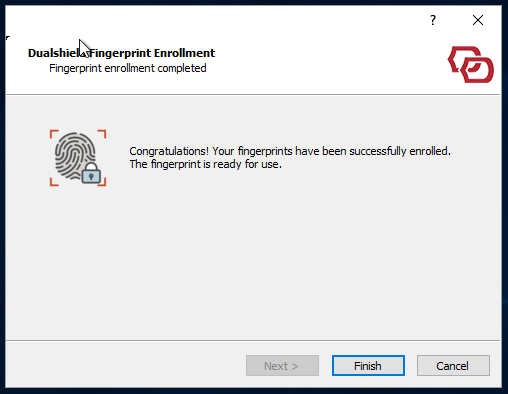
Click "Finish" to finish the enrollment process.
Now, in the fingerprint policy settings, if a PIN is required (as per the Policy) then here you 'll will be asked to set up your PIN:prompted to enter one:
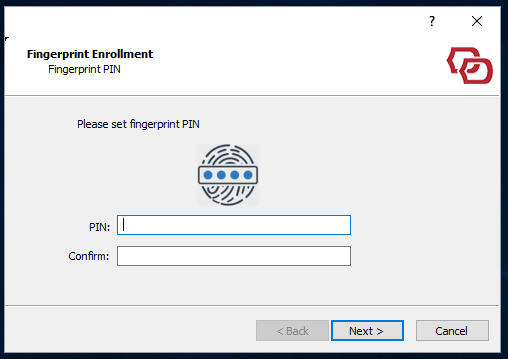
Once you have set your PIN, then the whole complete enrollment process is completedfinished. The final confirmation will appear as follows: