...
- Welcome
- Licensing Agreement
- Installation Path
- Select Components
- Server Configuration
- Components Registration
- JVM Configuration
- Database Encryption
- HSM Configuration
- Database Connection
- Configuration Summary
- Installing
- Perform External Processes
- Installation Complete
Step 1: Welcome
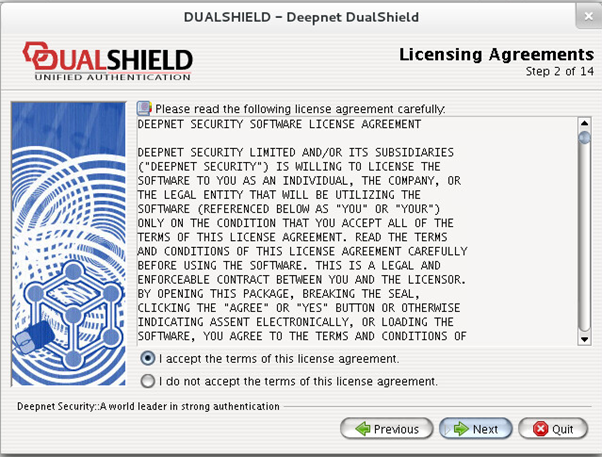
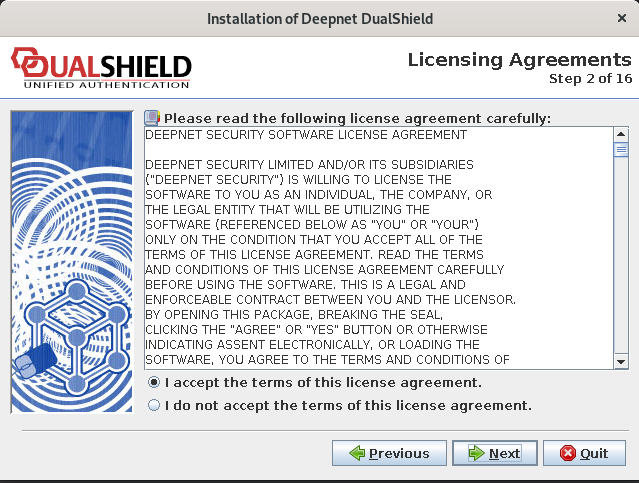
Step 2: Licensing Agreements
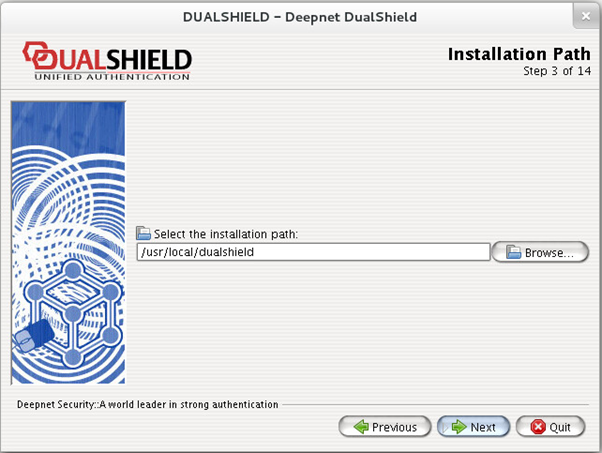
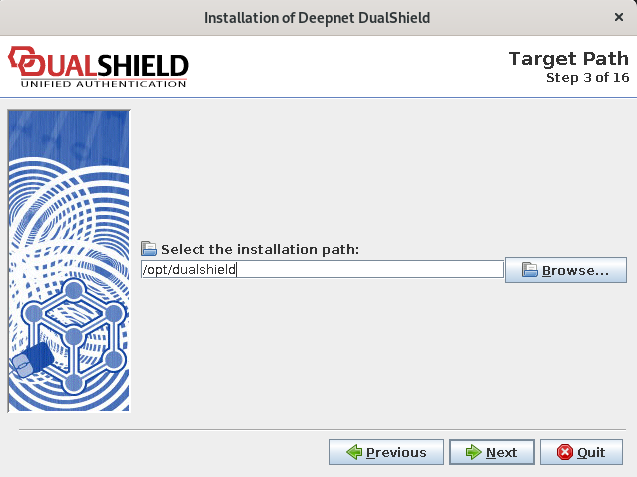
Step 3: Installation Path
Step 4: Select Components
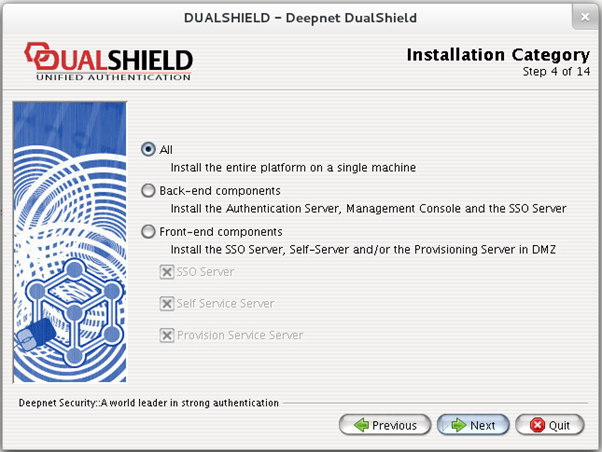
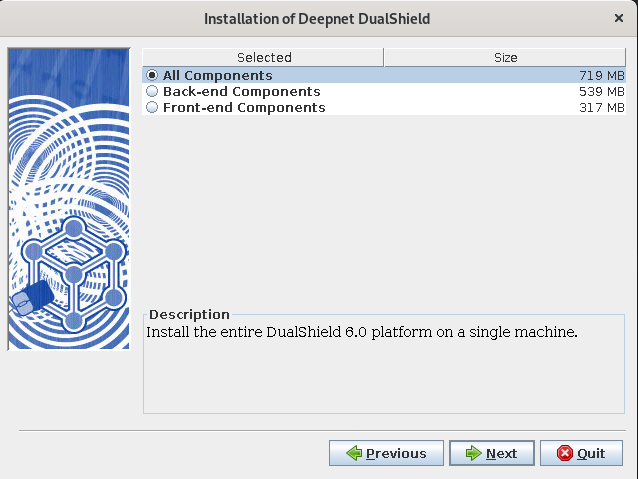
The entire DualShield platform consists of several components:
...
To install components such as the SSO server, Self-Service and/or Provisioning Server. This option is typically used to install front-end servers in DMZ.
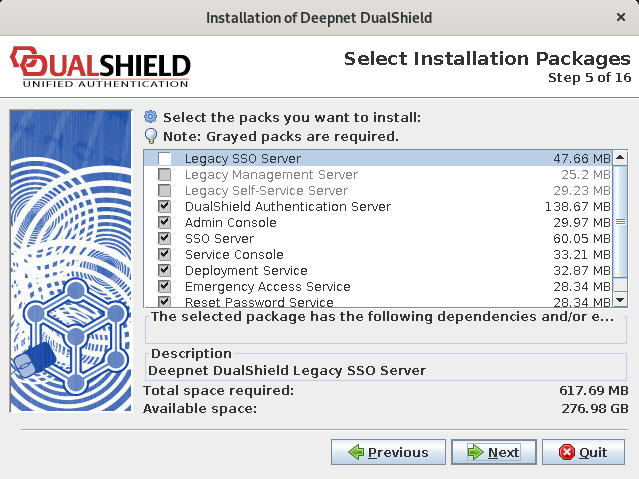
Step 5: Select Installation Packages
Step 6: Server Configuration
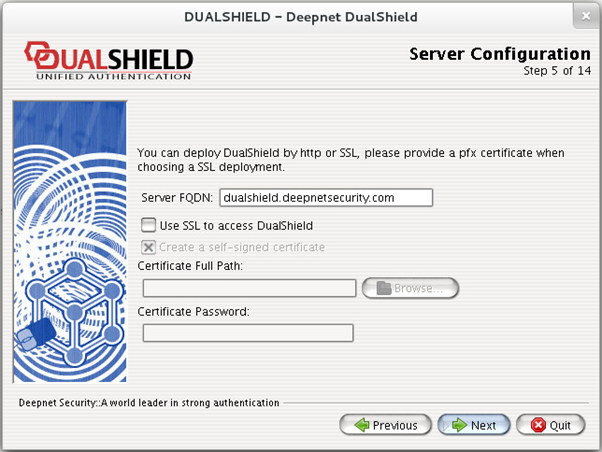
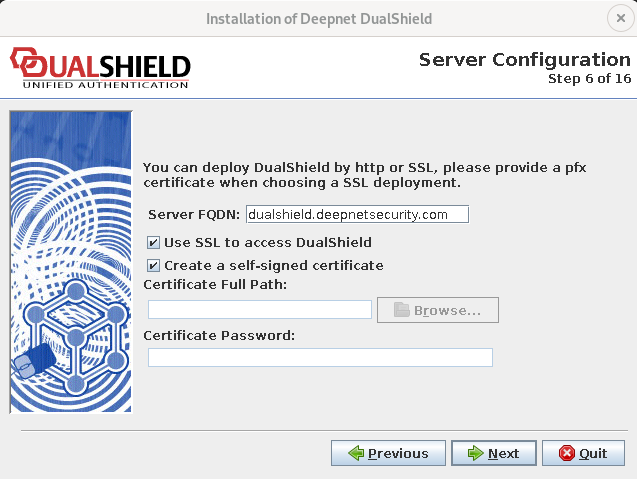
Server FQDN
You must provide a Fully Qualified Domain Name (FQDN) for the DualShield platform. This domain name will be used to access various servers and services provided by the DualShield platform, such as the Management Console, Single Sign-On server, Self-Service Console and Provisioning Service.
...
To enable the Agent Auto Registration feature, login to the DualShield Management Console, navigate to “Authentication | Agents” and click “Auto Registration” on the toolbar.
...
Once you have enabled the Agent Auto Registration feature in your DualShield server, back to the installation step you need to provide the Registration URL which is the address of your DualShield Authentication Sever in the form of a URL:
...
Step 7: JVM Configuration
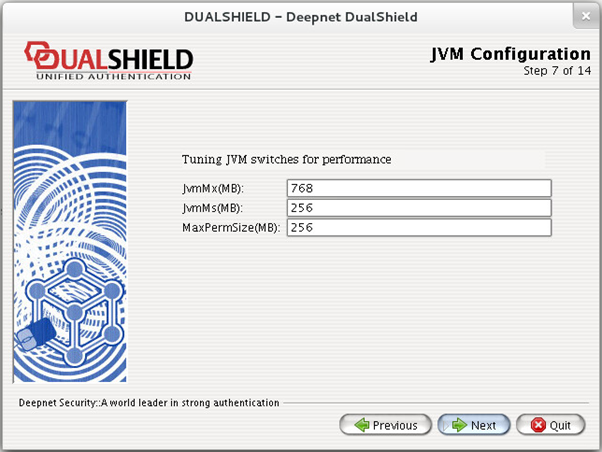
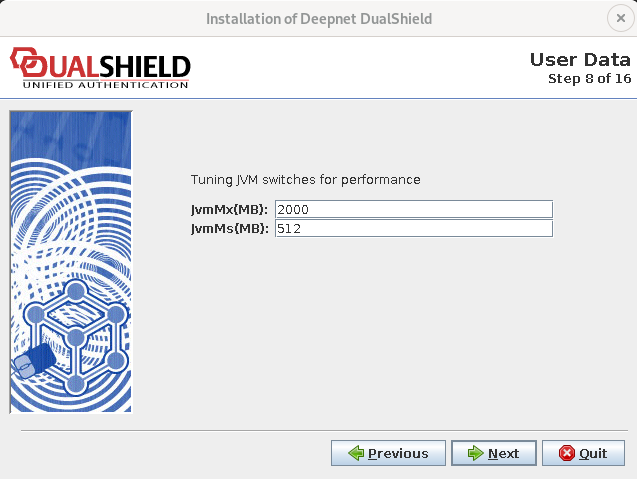
This page is for optimising the Java Virtual Machine (JVM) performance.
...
Step 8: Database Encryption Configuration
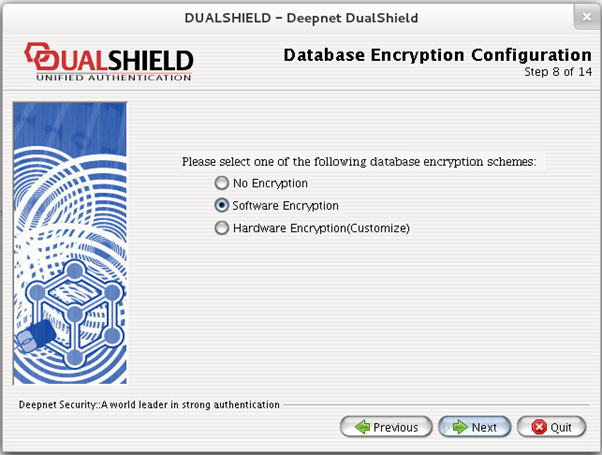
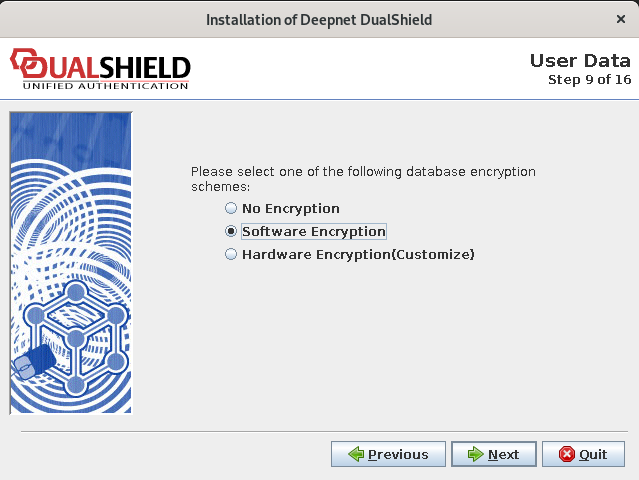
If you are planning to use a Hardware Security Module (HSM) to encrypt the database, then select the option: Hardware Encryption.
...
This page is for configuring Hardware Security Module only. If you selected No Encryption or Software Encryption in the previous step, then you will not see this page.
Step 1011: Database Connection
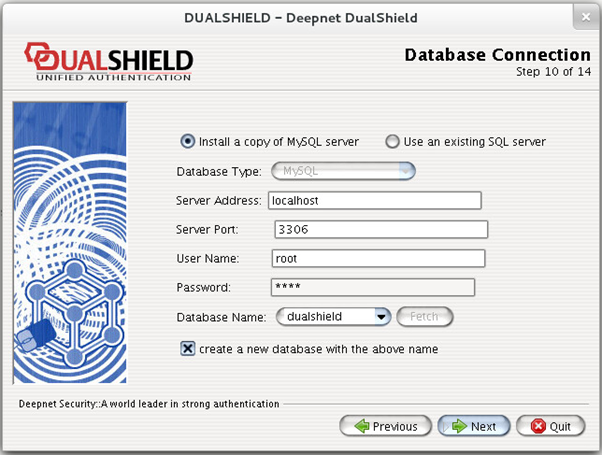
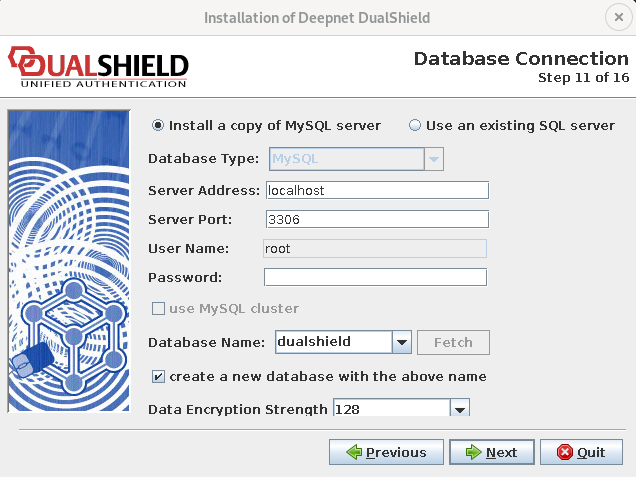
On this page, you need to first select the type of the database engine and then provide the following settings:
...
You can click the “Fetch” button to retrieve a list of databases that are already present in the database server.
Step 1112: Configuration Summary
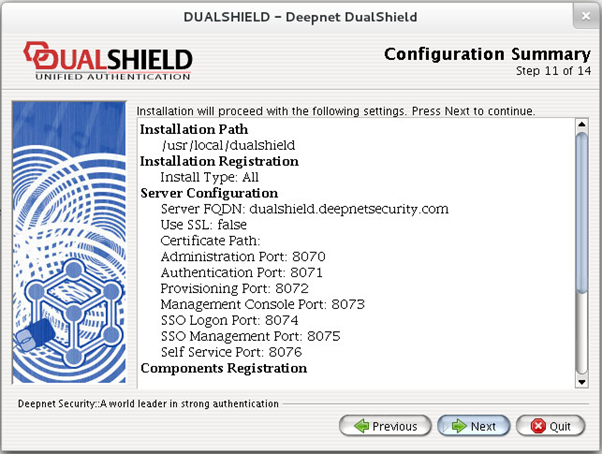
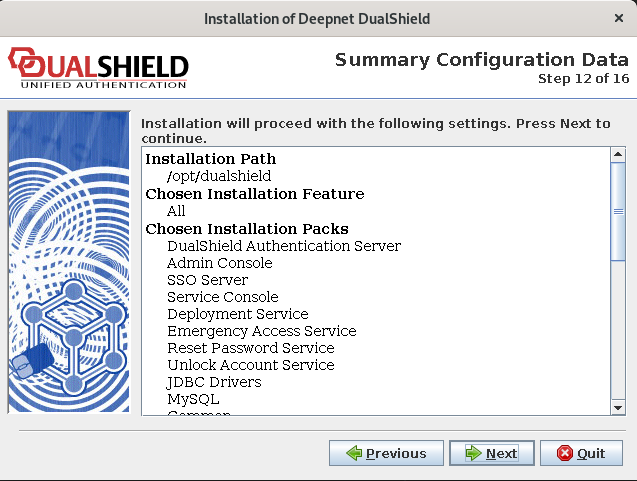
The DualShield platform consists of the following servers and services:
...
For the purpose of security and flexibility, those servers and services run on different ports. The installer has automatically selected port numbers for these servers and services for you. Please make a note of these ports as you might need to use some of them later when setting up authentication agents.
Step 1213: Installing
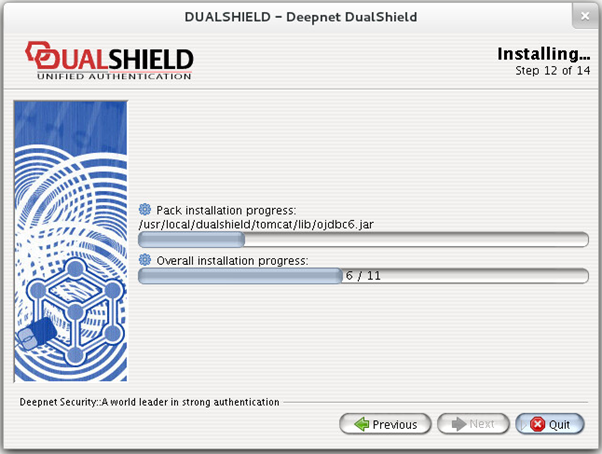
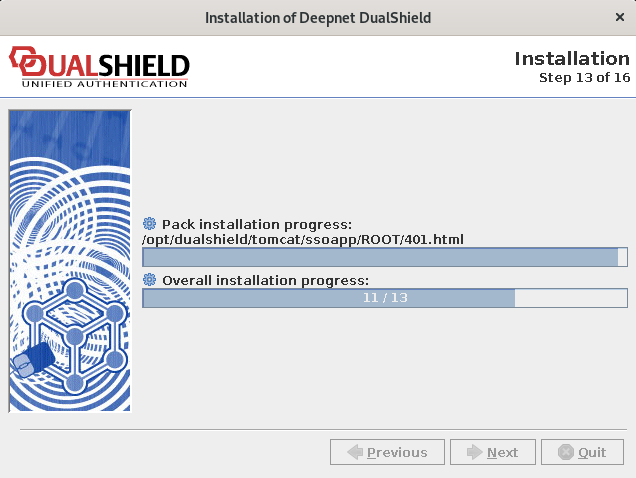
This process unpacks and copies files to your machine.
Step 1314: Perform External Processes
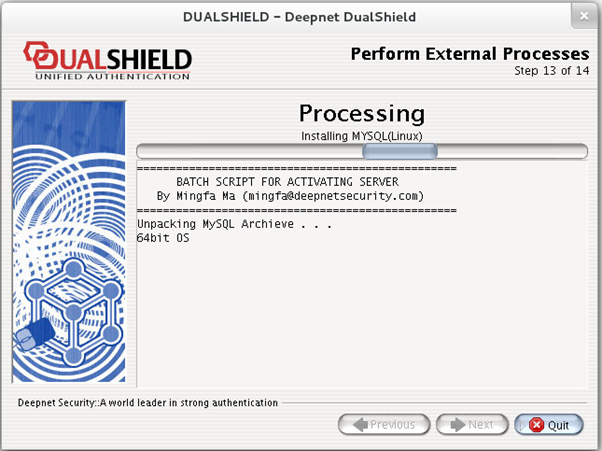
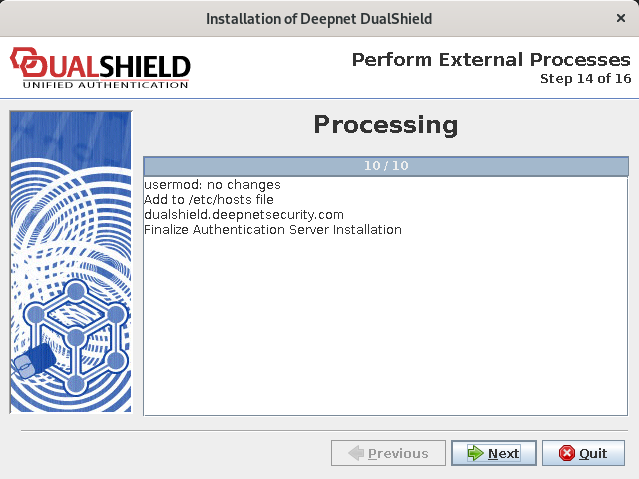
This process installs the database engine service and the DualShield authentication service.
Step 1416: Installation Completed