...
Expand title Navigate to the push token templates window Expand title Navigate to Configuration | Templates Include Page Navigate to
'
Templates'
[
MC-NAV] Navigate to
'
Templates'
[
MC-NAV] - A new tab "Templates" will now open.
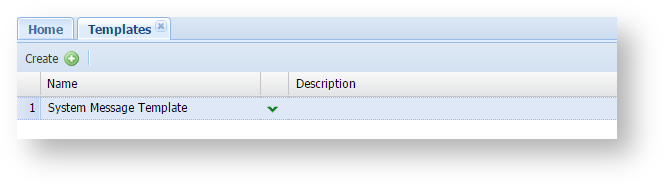
- Left click on context menu of "System Message Template", then select "Messages", then select "Push Token".
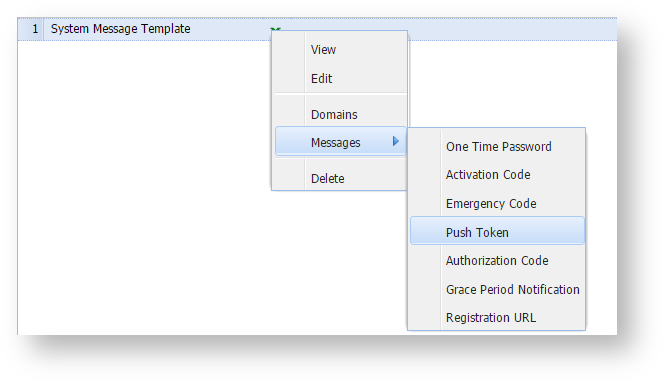
- A new window now opens titled "Push Token Templates".
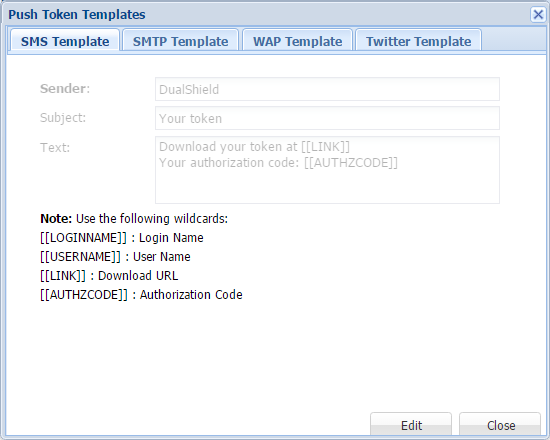
- You have now navigated to the "Push Token Templates" window.
- Select the tab "SMTP Template", then click on the "Edit" button;
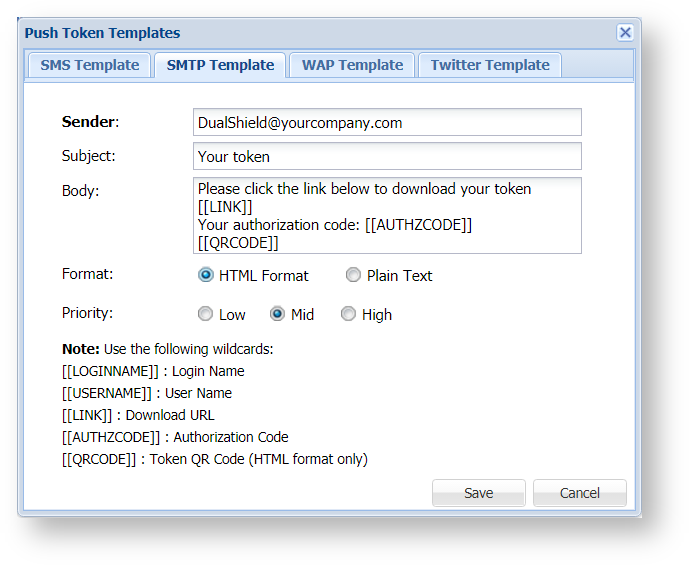
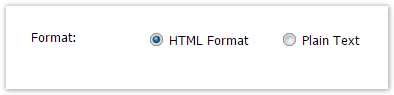
- At the prompt "Format:" ensure "HTML Format" is selected;
- At the prompt "Body:" include the text "[[QRCODE]]".

If the authorization code is not required, then remove "Your authorization code: [[AUTHZCODE]]" from the message body.
- Click on the "Save" button to update the SMTP Template for pushed emails.
...