...
Using the Management Console, Navigate to "Customisation | Message Templates";

- A new tab "Message Templates" will now open.
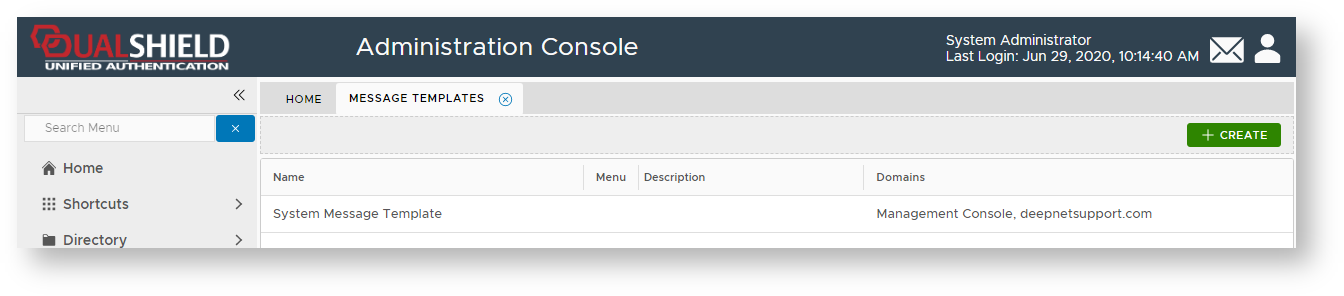
- Left click on context menu of the message template "System Message Template", then select "Push Token";
- .Select the tab "SMTP Template", then click on the "Edit" button;
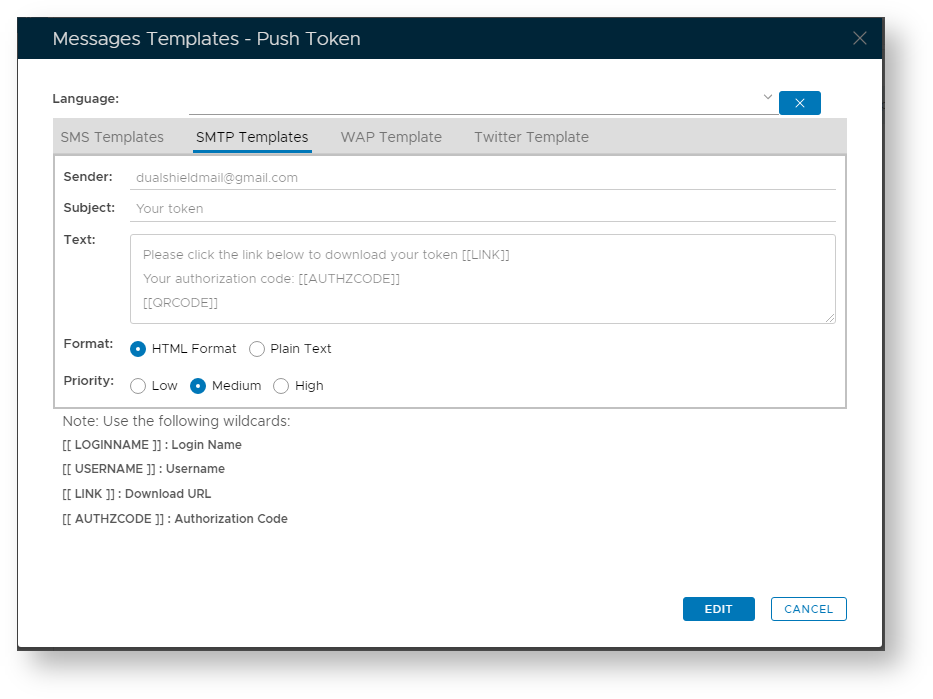
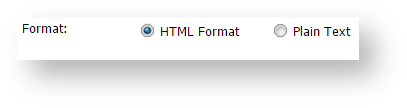
- At the prompt "Format:" ensure "HTML Format" is selected;
- At the prompt "Body:" include the text "[[QRCODE]]";
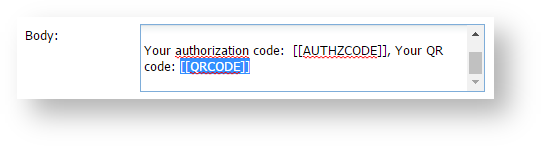
If the authorization code is not required, then remove "Your authorization code [[AUTHZCODE]]" from the message body.
- Click on the "Save" button to update the SMTP Template for pushed emails.
...
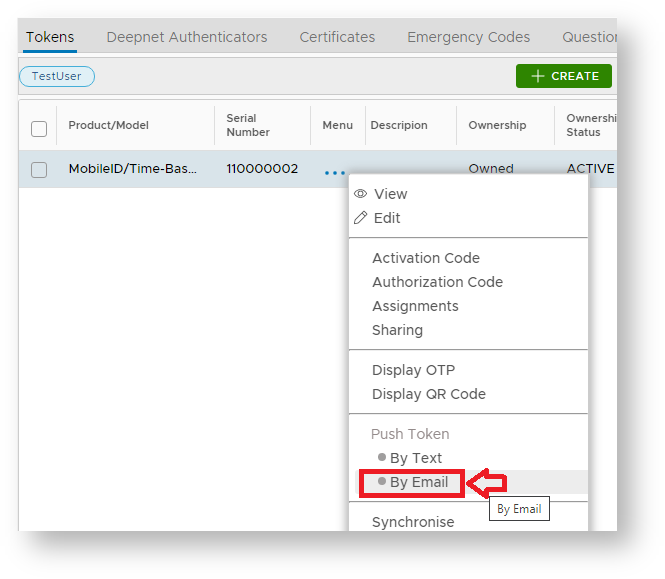
The token details for the selected user will now be show, left click on the context menu of the token to be pushed to the user then select the message channel to send the token (normally "By Email");
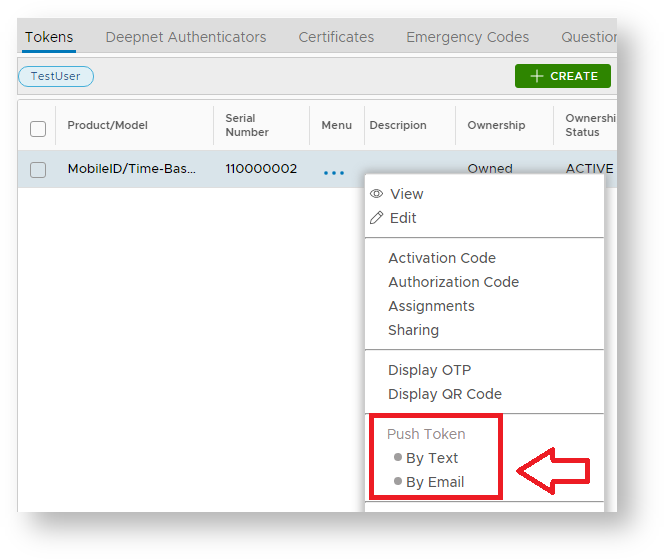
The QR code for the selected token will now be sent to the user by the selected message channel.
...