...
| Section |
|---|
|
| Column |
|---|
A list of Access Control policies will appear underneath, If you have not yet created one then only the default system policy will display. The default policy allows system-wide access to all applications at any time, by all users.
Do Not Delete or Edit the default system policy. Making any changes to this policy could result in you not being able to access the Administration Console even using the System Admin account.
It is best practice to create a separate policy.
Click the Create button on the top right.
|
| Column |
|---|
|
| Panel |
|---|
| 
|
|
|
There are two parts to creating the Location policy. In this example, the first part will be setting up a domain-held policy, for email access.
| Section |
|---|
|
| Column |
|---|
| Option | Value |
|---|
| Category | Access Control - IPLocation / Location(IPv6) | | Holder | Domain | | Domain | Select your domain | | Name | Specify a name that describes the policy | | Description | (Optional) | | Enabled | Check to enable the policy | | Application | Specify Application(s) or leave blank if the policy applies to all applications |
|
| Column |
|---|
|
| Panel |
|---|
| 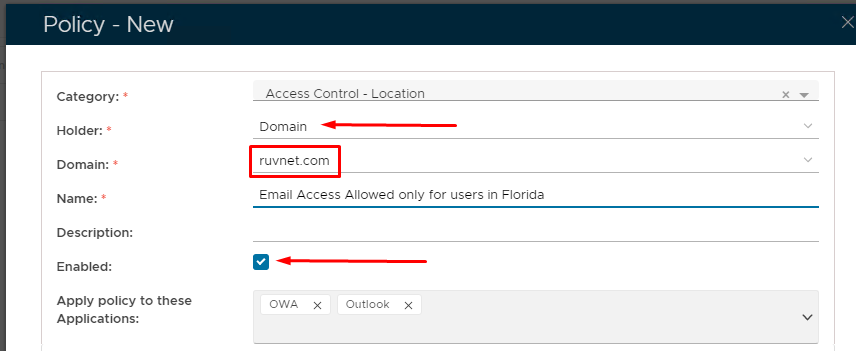 Image Added Image Added
|
|
|
The second part is for setting the geographical location where access to the Applications will be accessed or denied. In this, email can only be accessed by end-users based in London; England
| Section |
|---|
|
| Column |
|---|
Click on the Drop Down Arrow next to Countries and Cities Click on the Cogwheel corresponding with the access or denied countries or Cities In the Select Area window select Country Name; State/Province; City using the corresponding drop-down arrows. Click Add. You can add as many as you need.
|
| Column |
|---|
|
| Panel |
|---|
| 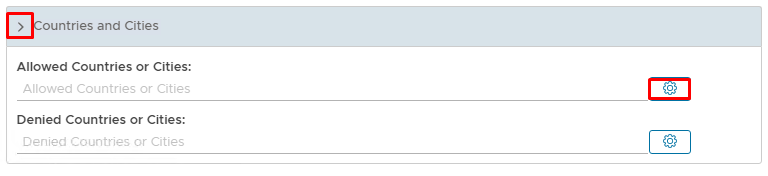 Image Added Image Added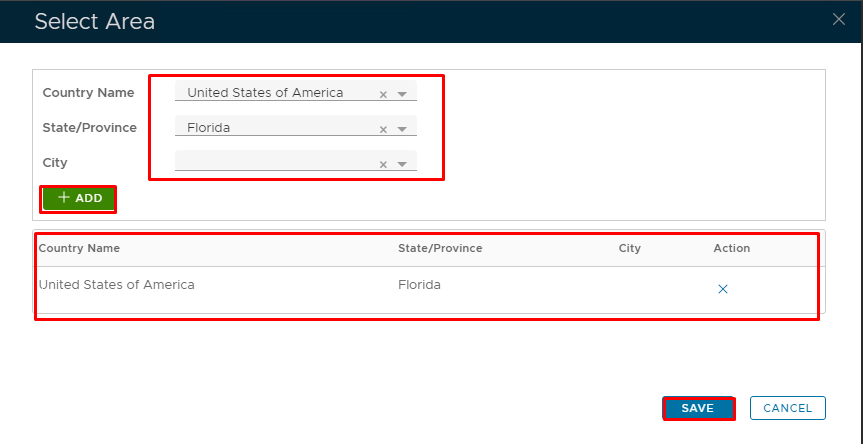 Image Added Image Added
|
|
|
There are two parts to creating the Location policy. In this example, the first part will be setting up a domain-held policy, for email access.
| Section |
|---|
|
| Column |
|---|
| Option | Value |
|---|
| Category | Access Control - Location / Location(IPv6) | | Holder | Domain | | Domain | Select your domain | | Name | Specify a name that describes the policy | | Description | (Optional) | | Enabled | Check to enable the policy | | Application | Specify Application(s) or leave blank if the policy applies to all applications | | Access | Allowed | | IP Addresses dropdown | Click once on this to view options in the drop-down | | IP Addresses | Type in a single or a range of IP addresses |
|
| Column |
|---|
|
| Panel |
|---|
| 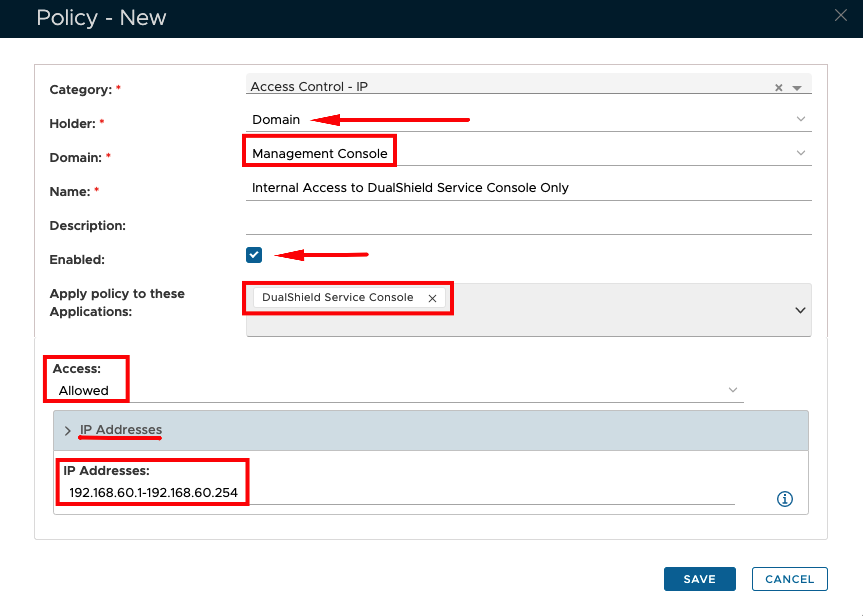 Image RemovedImage Added Image RemovedImage Added
|
|
|
| Section |
|---|
|
| Column |
|---|
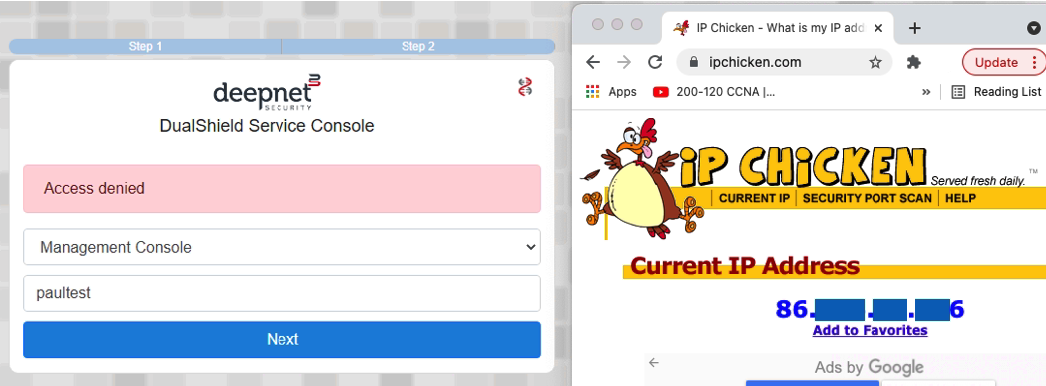
After setting up the policies as above, if an attempt is made to log on to Dualshield Service Console from a PC that is outside of the scope of the IP range set, then access will be denied. |
| Column |
|---|
|
| Panel |
|---|
| 
|
|
|
...