...
| Section |
|---|
|
| Column |
|---|
Launch Mobility Client on the end-user device, and click Connect. |
| Column |
|---|
|
| Panel |
|---|
| borderColor | #9EBEE5 |
|---|
| bgColor | #FFFFFF |
|---|
| borderWidth | 1px |
|---|
| Mobilty Client Graphic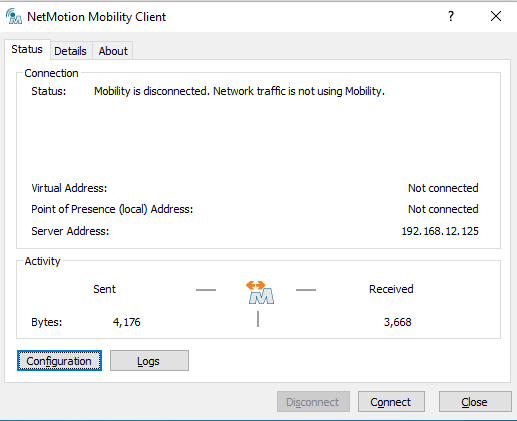 Image Added Image Added |
|
|
| Section |
|---|
|
| Column |
|---|
You may get a prompt regarding Device Certificate Logon. This is covered on another page For User Authentication click I do not have a valid certificate
|
| Column |
|---|
|
| Panel |
|---|
| borderColor | #9EBEE5 |
|---|
| bgColor | #FFFFFF |
|---|
| borderWidth | 1px |
|---|
| Certificate Logon Graphic |
|
|
Add Logon StepsYou will now be prompted for the logon steps as specified in your Logon Procedure (see Build a Logon Procedure and Application for NetMotion)
| Section |
|---|
|
| Column |
|---|
Select the drop down menu corresponding to the Logon Procedure you will be using and click on Logon Steps.In this example, the first step is to enter your AD account credentials |
| Column |
|---|
|
| Panel |
|---|
| borderColor | #9EBEE5 |
|---|
| bgColor | #FFFFFF |
|---|
| borderWidth | 1px |
|---|
| 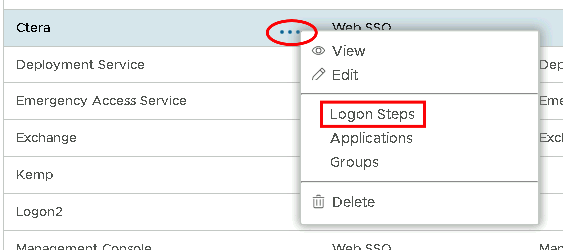 Image Removed Image Removed
|
|
|
...
| Section |
|---|
|
| Column |
|---|
Tick the desired authentication method, e.g. Static You will then be asked to put in the second factor which is the One-Time Password
| Column |
|---|
|
| Panel |
|---|
| borderColor | #9EBEE5 |
|---|
| bgColor | #FFFFFF |
|---|
| borderWidth | 1px |
|---|
| 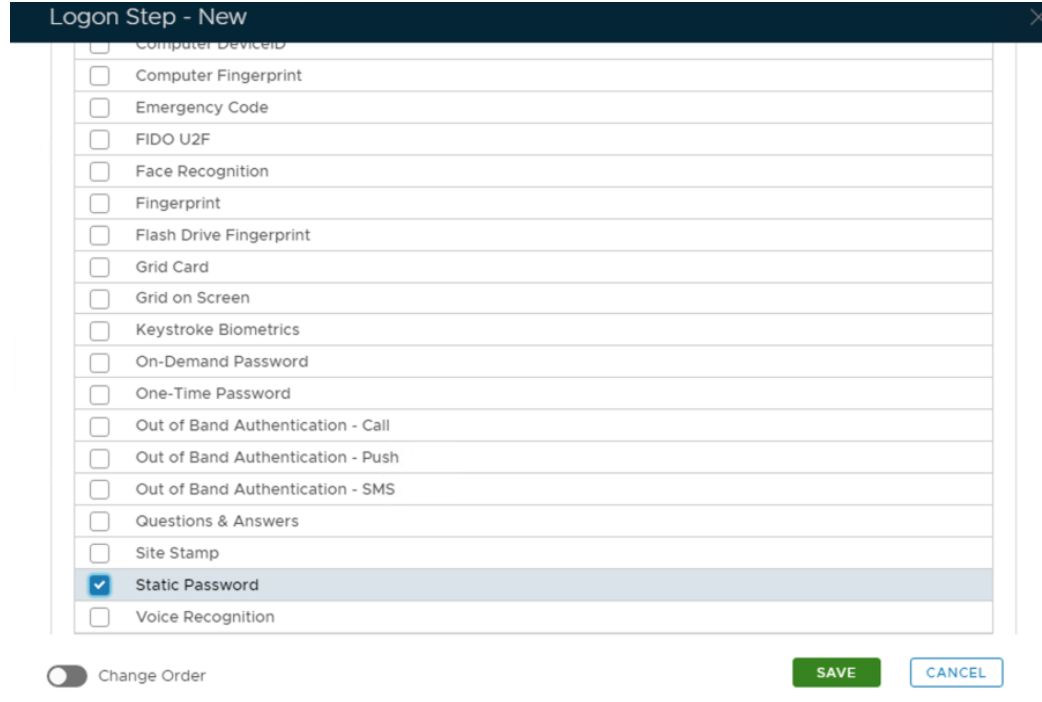 Image Removed Image Removed
|
|
|
...
Repeat to add extra steps.
| Section |
|---|
|
| Column |
|---|
| I have added two steps; Static Password and One-Time Password |
| Column |
|---|
|
| Panel |
|---|
| borderColor | #9EBEE5 |
|---|
| bgColor | #FFFFFF |
|---|
| borderWidth | 1px |
|---|
| 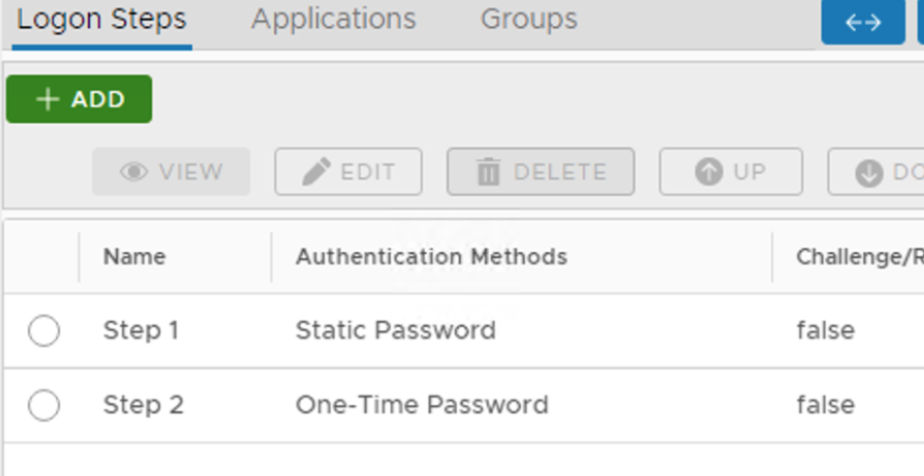 Image Removed Image Removed |
|
|
...
| Section |
|---|
|
| Column |
|---|
Authentication> ApplicationsIf successful the status on the Mobility client should show as Connected |
| Column |
|---|
|
| Panel |
|---|
| borderColor | #9EBEE5 |
|---|
| bgColor | #FFFFFF |
|---|
| borderWidth | 1px |
|---|
| 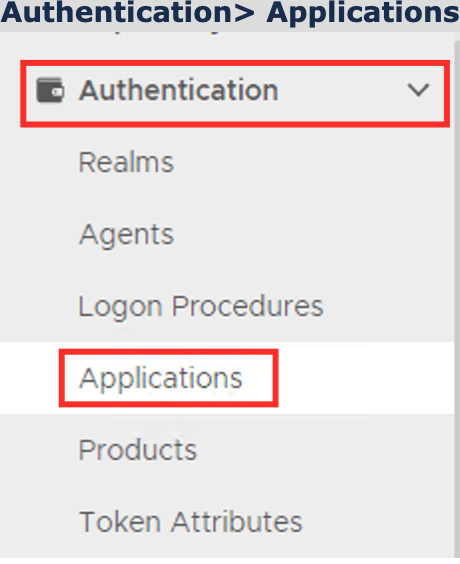 Image Removed Image Removed
|
|
|
...
| Section |
|---|
|
| Column |
|---|
The established connection will also appear on the Netmobilitty server under Connections>Connected Devices
|
In the new Application window, please enter the following information: | Option | Value |
|---|
| Name: | Enter a friendly name | | Realm: | Select your Realm | | Logon Procedure: | Select the Logon Procedure you had created in the previous step | Click: Save | Column |
|---|
|
| Panel |
|---|
| borderColor | #9EBEE5 |
|---|
| bgColor | #FFFFFF |
|---|
| borderWidth | 1px |
|---|
| 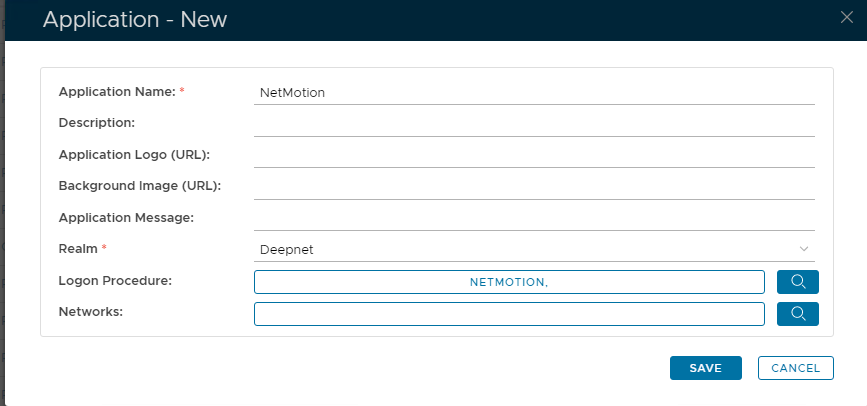 Image Removed Image Removed |
|
|
|
Bind the Application to a RADIUS Server Agent
...