...
| Section |
|---|
|
| Column |
|---|
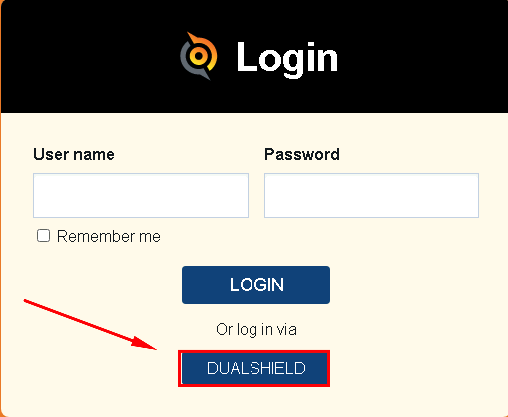
Click on the 'log in via' Button. (The name on the button should match the one set under the IDP list in the SAML configuration.)
|
| Column |
|---|
|
| Panel |
|---|
| borderColor | #9EBEE5 |
|---|
| bgColor | #f0f0f0 |
|---|
| borderWidth | 1px |
|---|
| 
|
|
|
Create a Service Provider ProfileYou will be redirected to the DualShield SSO screen.
| Section |
|---|
|
| Column |
|---|
Go to SSO>Service ProvidersEnter your username and click Next. |
| Column |
|---|
|
| Panel |
|---|
| borderColor | #9EBEE5 |
|---|
| bgColor | #f0f0f0 |
|---|
| borderWidth | 1px |
|---|
| 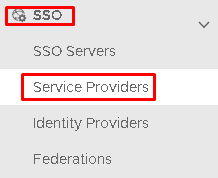 Image Removed Image Removed
|
|
|
Click on  Image Removed on the top right.
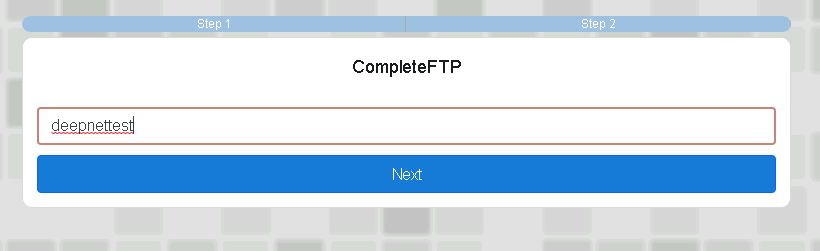 Image Added Image Added
|
|
|
| Section |
|---|
|
| Column |
|---|
You will be then prompted for the first factor of authentication which is your AD password
Please enter your AD password and click Verify. |
| Column |
|---|
|
| Panel |
|---|
| borderColor | #9EBEE5 |
|---|
| bgColor | #f0f0f0 |
|---|
| borderWidth | 1px |
|---|
| 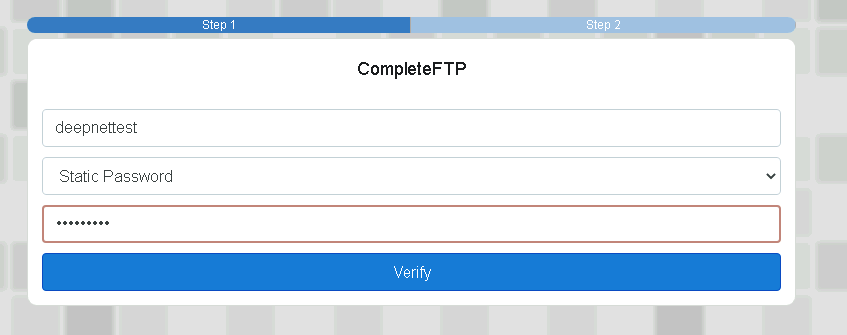 Image Added Image Added
|
|
|
| Section |
|---|
|
| Column |
|---|
Fill in the details as per screenshot on right and make sure you select SAML 2.0(Without Metadata) as Type. Enter the EntityID, ACS and SLO information, noted from the SP Metadata file. Make sure both Sign on SAML Assertion and Add 'InResonse To' Attribute checkboxes are checked. Click Save. You will then be prompted for the second factor of Authentication which in this case is your One-Time Password. Please enter the OTP and click Verify. |
| Column |
|---|
|
| Panel |
|---|
| borderColor | #9EBEE5 |
|---|
| bgColor | #f0f0f0 |
|---|
| borderWidth | 1px |
|---|
| 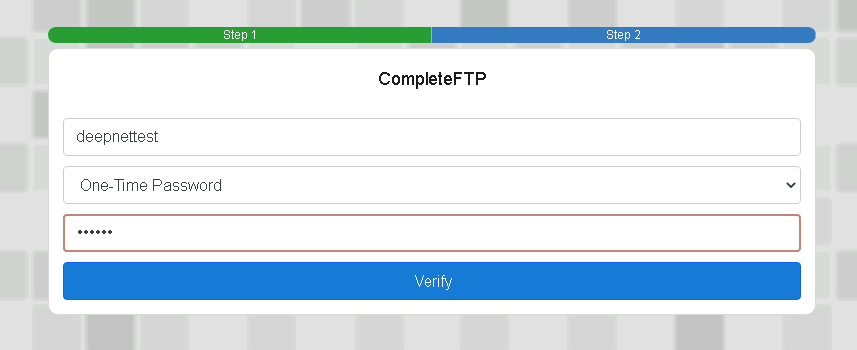 Image Added Image Added
|
|
|
| Section |
|---|
|
| Column |
|---|
If successful you will now be logged on to your CompleteFTP portal. |
| Column |
|---|
|
| Panel |
|---|
| borderColor | #9EBEE5 |
|---|
| bgColor | #f0f0f0 |
|---|
| borderWidth | 1px |
|---|
| 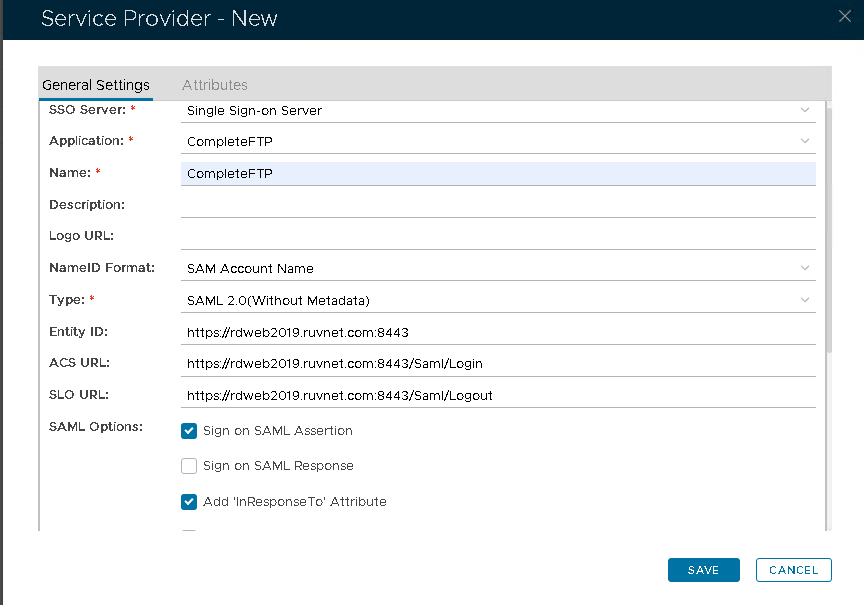 Image Removed Image Removed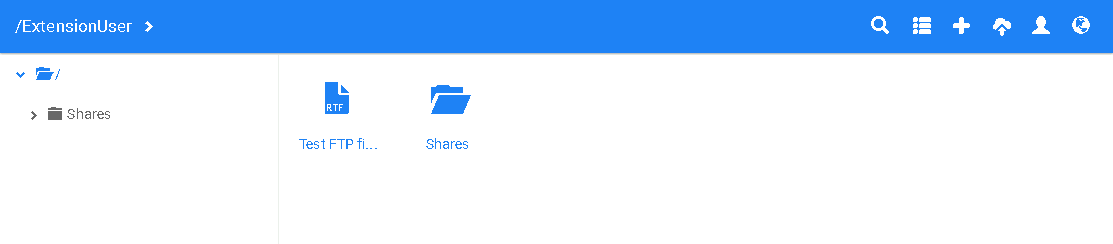 Image Added Image Added
|
|
|