...
- In the main menu, select "Authentication | Applications"
- Click the "Create" button on the toolbar
- Enter a name and select a realm
- Select the newly created logon procedure
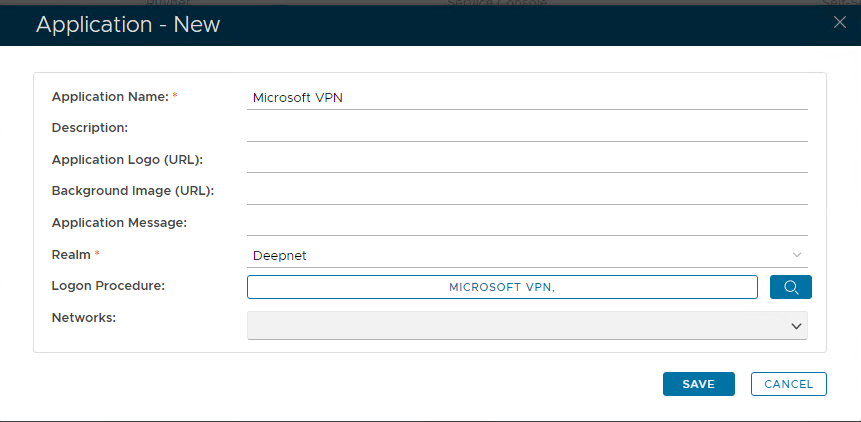
- Click "Save"
- Click the Context menu of the newly created application, select "Agent" and then select the Radius agent.
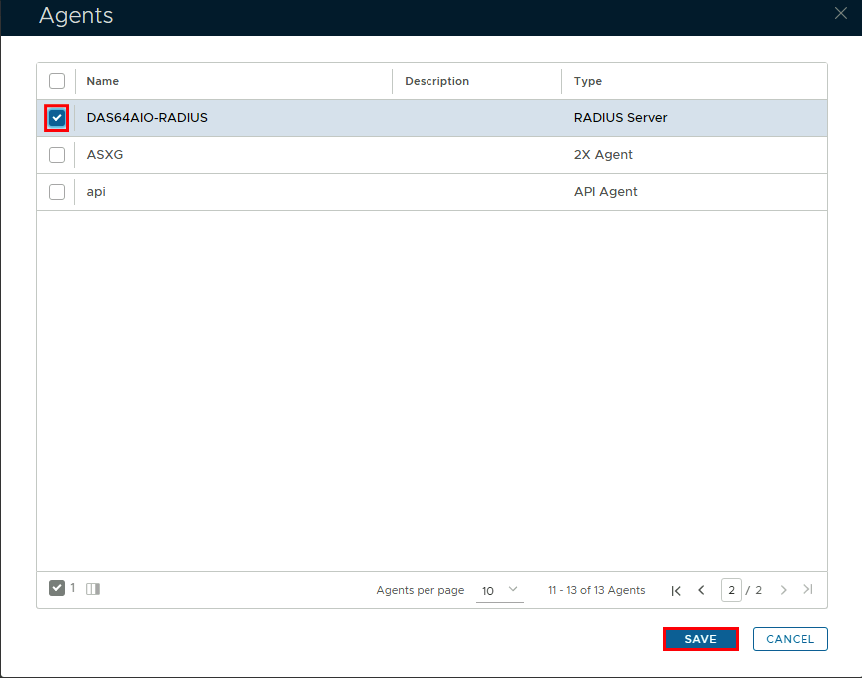
- Click "Save"
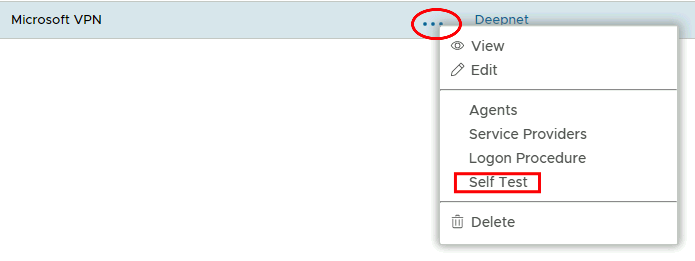
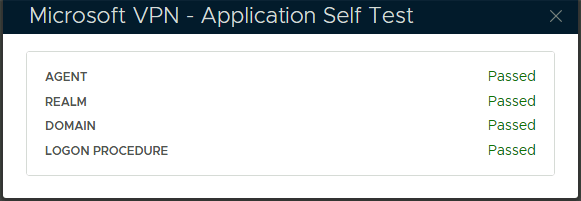
- Click on the corresponding Elipses and choose "Self Test" from the menu.
Register Network Policy Server as a Radius Client
- In the main menu, select "RADIUS | Client"
- Click the "RegisterCreate" button on the toolbar
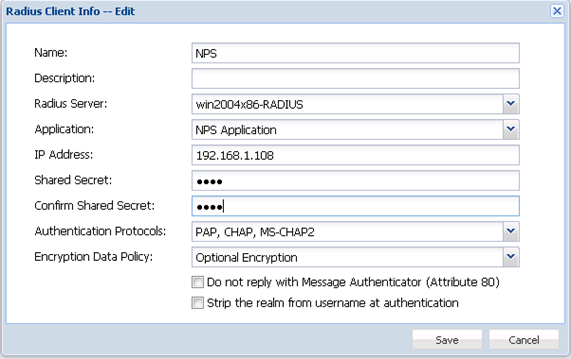 top right.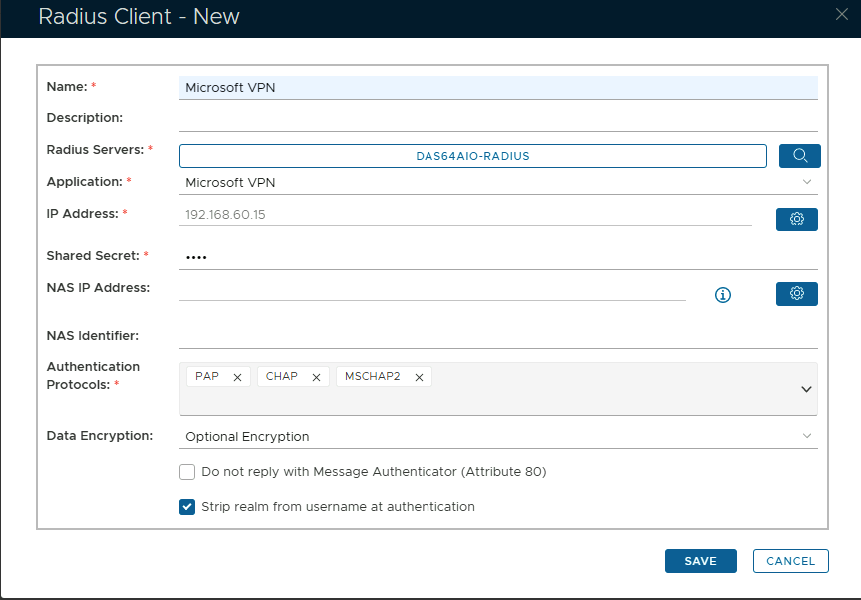
- Enter a friendly name
- Click on the magnifying glass and select the Radius Server
- Select the application that was created in the previous stepsApplication from the drop down list.
- Click on the Cogwheel to the right to enter the IP address of the Network Policy Server and click "Add" then "Save"Enter Network Policy Server’s IP in the IP address field
- Enter the Share Secret which will be used in Network Policy Server
- Select "MSCHAP2" as the Authentication Protocol
- Click "Save"