...
7. In the Metadata box, enter the metadata of the service provider to be created. (*see template below)
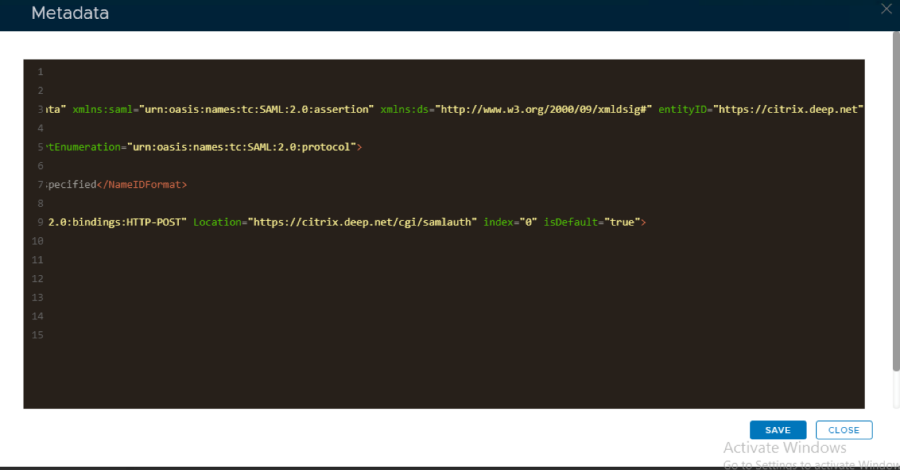
- Use the template the template below to create the metadata. Change the value of the " entityID" and "Location" , ACS and SLO location attributes (highlighted in red) to the FQDN of your Citrix Gateway Virtual Server.
<?xml version="1.0" encoding="UTF-8" ?>
com
<EntityDescriptor xmlns="urn:oasis:names:tc:SAML:2.0:metadata" xmlns:saml="urn:oasis:names:tc:SAML:2.0:assertion" xmlns:ds="http://www.w3.org/2000/09/xmldsig#" entityID="https://citrix.gateway.fqdn">
<NameIDFormat>urn
<SPSSODescriptor WantAssertionsSigned="true" protocolSupportEnumeration="urn:oasis:names:tc:SAML:2.0:protocol"><NameIDFormat>urn:oasis:names:tc:SAML:1.1:nameid-format:
unspecified<unspecified</NameIDFormat>
com
<AssertionConsumerService Binding="urn:oasis:names:tc:SAML:2.0:bindings:HTTP-POST" Location="https://citrix.gateway.fqdn/cgi/samlauth" index="0" isDefault="true">
</AssertionConsumerService>
<SingleLogoutService
Binding="urn:oasis:names:tc:SAML:2.0:bindings:HTTP-Redirect"
Location="https://citrix.gateway.fqdn/cgi/logout" /></SPSSODescriptor>
</EntityDescriptor>
Click Save.
8. Enable Sign on SAML Assertion under SAML Option
...