...
Enable SSO Federation in Office 365
Run Windows PowerShell as administrator
If you had to download the metadata file, then execute the following command in Office 365 PowerShell
| Code Block | ||
|---|---|---|
| ||
.\setup-o365-sso.ps1 -protocol WSFED -domain 'o365 domain name' -appname 'application name' -spname 'service provider name' -metadata '.\sso metadata file' |
Otherwise, execute the following command in PowerShell
| Code Block | ||
|---|---|---|
| ||
.\setup-o365-sso.ps1 -protocol WSFED -domain 'o365 domain name' -appname 'application name' -spname 'service provider name' -fqdn 'DualShield SSO FQDN' -port 'DualShield SSO Port' |
| Parameter | Remarks |
|---|---|
| -protocol | WSFED |
| -domain | the domain name of your Office 365 |
| -appname | the application name in DualShield for Office 365 |
| -spname | the service provider name in DualShield for Office 365 |
| -metadata | the metadata file name of your DualShield SSO |
| -fqdn | the FQDN of your DualShield SSO service |
| -port | the port number of your DualShield SSO service |
Example: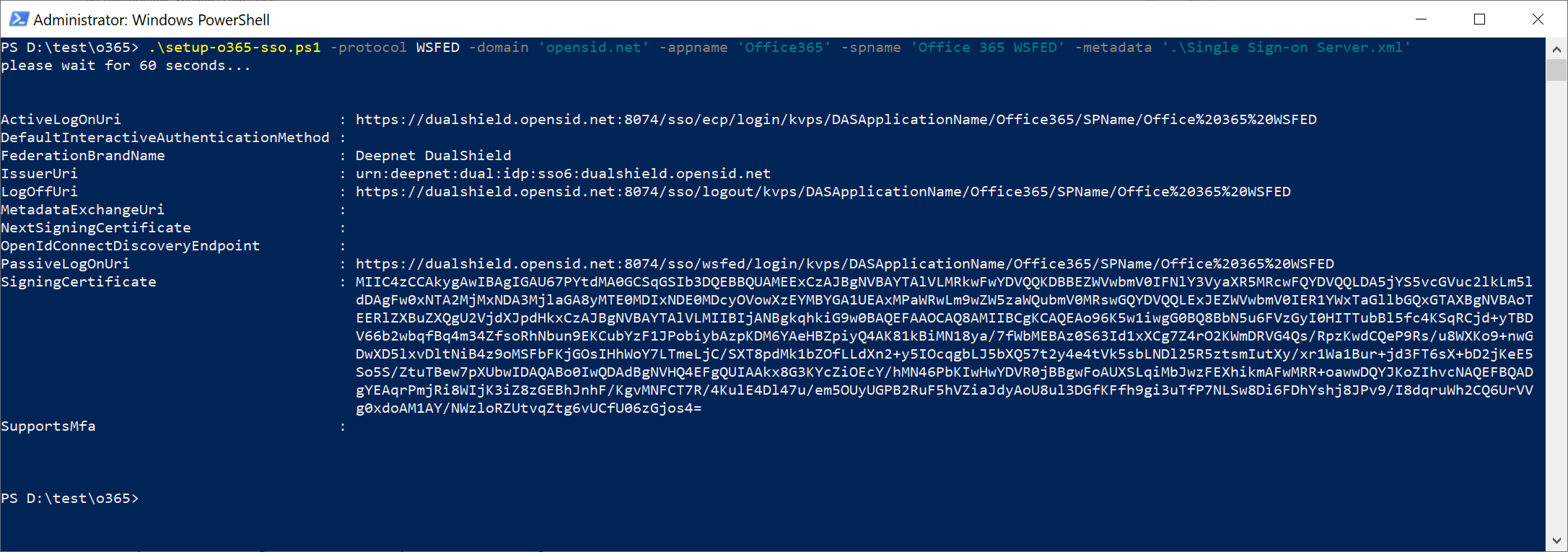
Notes:
To verify that the change was successful, run the following command:
...