| Section |
|---|
|
| Column |
|---|
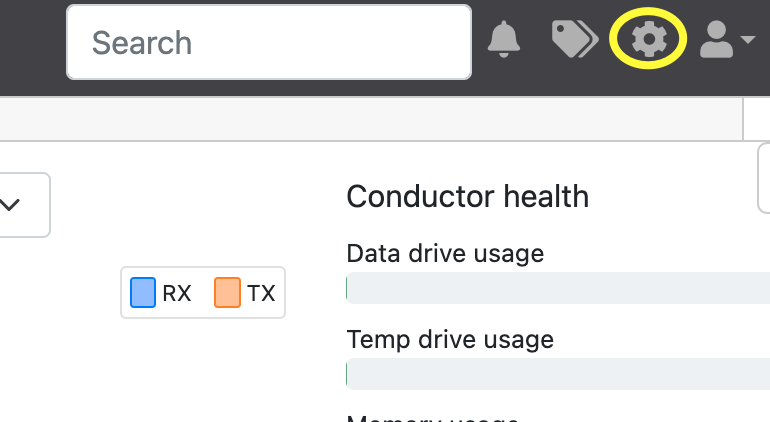
1) Log on to the Tempered Conductor Dashboard as Admin and click on the cogwheel on the top right-hand side to take you into settings. |
| Column |
|---|
|
| Panel |
|---|
| borderColor | #9EBEE5 |
|---|
| bgColor | #f0f0f0 |
|---|
| borderWidth | 1px |
|---|
| 
|
|
|
| Section |
|---|
|
| Column |
|---|
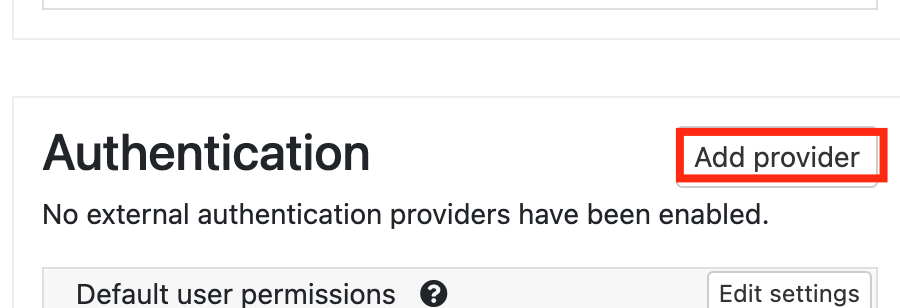
2) Scroll down to Authentication (on the right) and click on Add Providers
|
| Column |
|---|
|
| Panel |
|---|
| borderColor | #9EBEE5 |
|---|
| bgColor | #f0f0f0 |
|---|
| borderWidth | 1px |
|---|
| 
|
|
|
| Section |
|---|
|
| Column |
|---|
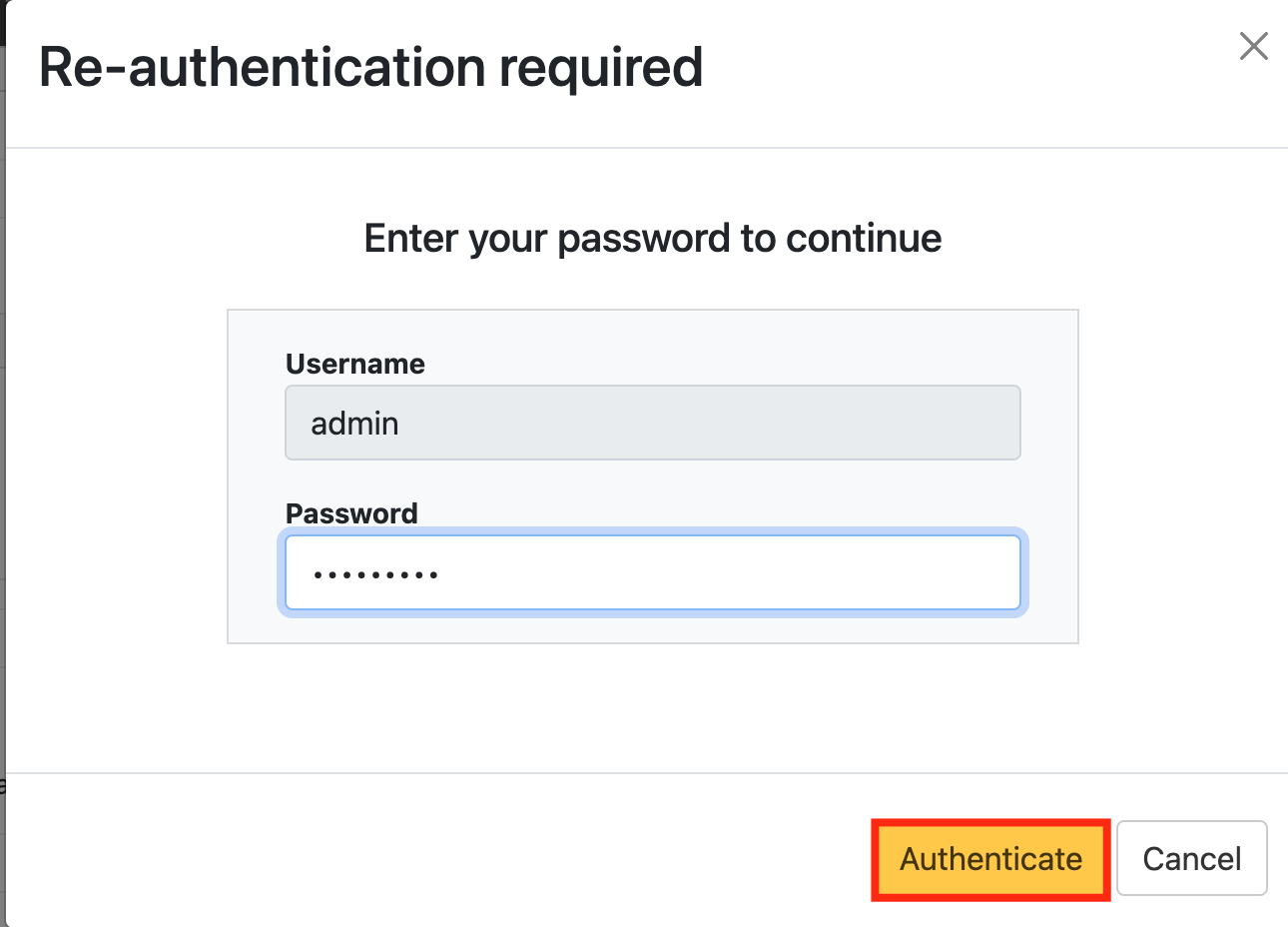
3) You will be asked to enter your admin credentials again. |
| Column |
|---|
|
| Panel |
|---|
| borderColor | #9EBEE5 |
|---|
| bgColor | #f0f0f0 |
|---|
| borderWidth | 1px |
|---|
| 
|
|
|
| Section |
|---|
|
| Column |
|---|
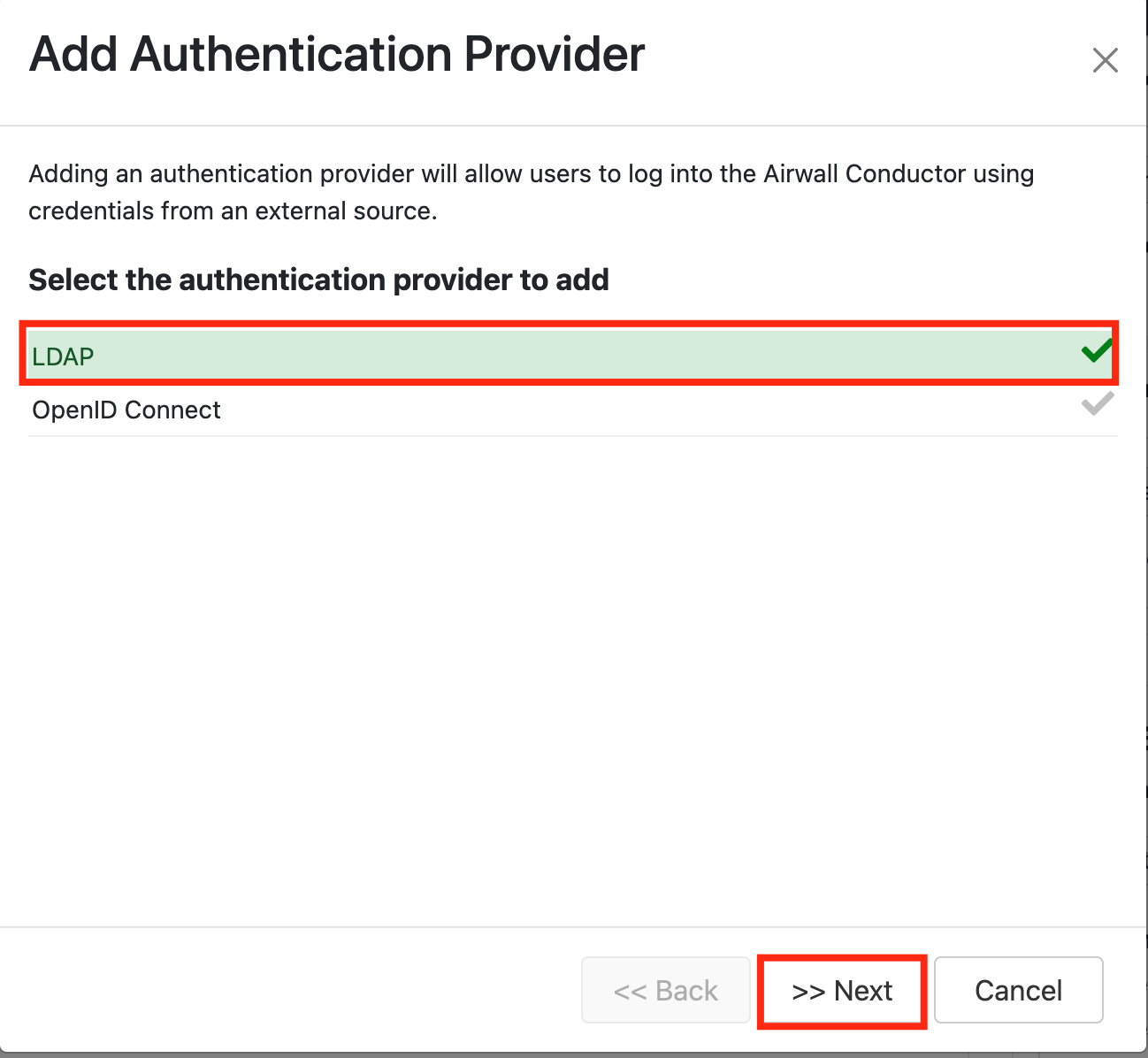
Under 'Add Authenticator Provider' Select LDAP |
| Column |
|---|
|
| Panel |
|---|
| borderColor | #9EBEE5 |
|---|
| bgColor | #f0f0f0 |
|---|
| borderWidth | 1px |
|---|
| 
|
|
|
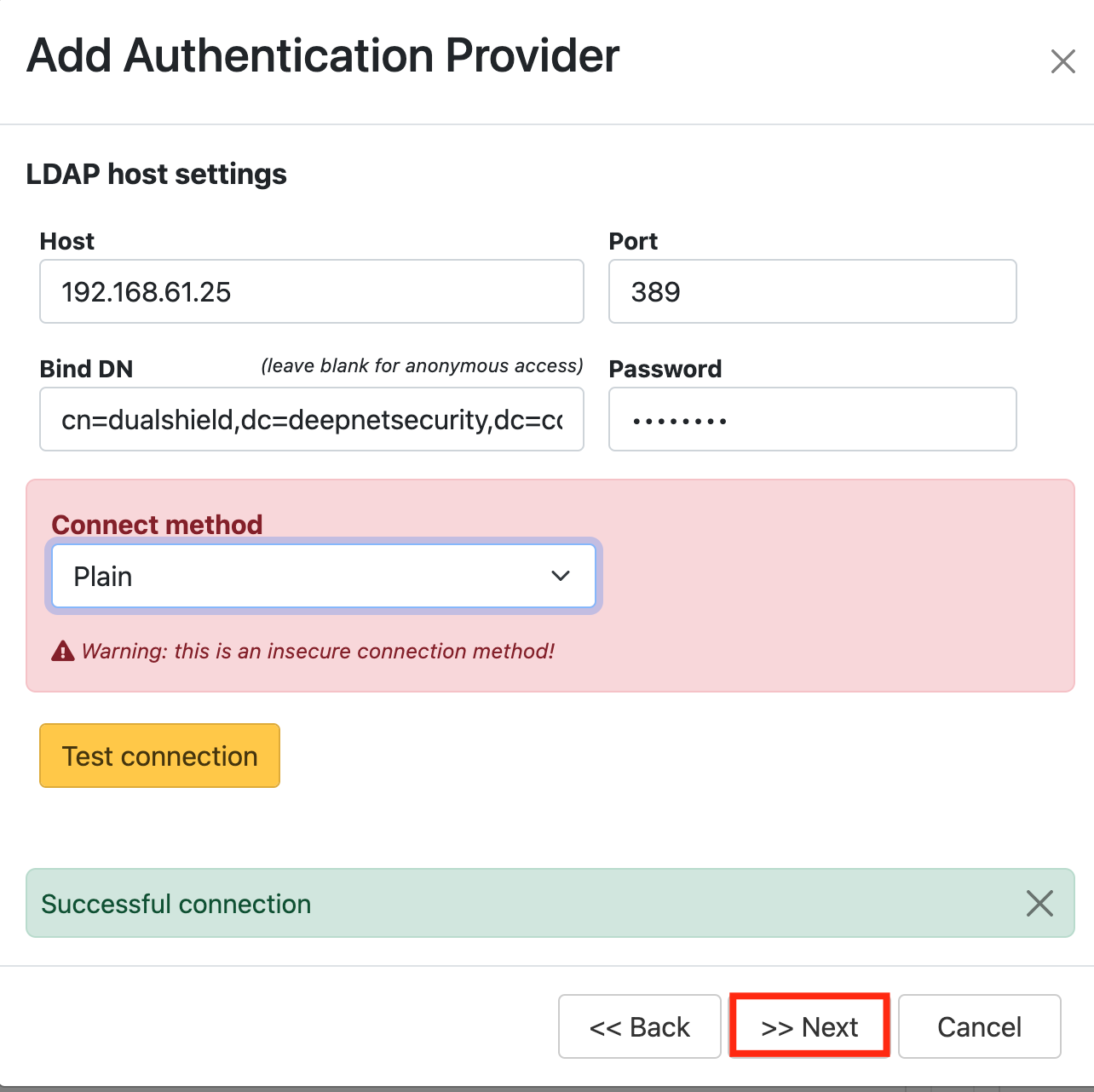
Click Next.
| Section |
|---|
|
| Column |
|---|
| Attribute | Value |
|---|
| Host | IP address of DualShield Server | | Port | 389/686 | | Bind DN | cn=dualshield,dc=deepnetsecurity,dc=com | | Password | password | | Connection method | Plain/SSL/TLS |
|
| Column |
|---|
|
| Panel |
|---|
| borderColor | #9EBEE5 |
|---|
| bgColor | #f0f0f0 |
|---|
| borderWidth | 1px |
|---|
|  |
|
|
Create an Application
| Section |
|---|
|
| Column |
|---|
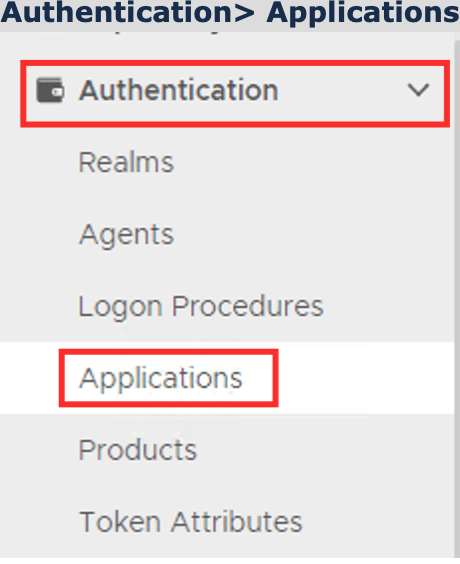
Authentication> Applications |
| Column |
|---|
|
| Panel |
|---|
| borderColor | #9EBEE5 |
|---|
| bgColor | #f0f0f0 |
|---|
| borderWidth | 1px |
|---|
| 
|
|
|
Click on  on the top right.
| Section |
|---|
|
| Column |
|---|
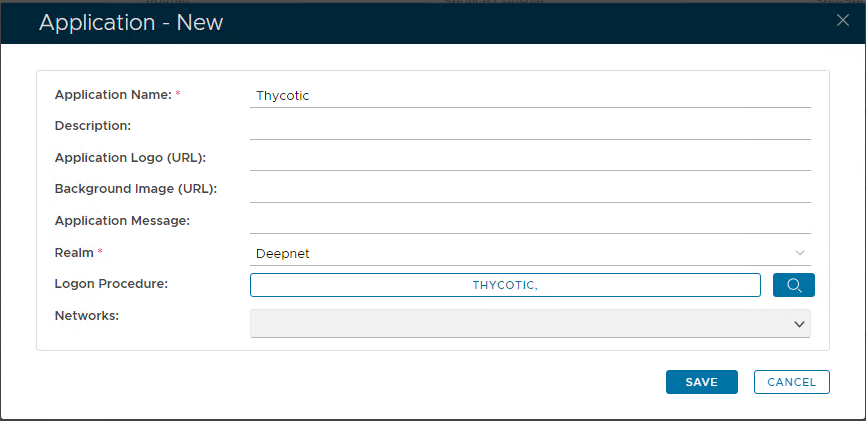
In the new Application window, please enter the following information: | Option | Value |
|---|
| Name: | Enter a friendly name | | Realm: | Select your Realm | | Logon Procedure: | Select the Logon Procedure you had created in the previous step |
Click: Save |
| Column |
|---|
|
| Panel |
|---|
| borderColor | #9EBEE5 |
|---|
| bgColor | #f0f0f0 |
|---|
| borderWidth | 1px |
|---|
| 
|
|
|
Bind the Application to an SSO Server Agent
| Section |
|---|
|
| Column |
|---|
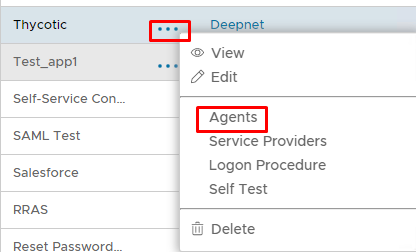
Select the drop down menu corresponding to the Application you will be using and click on Agents. |
| Column |
|---|
|
| Panel |
|---|
| borderColor | #9EBEE5 |
|---|
| bgColor | #f0f0f0 |
|---|
| borderWidth | 1px |
|---|
| 
|
|
|
| Section |
|---|
|
| Column |
|---|
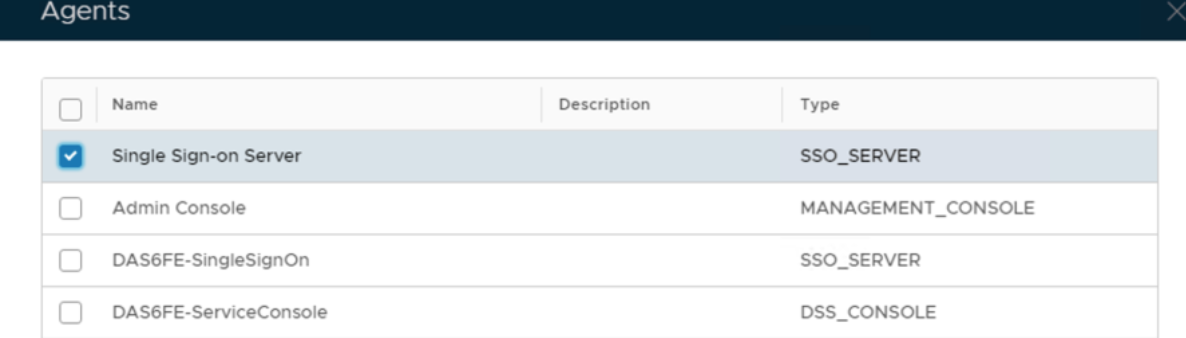
Tick the box of the SSO Server you will be using and click Save below. |
| Column |
|---|
|
| Panel |
|---|
| borderColor | #9EBEE5 |
|---|
| bgColor | #f0f0f0 |
|---|
| borderWidth | 1px |
|---|
| 
|
|
|