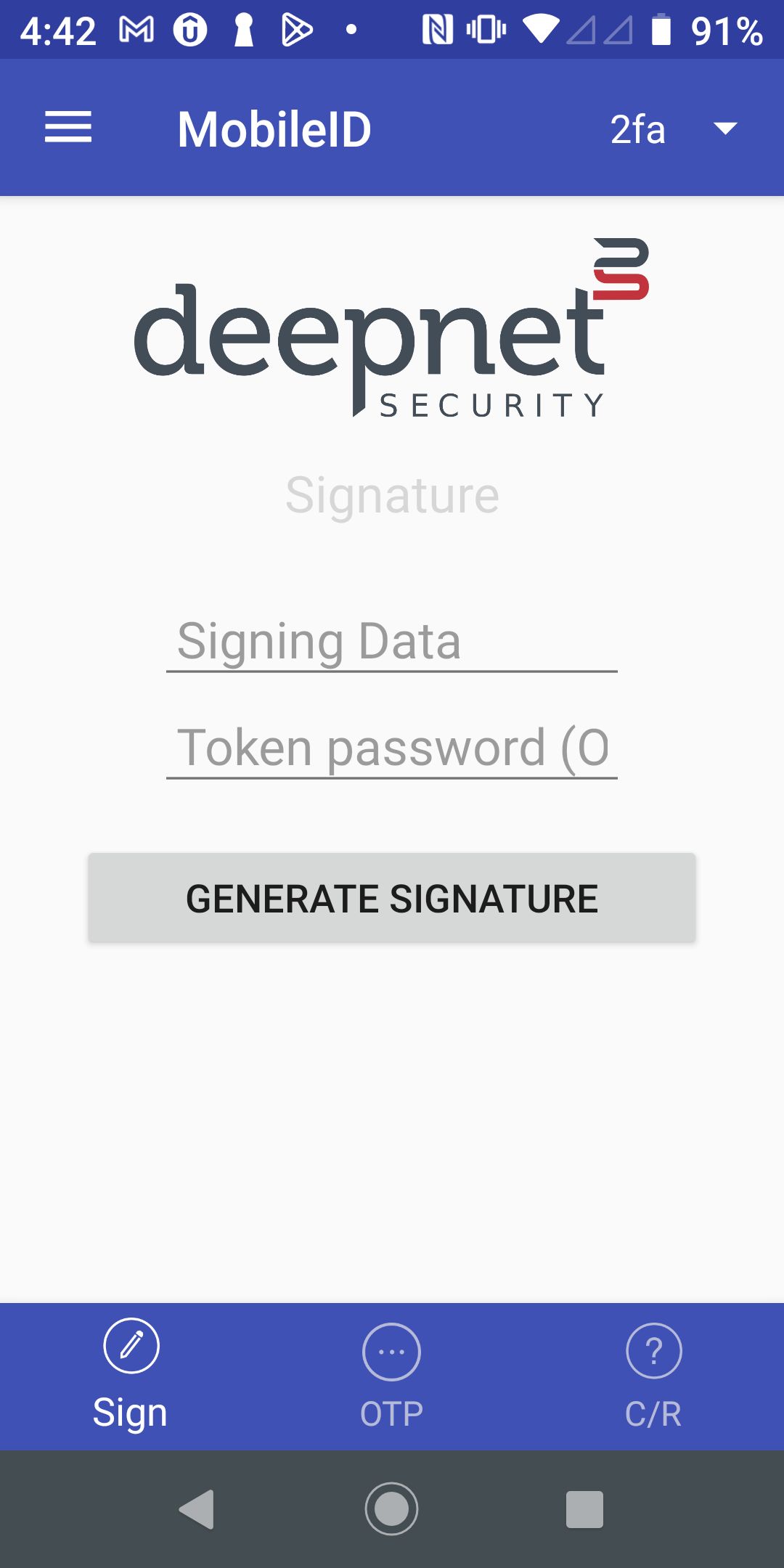
Open the MobileID on your mobile device
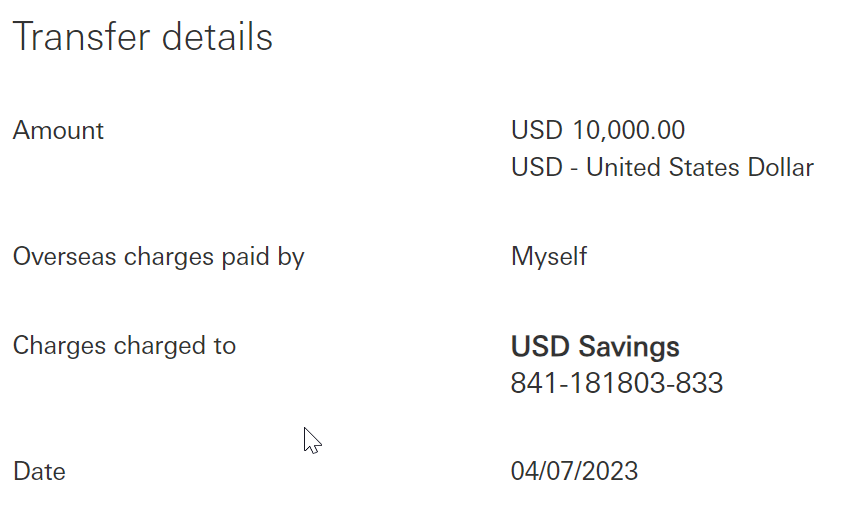
The 3rd-party application displays transaction details on screen It generates a signing data or code based on the transaction details |
Below is the Signing Data to be entered onto your MobileID app: These digits were | |||||||||||
| Select "Sign" on the bottom toolbar | |||||||||||
| generated based on the payee account number. Please verify and | the amount to be paid.never enter digits that are unknown to you. | ||||||||||
The user opens the Mobile app, and switches to the Sign page |
| |||||||||||
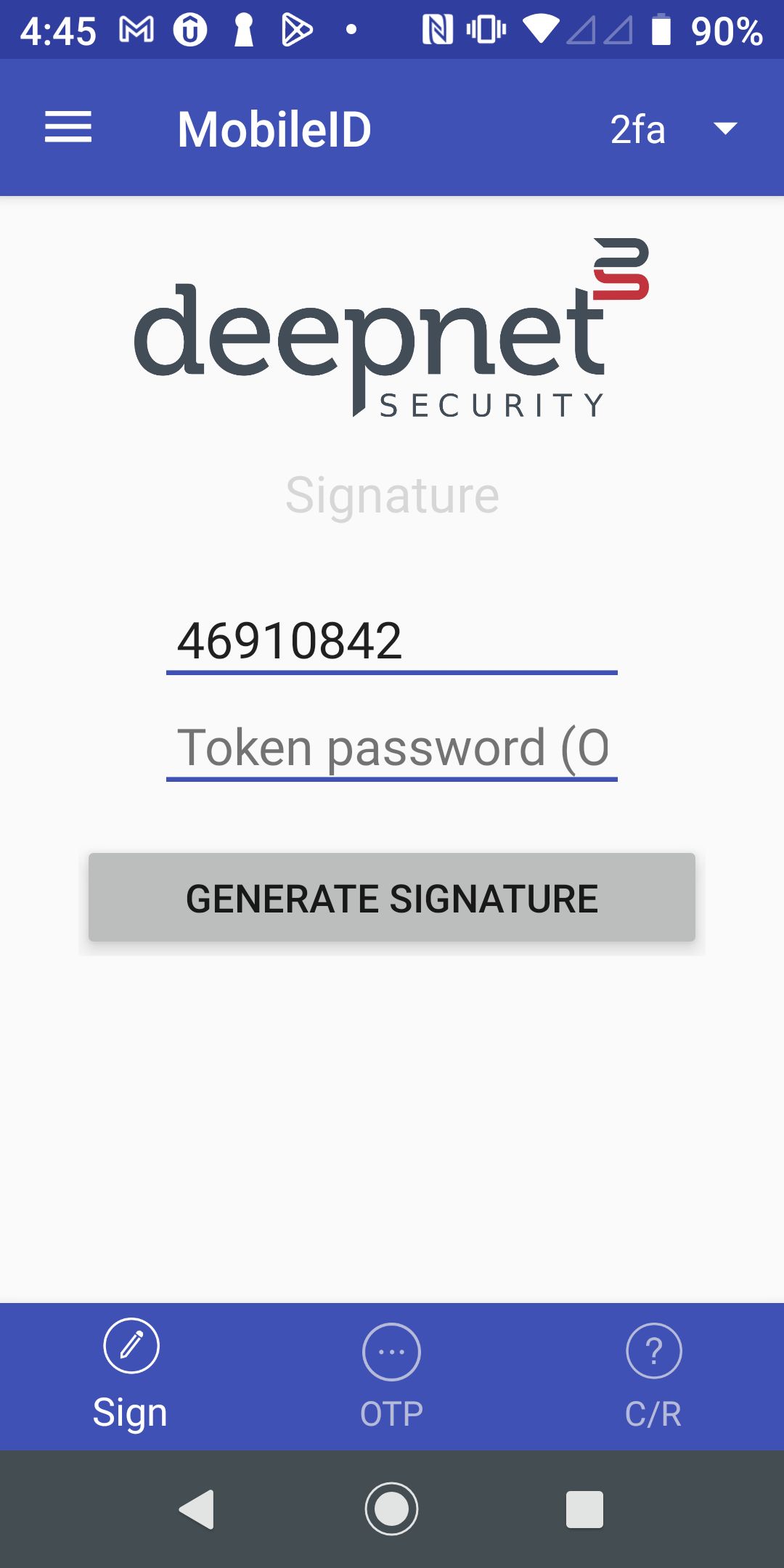
The user enters the signing data, e.g. 46910842 |
| |||||||||||
The user presses |
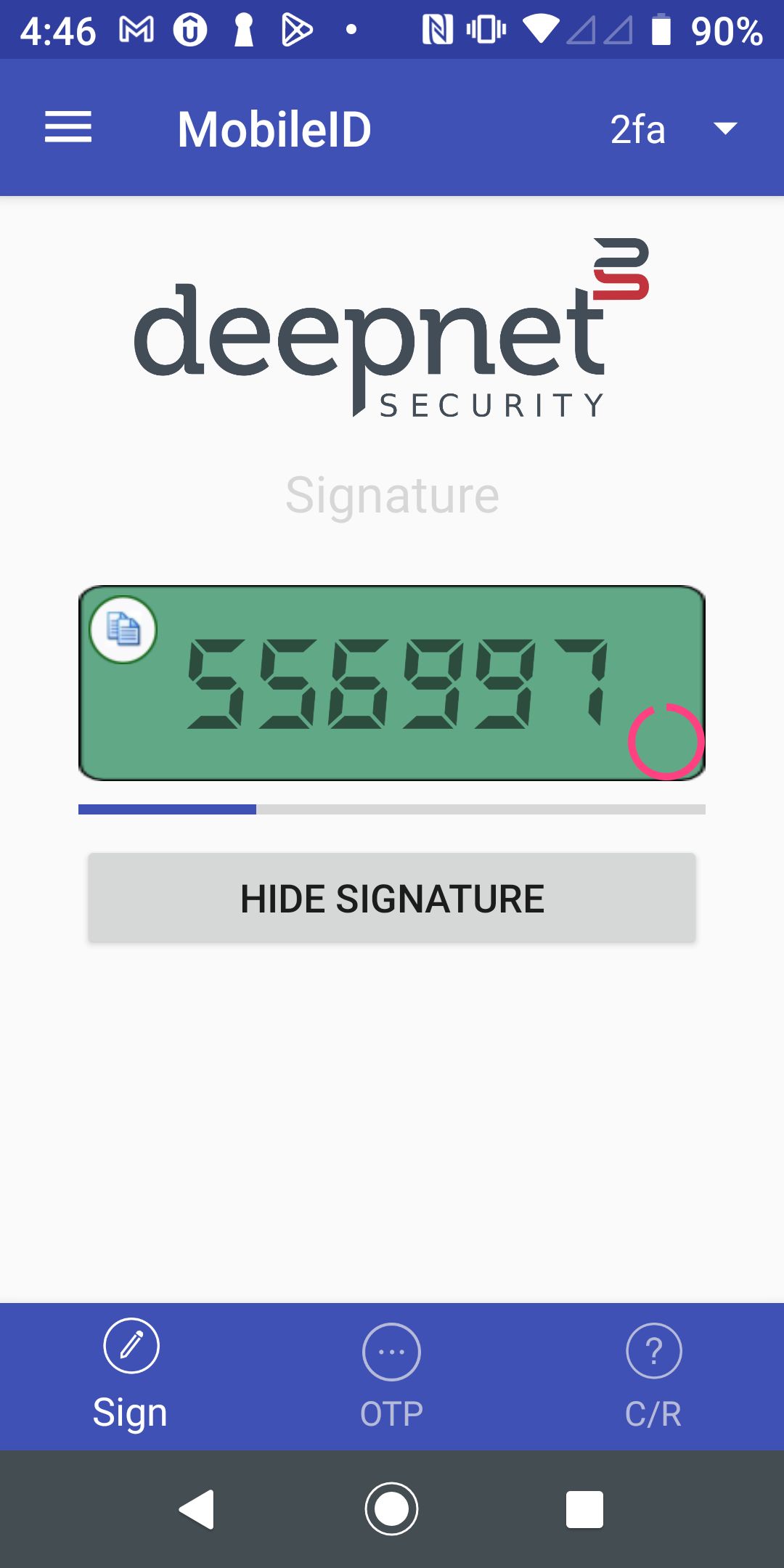
| Press the "Generate Signature" button to get the signature code, e.g. 556997 |
| |||||||||
| The user enters the signature code into the application | Please enter the signature code below:
| |||||||||||
The 3rd-party application calls the DualShield API /auth/verifySignature to verify the signature code |
|