| Table of Contents |
|---|
Create a Web
...
Logon Procedure
- Login to the DualShield Management Administration Console
- In the main menu, select navigate to “Authentication | Logon Procedure”Procedures”
- Click the “Create” “+ CREATE” button on the toolbar
- Enter a descriptive “Name” and select “Web SSO” as the typeType.
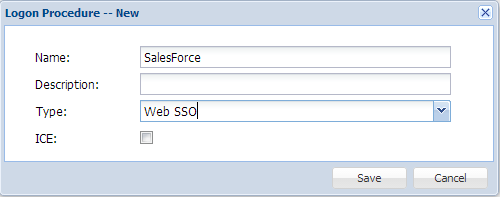
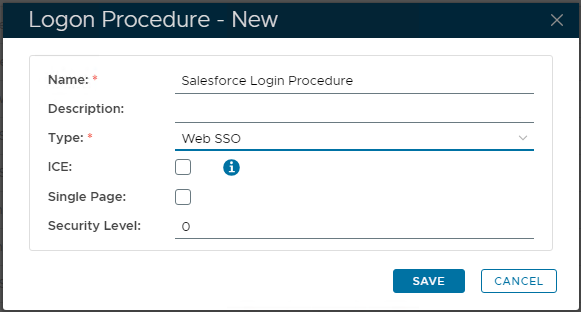
- Click “Save”“SAVE” to confirm.
- Click the Context Menu icon context "..." menu of the newly created logon procedureLogon Procedure, select “Logon Steps”
- In the popup windows, click the “Create” “+ ADD” button on the toolbar
- Select the necessary authentication method, i.e. for example “One-Time Password”
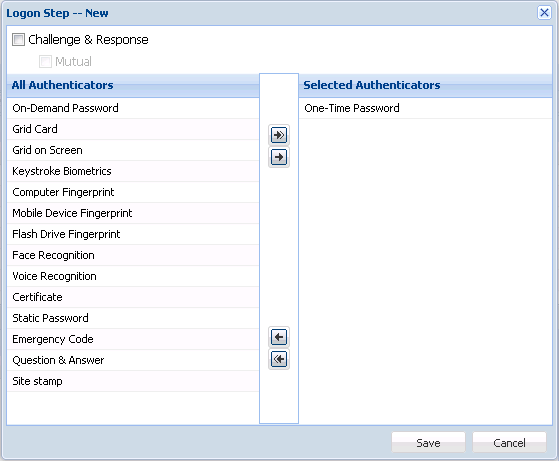

- Click "SaveSAVE" button to confirm.
Create a Web application
- In the main menu, select navigate to “Authentication | Application”Applications”
- Click the “Create” “+ CREATE” button on the toolbar
- Enter a suitable “Name” for this Application
- Select “Realm”
- Select the newly created logon procedure
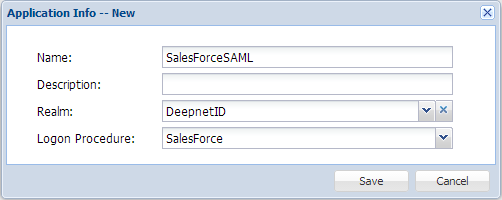 Logon Procedure, from the previous step.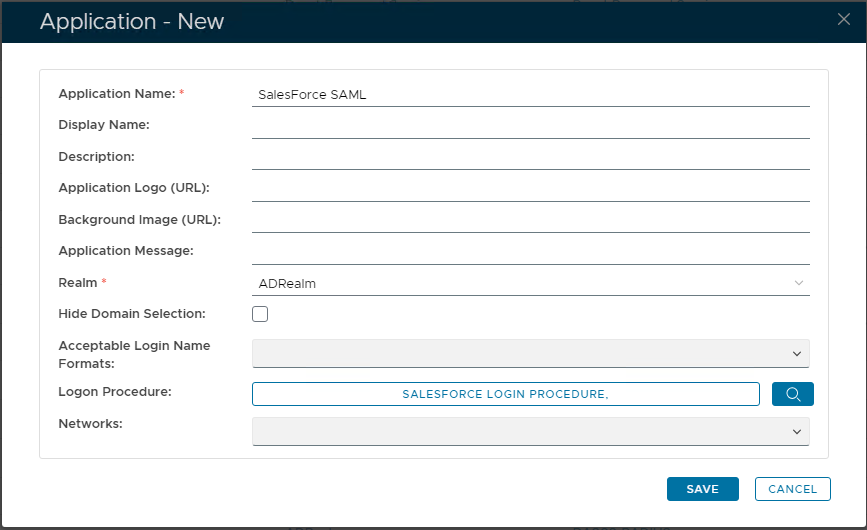
- Click "SaveSAVE" to confirm creation.
Publish Web Application
- Click the context "..." menu of the newly created application, select "Agent"
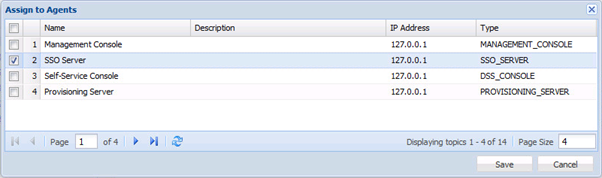
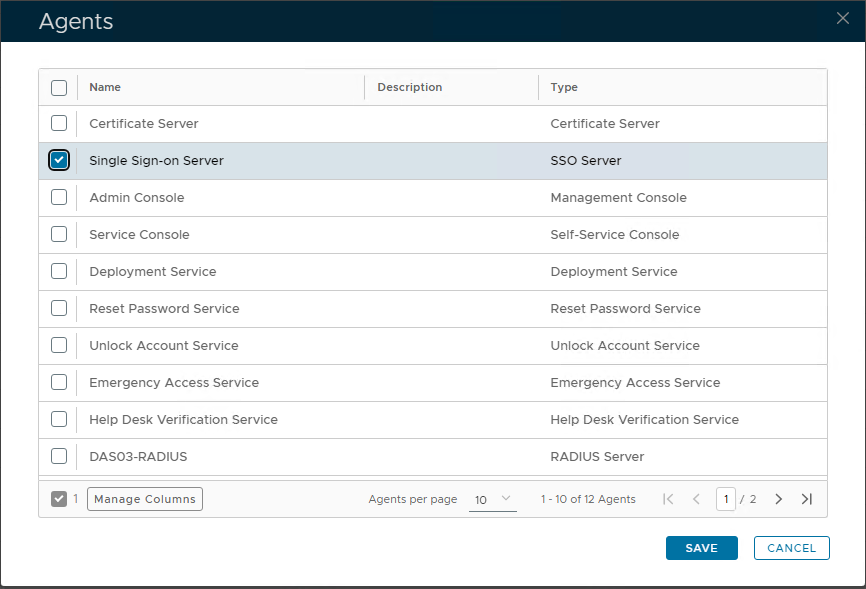
- Select the "Single Sign-on Server | SSO Server"
- Click "SaveSAVE" to confirm
Self-Test Web Application
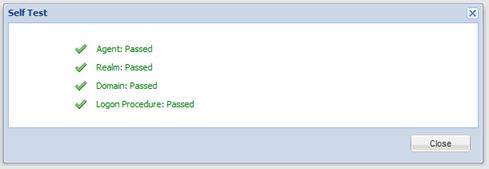
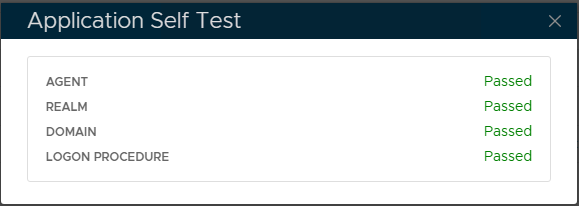
- Click the context menu of the newly created application, select "Self Test"