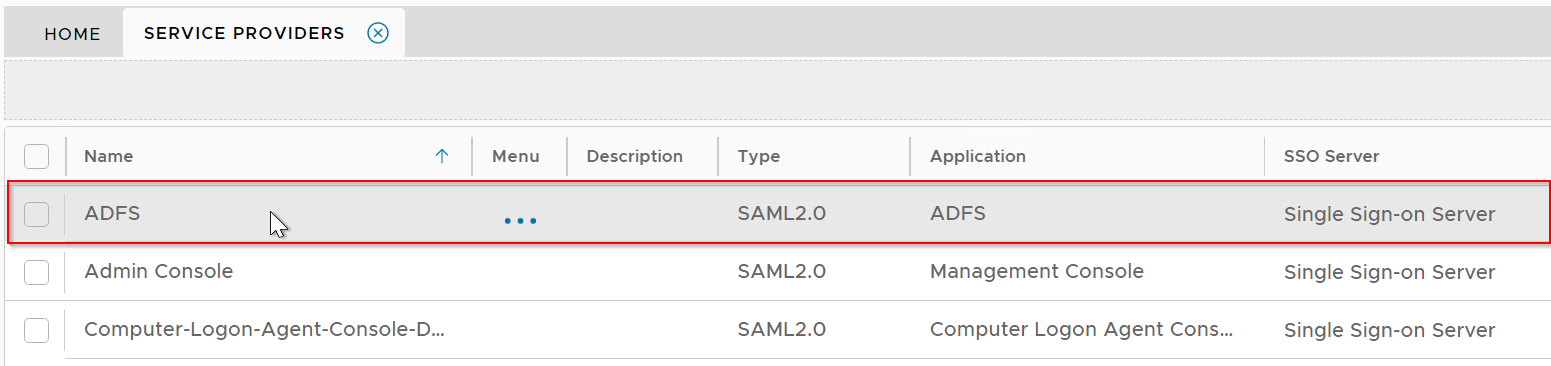
You need to To add your ADFS server as a SAML Service Provider in your DualShield server, follow steps below.
Copy the XML code block below and paste into a text editor. Replace "your-adfs-address" with the address of your ADFS server, e.g: adfs.deepnetid.com
In the DualShield Admin Console, select "SSO | Service Providers", then click "Create" on the toolbar.
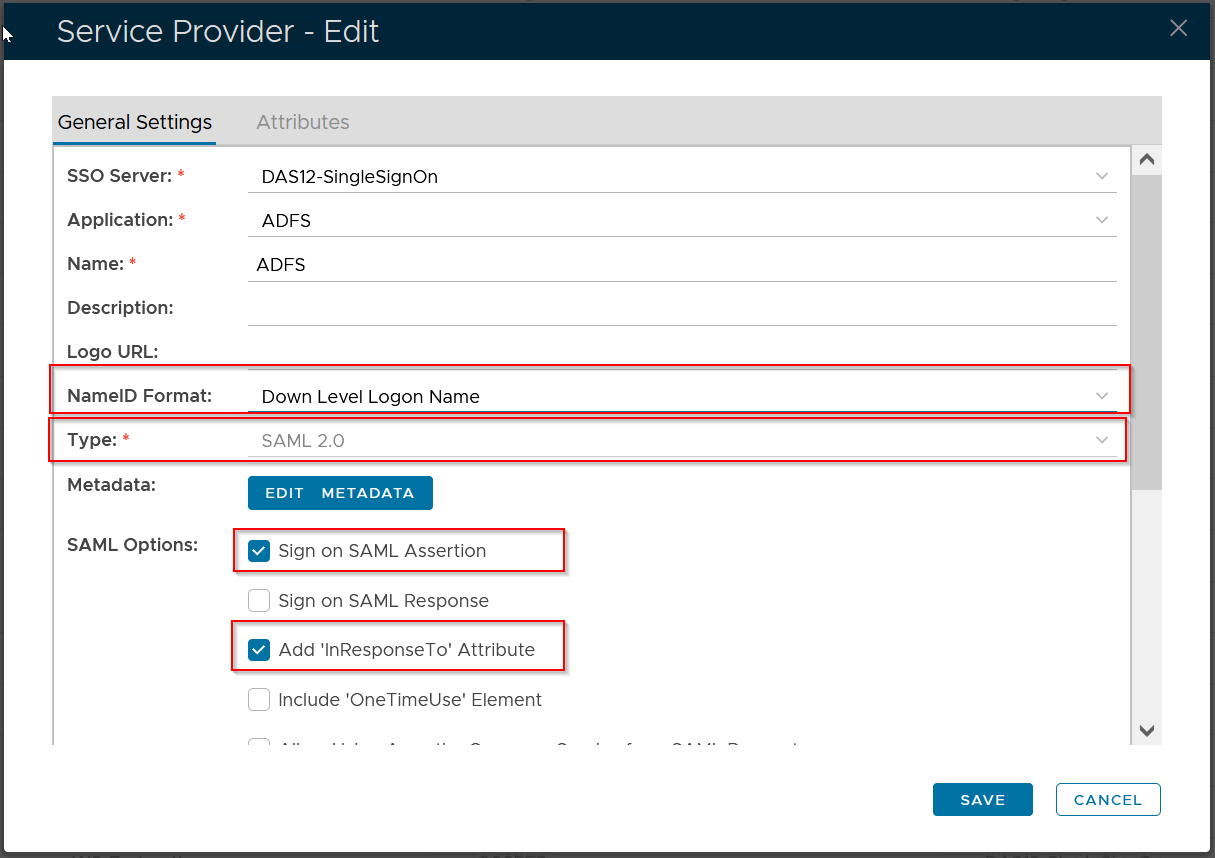
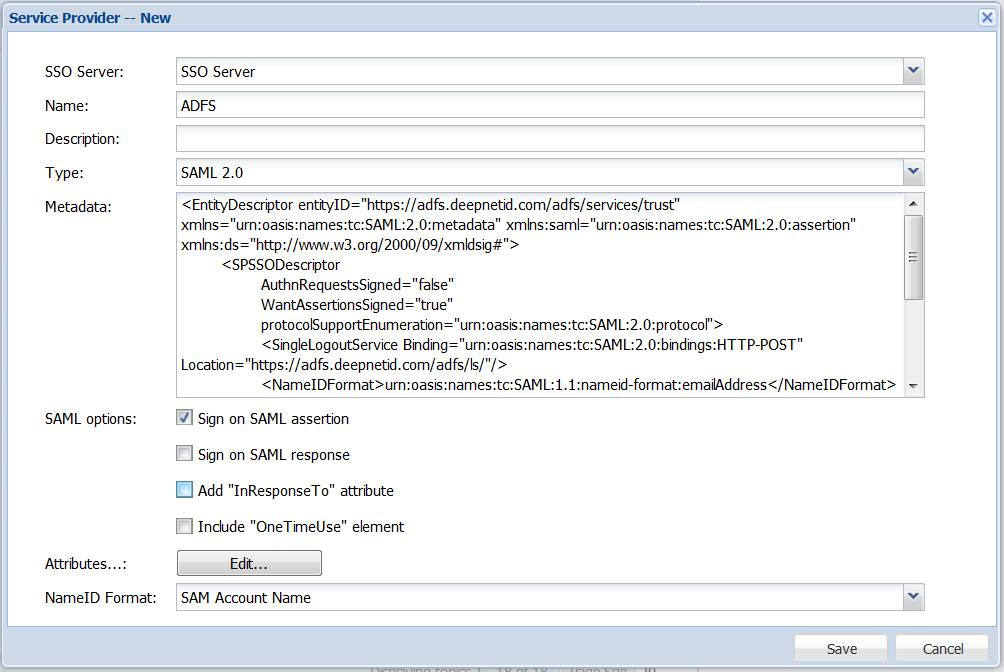
Use the following settings:
| Option | Value |
|---|---|
| SSO Server | select the SSO server to which the ADFS will be connected, e.g."Single Sign-On Server" |
| Application | select the application that you created for ADFS integration in the previous step, e.g. "ADFS" |
| Name | enter a descriptive text as the name of the service provider to be created, e.g. "ADFS" |
| Type | select "SAML 2.0" |
| NameID Format | |
| Sign on SAML Assertion |
|
| Add "InResponseTo" |
|


Click the "Create Metadata" button
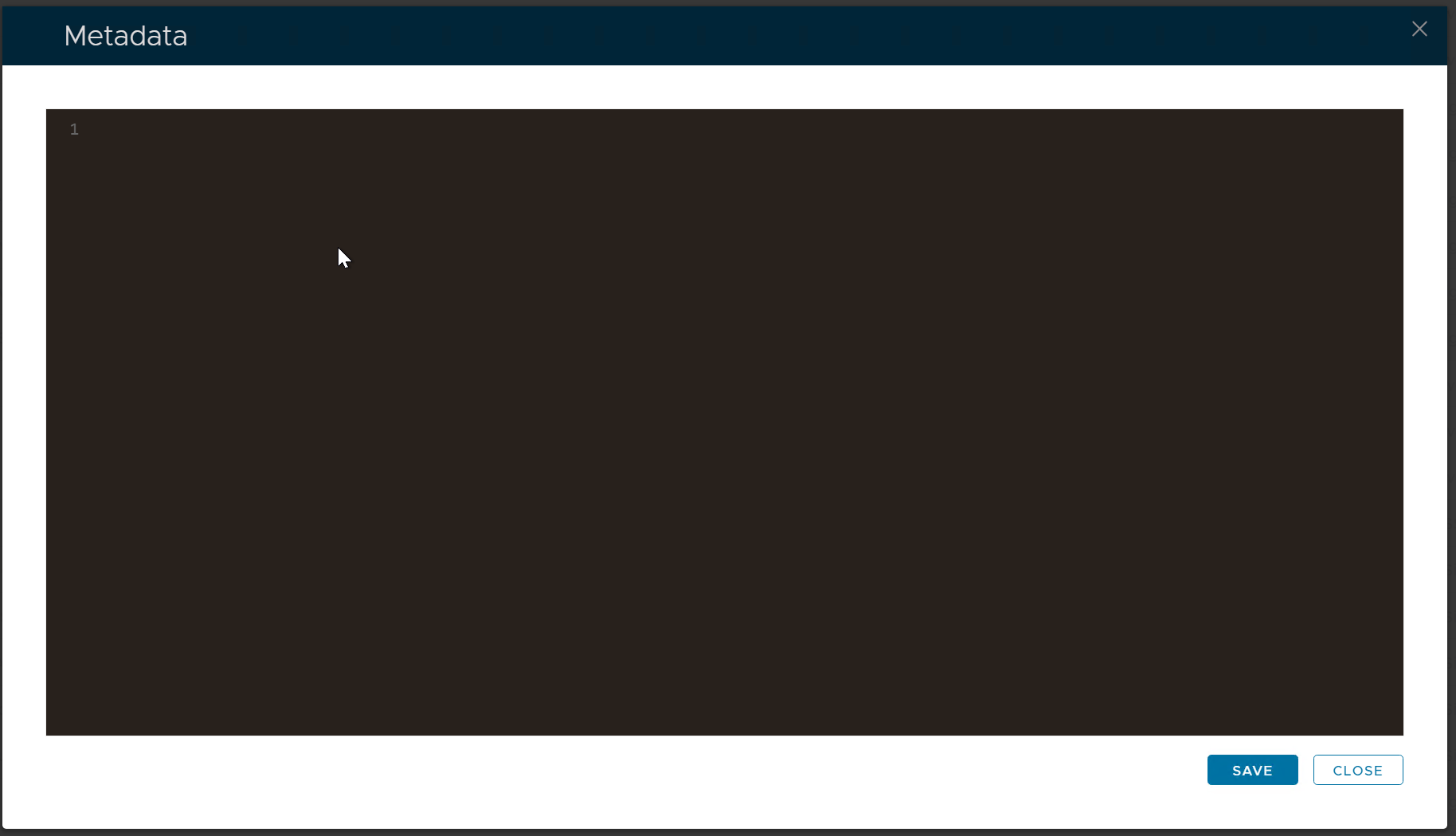
Copy the XML code block below and paste into the metadata box.
<EntityDescriptor entityID="http<EntityDescriptor entityID="https://your-adfs-address/adfs/services/trust" xmlns="urn:oasis:names:tc:SAML:2.0:metadata" xmlns:saml="urn:oasis:names:tc:SAML:2.0:assertion" xmlns:ds="http://www.w3.org/2000/09/xmldsig#"> <SingleLogoutService Binding="urn:oasis:names:tc:SAML:2.0:bindings:HTTP-POST" Location="https://your-adfs-address/adfs/ls/"/> |
|---|
Now, in the DualShield management console, select "SSO | Service Providers", then click "Create" on the toolbar.
In the SSO Server list, select "SSO Server", and in the Type list select "SAML 2.0"
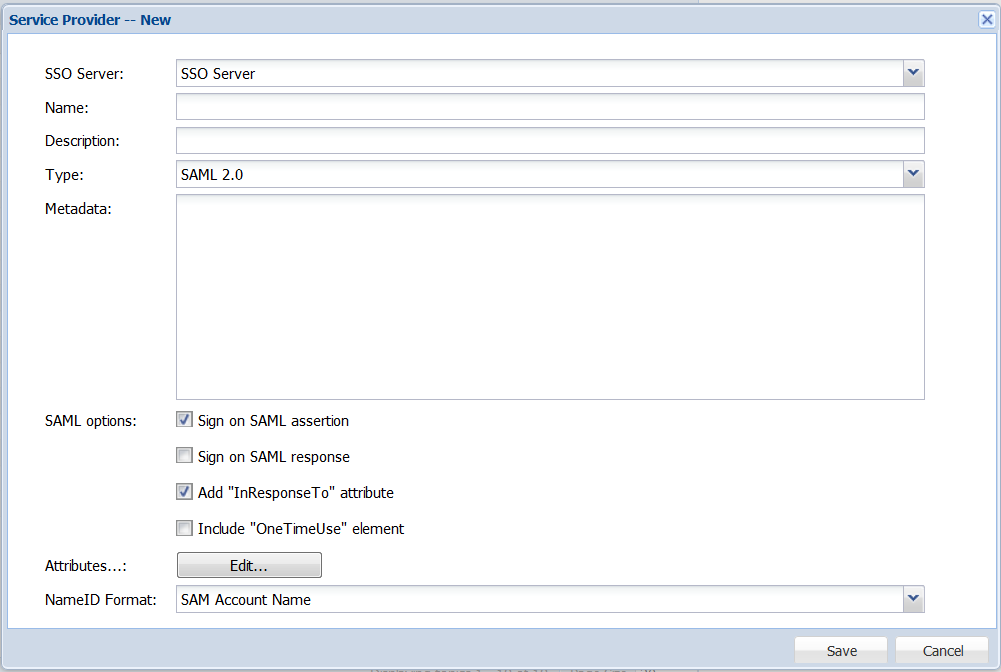
Enter the Name, e.g. ADFS
In the Metadata text box, paste the modified XML code above.
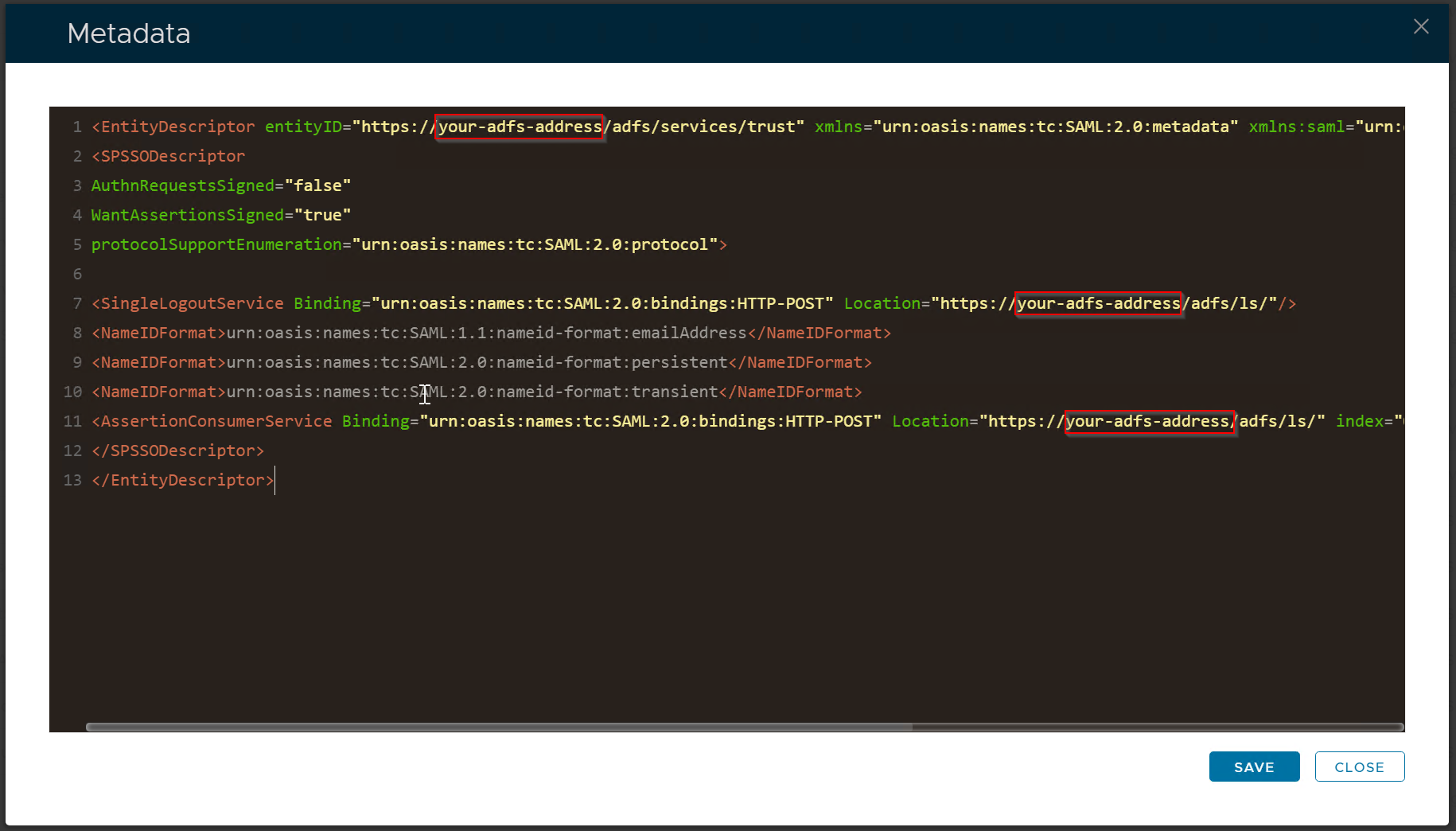
Replace "your-adfs-address" with the address of your ADFS server, e.g: adfs.deepnetmfa.com
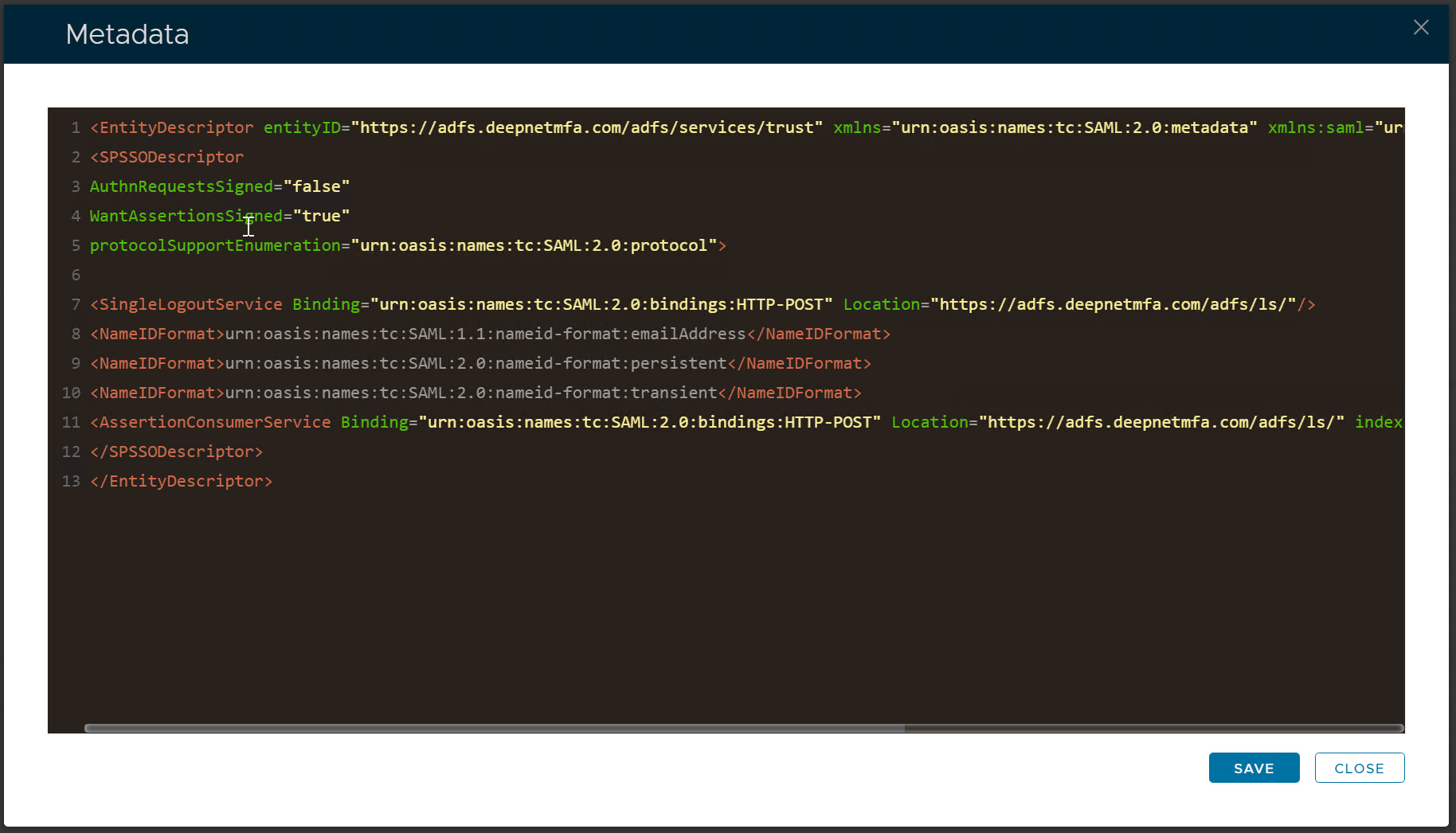
Click the "Save" button to save the metadata.
Click Press the "Save" button to save itagain to create the new Service Provider.