...
- In the DualShield
...
- Administration console,
...
- navigate to "SSO | Service Providers"
...
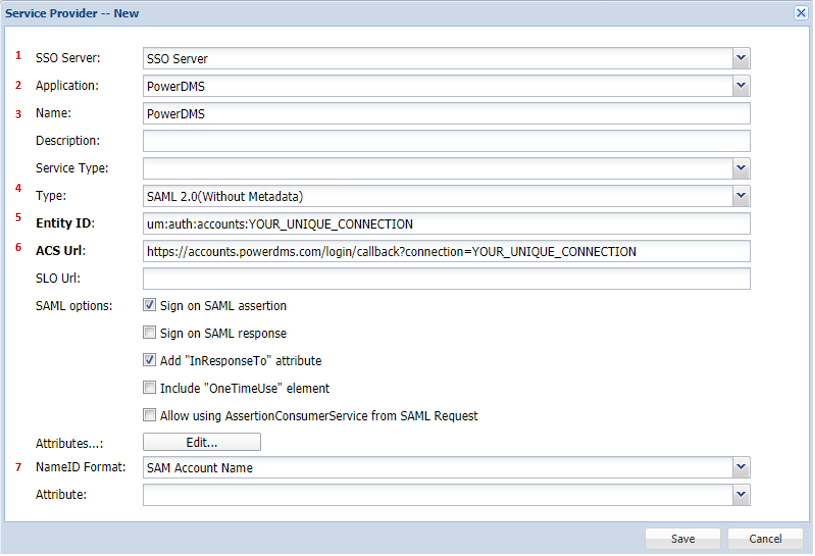
1 - SSO Server: 'SSO Server'
2 - Application: The name of the application you set under Create an Application for PowerDMS#CreateaWebapplication
3 - Name: A descriptive name.
- .
- Click the "+ CREATE" button on the right in the toolbar, to setup a new Provider:
SSO Server: At the drop-down, select "Single Sign-on Server"
Application: At the drop-down, select the Application created previously, for PowerDMS.
Name: Enter an appropriate name for this Service Provider.
Type: Set as "
...
- SAML 2.0 (Without Metadata)
...
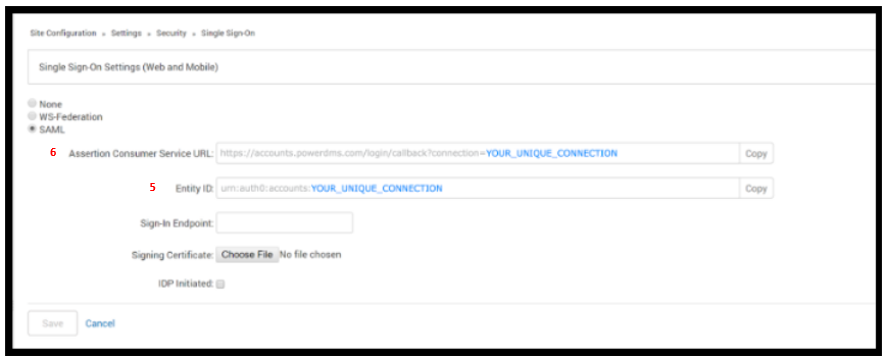
5 & 6 - These will match the Entity ID and ACS URL as set up on the PowerDMS portal:
7 - NameID Format: 'SAM Account Name'
...
- "
Entity ID: The value entered here must match that setup in the PowerDMS Portal.
ACS URL: This should also be set, as per the configuration in PowerDMS Portal.
NameID Format: Set this drop-down setting to "SAM Account Name"
- Click "SAVE" to create the new Service Provider.