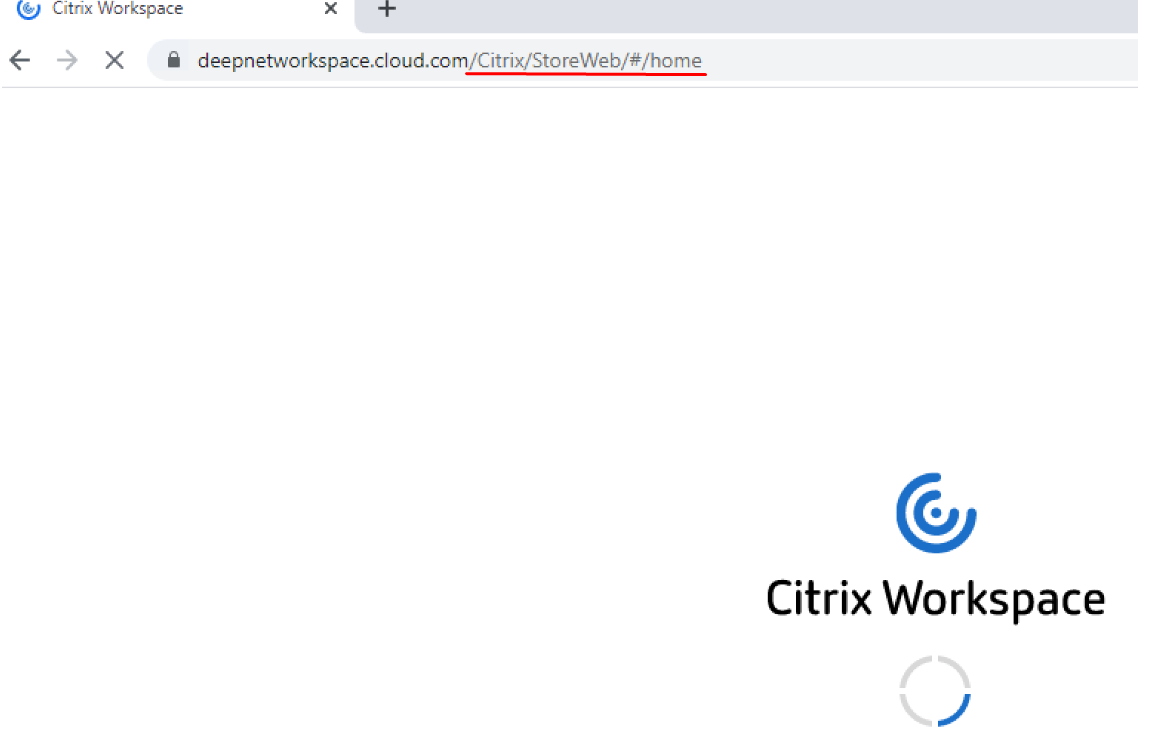
Launch a browser and type in the Workspace URL. For this demonstration the URL is https://deepnetworkspace.cloud.com.
Notice how the workspace for web path (/Citrix/StoreWeb/#home) automatically gets appended on the end of the URL
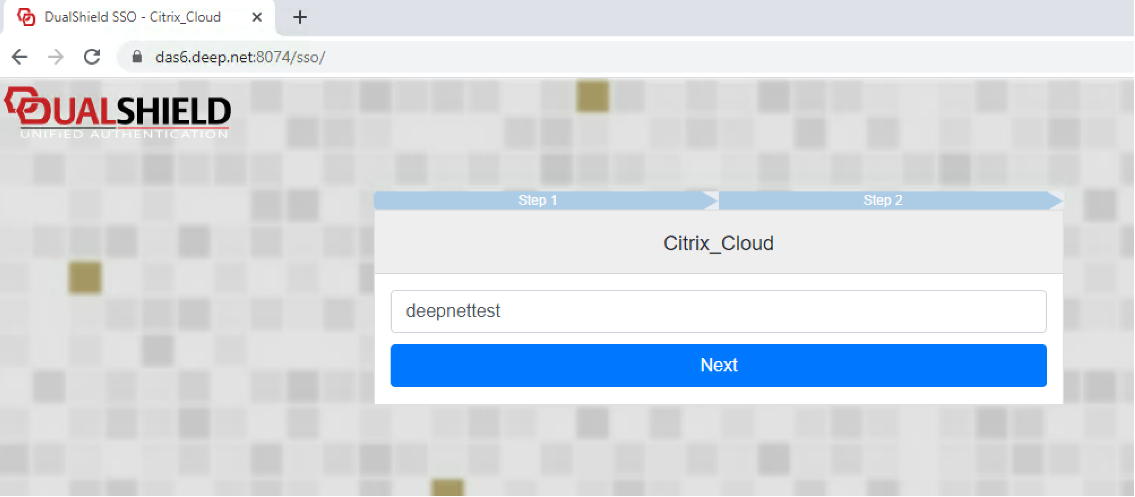
The web page gets redirected to your Dualshield Single Sign-on page.
I type in my AD Logon name and click on Next.
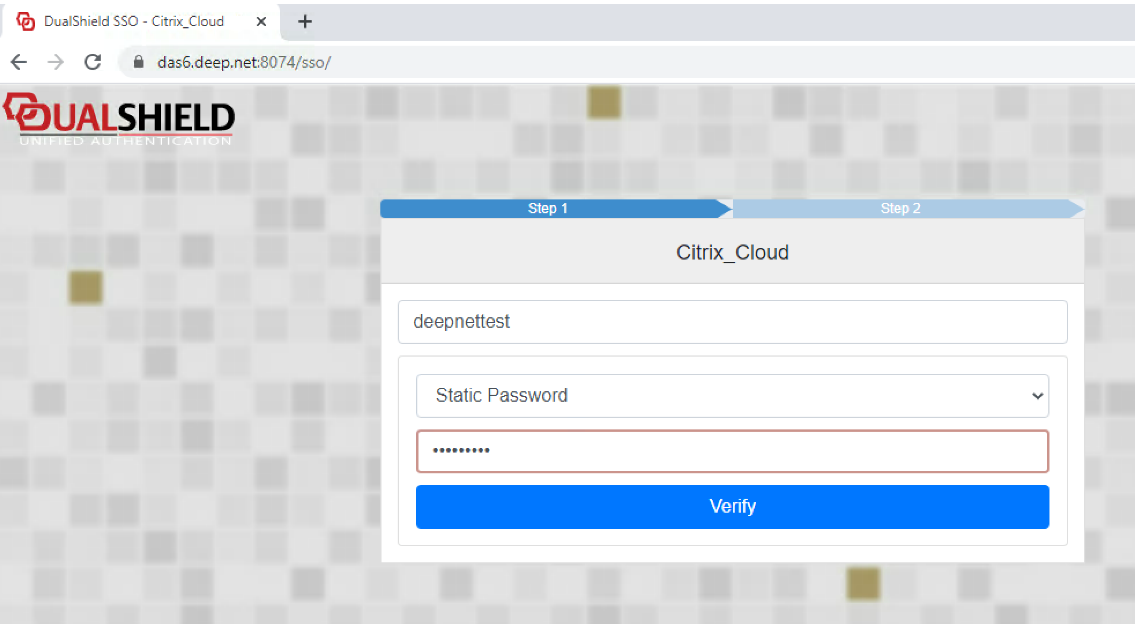
This takes you to the first authentication prompt as dictated from the logon procedure you created. The first step is prompting for the Static Password. This will be the AD password. Enter this password and click on Verify.
The second step prompts you for the One-Time Password. Please generate the OTP from either a mobileID app or SafeID hardware token, type it in, and click on Verify.
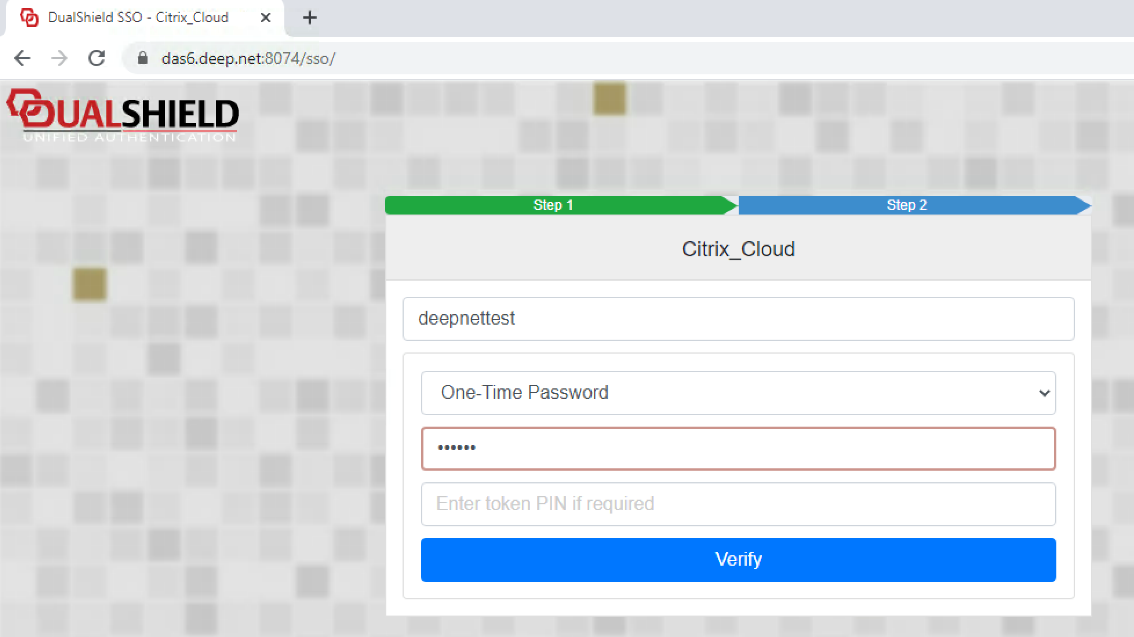
If authentication is successful, you will be redirected to your landing web page.
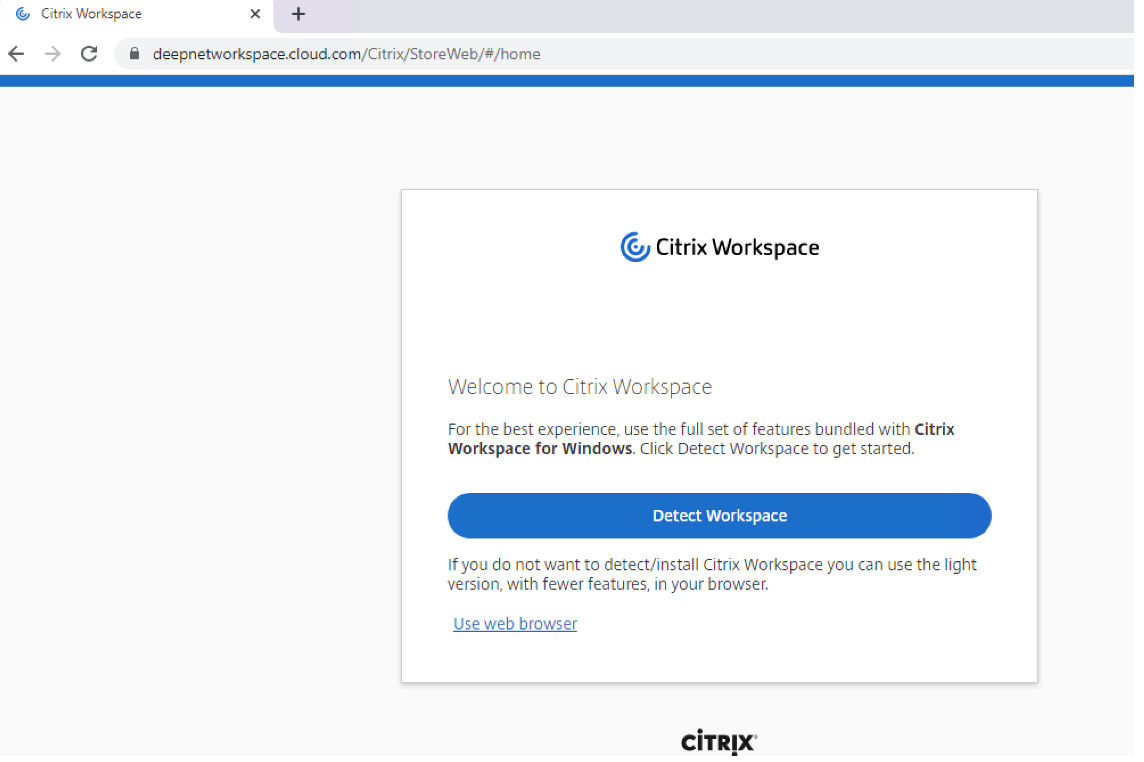
Here you have a choice. If you click on the  link, your Workpace session will appear on the browser.
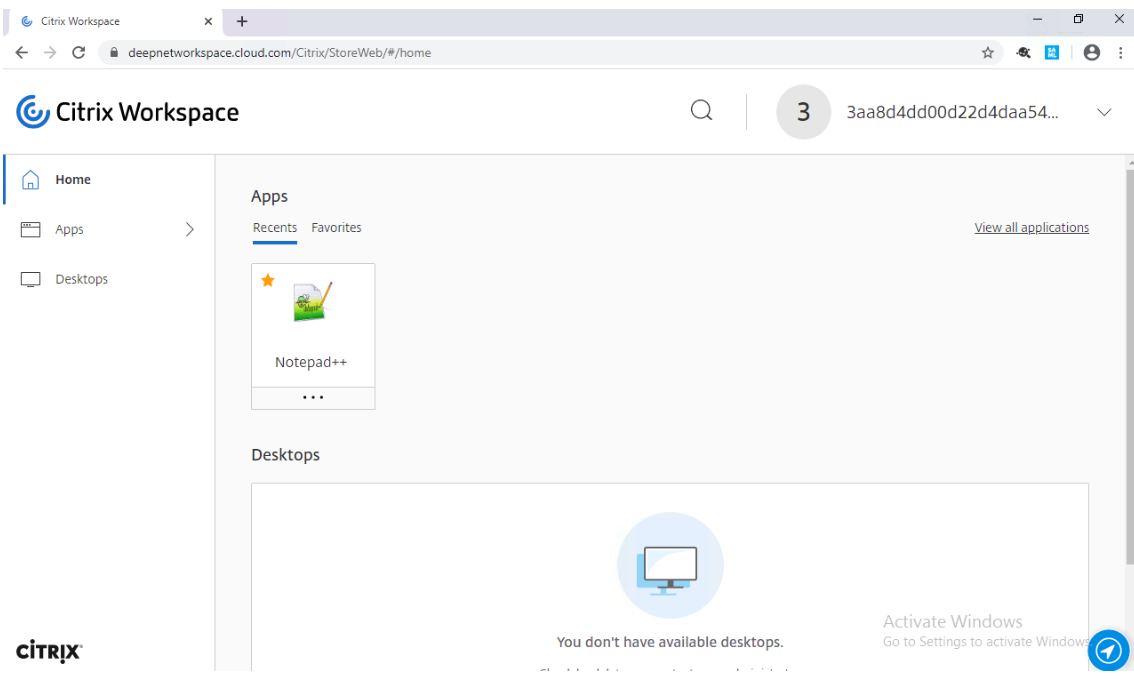
Once you have finished your session, you can Log Out
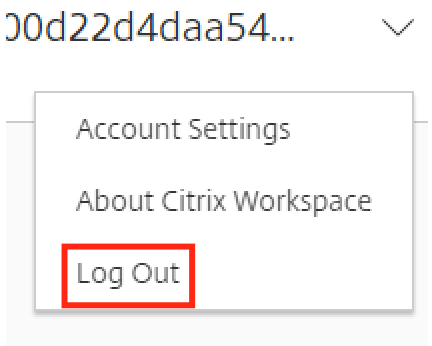
You will be initially redirected to this screen...
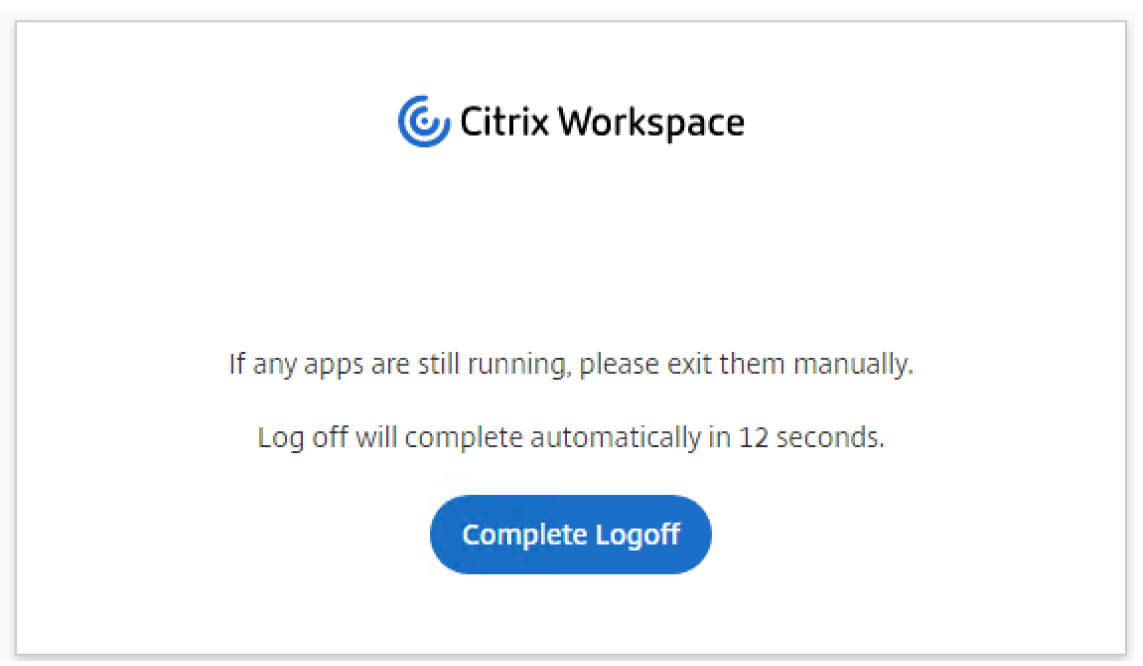
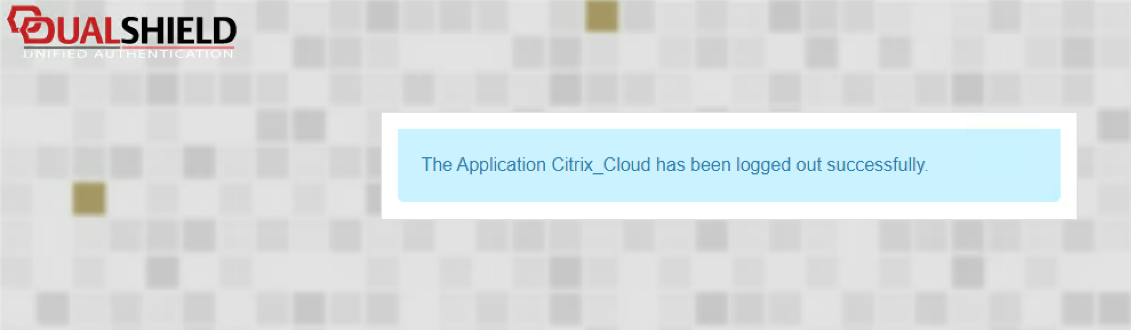
This gives you a chance to save your work and exit any running applications. Here you can either click on Complete Logoff or you can wait for Log off to complete automatically, after which you will be redirected back to the SSO server which will state that you have logged out successfully.