Currently, device certificates can only be installed and renewed automatically on Windows PCs. On other platforms, such as MacOS and Linux, users will have to install device certificates manually.
Log into the DualShield Service Console.

In My Tokens, click "Create Token"
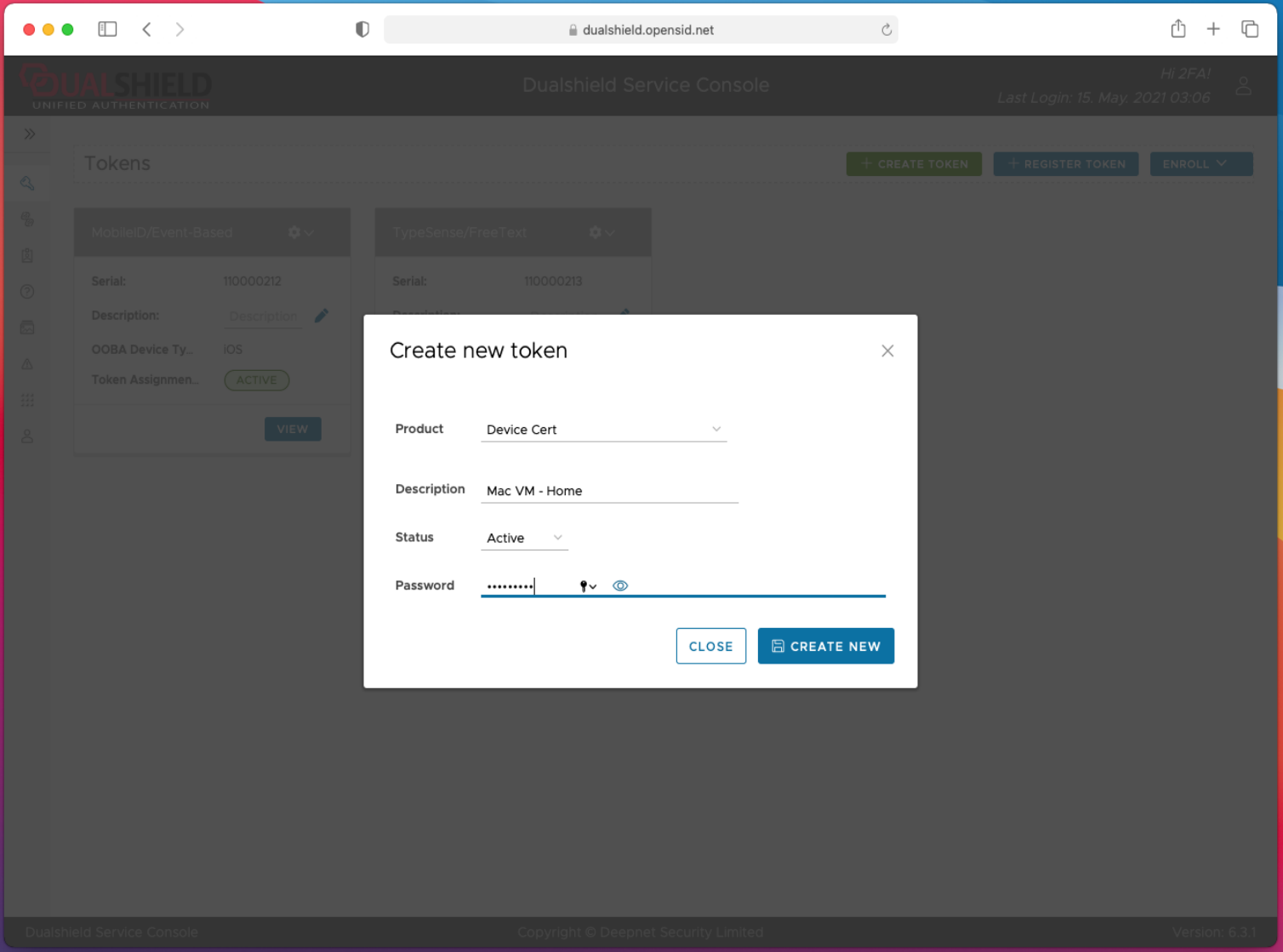
In Product, select "Device Cert"
You also need to provide a password that's used to secure the certificate
Click "Create New" button to create a new device certificate.
Depending on the policy, you might be asked to activate the new device certificate.
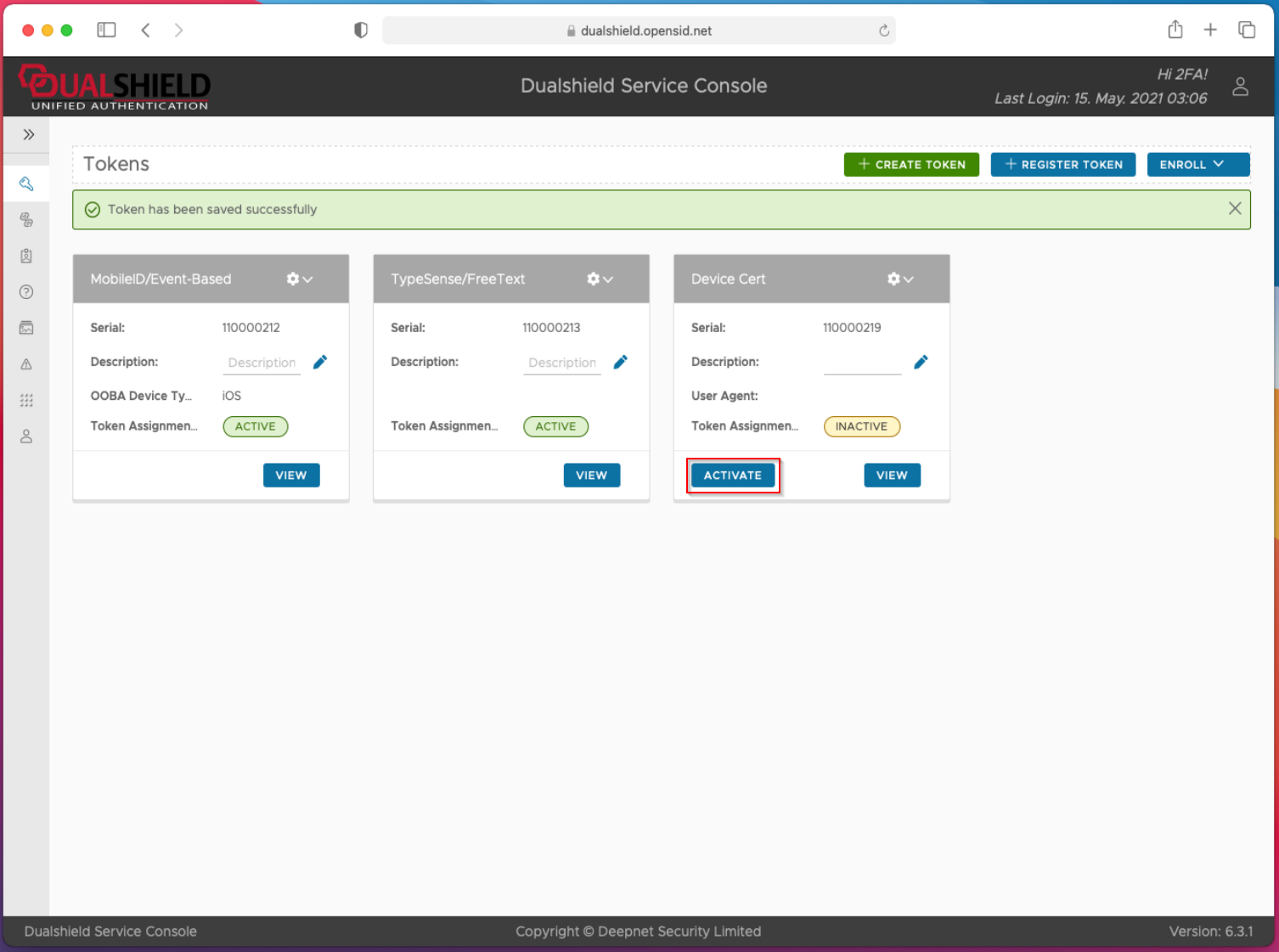
Click the "Activate" button
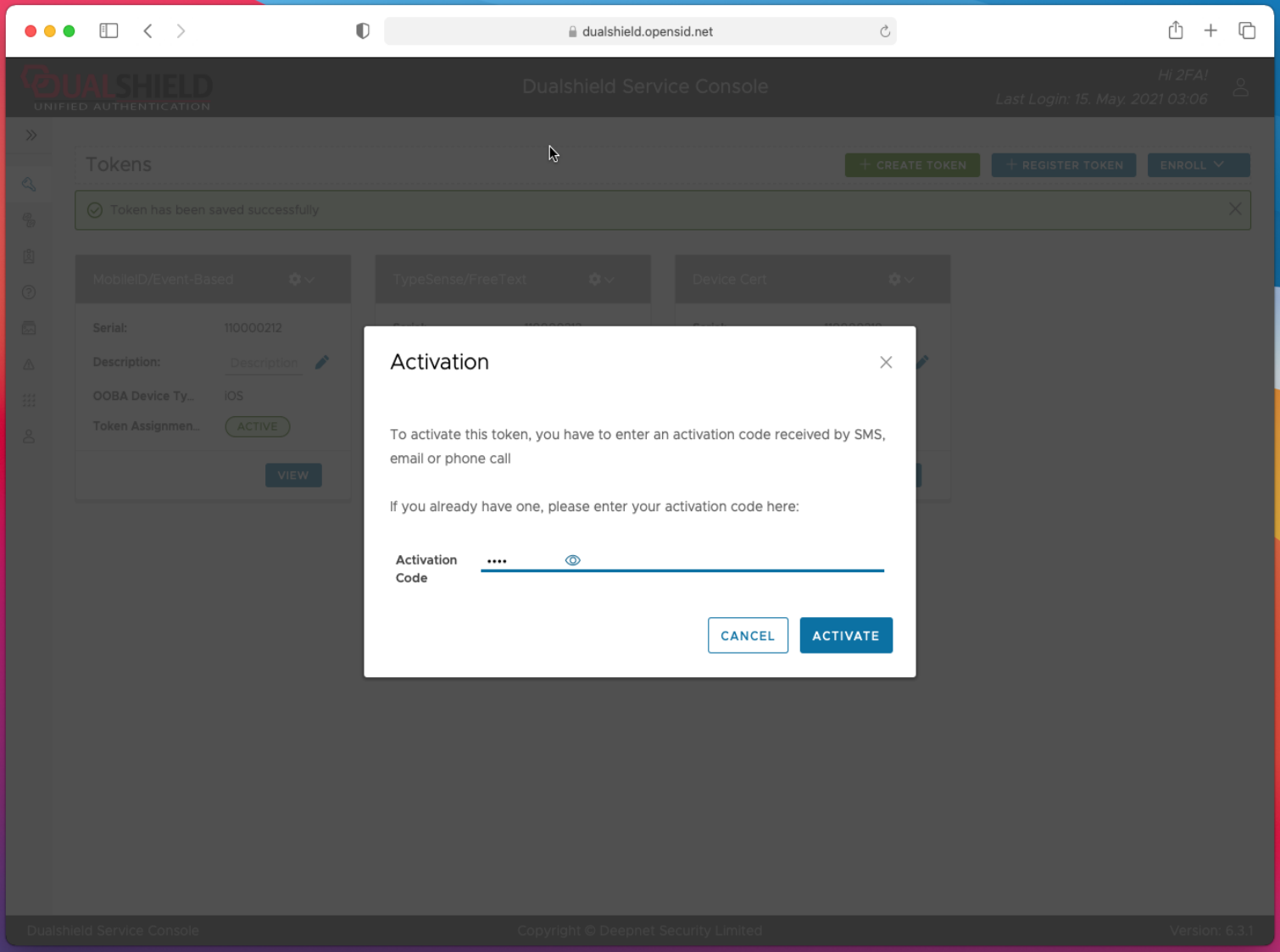
Enter the Activation Code that you have received, then
Click the "Activate" button
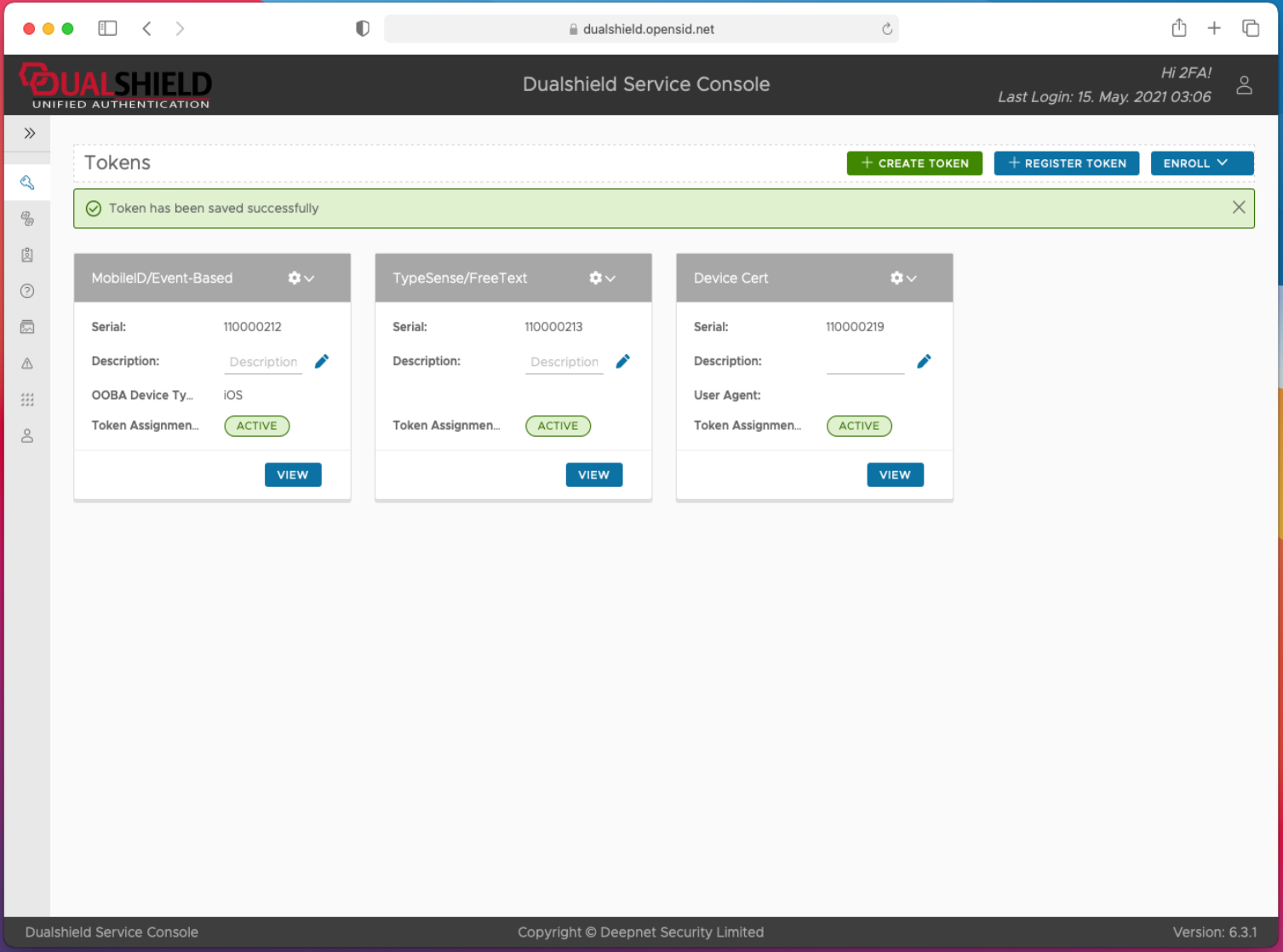
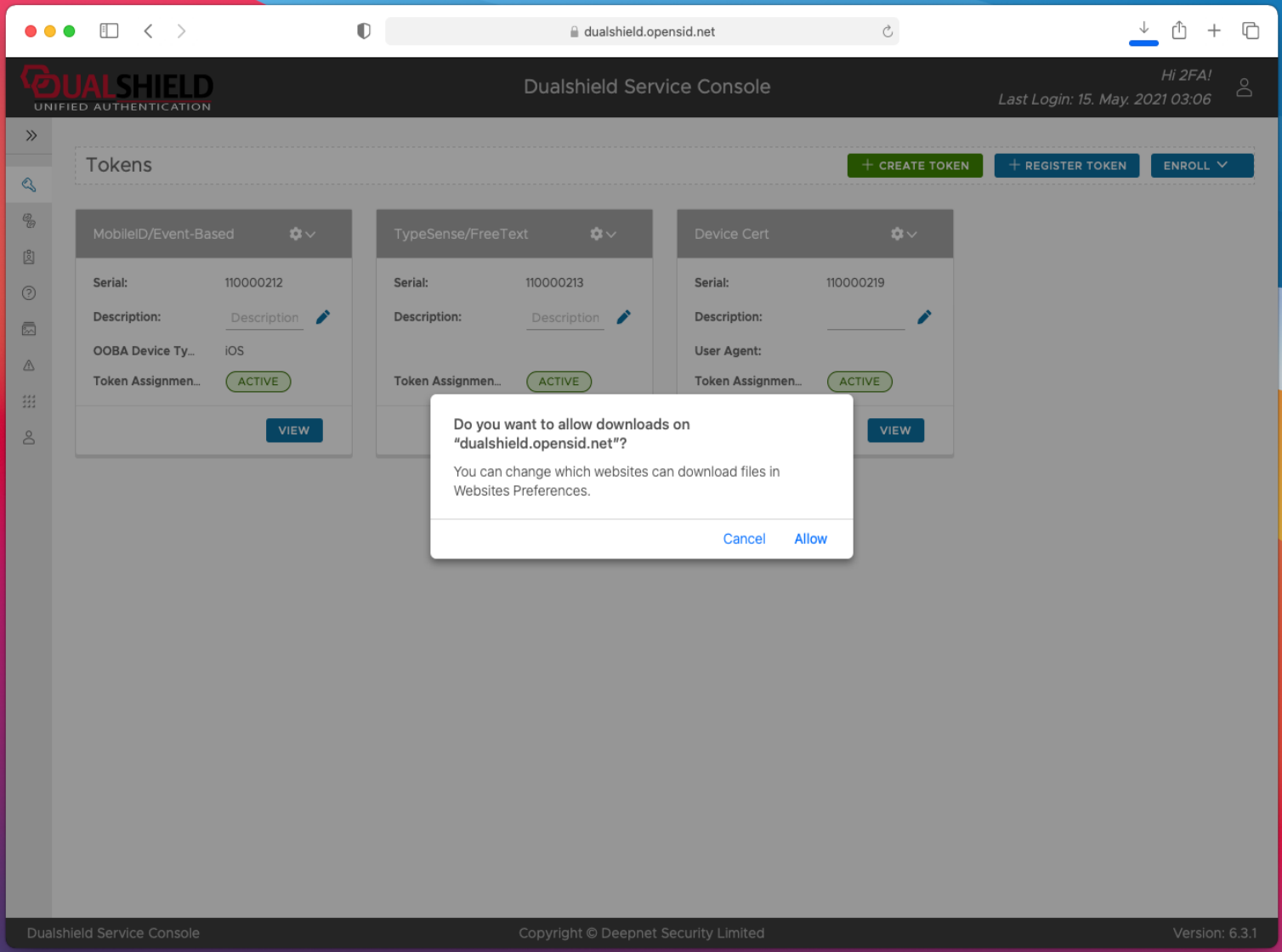
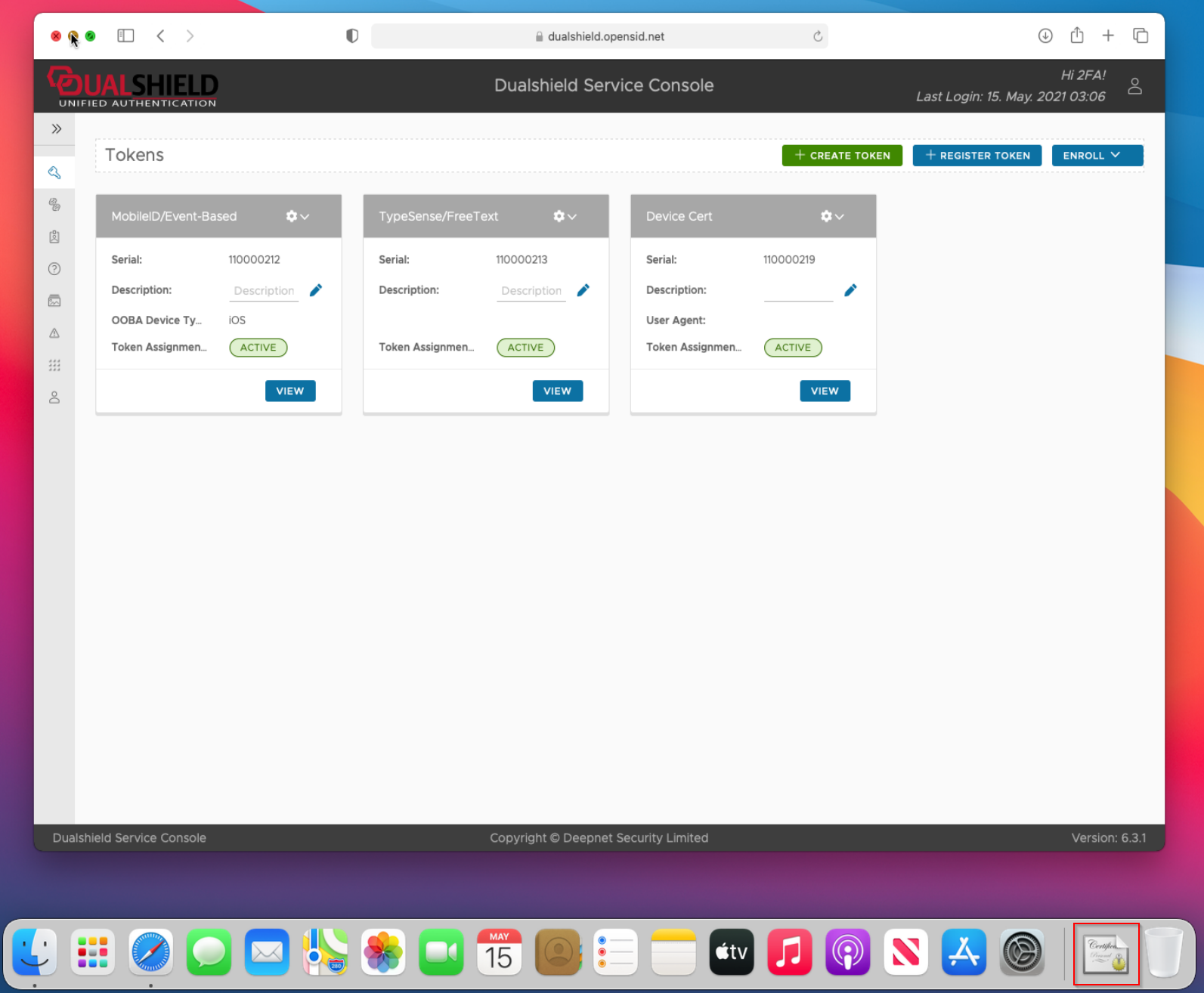
The newly created device certificate is now ready to be downloaded to your device.
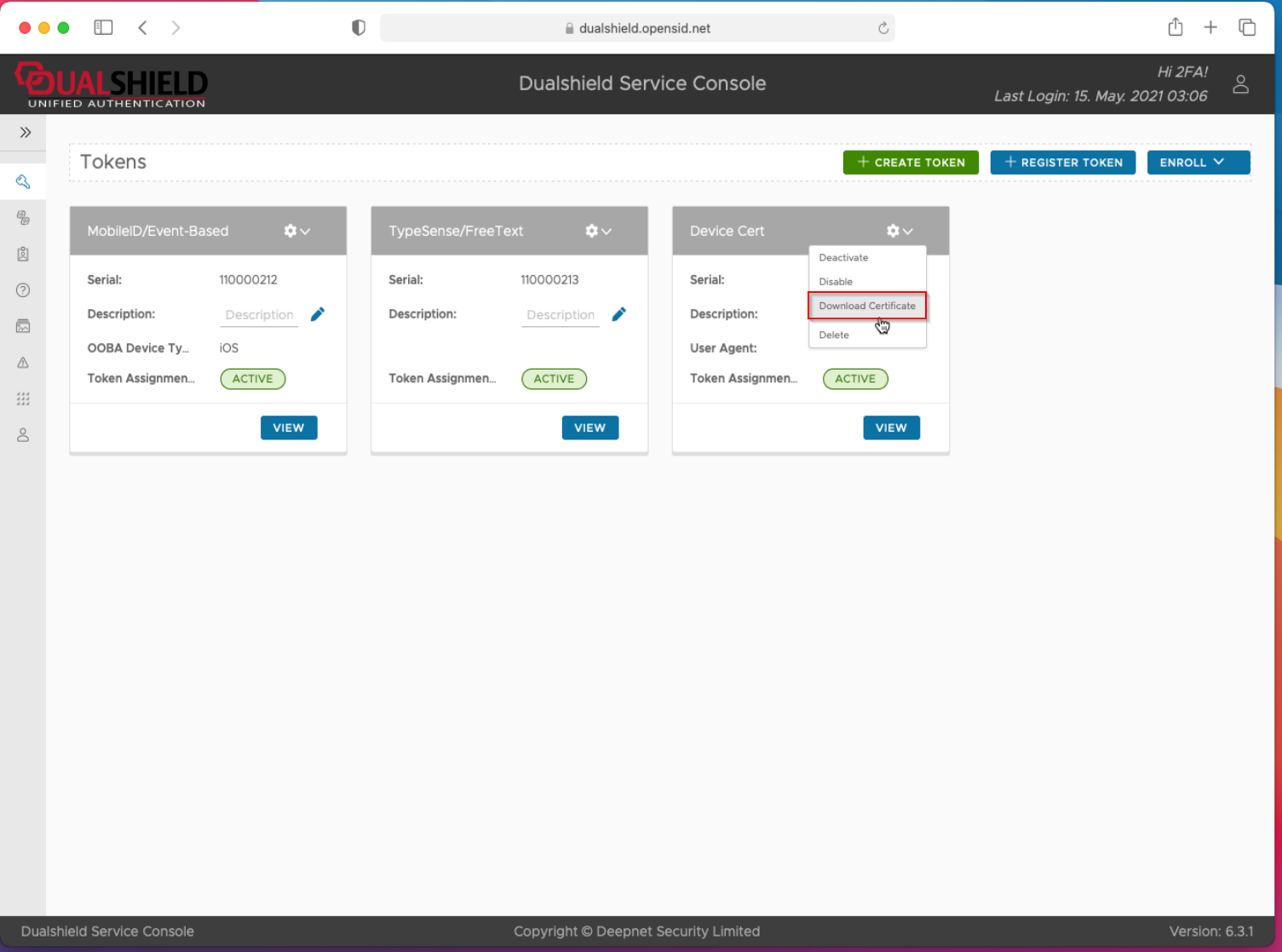
In the context menu, select "Download Certificate"
| Expand | ||||||
|---|---|---|---|---|---|---|
| ||||||
|
| Expand | ||||||
|---|---|---|---|---|---|---|
| ||||||
|
| Expand | ||||||
|---|---|---|---|---|---|---|
| ||||||
|
| Expand | ||||||
|---|---|---|---|---|---|---|
| ||||||
|