Logging in to Windows with fingerprint using Fingerprint verification, is a simple process.
On the login UILogin user interface, select "Fingerprint" as the 2nd authentication Authentication method:
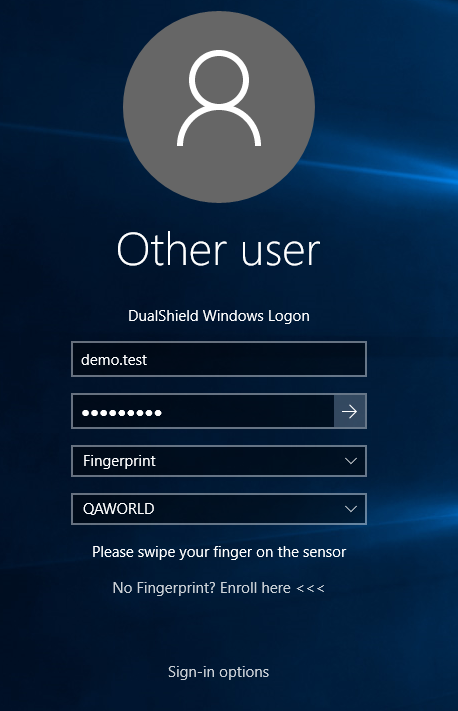
Then, just swipe or scan your finger on the fingerprint Fingerprint reader or scannerScanner device.
If a PIN is required , then you'll (as set in the Fingerprint policy), you will be prompted to enter your PINit next:
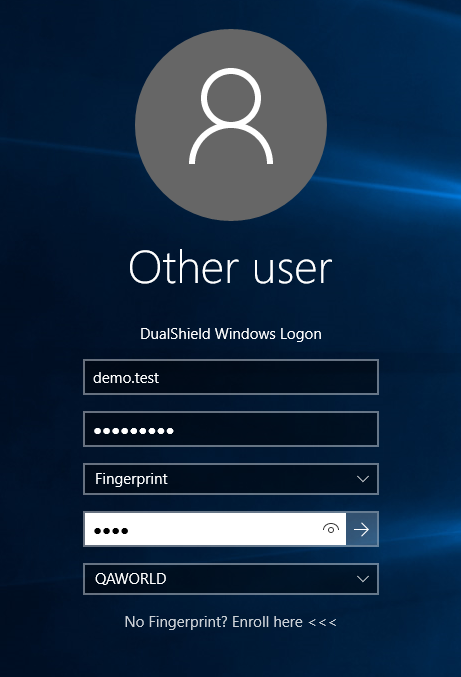
If this is the first time you 're using fingerprinting, and your fingerprint policy requires that a newly enrolled fingerprint must be activated first, then you will be promoted to activate your fingerprint:
have used the Fingerprint authentication method, your Fingerprints must first be registered. As can be seen below, also in the previous article, above.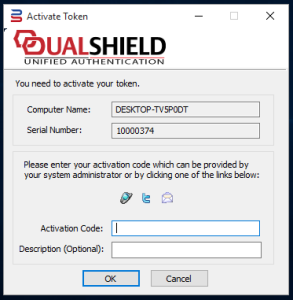
That is all. If your Fingerprint is accepted, you will be logged in to the console successfullyThat's it. if your fingerprint is right then you'll be allowed to login straight away.