...
| Section |
|---|
|
| Column |
|---|
| Setting | Value |
|---|
| Metadata URL | YourDualShieldFQDN:8074/sso/saml2metadata | | Audiece Audience (Entity ID) | Same as the Sign on URL specified above. |
|
| Column |
|---|
|
| Panel |
|---|
| borderColor | #9EBEE5 |
|---|
| bgColor | #f0f0f0 |
|---|
| borderWidth | 1px |
|---|
| 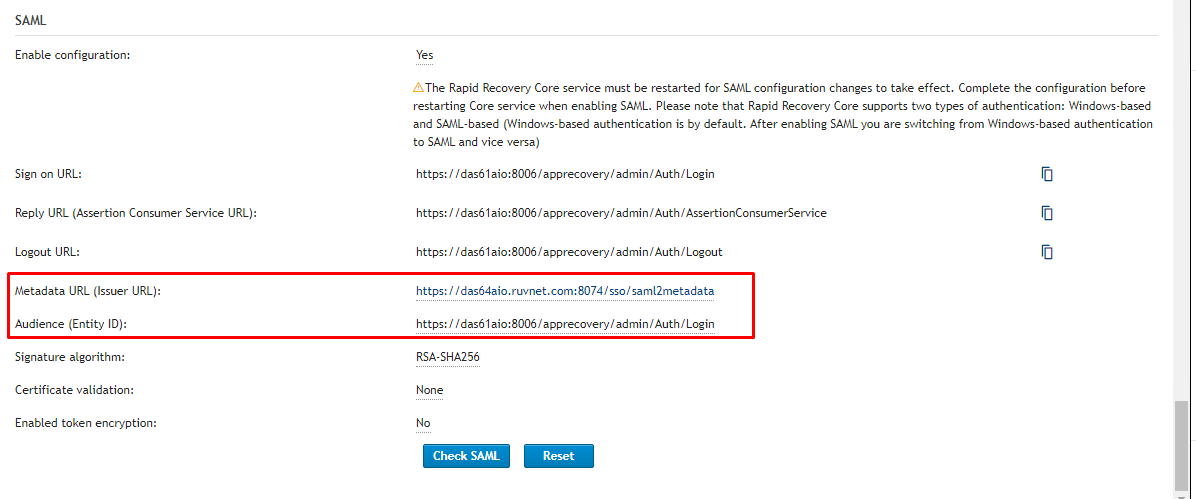 Image Modified Image Modified
|
|
|
This is an important notice so proceed with extreme caution:

| Section |
|---|
|
| Column |
|---|
Fill in the details as per screenshot on right and make sure NameID Format is set to User Principle Name and you select SAML 2.0 as Type. Click on Create Metadata Adhering to the warning above you should first test before committing. Therefore before doing anything else click the Check SAML button below to test.
|
| Column |
|---|
|
| Panel |
|---|
| borderColor | #9EBEE5 |
|---|
| bgColor | #f0f0f0 |
|---|
| borderWidth | 1px |
|---|
| 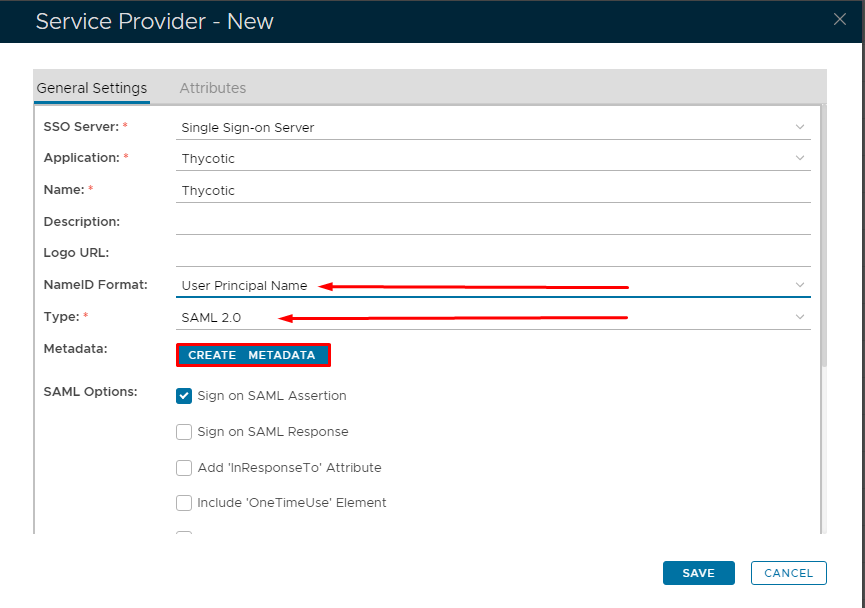 Image Removed Image Removed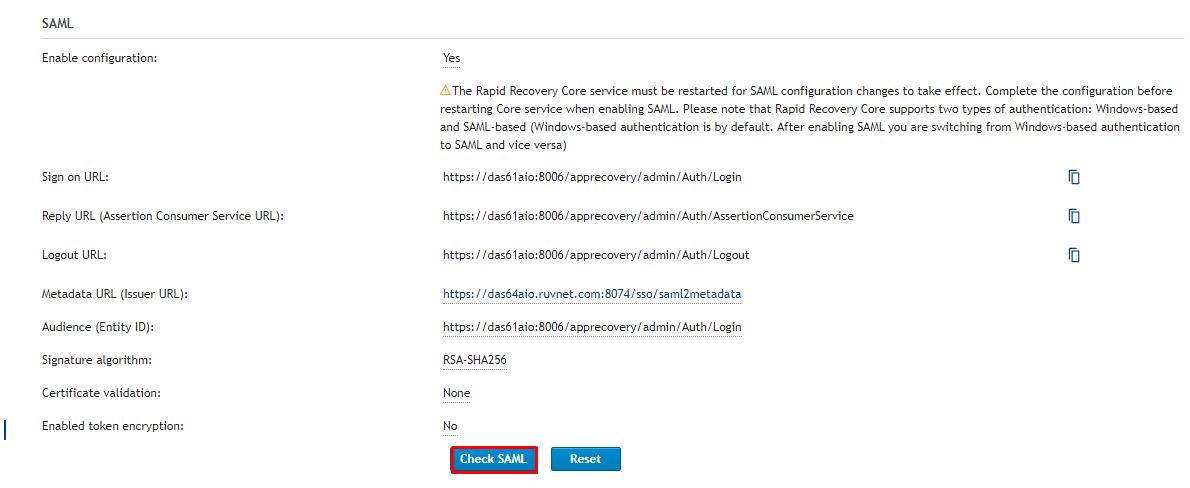 Image Added Image Added
|
|
|
| Section |
|---|
|
| Column |
|---|
Open the Service Provider Metadata file you obtained in Secret Server Setup. Copy and past the metadata into the Metadata dialog box, If all is successful then you should be redirected to the DualShield SSO screen as below.
|
| Column |
|---|
|
| Panel |
|---|
| borderColor | #9EBEE5 |
|---|
| bgColor | #f0f0f0 |
|---|
| borderWidth | 1px |
|---|
| 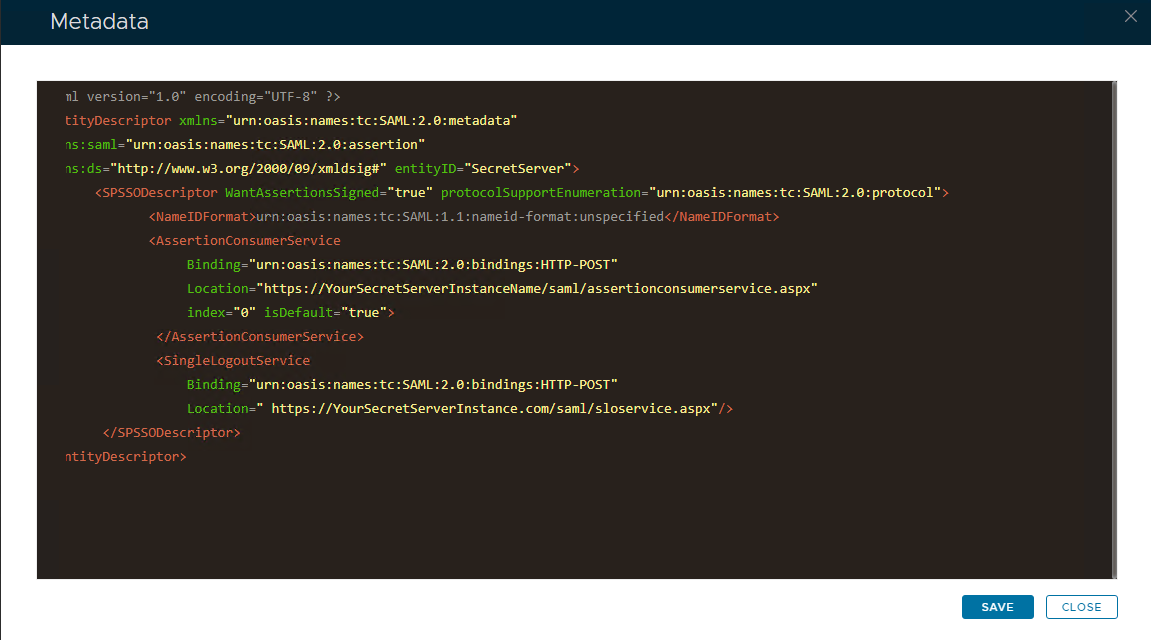 Image Removed Image Removed
| 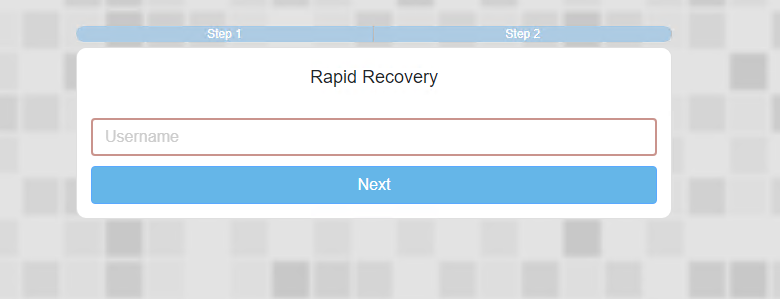 Image Added Image Added
|
|
|
Test that you can log in and log out. If it works to your satisfaction then you can restart the core services to commit the change.Click Save