There are 2 ways you can set up Microsoft Entra Admin Portal provides a basic facility that allows you to enroll the pre-programmed OATH hardware tokens with Azure AD:
- Use Azure AD Portal
- Use SafeID Token Service
Azure AD Portal
tokens. As you will see, the enrollment process is manual. Therefore, it is only suitable for enrolling a small number of tokens.
If you have a large number of tokens, then check out the SafeID Token Service (STS). STS has a powerful management portal that allows administrators and the help desk team to enroll and manage tokens in a few clicks.
To enroll hardware tokens using the Entra Admin PortalMicrosoft Aure AD portal does provide a facility that allows you to enroll the pre-programmed hardware tokens. To set up hardware tokens using Azure AD portal, you will need to go through 3 the steps below:
- Download the token secret file
- Assign tokens to users
- Upload tokens to Azure ADEntra ID
- Activate Tokenstokens in Entra ID
Step 1: Download the Token Secret File
| Expand | ||||||
|---|---|---|---|---|---|---|
|
Step 2: Assign tokens to users
Once you have downloaded In step 1, you will need to edit the secret file of the hardware tokens with a text editor and assign all of your your tokens, you need to assign tokens to your users by adding the user's UPN against the token's serial number, one by one

In step 2, you will need to upload the secret file of the hardware tokens on to Azure AD

In step 3, you will need to activate tokens by providing a verification code from the token, one by one.

Click here for detailed instructions on how to set up pre-programmed hardware tokens with Azure AD
SafeID Token Service
As you will see, the facility provided by Azure AD is very basic and not flexible. It does not provide functions for you to quickly assign only one token to a user or to reassign a token, for instance. If you have a small number of hardware tokens to manage, then it is OK to use the Azure AD portal. However, if you have a large number of hardware tokens to manage, then we would recommend the SafeID Token Service
SafeID Token Service provides a Web-based GUI console that allows customers to manage the full life cycle of the SafeID hardware tokens by simply pointing and clicking. You can assign, activate, deactivate, unassign, delete and replace a token, etc with one single click.
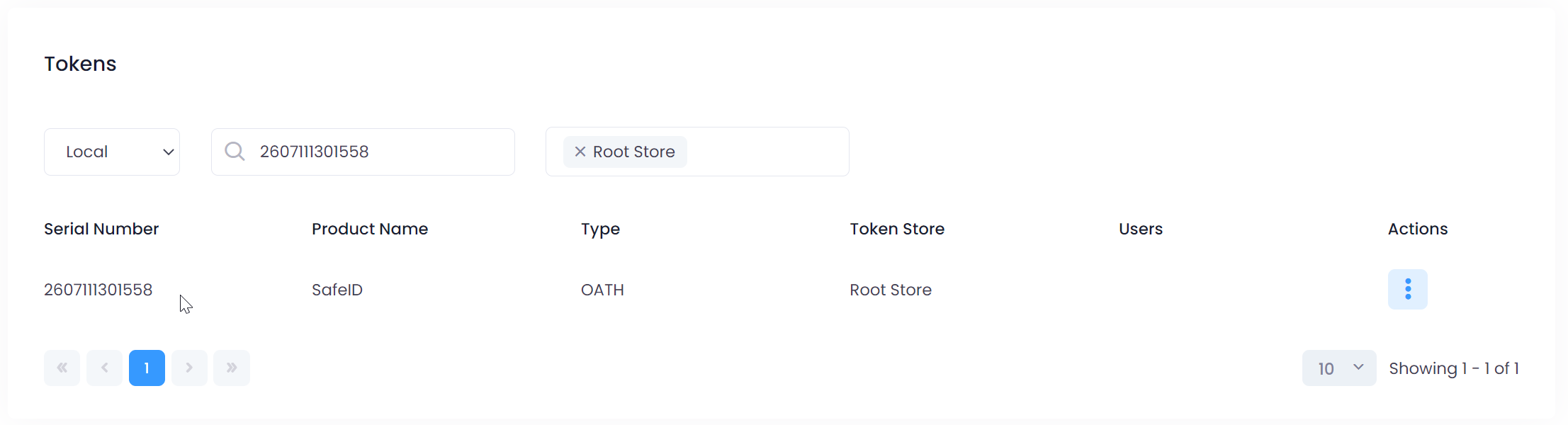
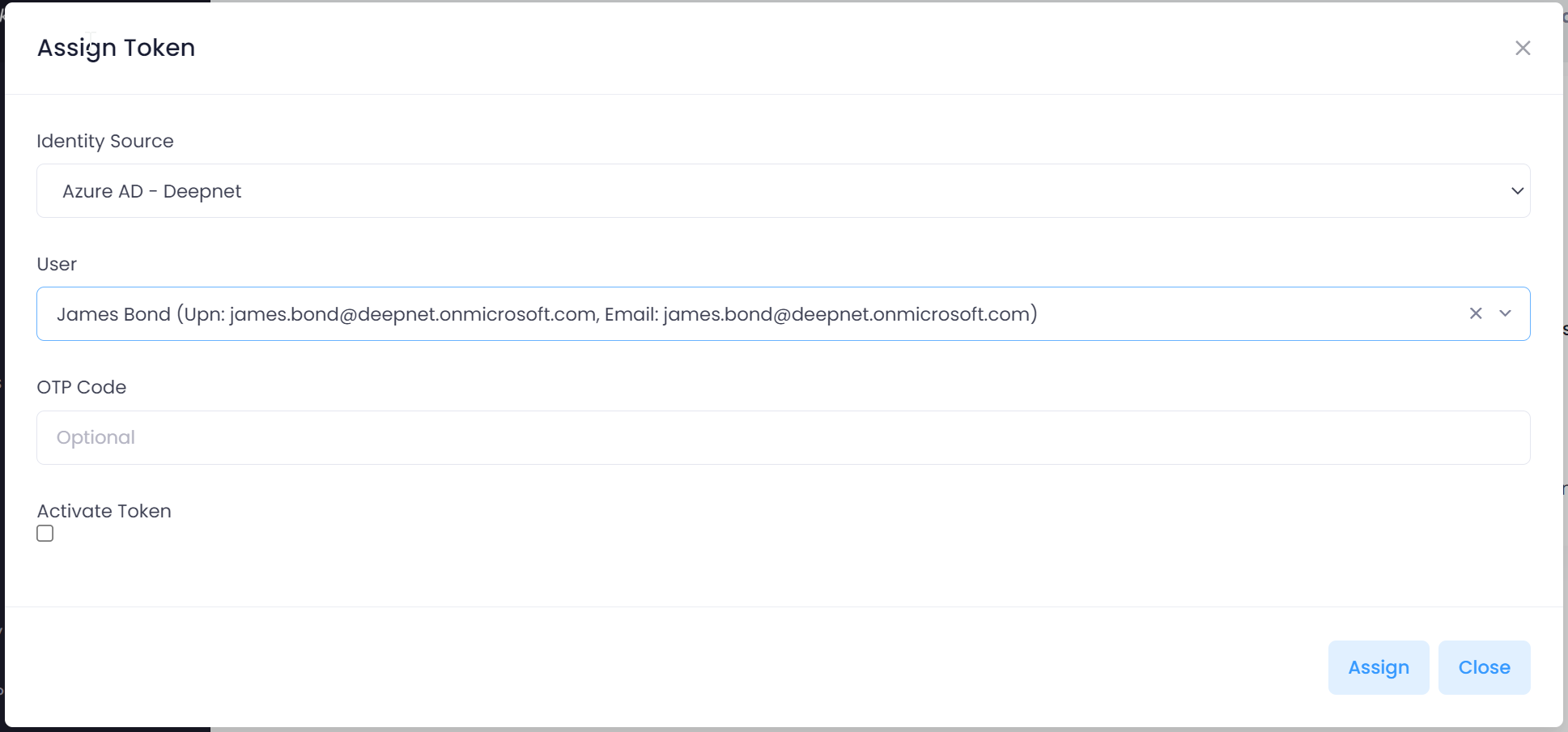
Entra ID users.
There are 2 ways you can assign tokens to users
| Expand | ||||||
|---|---|---|---|---|---|---|
| ||||||
|
| Expand | ||||||
|---|---|---|---|---|---|---|
| ||||||
|
Step 3: Upload tokens to Entra ID
Once you have assigned tokens to users, you can upload the token assignment file onto Entra ID
| Expand | ||||||
|---|---|---|---|---|---|---|
|
Step 4: Activate tokens in Entra ID
Finally, you will need to activate tokens by providing a verification code from the token, one by one.
| Expand | ||||||
|---|---|---|---|---|---|---|
|
...