...
| Include Page |
|---|
...
| border | true |
|---|
To create a policy, select "Administration | Policies" on the side panel,
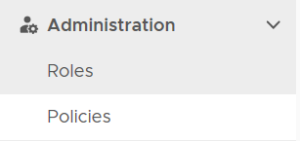

then click the "CREATE" button on the toolbar to bring up the policy editor window.
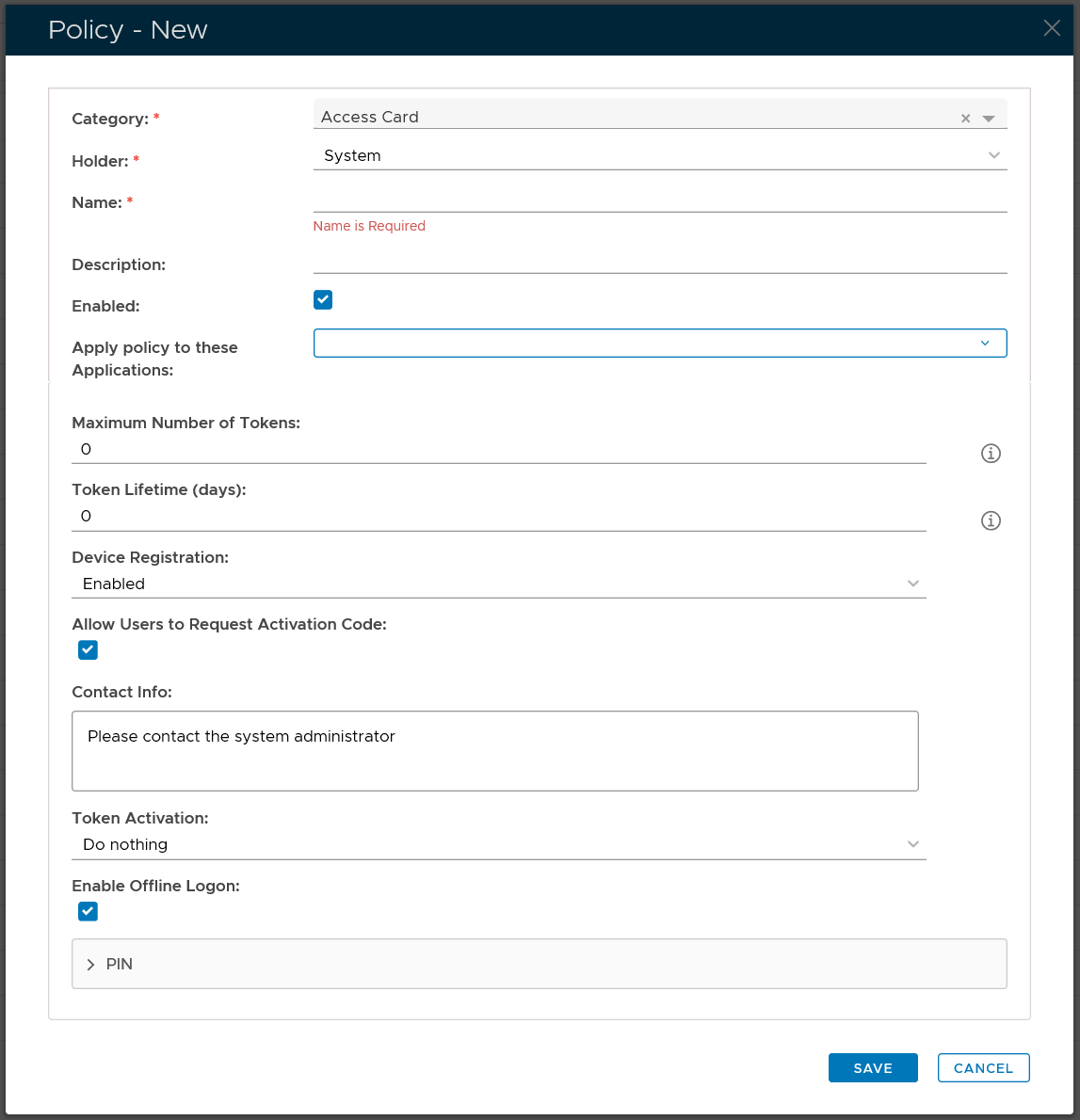
|
| Include Page | ||||
|---|---|---|---|---|
|
| Include Page | ||||
|---|---|---|---|---|
|
| Include Page | ||||
|---|---|---|---|---|
|
| Section |
|---|
CategoryFirst, select the Category of the policy that you want to create, e.g. Session
|
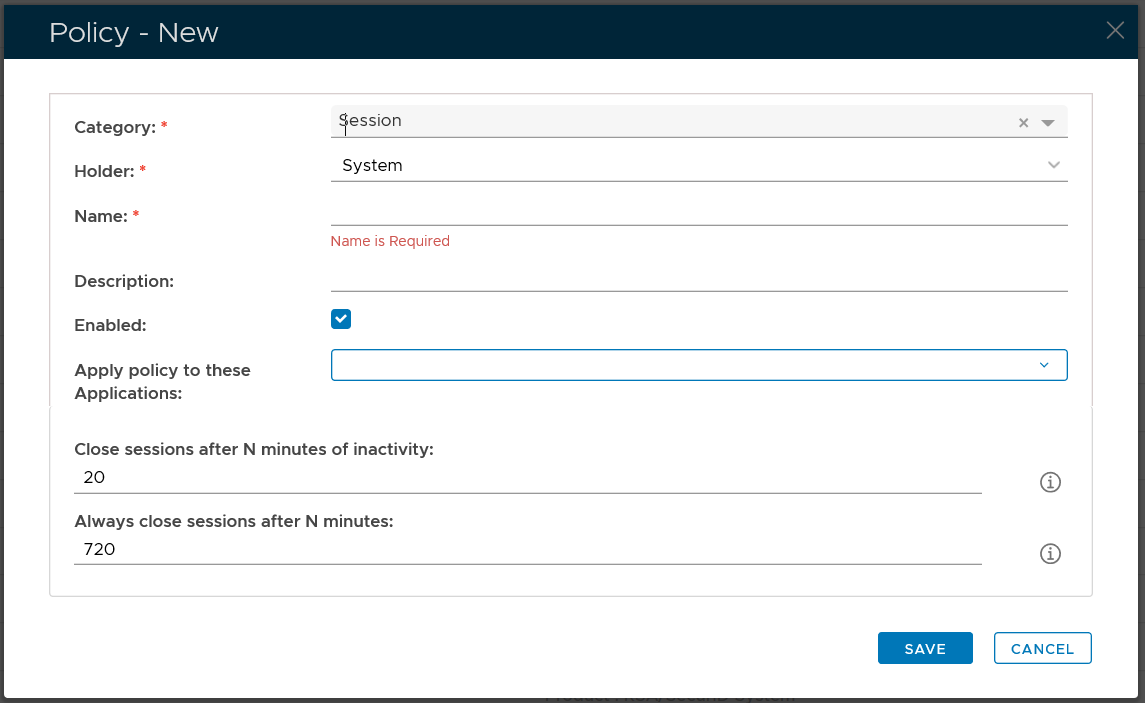
Properties
Then, select the policy Holder which basically defines the scope of the policy
In the Name field, enter a unique name that describe this policy
Optionally, you can bind the policy to a specific applicaiton or a list of applications. To specify the application(s), select the field: Apply policy to these applications
If the field Apply policy to these applications is left empty, then the policy will be applied to all applications.
|