DualShield Computer Windows Logon Agent is a bridge that connects DualShield Computer Logon clients Clients and the DualShield Authentication Server. Due to historical reasons, the Computer Logon Agent is named as Windows Logon Agent. The The Windows Logon Agent can be installed on any Windows server machine in the network.
Prerequisites
Before you run the setup wizard, you must have your DualShield Authentication Server installed and operating, and make sure that the computer on which you are going to install the Windows Logon Agent meets the following minimum hardware and software requirements:
- A Windows 2008 R2, 2012 R2, 2016 or 2019 Windows 2016, 2019 or 2022 Server with the latest service pack installed.Service Pack installed.
Note: For Windows Server 2016, it might be necessary to add an additional JAVA Option, that will generate a TripleDES legacy based PFX. If it is observed the Windows Logon Agent fails complete registration with the DualShield Server (no Application can be associated).
The Deepnet WIKI guide detailing how to add a JAVA Option is here: How to edit JAVA options in the DualShield framework
The JAVA Option / parameter to add: -Dkeystore.pkcs12.legacy=true
A restart of the DualShield Server Service is then required, for this change to take effect.
- TCP/IP Networking
- TCP port 14282 14292 and/or 14284 14294 must be available on the Windows server for use by the DualShield Computer Windows Logon Agent.
Enable Agent Registration
In order to install a DualShield Windows Logon Agent, we need to first enable the Agent Registration option.
...
| Expand | ||||||
|---|---|---|---|---|---|---|
| ||||||
|
Install DualShield Windows Logon Agent
To install the DualShield Windows Logon Agent, launch the installer SetupDSAgent-xxx.yyyy.exe (where xxx is the version number and yyyy the build number) and go through the following steps:
| Table of Contents | ||||
|---|---|---|---|---|
|
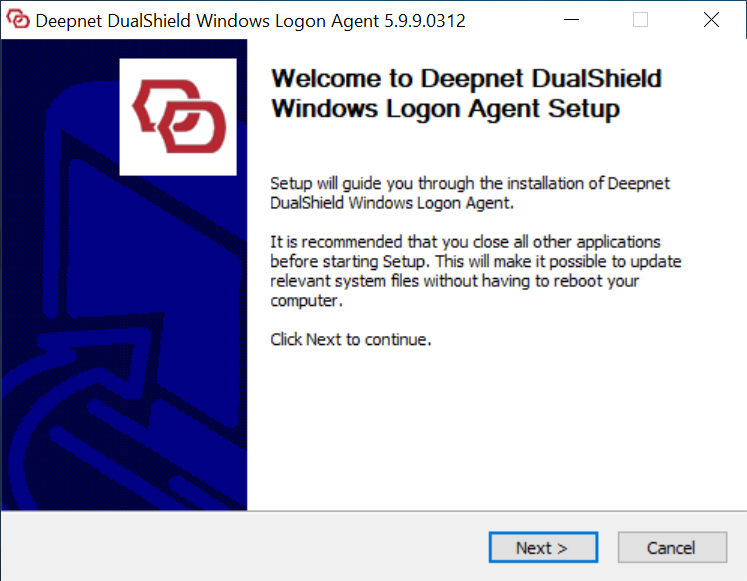
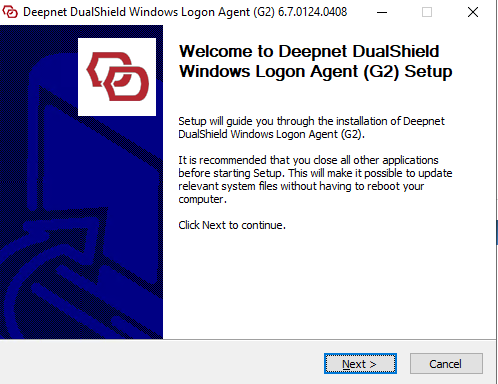
Step 1: Welcome
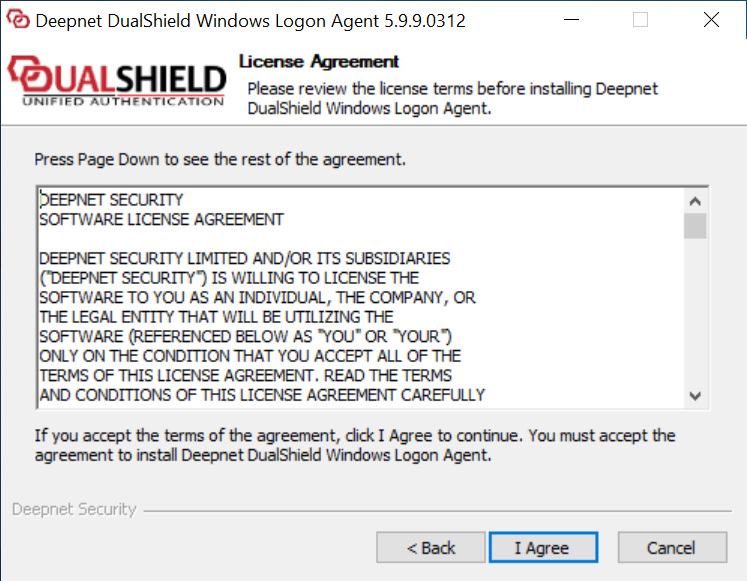
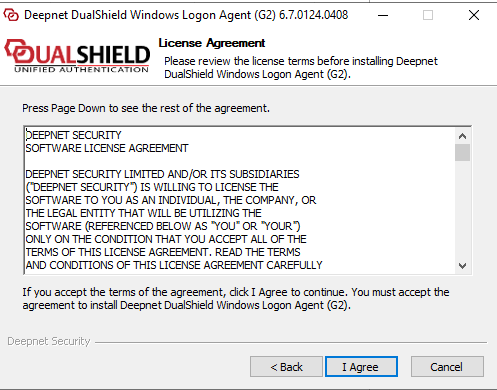
Step 2: License Agreement
Step 3: Installation Path
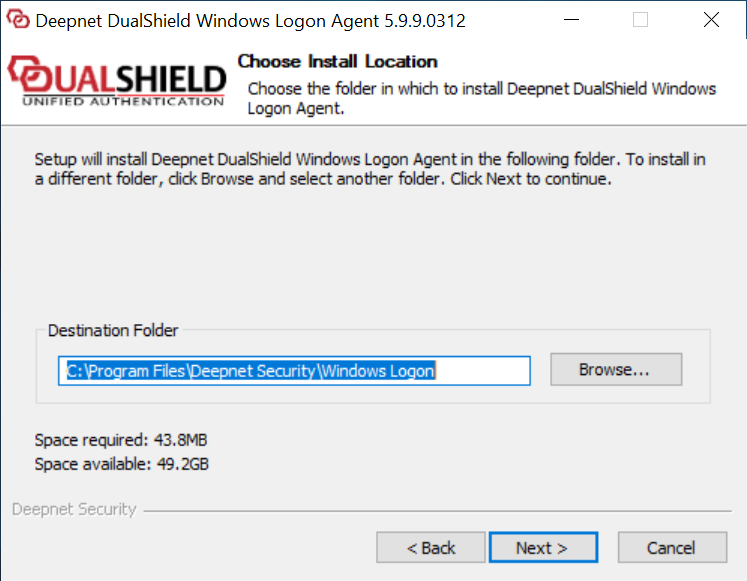
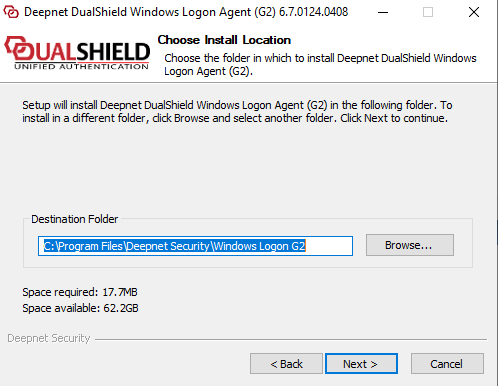
Step 4:
...
Agent Registration
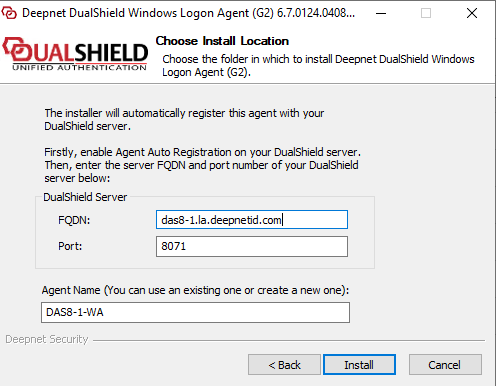
In the FQDN field, enter the correct FQDN of your DualShield server. The default suggestion is based on the host name of the machine and is often not the correct value.
In the Port field, keep the default value 8071, unless you have changed your DualShield Server's operating port numbers.
Step 5
...
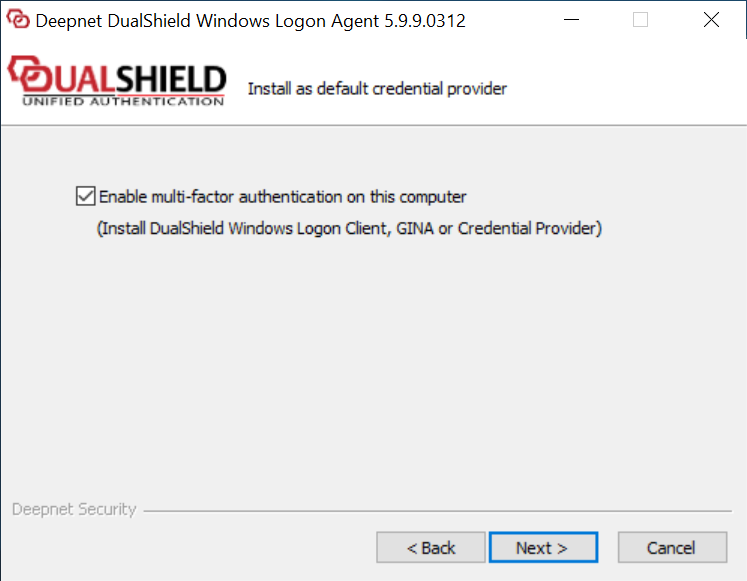
Enable the option: “Enable multi-factor authentication on this machine” only if you wish to protect the server machine on which the Windows Logon Agent is being installed. Otherwise, do not check this option.
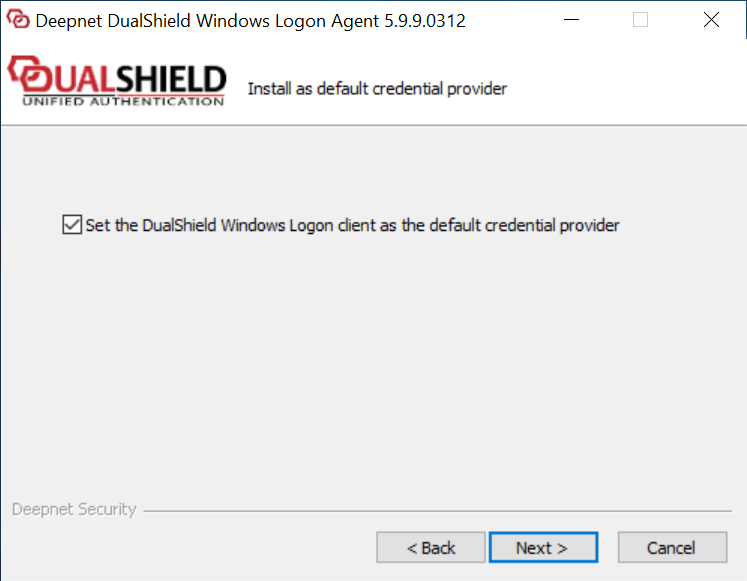
Enable the option: “Protect local computer logon with multi-factor authentication" only if the server machine on which the Windows Logon Agent is being installed is a terminal server and you want to add two-factor authentication to the logon to the local machine.
Step 5: Agent Registration
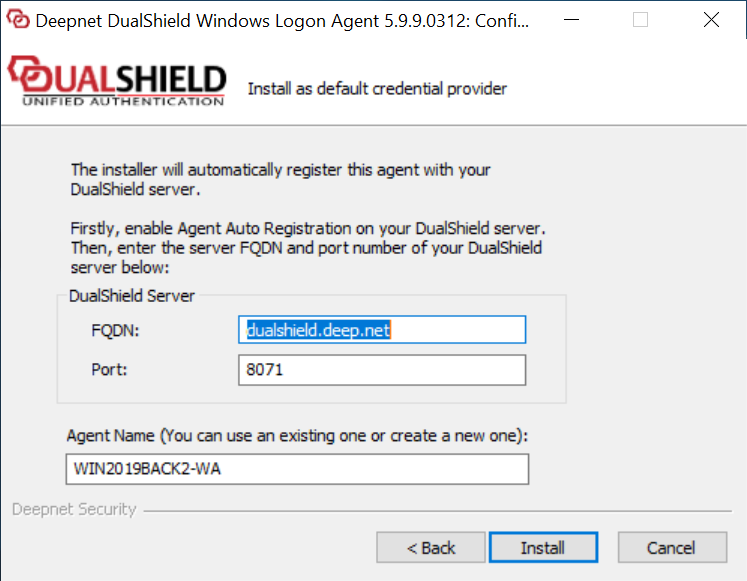
Check the FQDN and Port number of your DualShield Server. Change them if necessary. The default port of DualShield server is 8071.
...
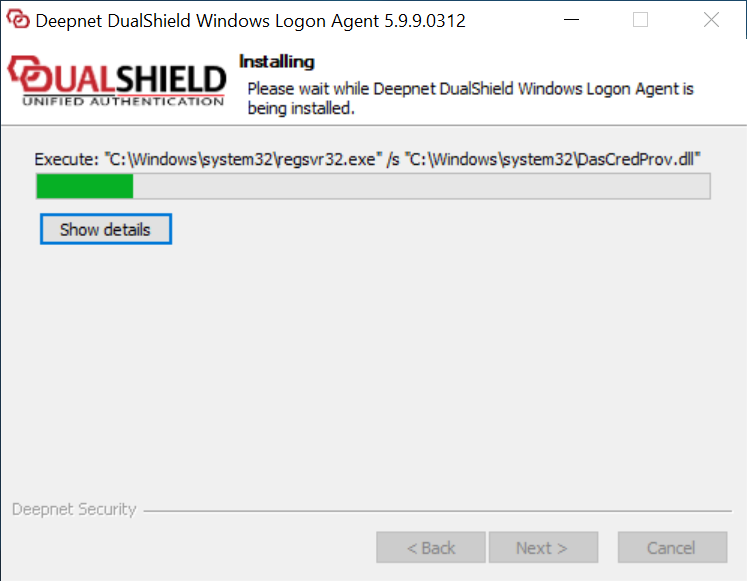
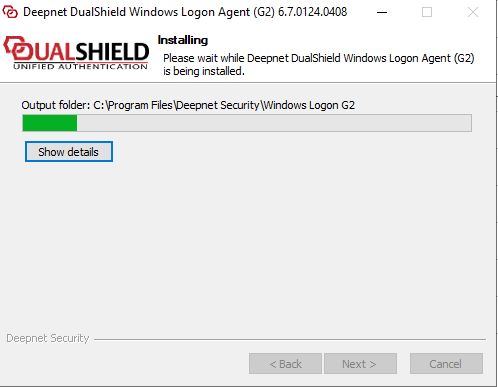
: Installing...
Step
...
6: Connect to an application
At this point, the agent has been successfully registered with the DualShield server., and is waiting for an application to be published on this agent.
Make sure the DualShield Authentication Server Address matches the FQDN of your DualShield Server.
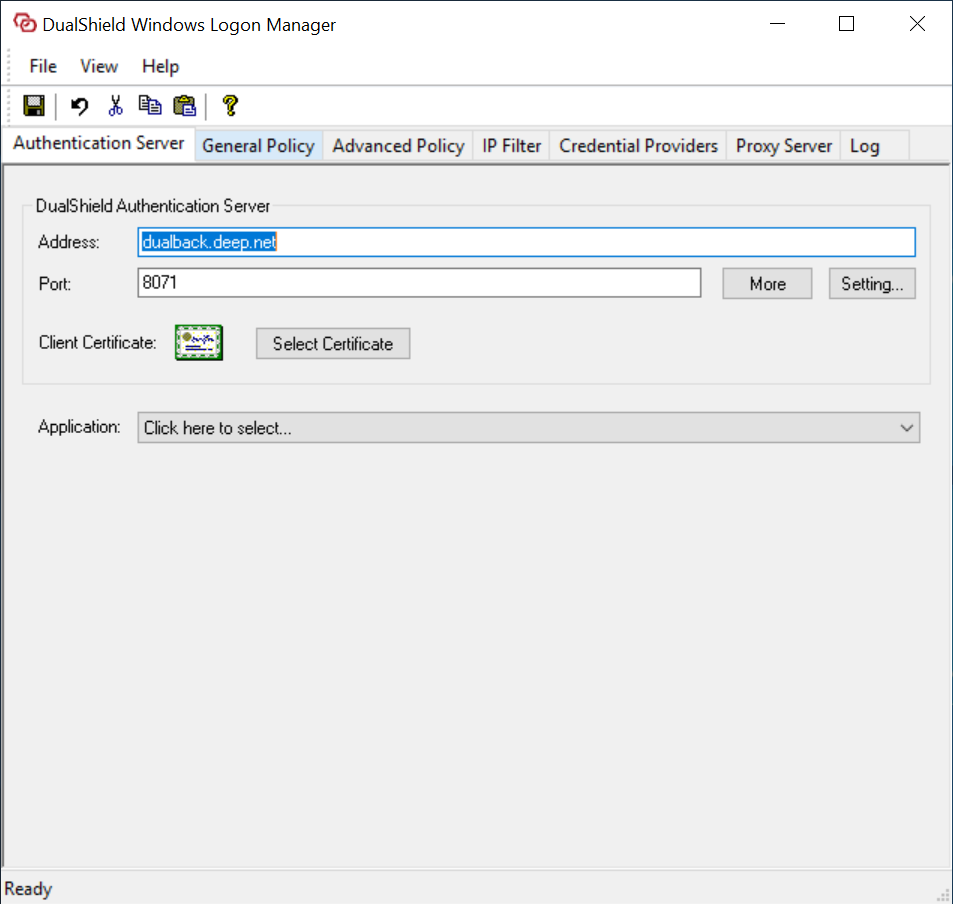
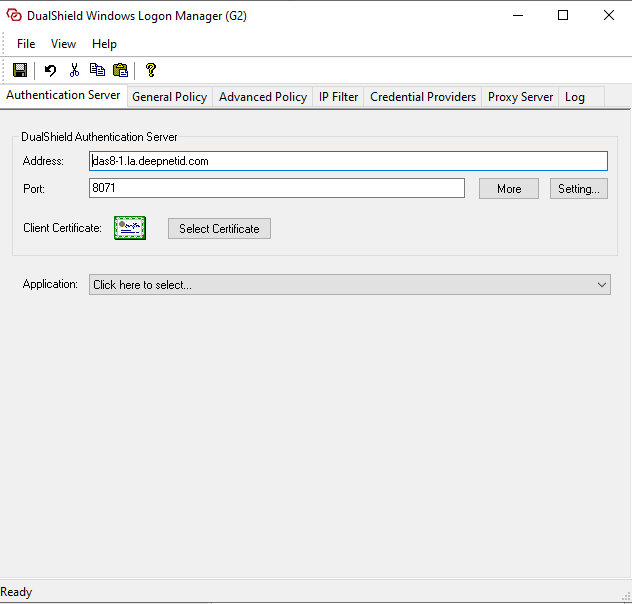
In the “Application” field, it displays “Click here to select”.
The next step is to publish a Windows application on this agent.
Step
...
7: Publish an application
Login to your DualShield Admin Console, select "Authenticaiton Authentication | Agents" in the side panel.


You will see that the agent you are installing is listed.
Open the Agent's context menu.
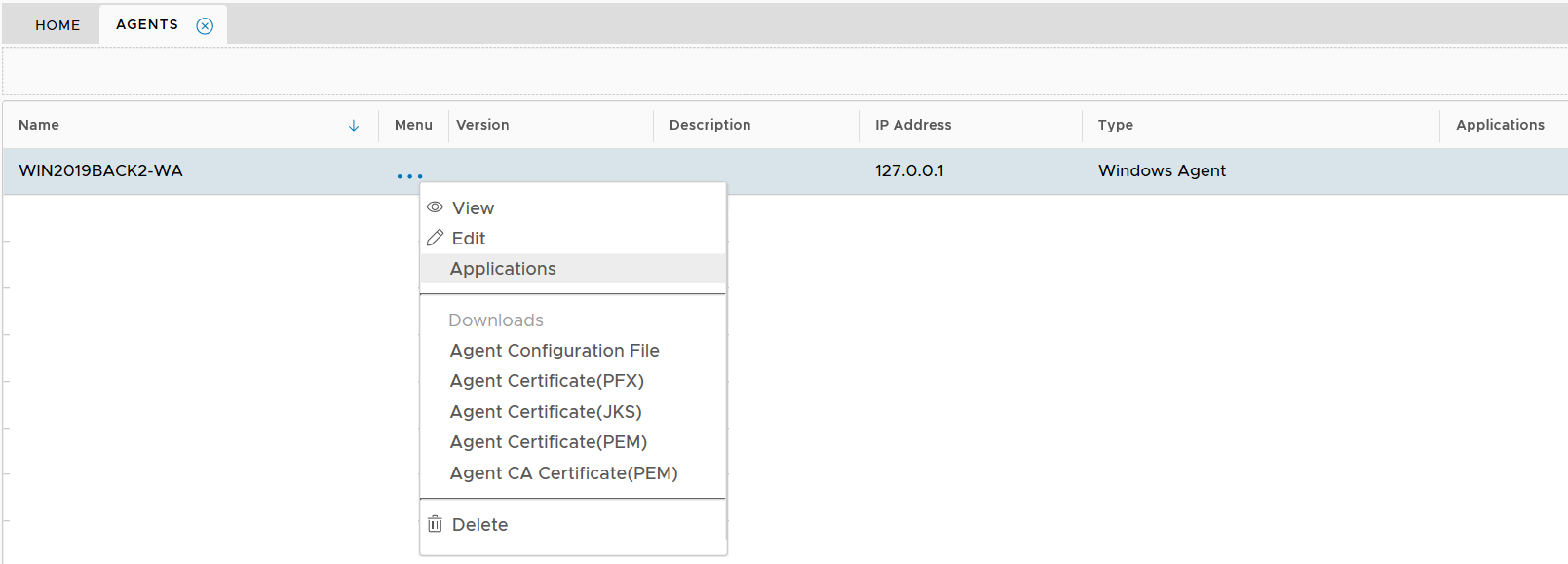
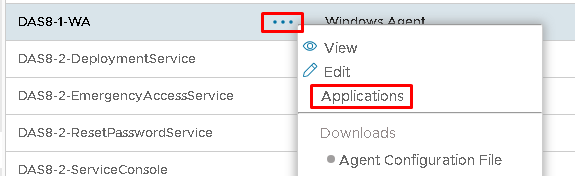
Select "Applications" to launch the application list
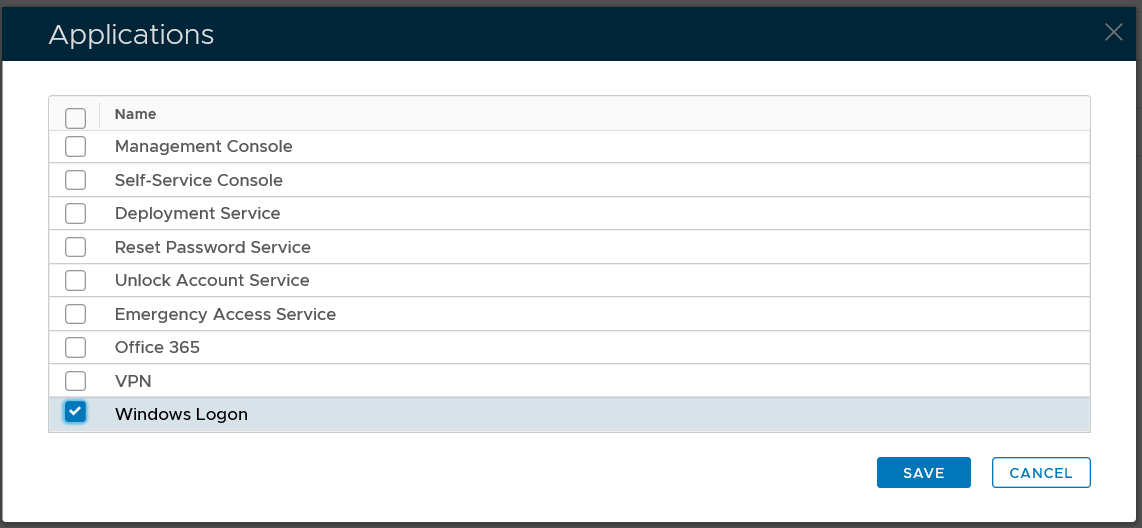
Select the application that you want to publish on this agent, e.g. Windows Logon, then click the "SAVE" button.

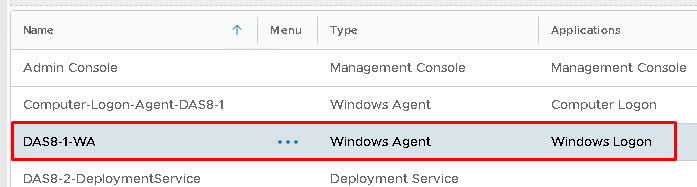
The application is now published on the agent.
Step
...
8: Complete installation
Now, go back the agent installation process where it is displaying "Click here to select” in the Application field:
Click "Click here to select", you will see that an application is now available in the list
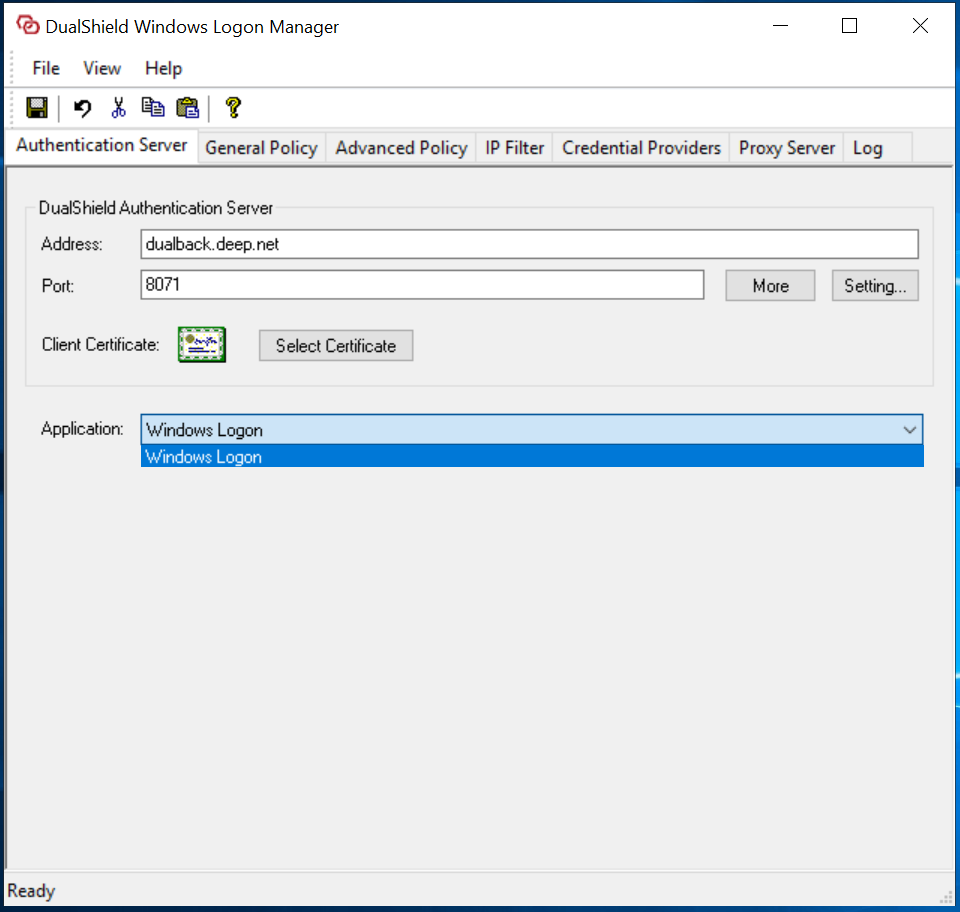
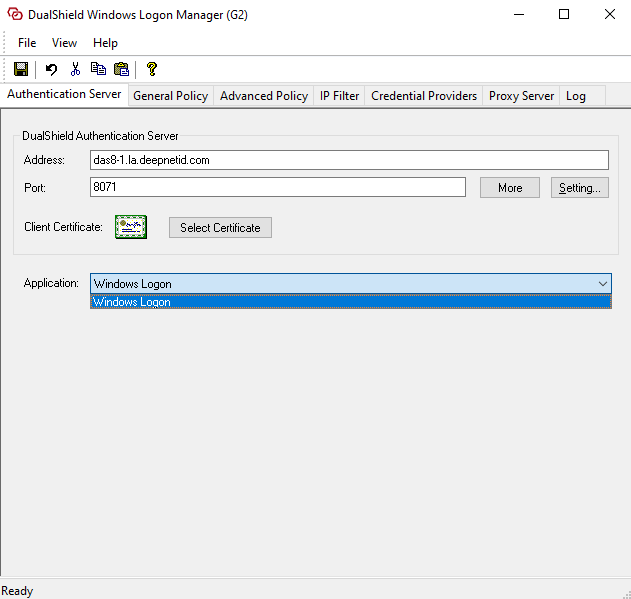
Select the application, then click the Save icon on the toolbar:
...
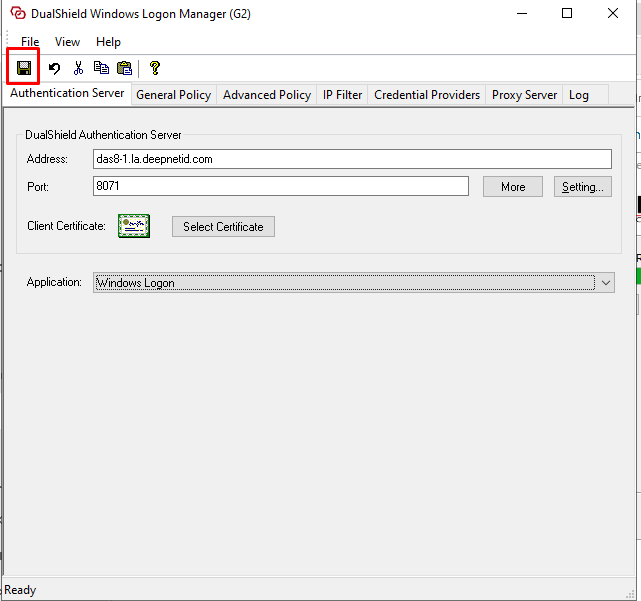
You will then see the following message
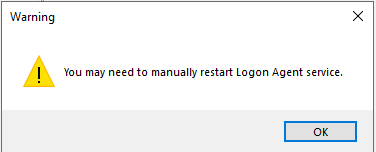
It is recommended that you DualShield Windows Logon Agent service.

Finally, click the close icon to close the window
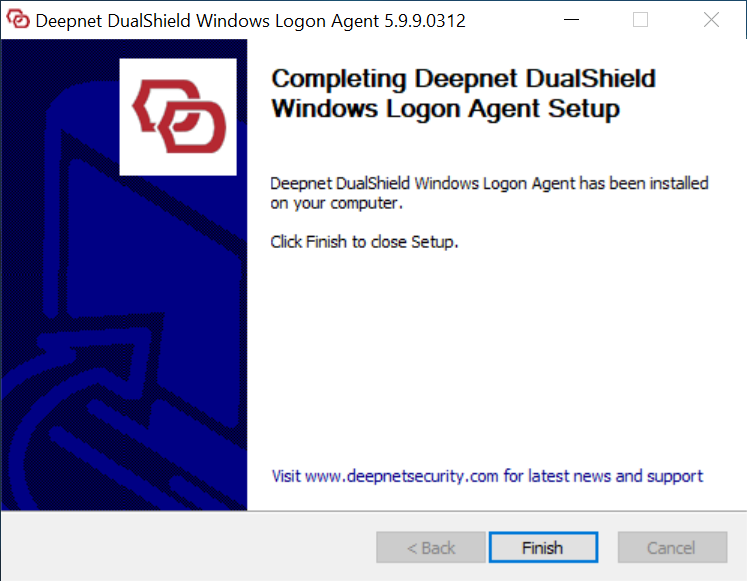
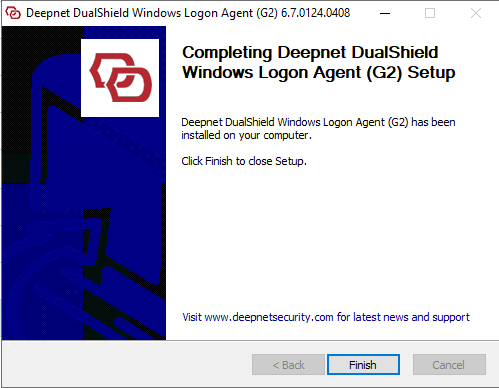
The Windows logon agent has now been successfully installed, registered and linked to an logon application.
...