...
- Login to the DualShield Administration Console
- In the main menu, select navigate to "Authentication > | Logon Procedures
...
- "
...
- Click the "
...
- + CREATE" button on the toolbar
...
- Enter a friendly "Name" and select "Web SSO" as the
...
- Type:
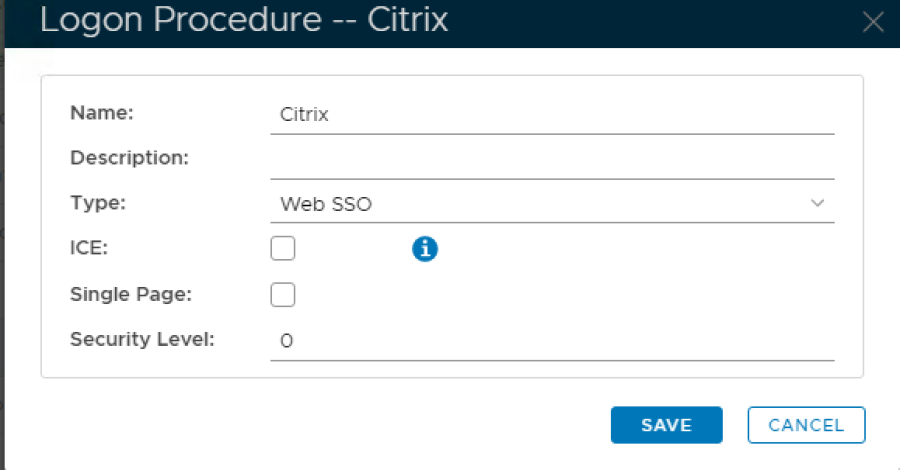
5. Click SaveClick "SAVE" button to create.
6. Click the Context Menu icon context "..." menu of the newly create logon procedure, select created Logon Procedure, then select "Logon Steps
...
"
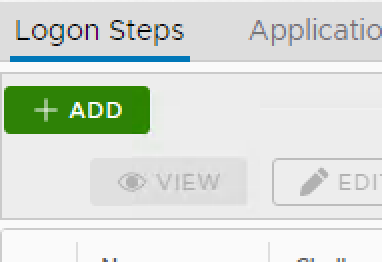
7. In the popup windows, click on Add
8. Select the desired authentication method, e.g. Static Password
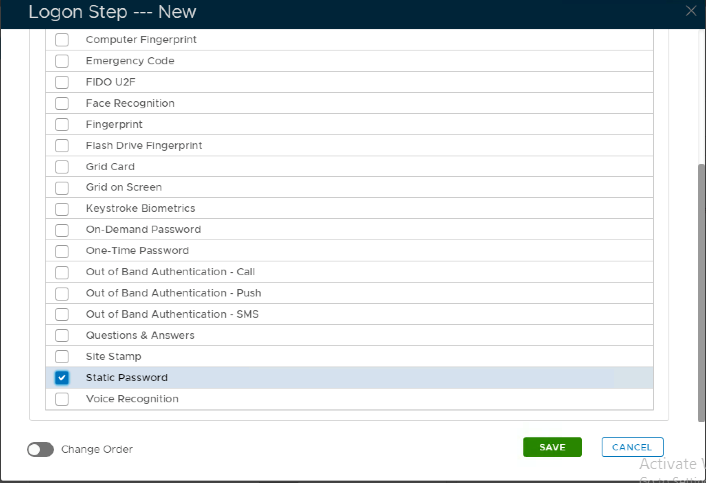
9. Click Save
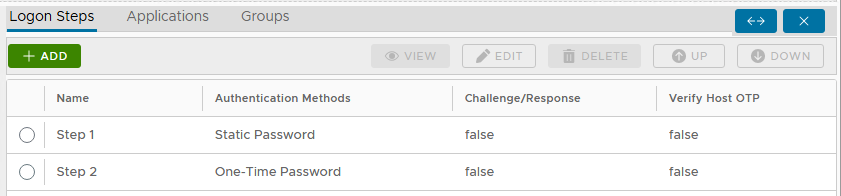
10.Repeat step 7-9 to add more logon steps if desired, e.g. One-Time Password.
...
Click "+ ADD" to select and add a Logon Step. Repeat for both "Static Password" (AD Password) and "One-Time Password":
Create an Application for ADC Citrix Gateway
- In the main menu, select Authentication > Application
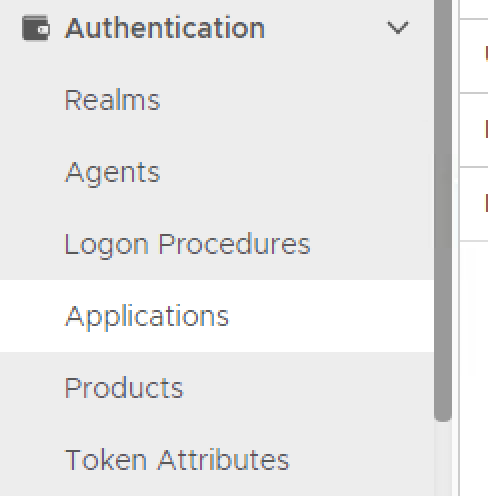
2. Click on Create
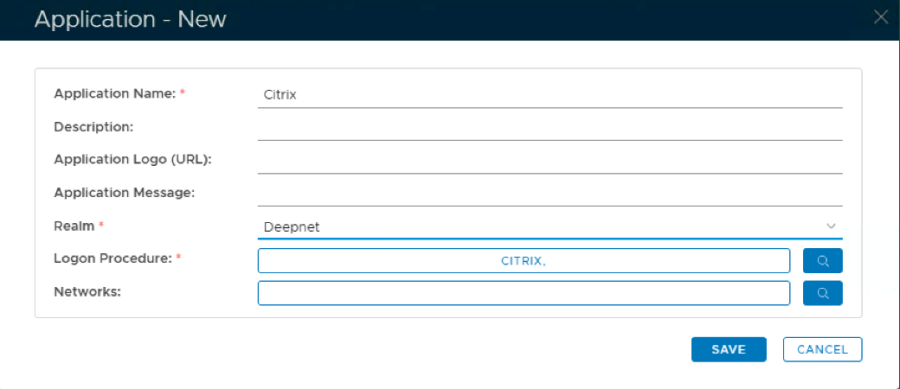
3. Enter Name
4. Select Realm from drop-down list and Logon Procedure from search button.
- navigate to "Authentication | Applications"
- Click "+ CREATE" button, to create the new Application
Name: Enter an appropriate friendly "Name"
Realm: Select your internal AD "Realm"
Logon Procedure: Select the Logon Procedure created in the previous step.
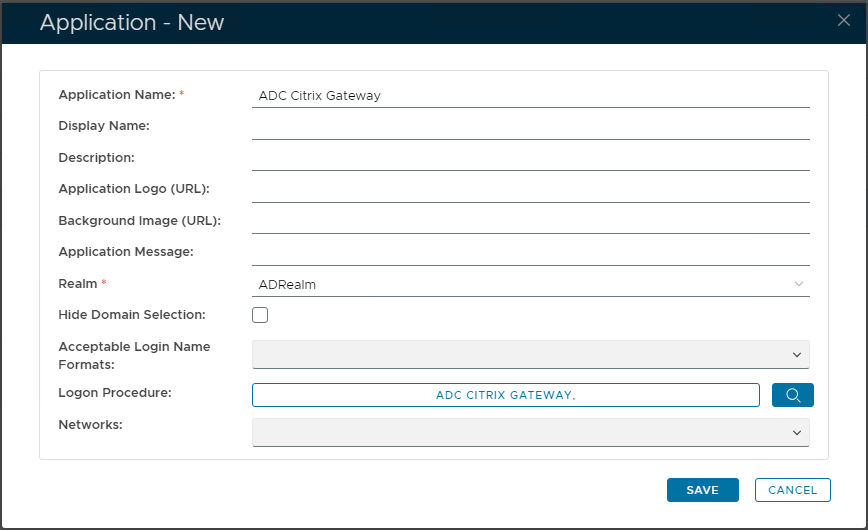
5. Click "SAVE" button to create the new Application5. Click Save
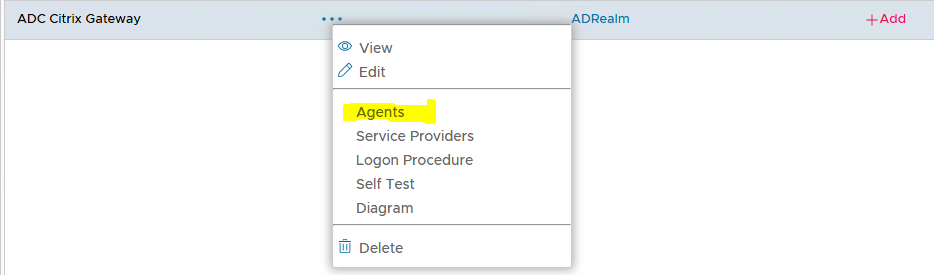
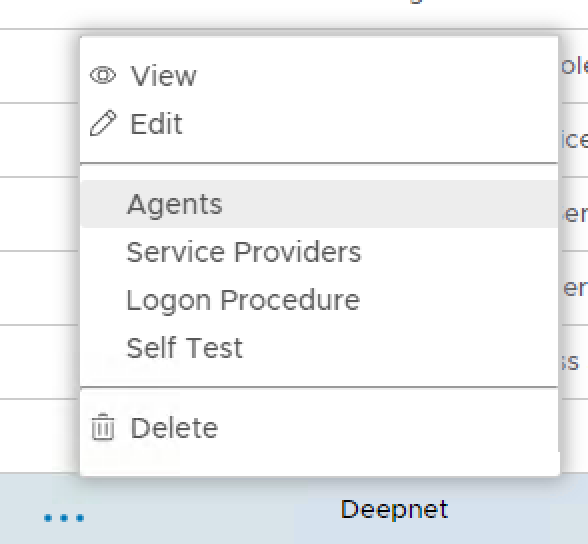
6. Click the context "..." menu of the newly created applicationApplication, then select "Agents":
7. Select From the list select "Single Sign-on Server / SSO Server":
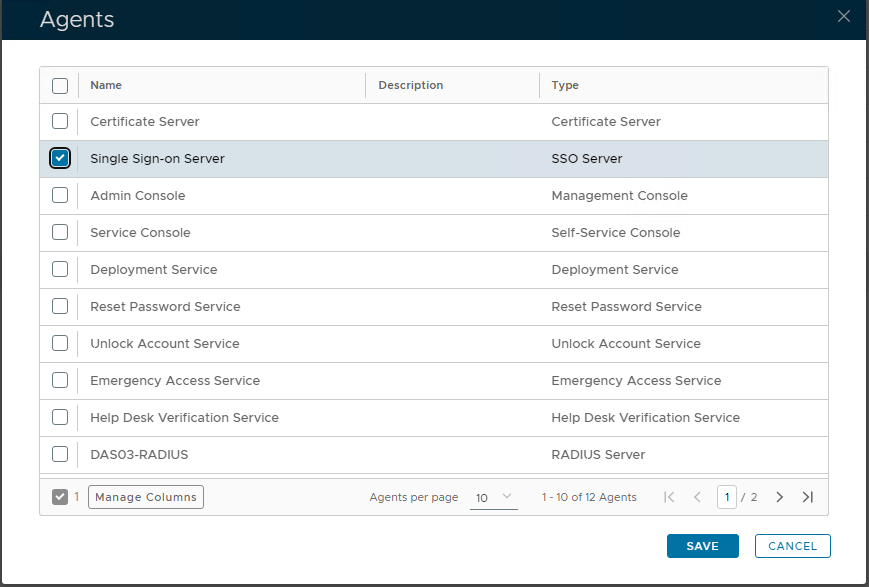
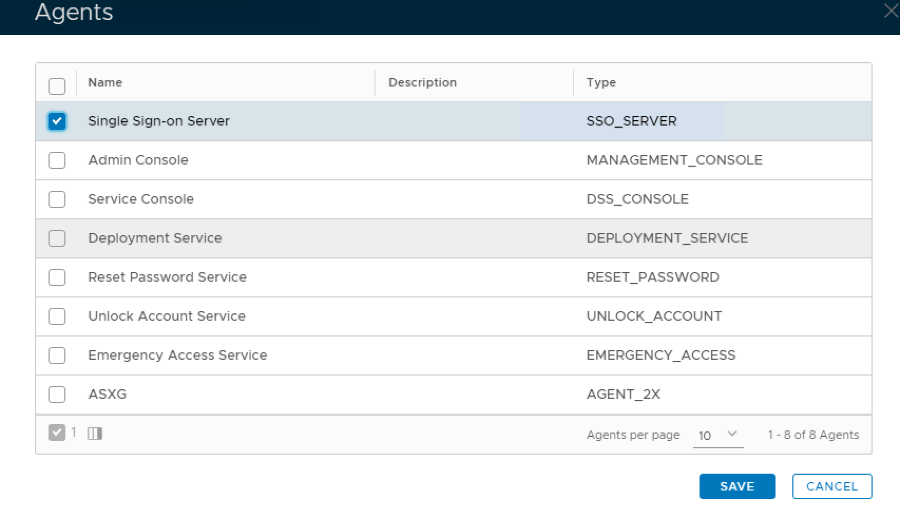
8. Click Save"SAVE" button to confirm.
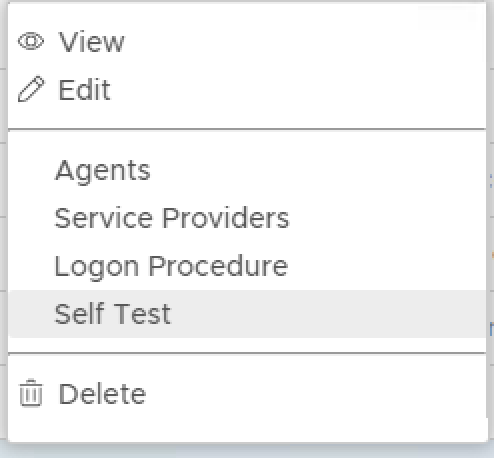
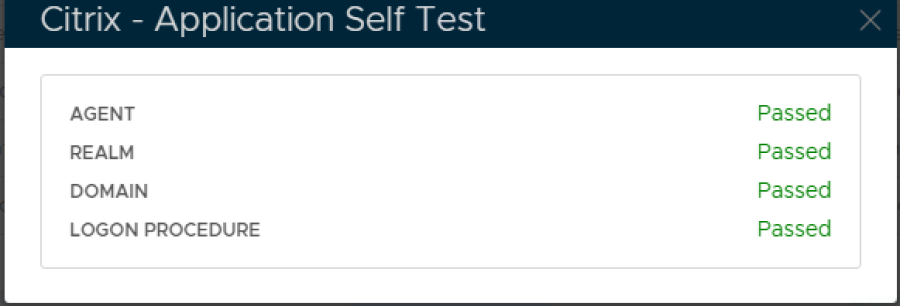
9. Click the context "..." menu of the newly created applicationApplication, select then "Self Test
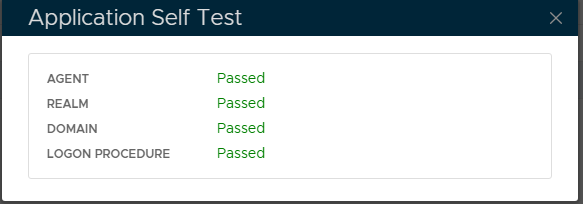
If configured correctly all the tests should pass, as below.
"
Create a SAML Service Provider for ADC Citrix Gateway
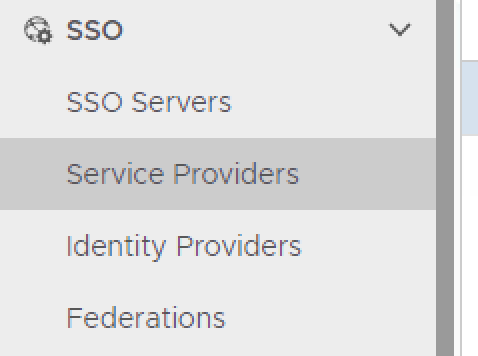
- In the main menu, select navigate to "SSO > | Service Providers"
2. Click Create
3. In the SSO Server field, select your DualShield SSO server from the list
4. In the Name field, enter the name for the Service Provider to be created
5. In the Type field, select SAML 2.0
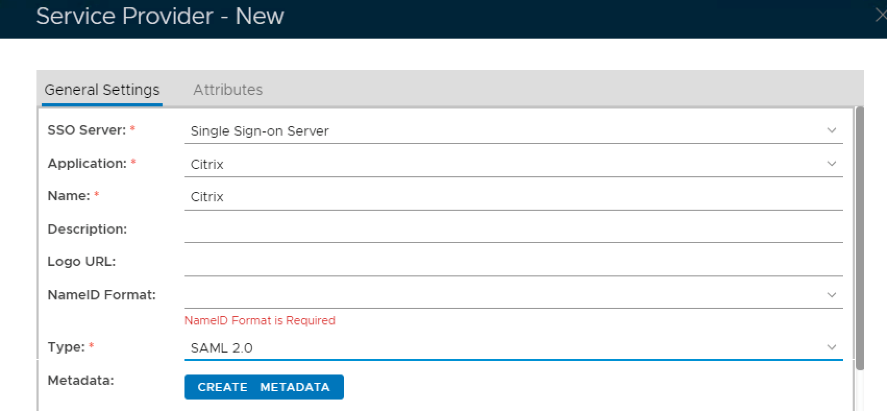
- Click "+ CREATE" to setup a new Provider
SSO Server: Select default "Single Sign-on Server"
Name: Enter an appropriate friendly "Name".
Type: Select from the drop-down "SAML 2.0".
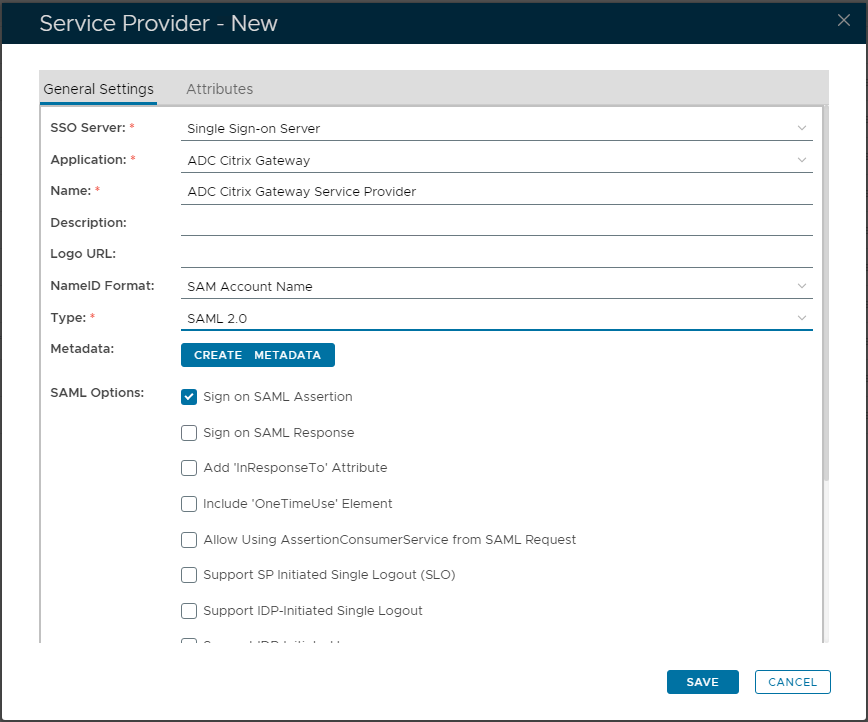
6. Click the "CREATE METADATA" button.6. Click on Create Metadata
7. In the Metadata box that appears, enter the metadata of the service provider to be created. paste in the Metadata, exported from the Service Provider (*see template below)
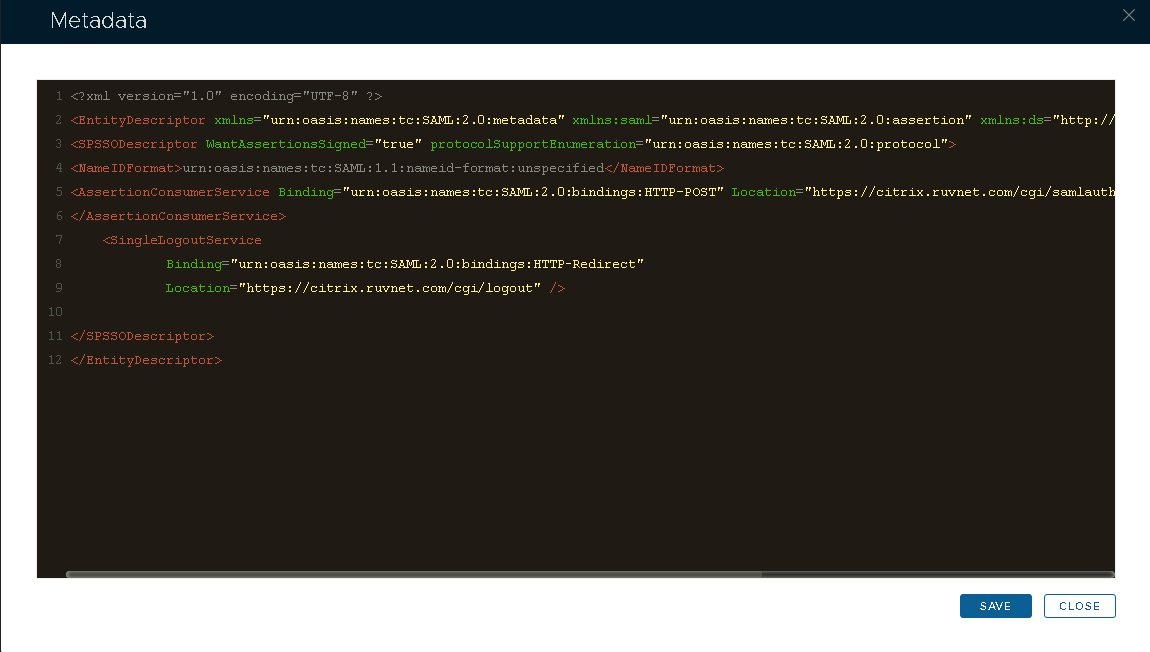
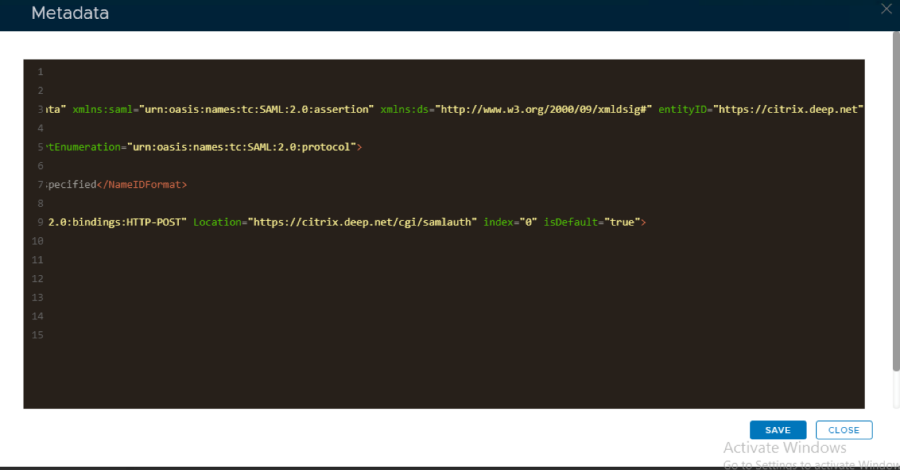
- Use the template below to create the metadata. Change the value of the entityID, ACS and SLO location attributes (highlighted in red) to the FQDN of your Citrix Gateway Virtual Server.
<?xml version="1.0" encoding="UTF-8" ?>
<EntityDescriptor xmlns="urn:oasis:names:tc:SAML:2.0:metadata" xmlns:saml="urn:oasis:names:tc:SAML:2.0:assertion" xmlns:ds="http://www.w3.org/2000/09/xmldsig#" entityID="https://citrix.gateway.fqdn">
<SPSSODescriptor WantAssertionsSigned="true" protocolSupportEnumeration="urn:oasis:names:tc:SAML:2.0:protocol">
<NameIDFormat>urn:oasis:names:tc:SAML:1.1:nameid-format:unspecified</NameIDFormat>
<AssertionConsumerService Binding="urn:oasis:names:tc:SAML:2.0:bindings:HTTP-POST" Location="https://citrix.gateway.fqdn/cgi/samlauth" index="0" isDefault="true">
</AssertionConsumerService>
<SingleLogoutService
Binding="urn:oasis:names:tc:SAML:2.0:bindings:HTTP-Redirect"
Location="https://citrix.gateway.fqdn/cgi/logout" /></SPSSODescriptor>
</EntityDescriptor>
Click Save.
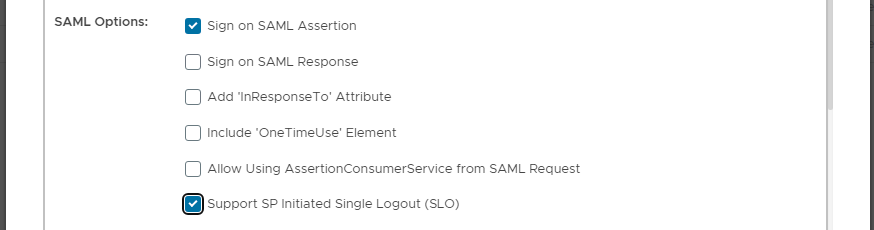
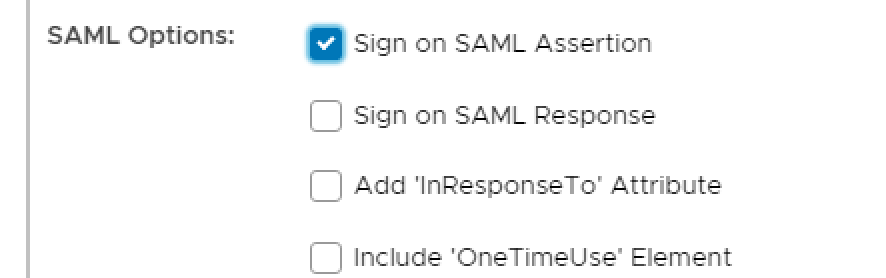
8. Enable "Sign on SAML Assertion" and "Support SP Initiated Single Logout (SLO)" under 'SAML OptionOptions'.
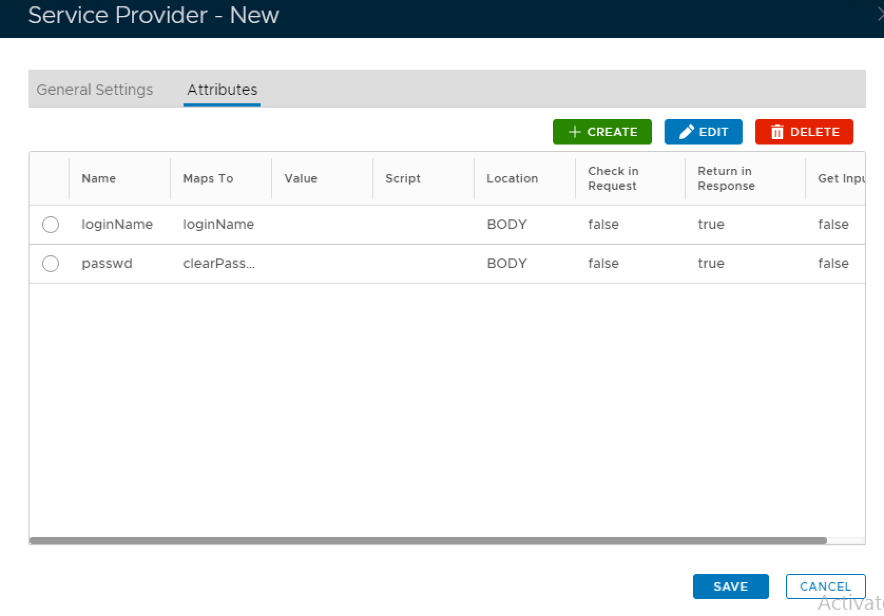
9. Click on the 2nd "Attributes" tab at in the topmenu:

10. Click Create the "+ CREATE" button, to add a new Attribute.
11. On the Attributes builder specify Location as HTTP Body and enter a name for this attribute. In this case I have used the name loginName .
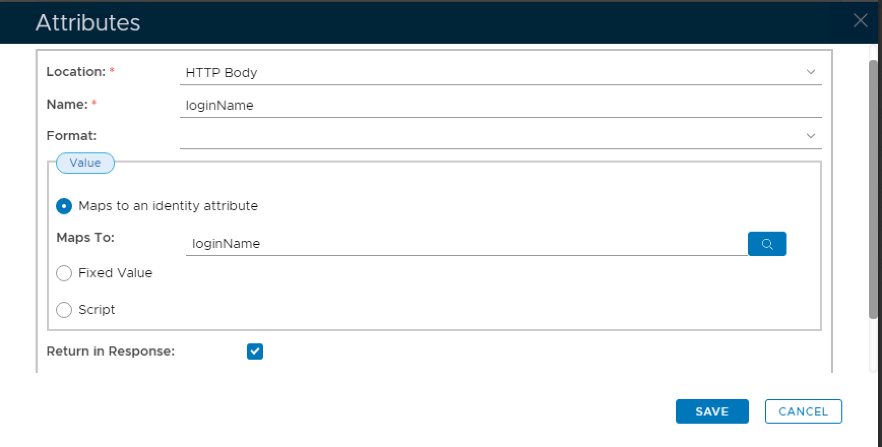
12. Click on the search symbol to the right of the Maps To field.
...
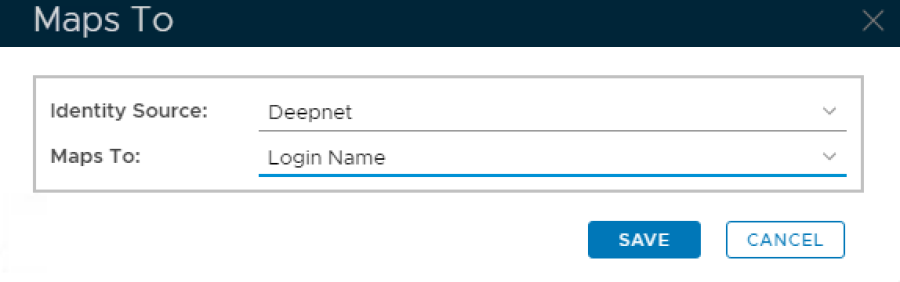
13. Select the identity source that will be used and select Login Name from the Maps to drop down list:
14. Click Save
15. Click Save again
...
17. Copy this syntax clearPassword.encodeAsBase64() and paste it into the Maps To field
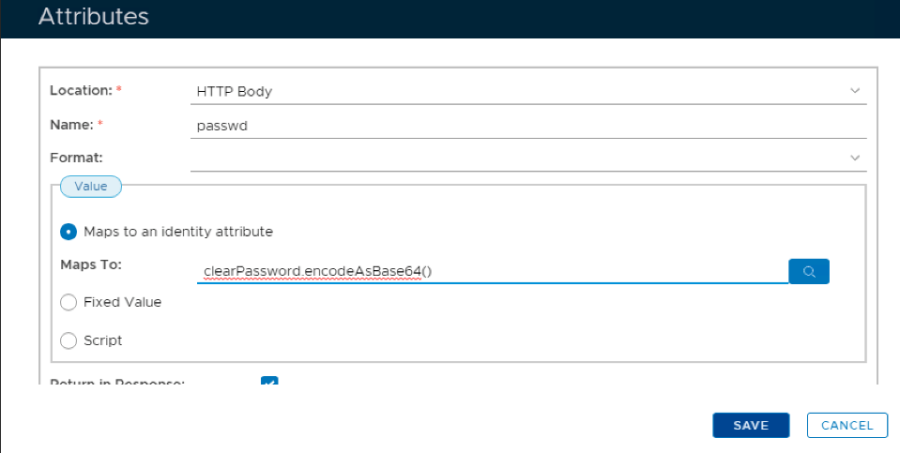
18. Click Save
19. Click Save again.
...