...
The "Token Notification Service" task periodically checks if tokens are about to reach their renewal expiration time, and sends out notification messages to the users.
A token expiry notification may be sent based on the date of token creation and the value specified in the DeviceID policy setting "Token Lifetime Expiration Notice (days):" (see below);
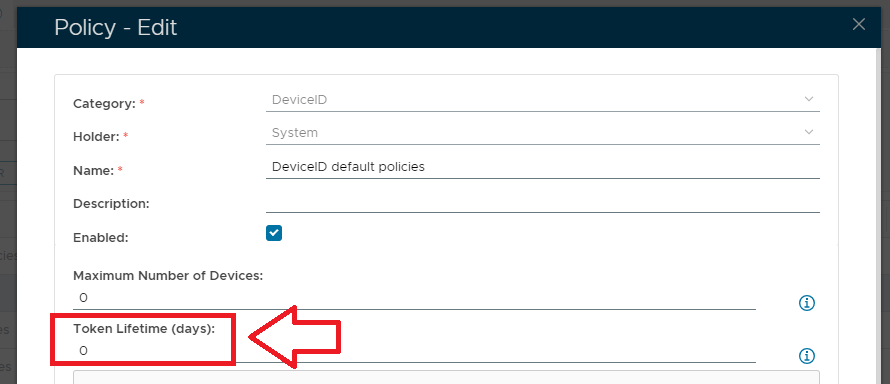
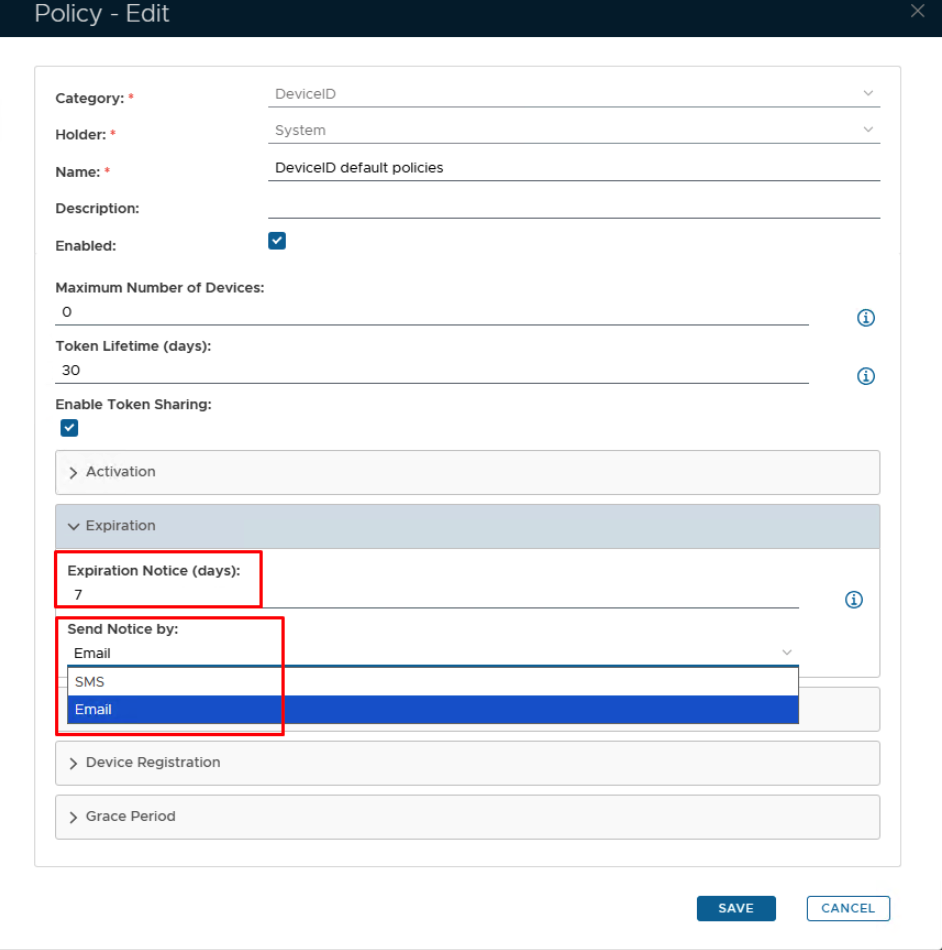
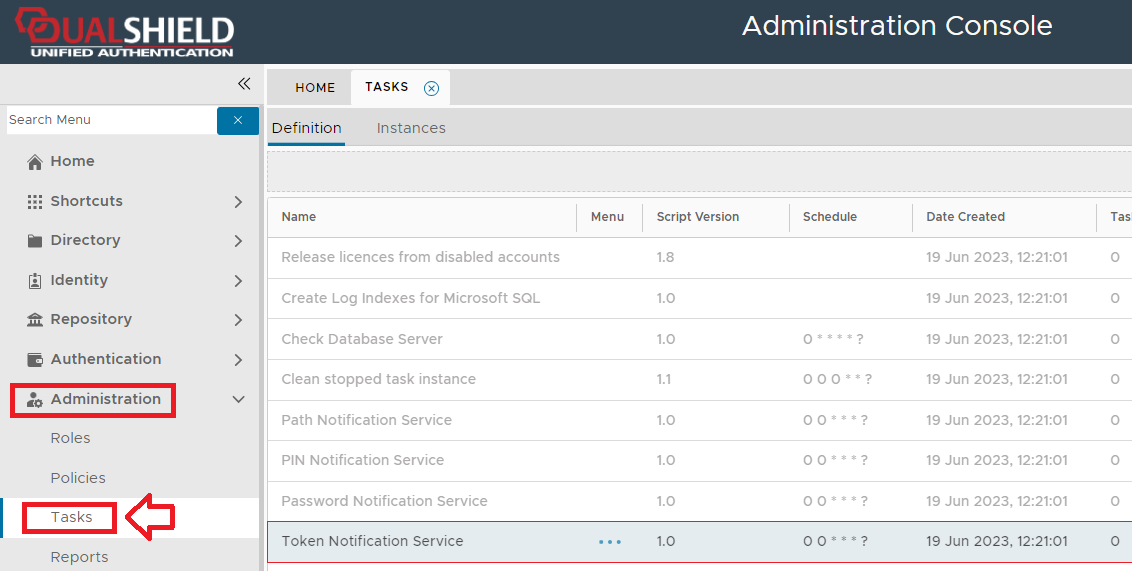
The task can be found by navigating to "Administration | Tasks", then scrolling down to the task "Token Notification Service";
Task Parameters
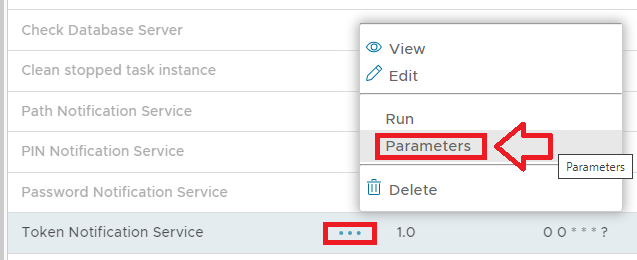
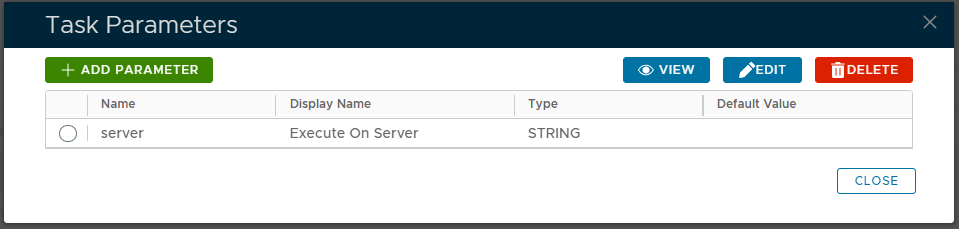
The task parameters are used by the task script to determine which tokens are to be deleted and are edited by left clicking on the context menu of the task and selecting "Parameters";
A new window titled "Task Parameters" will now open that lists the parameters making them available for editing, and the default parameters for this task are as follows
The "Token Notification Service" task uses the following parameters;
...
| Column | ||
|---|---|---|
| ||
|
...
| width | 70% |
|---|
...
| title | server |
|---|
| Panel | ||||||
|---|---|---|---|---|---|---|
| ||||||
Specify the computer name of the server the task is to be run on,. |
If you have multiple DualShield backend servers, then you need to specify the computer name of the server that will run this task
Select the parameter "Server" then click the  button, and a new window titled "Parameter - Edit" will open;
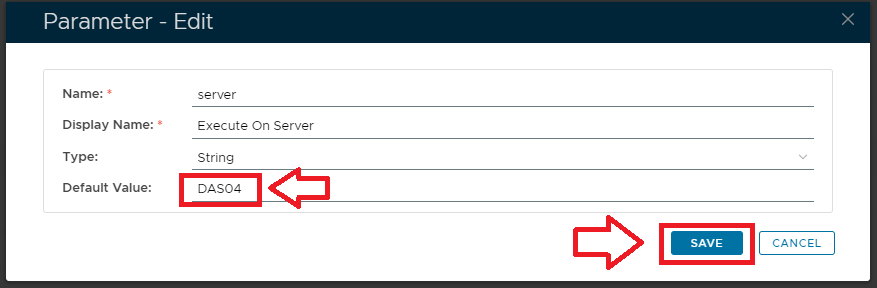
At the parameter "Default Value:" supply the name of the server the task is to run on., then click  to update the parameter.
...
| title | Click here for more information on editing task parameters |
|---|
...
Editing
...
Editing and Scheduling the Task
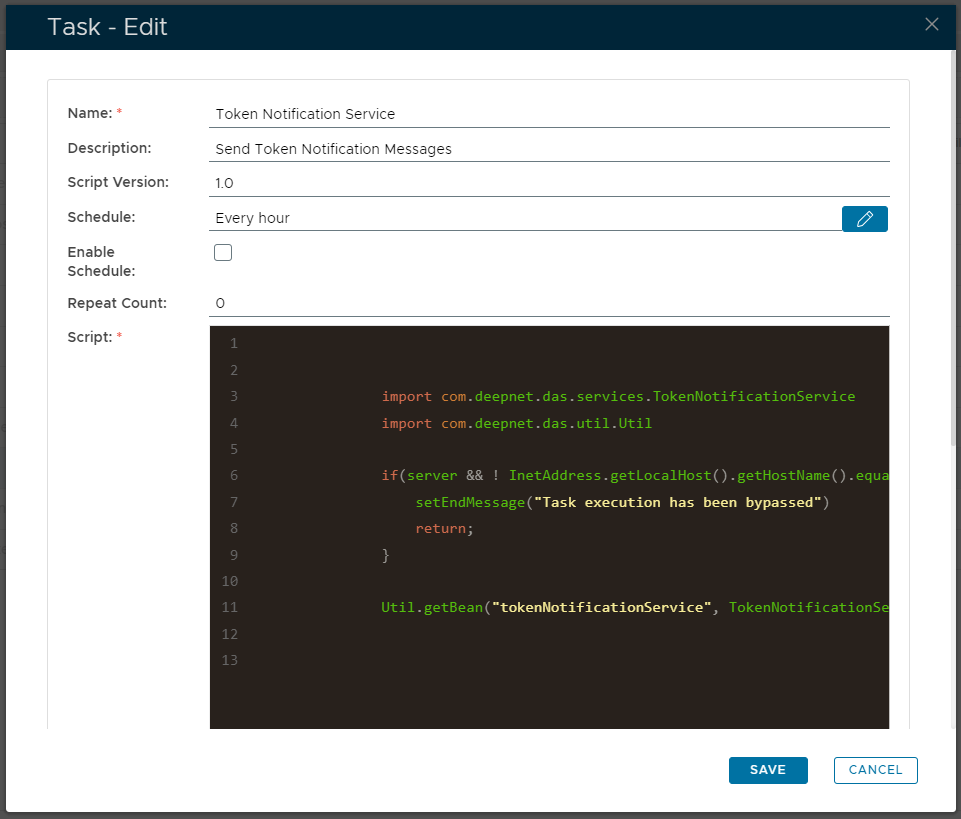
Viewing and Editing the task
...
| Section | ||||||||||||||||||||||||||||||||||||||||||||||||||||||||||||||||||||||||||||||||||||||||||||||||||||||||||||
|---|---|---|---|---|---|---|---|---|---|---|---|---|---|---|---|---|---|---|---|---|---|---|---|---|---|---|---|---|---|---|---|---|---|---|---|---|---|---|---|---|---|---|---|---|---|---|---|---|---|---|---|---|---|---|---|---|---|---|---|---|---|---|---|---|---|---|---|---|---|---|---|---|---|---|---|---|---|---|---|---|---|---|---|---|---|---|---|---|---|---|---|---|---|---|---|---|---|---|---|---|---|---|---|---|---|---|---|---|
|
Scheduling the Task
Select the "Enable Schedule" checkbox to ensure the task schedule is activated, then use the pencil icon (" ") to specify the time and frequency settings for automated task execution.
...
A new window will open titled "Execute Task" will then open (the window will be populated with the default task property settings);
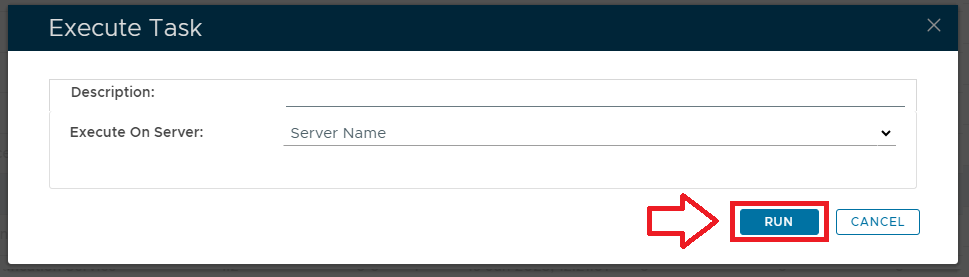
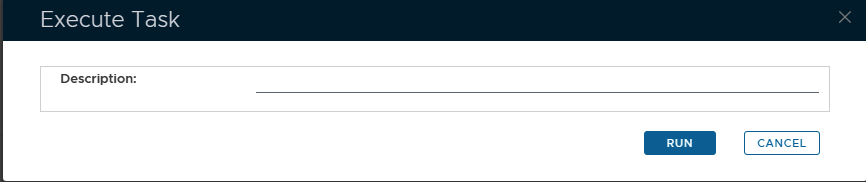
You can add a description, however, this is optional. Click Ensure the parameter "Execute On Server" contains the computer name of the server the task is to be run on, then click the  button.
...
| title | Click here for more information on manually executing tasks |
|---|
...