The DualShield Platform includes a self-service console (DSC) and several self-service portals, as listed below:
| Name | Abbreviation | Ports | URL |
|---|---|---|---|
| DualShield Service Console | DSC | 8076 | https://fqdn:8076/dsc |
| DualShield Reset Password Service Portal | DRP | 8076 | https://fqdn:8076/drp |
| DualShield Unlock Account Service Portal | DUA | 8076 | https://fqdn:8076/dua |
| DualShield Emergency Access Service Portal | DEA | 8076 | https://fqdn:8076/dea |
By default, all those self-service consoles and portals operate on HTTP port 8076.
The DualShield Platform also includes a Single Sign-On (SSO) portal. By default, the SSO portal operates on port 8074.
If you want to make both the SSO portal and the service console operate on port 443, then you will have to install 2 DualShield servers. On one server, you can change the SSO port from 8074 to 443, and on the other server you can change the port 8076 to 443. Typically, customers install the self-service console in DMZ as a DualShield Frontend Server.
To change the DualShield SSO port from 8074 to 443, follow this guide: How to change the DualShield SSO port to 443
To change the DualShield Service port from 8076 to 443, follow the steps below.
| Table of Contents | ||
|---|---|---|
|
Step 1: Install a DualShield frontend server
Follow the guide below to install a DualShield Frontend Server
| Expand | ||||||
|---|---|---|---|---|---|---|
|
Follow the guide below to set up the Service Console on the frontend server
| Expand | ||||||
|---|---|---|---|---|---|---|
|
During the installation process, on the page below select both "Service Console" and "SSO Server"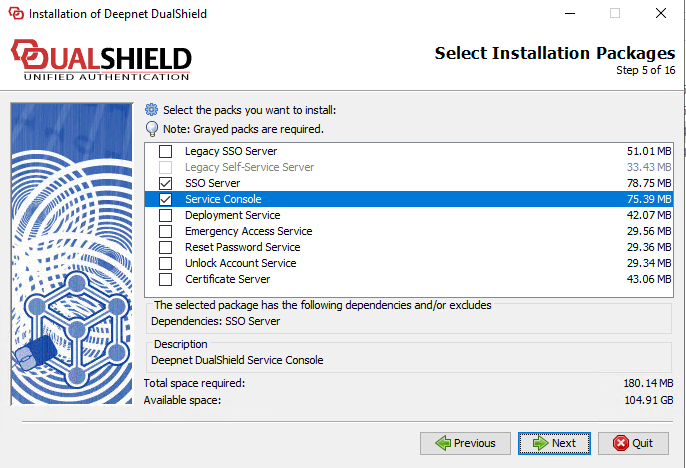
- Modify the Frontend server.xml file, locate to DSS, change port to 443.
(Although you only need the "Service Console" on the frontend server, the installer was designed so that you must select the "SSO Server" as well)
Step 2: Change port 8076 to 443
After the installation of the frontend server, you need to change the port 8076 to 443 by editing the server.xml file.
Navigate to the folder "C:\Program Files\Deepnet DualShield\tomcat\conf", and edit the Server.xml file..
Search for '<Service name="DSS">', locate 'port=8076'
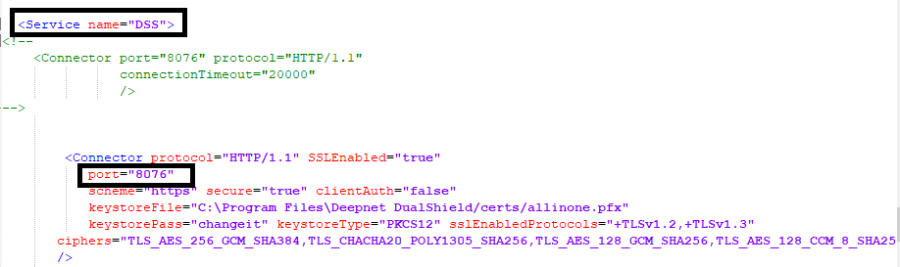
Change 'port=8076' to 'port=443'
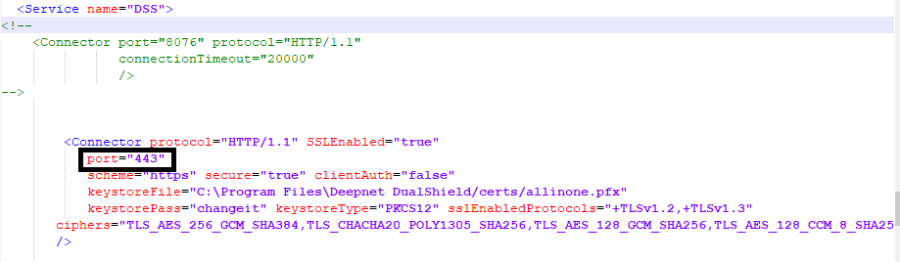
Save the server.xml file, and restart the
...
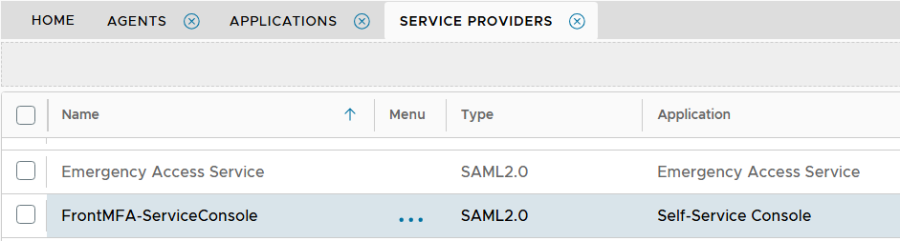
- Login DAC, navigate to new frontend agent: FrontMFA-ServiceConsole, and bind to the application.
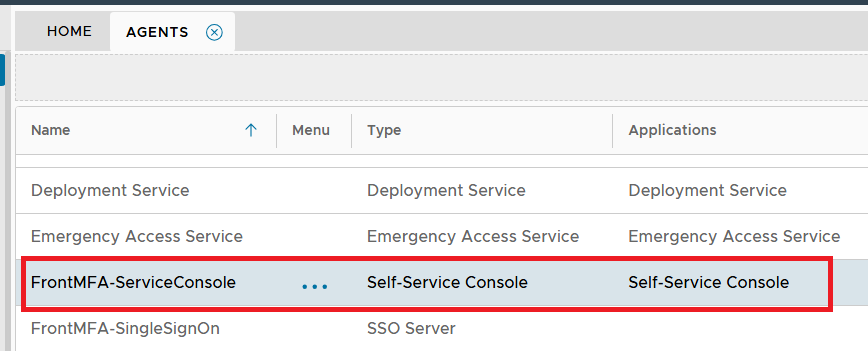
- Navigate to Service Providers: FrontMFA-ServiceConsole, modify the metadata, remove the port 8076.
...
Dualshield Service.
Step 3: Change the "SSO Server" of the Frontend Service Provider
In this setup, we cannot give port 443 to the frontend SSO portal. Therefore, the frontend SSO portal is operating on the default port 8076.
We have to make a change so that the frontend service console will use the backend SSO portal that operates on port 443.
Login to the DualShield Admin Console on the backend server
Navigate to "SSO | Service Providers", locate the newly installed frontend server, e.g. "FrontMFA-ServiceConsole"
Click the context menu of the frontend server agent, and select "Edit"
Then, click the "Edit"
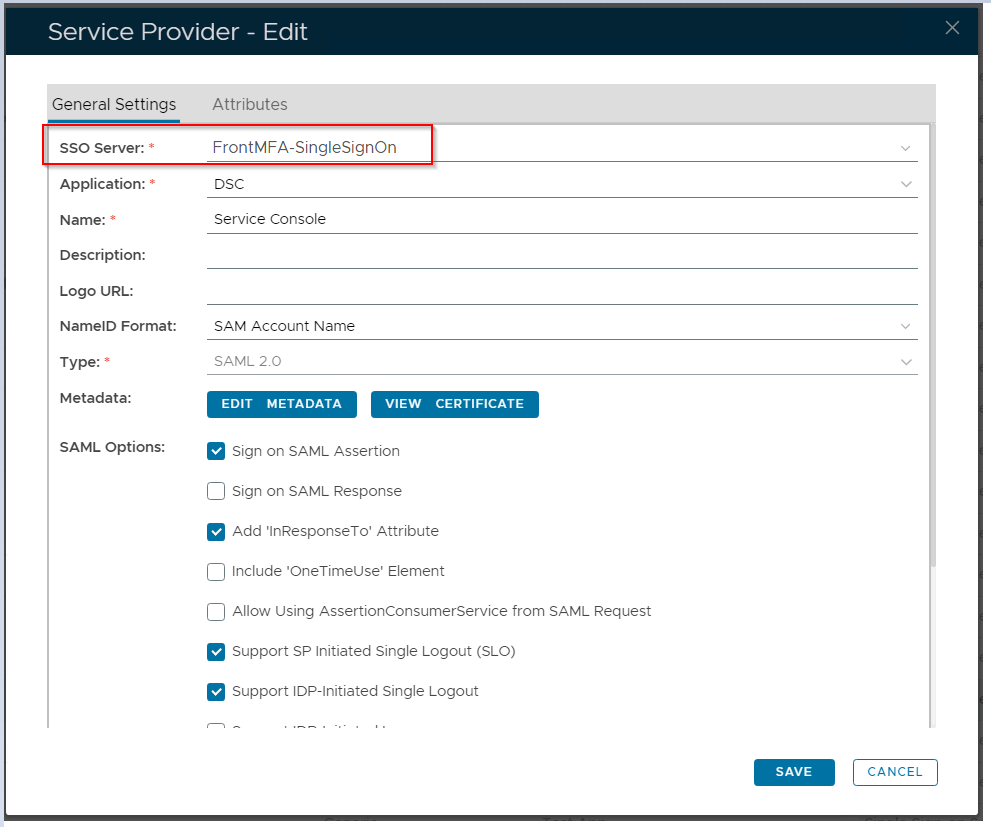
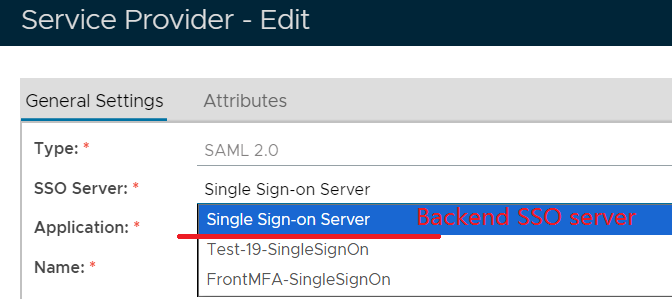
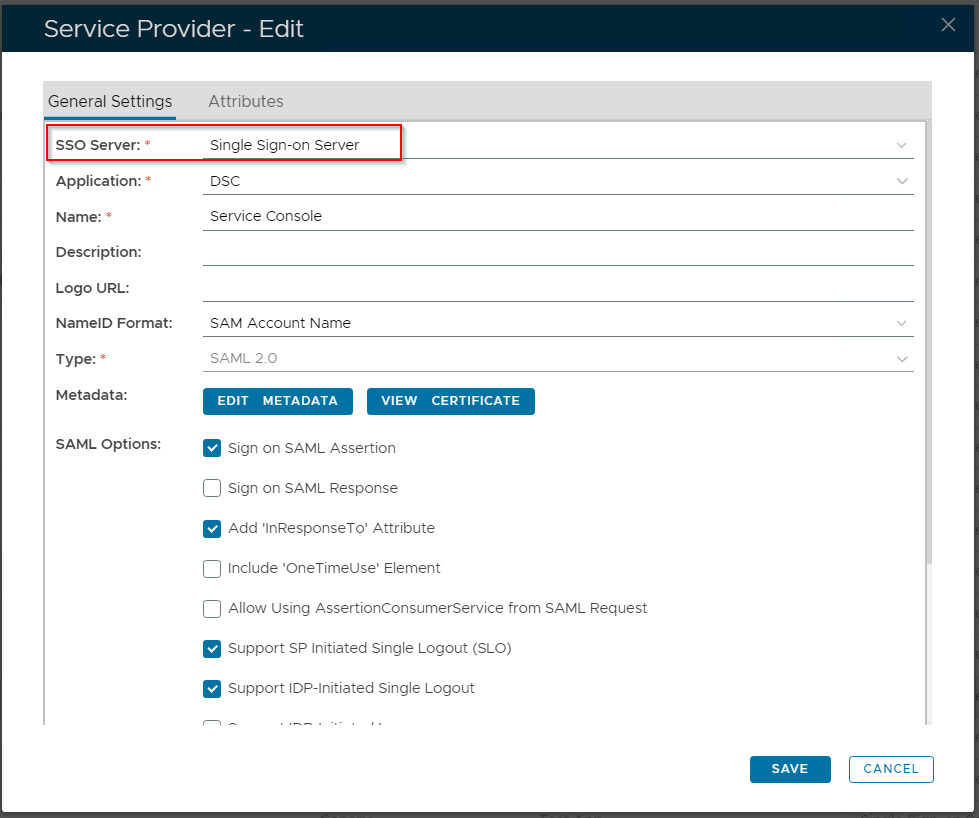
Change the "SSO Server" option from "FrontMFA-SingleSignOn" to "Single Sign-on Server"
Step 4: Change the "Metadata" of the Frontend Service Provider
Now, click the "EDIT METADATA" button
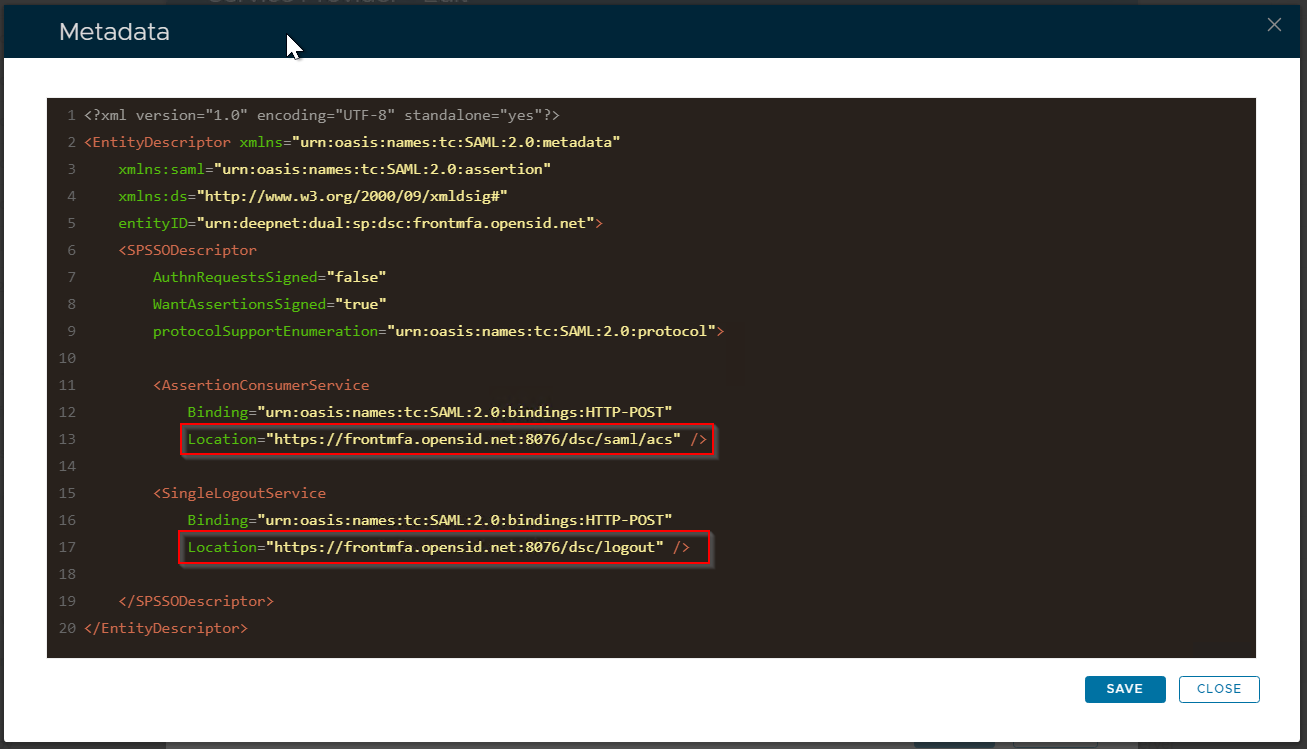
Remove 8076 from the 2 lines highlighted above
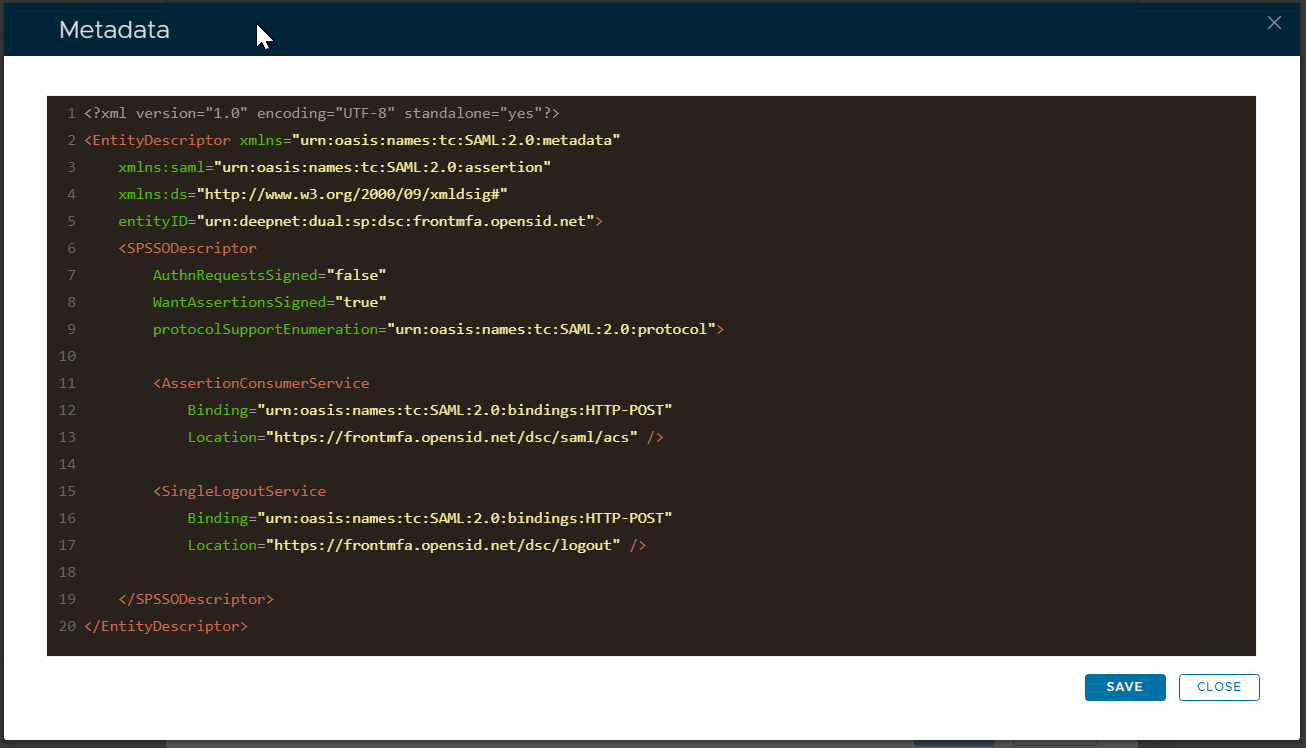
Save the changes
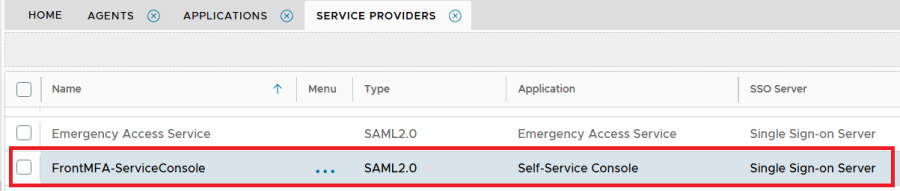
- On the Service Provider page, Change the SSO Server from Front SSO Server (FrontMFA-SingleSignOn) to Backend SSO server (Single Sign-On Server).
...
- Launch browser, navigate to https://frontmfa.opensid.net/dsc , it redirects to https://mfa.opensid.net/sso. Enter the user credential, after authentication, it goes back to https://frontmfa.opensid.net/dsc/...
Other issue, during test, I had this error. Simply re-select the application in service provider page. 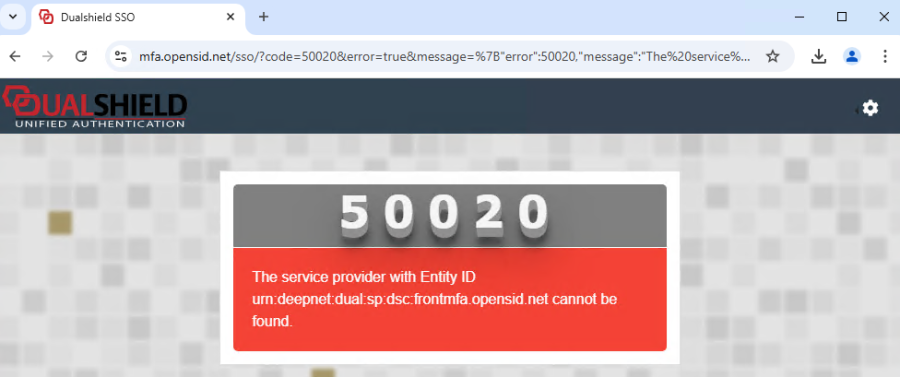
Here are test servers' details if you need to access.
Backend server IP: 192.168.12.44, qa/administrator/Deep&net123.
DAC FQDN: mfa.opensid.net, sa/Deep&net12;
Frontend Server IP: 192.168.102.13, this computer/administrator/deep&net1.
FQDN: frontmfa.opensid.net, test user: demo.test/Deep&net120