In On the DualShield authentication server Authentication Server, we need to create a RADIUS application which that will be used for the two-factor authentication in NetMotion Mobility XE. An application in DualShield needs a logon procedure which that defines how users will be authenticated when they attempt to logon log on to the application.
...
Add a Logon Procedure
...
Create a Application
...
Certificates Configuration
As the authentication protocol between NetMotion server and DualShield Radius server is Radius and the method is EAP/PEAP, we need a SSL server certificate for the DualShield Radius server.
In the production environment, you will need to provide a commercial SSL certificate for your DualShield Radius server.
...
| title | Import a SSL Server Certificate |
|---|
...
In a test environment, however, you can create your own CA and issue a SSL certificate for DualShield Radius server. Please note, if you use a self-issued certificate by your own CA, then you must download & install your CA certificate onto the client PC in the Trusted Root certificate folder.
...
| title | Create a Self-Signed Certificate |
|---|
:
| Section |
|---|
|
| Column |
|---|
Log on to the DualShield Administration Console and go to Authentication>Logon Procedure |
| Column |
|---|
|
| Panel |
|---|
| borderColor | #9EBEE5 |
|---|
| bgColor | #FFFFFF |
|---|
| borderWidth | 1px |
|---|
| 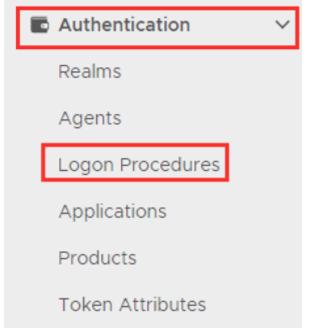 Image Added Image Added
|
|
|
Click on  Image Added on the top right.
| Section |
|---|
|
| Column |
|---|
In the new Logon Procedure window, please enter the following information: | Option | Value |
|---|
| Name: | Enter a friendly name | | Type: | RADIUS |
Click: Save |
| Column |
|---|
|
| Panel |
|---|
| borderColor | #9EBEE5 |
|---|
| bgColor | #FFFFFF |
|---|
| borderWidth | 1px |
|---|
| 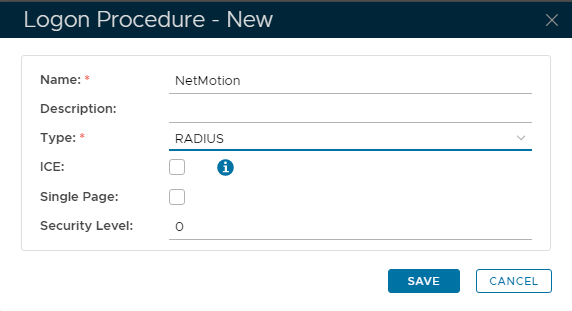 Image Added Image Added
|
|
|
Add Logon Steps
| Section |
|---|
|
| Column |
|---|
Select the drop down menu corresponding to the Logon Procedure you will be using and click on Logon Steps. |
| Column |
|---|
|
| Panel |
|---|
| borderColor | #9EBEE5 |
|---|
| bgColor | #FFFFFF |
|---|
| borderWidth | 1px |
|---|
| 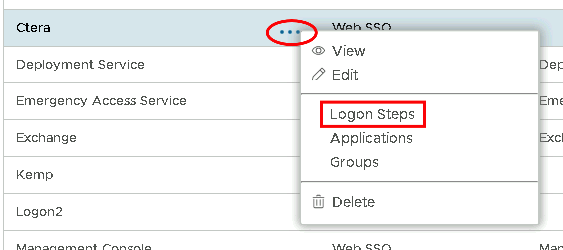 Image Added Image Added
|
|
|
In the Logon Steps Dialogue box, click the  Image Added button.
| Section |
|---|
|
| Column |
|---|
Tick the desired authentication method, e.g. Static Password |
| Column |
|---|
|
| Panel |
|---|
| borderColor | #9EBEE5 |
|---|
| bgColor | #FFFFFF |
|---|
| borderWidth | 1px |
|---|
| 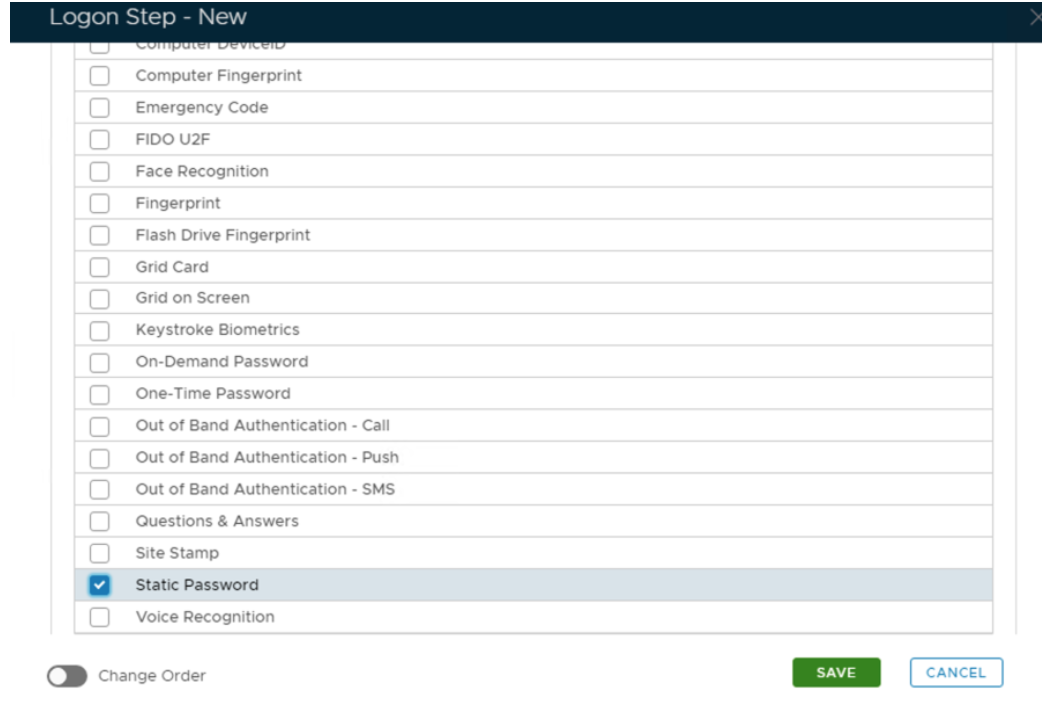 Image Added Image Added
|
|
|
Click Save.
Repeat to add extra steps.
| Section |
|---|
|
| Column |
|---|
| I have added two steps; Static Password and One-Time Password |
| Column |
|---|
|
| Panel |
|---|
| borderColor | #9EBEE5 |
|---|
| bgColor | #FFFFFF |
|---|
| borderWidth | 1px |
|---|
| 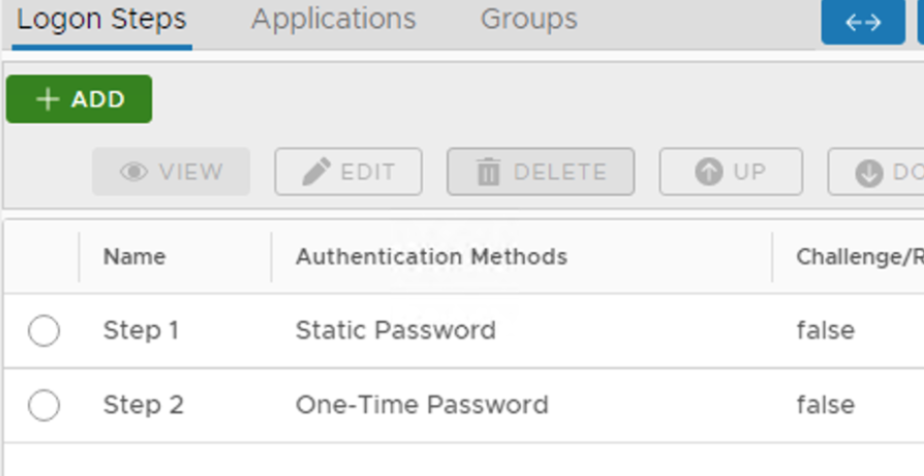 Image Added Image Added |
|
|
Create an Application:
| Section |
|---|
|
| Column |
|---|
Authentication> Applications |
| Column |
|---|
|
| Panel |
|---|
| borderColor | #9EBEE5 |
|---|
| bgColor | #FFFFFF |
|---|
| borderWidth | 1px |
|---|
| 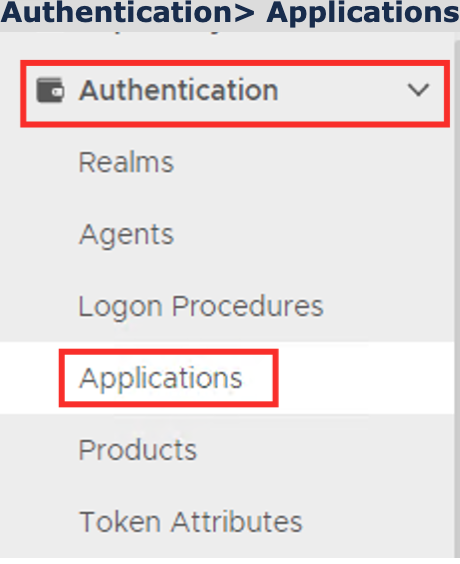 Image Added Image Added
|
|
|
Click on Image Added on the top right.
| Section |
|---|
|
| Column |
|---|
In the new Application window, please enter the following information: | Option | Value |
|---|
| Name: | Enter a friendly name | | Realm: | Select your Realm | | Logon Procedure: | Select the Logon Procedure you had created in the previous step |
Click: Save |
| Column |
|---|
|
| Panel |
|---|
| borderColor | #9EBEE5 |
|---|
| bgColor | #FFFFFF |
|---|
| borderWidth | 1px |
|---|
| 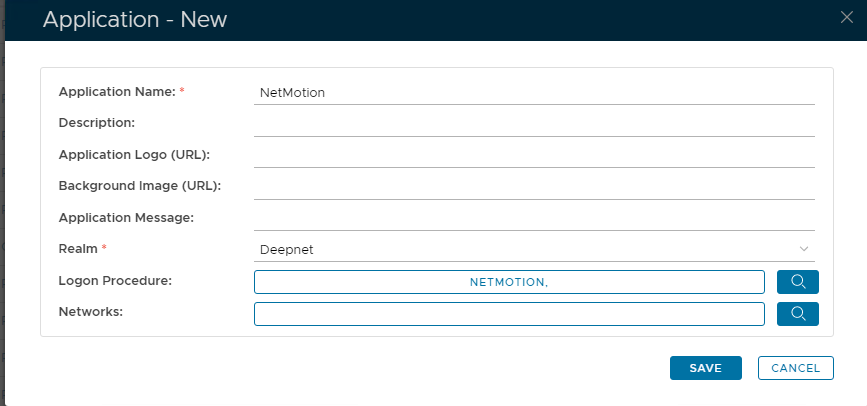 Image Added Image Added
|
|
|
Bind the Application to a RADIUS Server Agent
| Section |
|---|
|
| Column |
|---|
Select the drop-down menu corresponding to the Application you will be using and click on Agents. |
| Column |
|---|
|
| Panel |
|---|
| borderColor | #9EBEE5 |
|---|
| bgColor | #FFFFFF |
|---|
| borderWidth | 1px |
|---|
| 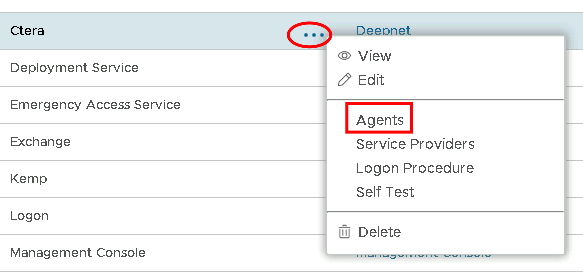 Image Added Image Added
|
|
|
| Section |
|---|
|
| Column |
|---|
Tick the box of the Radius Server you will be using and click Save below. |
| Column |
|---|
|
| Panel |
|---|
| borderColor | #9EBEE5 |
|---|
| bgColor | #FFFFFF |
|---|
| borderWidth | 1px |
|---|
| 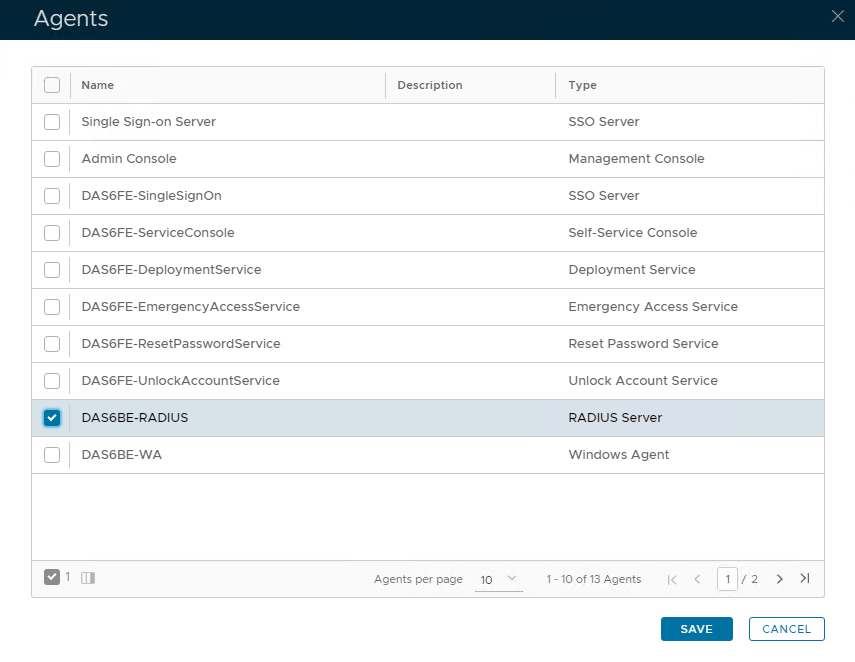 Image Added Image Added
|
|
|
Certificate Authority
...
SSL Certificate
To create a SSL certificate,
- In main menu, select “Repository | Certificate Management | Server Certificates”
Click “Create” in the toolbar
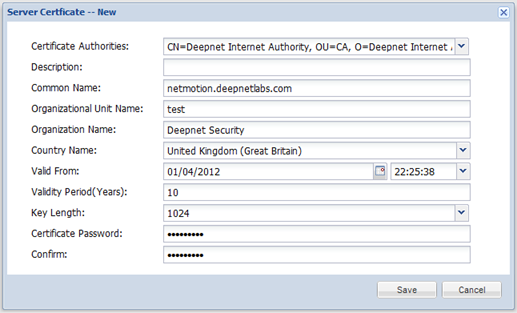 Image Removed
- Select the CA created in the previous step
- Fill in the form
- Click “Save”
Register Radius Client
We need to register NetMotion server as a Radius client in DualShield
...
Configure Radius Server
...