...
| Section |
|---|
|
| Column |
|---|
Launch Mobility Client on the end-user device, and click Connect. |
| Column |
|---|
|
| Panel |
|---|
| borderColor | #9EBEE5 |
|---|
| bgColor | #FFFFFF |
|---|
| borderWidth | 1px |
|---|
| Mobilty Client Graphic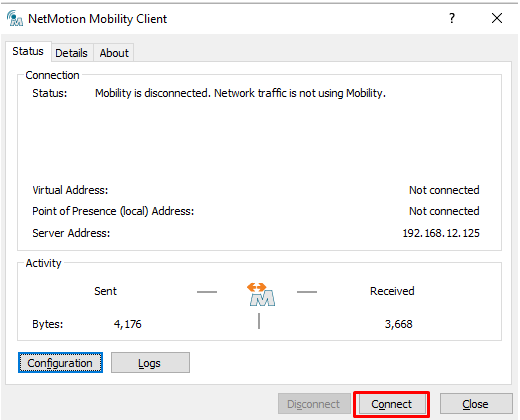 Image Added Image Added |
|
|
| Section |
|---|
|
| Column |
|---|
You may get a prompt regarding Device Certificate Logon. This is covered on another page For User Authentication click I do not have a valid certificate
|
| Column |
|---|
|
| Panel |
|---|
| borderColor | #9EBEE5 |
|---|
| bgColor | #FFFFFF |
|---|
| borderWidth | 1px |
|---|
| Certificate Logon Graphic | 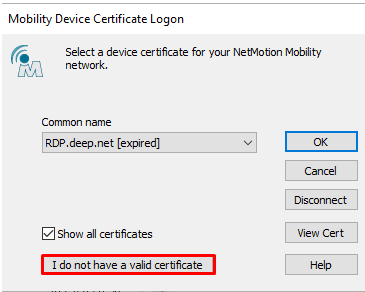 Image Added Image Added
|
|
|
You will now be prompted for the logon steps as specified in your Logon Procedure (see Build an Application for NetMotion MFA via RADIUS)Add Logon Steps
| Section |
|---|
| | Column |
|---|
Select the drop down menu corresponding to the Logon Procedure you will be using and click on Logon Steps. |
| Column |
|---|
width |
|---|
60% | | Panel |
|---|
| borderColor | #9EBEE5 |
|---|
| bgColor | #FFFFFF |
|---|
| borderWidth | 1px |
|---|
| 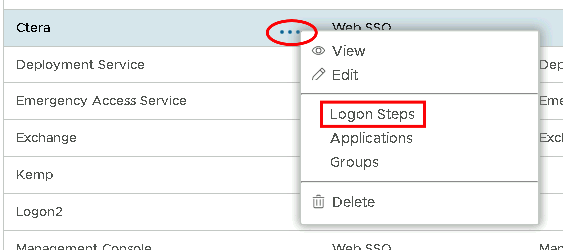 Image Removed Image Removed
|
|
In the Logon Steps Dialogue box, click the  Image Removed button.
In this example, the first step is to enter your AD account credentials Click OK |
|
| Section |
|---|
|
| Column |
|---|
Tick the desired authentication method, e.g. Static Password |
| Column |
|---|
|
| Panel |
|---|
| borderColor | #9EBEE5 |
|---|
| bgColor | #FFFFFF |
|---|
| borderWidth | 1px |
|---|
| 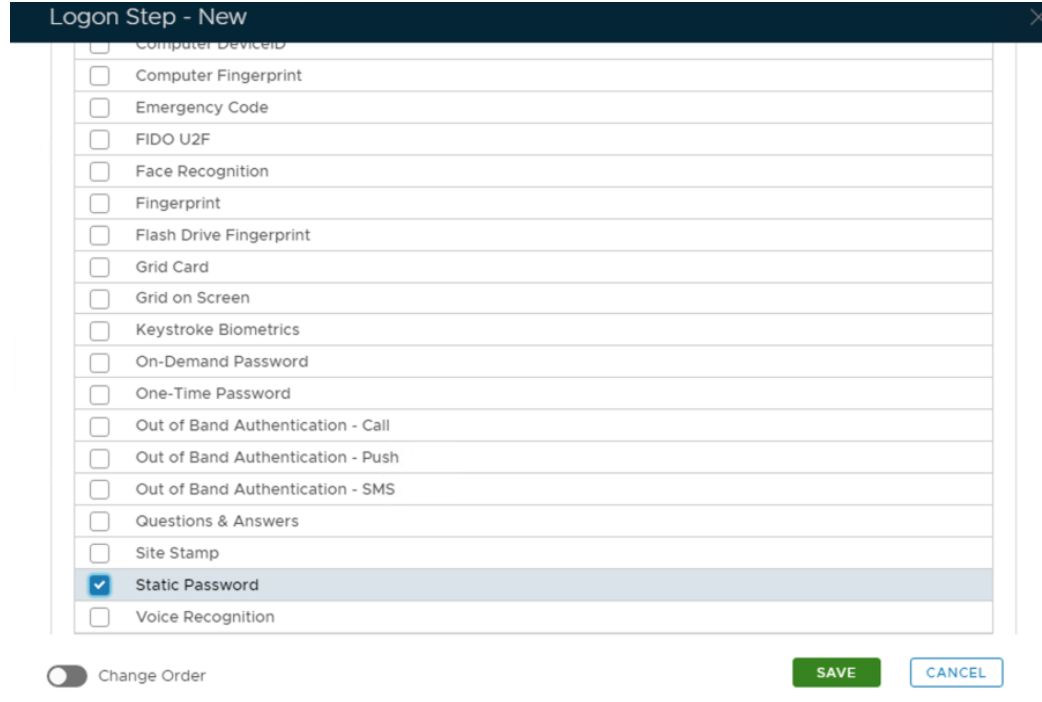 Image Removed Image Removed
|
|
|
Click Save.
...
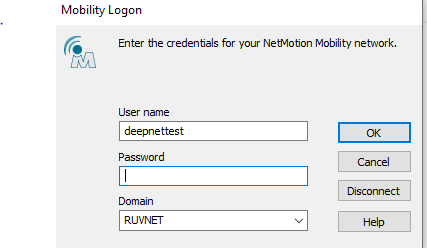 Image Added Image Added
|
|
|
| Section |
|---|
|
| Column |
|---|
| I have added two steps; Static Password and You will then be asked to put in the second factor which is the One-Time Password | | Column |
|---|
| | Panel |
|---|
| borderColor | #9EBEE5 |
|---|
| bgColor | #FFFFFF |
|---|
| borderWidth | 1px |
|---|
| 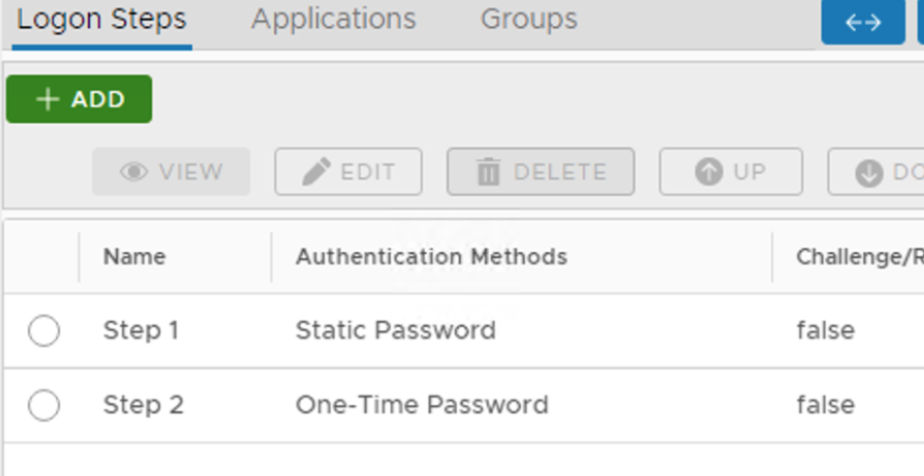 Image Removed Image Removed |
|
Create an Application:
|
| Section |
|---|
|
| Column |
|---|
Authentication> Applications |
| Column |
|---|
|
| Panel |
|---|
| borderColor | #9EBEE5 |
|---|
| bgColor | #FFFFFF |
|---|
| borderWidth | 1px |
|---|
| 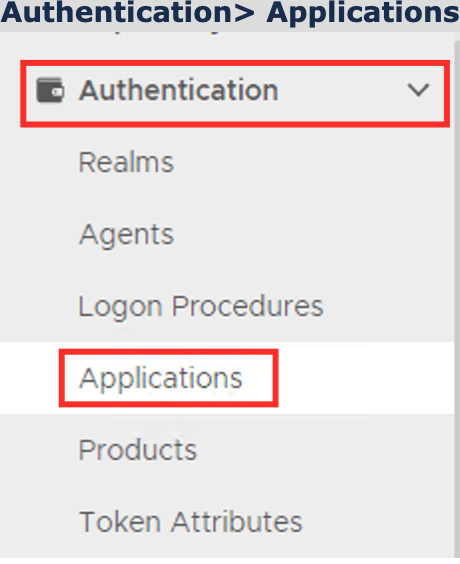 Image Removed Image Removed
|
|
|
...
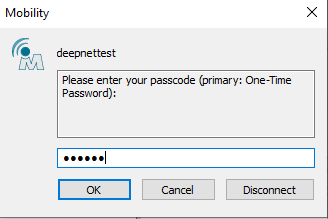 Image Added Image Added
|
|
|
| Section |
|---|
|
| Column |
|---|
If successful the status on the Mobility client should show as Connected |
In the new Application window, please enter the following information: | Option | Value |
|---|
| Name: | Enter a friendly name | | Realm: | Select your Realm | | Logon Procedure: | Select the Logon Procedure you had created in the previous step | Click: Save | Column |
|---|
|
| Panel |
|---|
| borderColor | #9EBEE5 |
|---|
| bgColor | #FFFFFF |
|---|
| borderWidth | 1px |
|---|
| 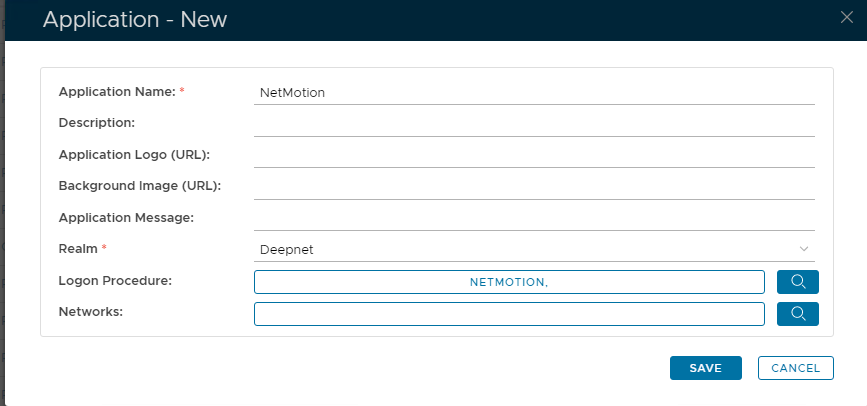 Image Removed Image Removed
|
|
|
Bind the Application to a RADIUS Server Agent
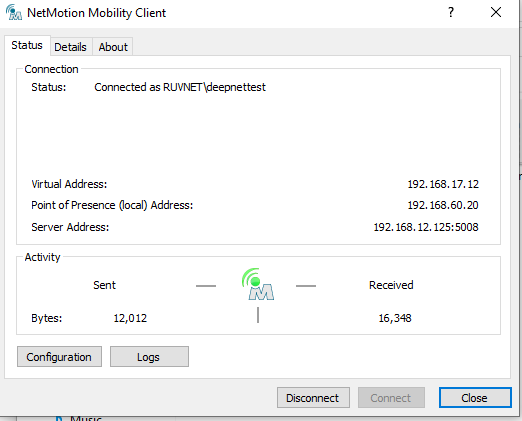 Image Added Image Added
|
|
|
| Section |
|---|
|
| Column |
|---|
| Select the drop-down menu corresponding to the Application you will be using and click on Agents. The established connection will also appear on the Netmobilitty server under Connections>Connected Devices
|
| Column |
|---|
|
| Panel |
|---|
| borderColor | #9EBEE5 |
|---|
| bgColor | #FFFFFF |
|---|
| borderWidth | 1px |
|---|
| 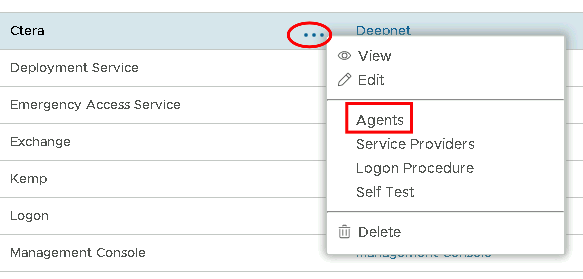 Image Removed Image Removed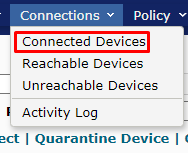 Image Added Image Added
|
|
|
| Section |
|---|
|
| Column |
|---|
Tick the box of the Radius Server you will be using and click Save below.The device hostname and authenticated user account name will appear in the connected devices list |
| Column |
|---|
|
| Panel |
|---|
| borderColor | #9EBEE5 |
|---|
| bgColor | #FFFFFF |
|---|
| borderWidth | 1px |
|---|
| 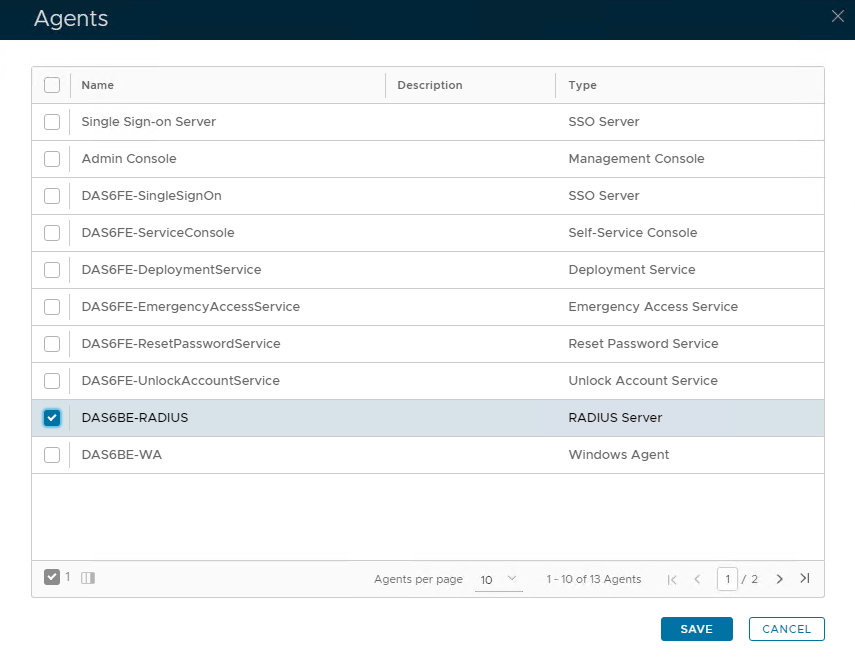 Image Removed Image Removed | 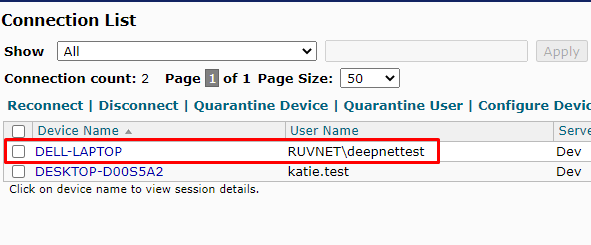 Image Added Image Added
|
|
|
Related Articles