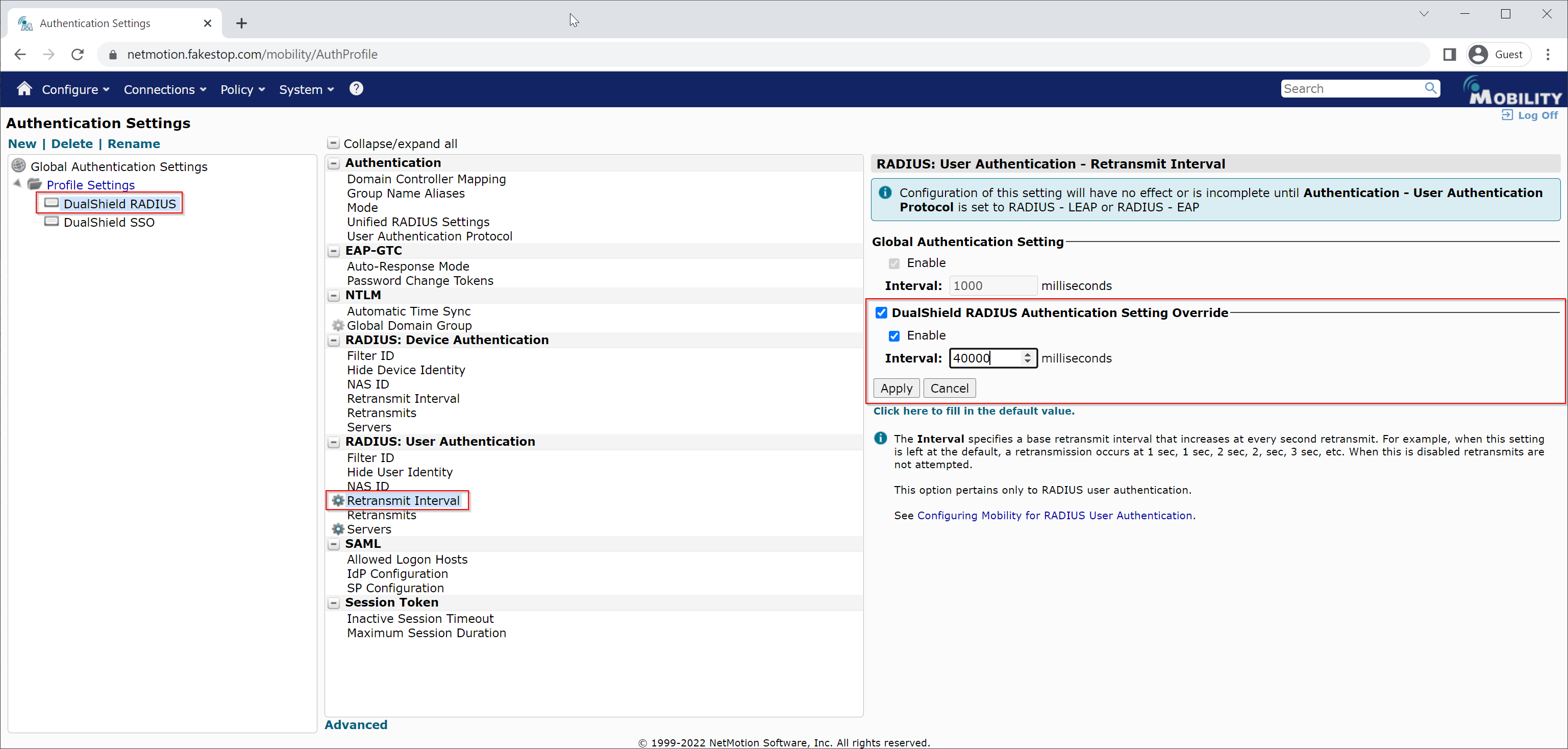
We need to add DualShield RADIUS to the Authentication Profile we created earlier, e.g. "DualShield RADIUS", and configure its properties.
| Table of Contents |
|---|
Add Dualshield RADIUS server
1. Go to Mobility console > Configure > Authentication Settings.
2. In the left pane, select the Authentication Profile we have created for RADIUS authentication, e.g. "DualShield RADIUS"
3. In the middle pane, select "RADIUS: User Authentication | Servers"
4. In the right pane, tick "DualShield RADIUS Authentication Setting Override"
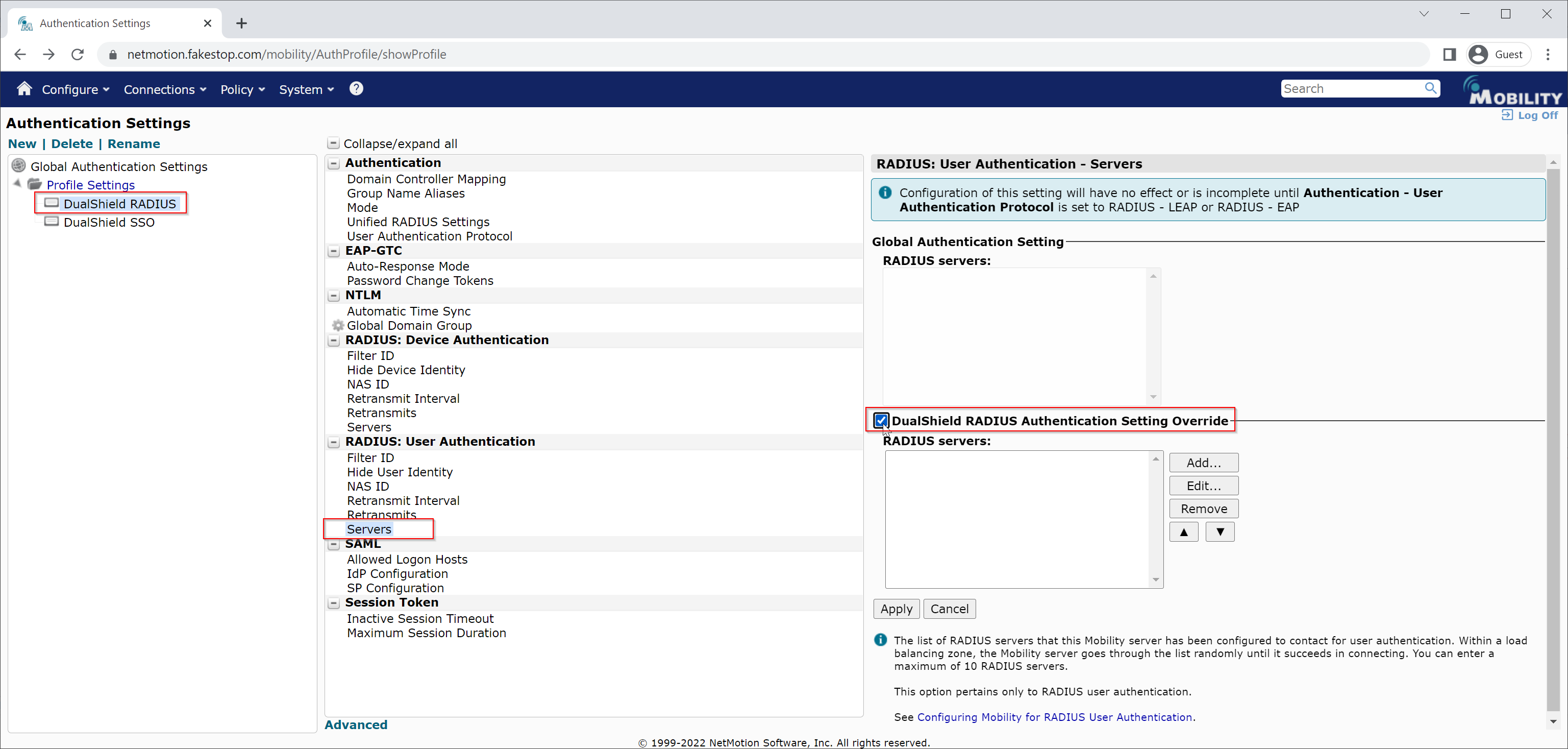
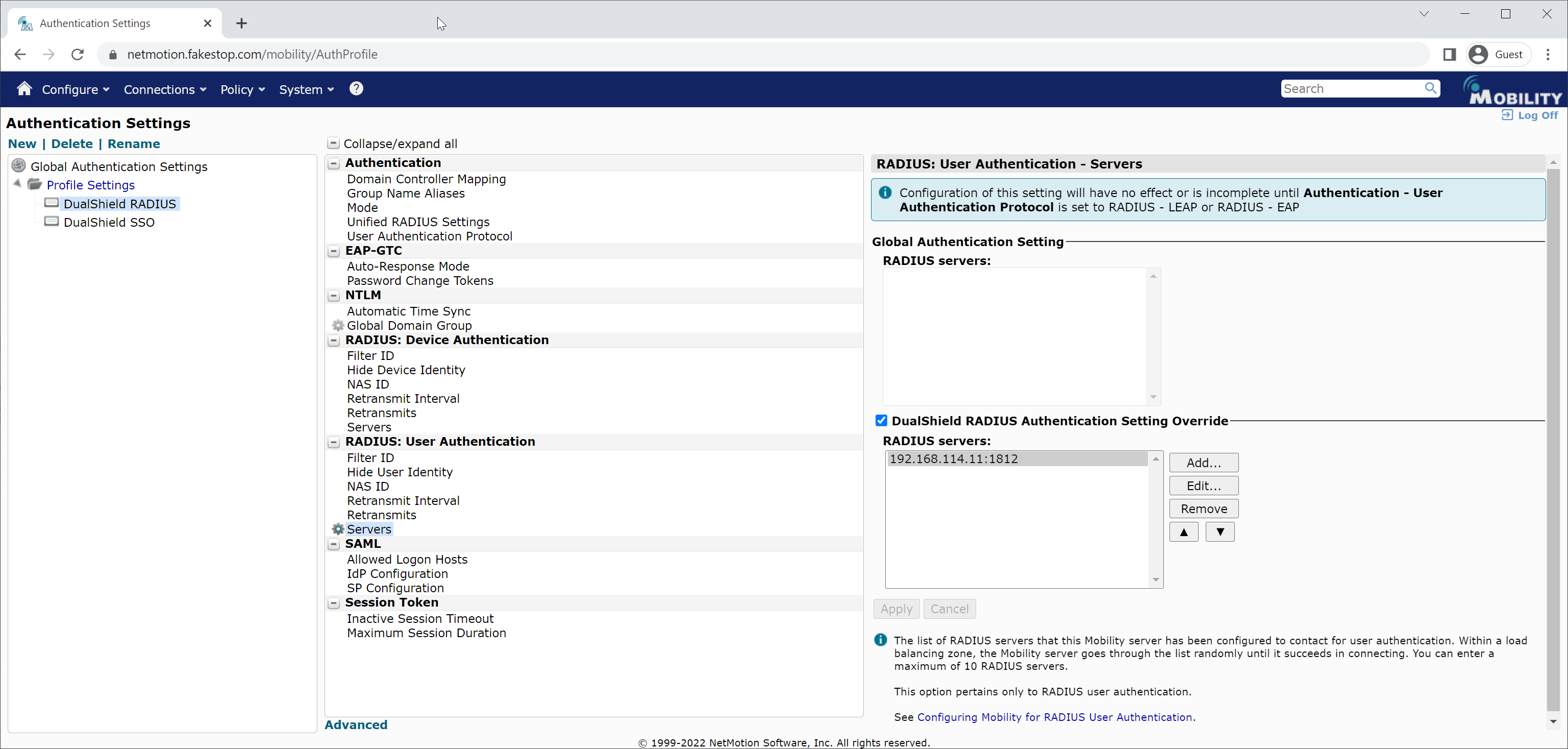
5. Click the "Add" button to add your DualShield RADIUS server
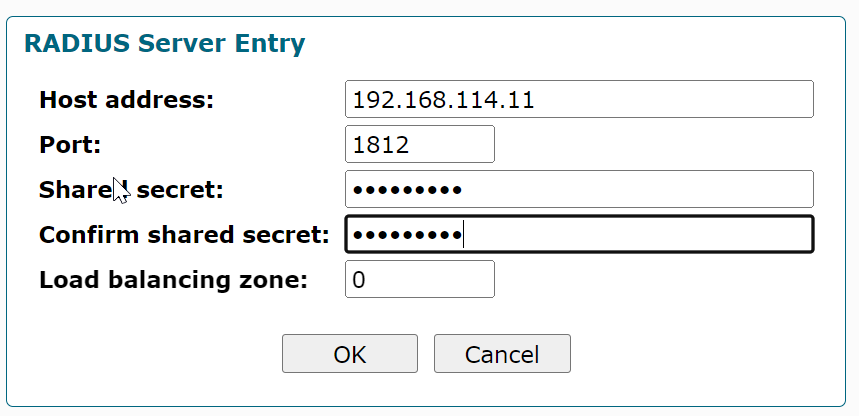
6. Click "OK" to save it
Set RADIUS Retransmit Interval
Now that we have added your DualShield RADIUS server to your Mobility server, we need to configure a few options
1. In the middle pane, click
...
Set User Authentication Protocol to RADIUS EAP
...
Set RADIUS Retransmit Interval
...
"RADIUS: User Authentication | Retransmit Interval"
...
.
...
Enter an interval long enough for a user’s mobile device to receive and respond to authentication requests. Recommended: at least 40000 milliseconds.
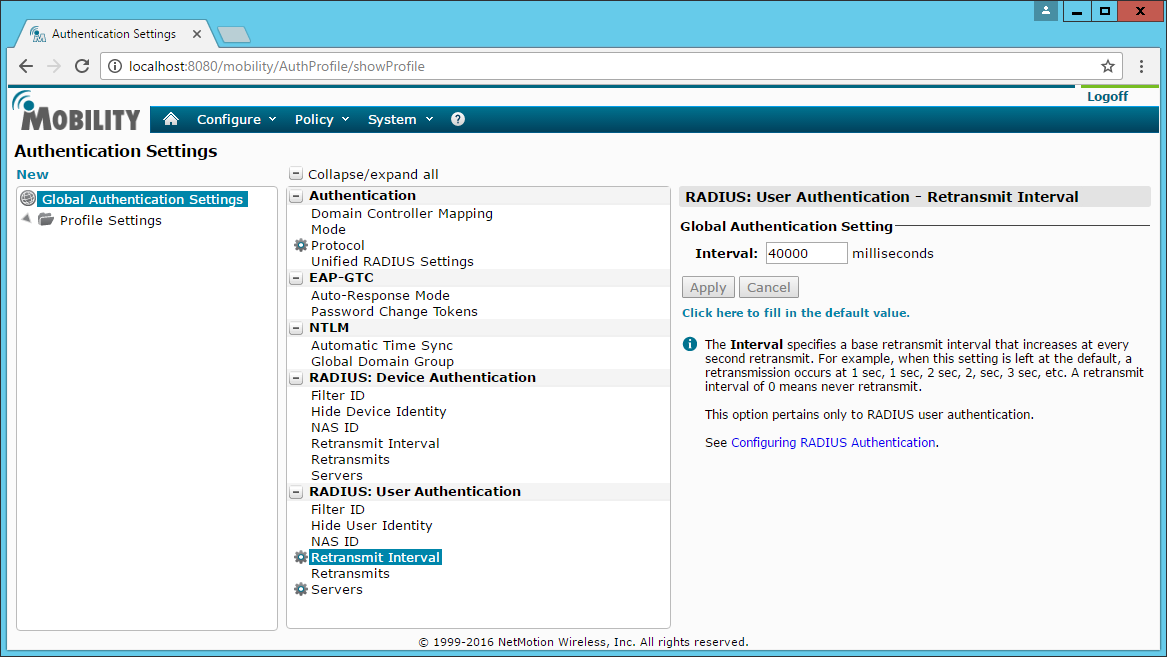
...
Click Apply.
Client Settings
Enable Always Prompt for User Credentials
...
Set Connecting Dialog Duration
...
2. In the right pane, tick "DualShield RADIUS Authentication Setting Override"
3. Set the Interval to 40,000 or larger
4. Click "Apply" to save
...
the change