...
Create a RADIUS logon procedure
- Login to the DualShield management consoleAdministration Console
- In the main menu, select navigate to “Authentication | Logon Procedure”Procedures”
- Click the “Create” “+ CREATE” button on the toolbar
- Enter an appropriate “Name” and select “RADIUS” as the 'Type'
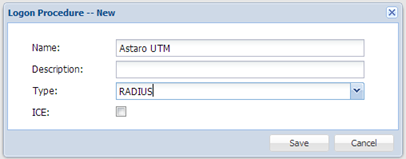
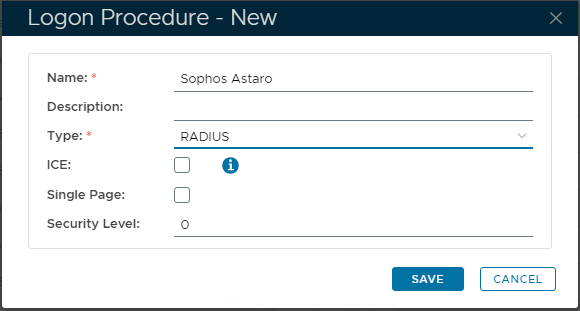
- Click “Save”“SAVE” to confirm creation.
- Click the Context Menu context "..." menu icon of the newly create logon procedure, created Logon Procedure, then select “Logon Steps”.
- In the popup windowswindow, click the “Create” button on the toolbarSelect the desired authentication method, e.g. “+ ADD” button to add authentication methods. Such as “Static Password + One-Time Password” Password”:

- Click “Save”“SAVE” to confirm.
Create a RADIUS application
- In the main menu, select navigate to “Authentication | Applications”
- Click the “Create” “+ CREATE” button on the toolbar
- Enter an appropriate “Name”
- Select the internal “Realm”
- Select the logon procedure that was just created
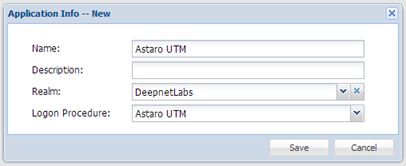
the Logon Procedure created in the previous Step.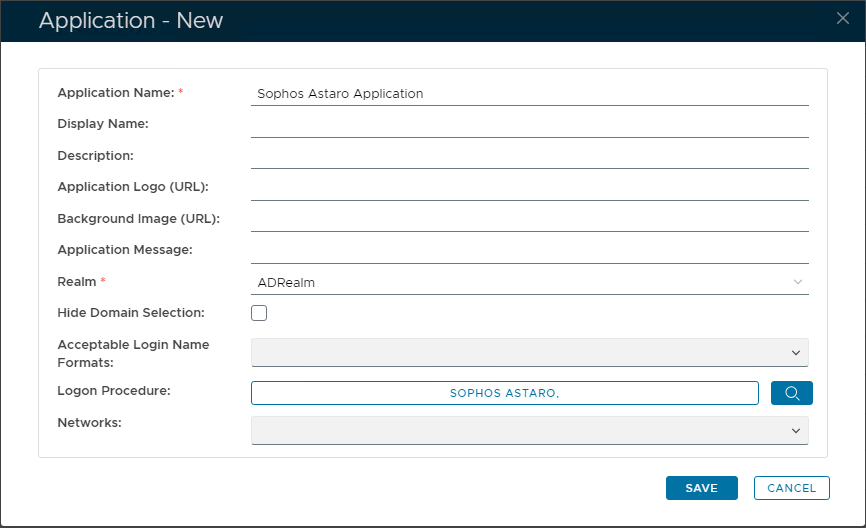
- Click “SAVE” to confirm.Click “Save”
- Click the context "..." menu of the newly created application, select “Agent”then “Agents”
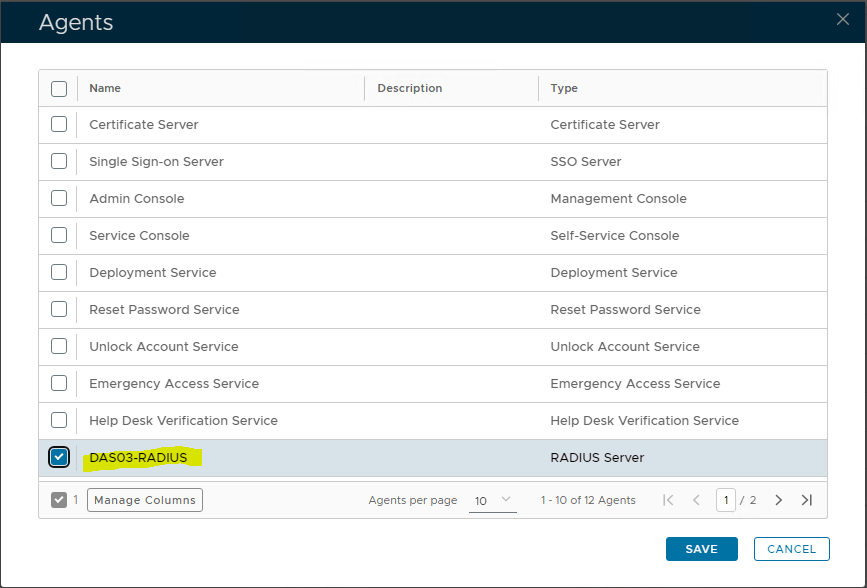
- Select the DualShield Radius server, e.g. ”Local Radius Server”previously integrated DualShield RADIUS Server.
- Click “SAVE” to confirm.Click “Save”
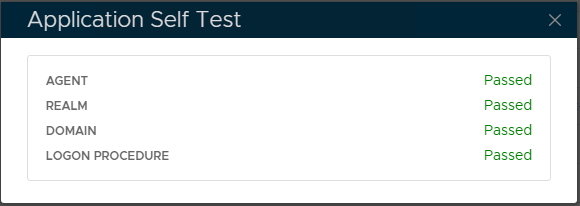
- Click the context "..." menu of the newly created applicationApplication, then select “Self Test”
to confirm the Application is fully integrated.
Register the Astaro Security Gateway UTM as a Radius client
- In the main menu, select “RADIUS navigate to “Radius | Radius Clients”
- Click the “Register” button on the toolbar
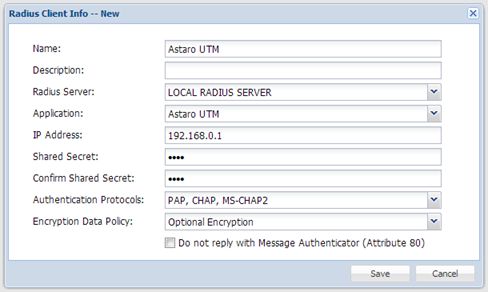
- Select the application that was created in the previous steps
- “+ CREATE" button in the toolbar, to create a Radius Client.
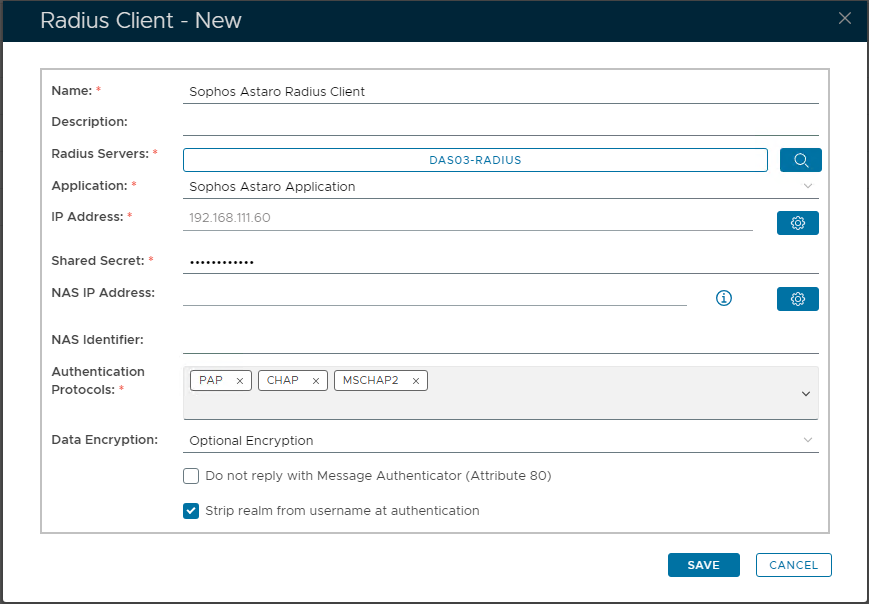
- Enter an appropriate 'Name' for this Radius Client
- Click the drop-down on 'Radius Servers' and select the appropriate RADIUS Server. Then "Okay" to confirm.
- Click the drop-down on 'Application' and select the Radius Application created earlier.
- Enter the IP Address of the Astaro Security Gateway UTM.Enter Astaro Security Gateway UTM’s IP in the IP address
- Enter the Shared Secret which will be used in Astaro Security Gateway UTM.
- Select the appropriate 'Authentication Protocol(s)' to use. Also as configured on the Astaro Gateway.
- Finally click “SAVE” to create the new Radius Client entry.Click “Save”