This process only works on Windows OSIf a web application is secured by DualShield, and its logon procedure allows users to use device certificates, then users will be able to register their device certificates in the logon process.
When a user selects to use DeviceCert in a logon process from a device that has not been registered, then the user will be prompted to register the device:
...
Then click "Register" to continue
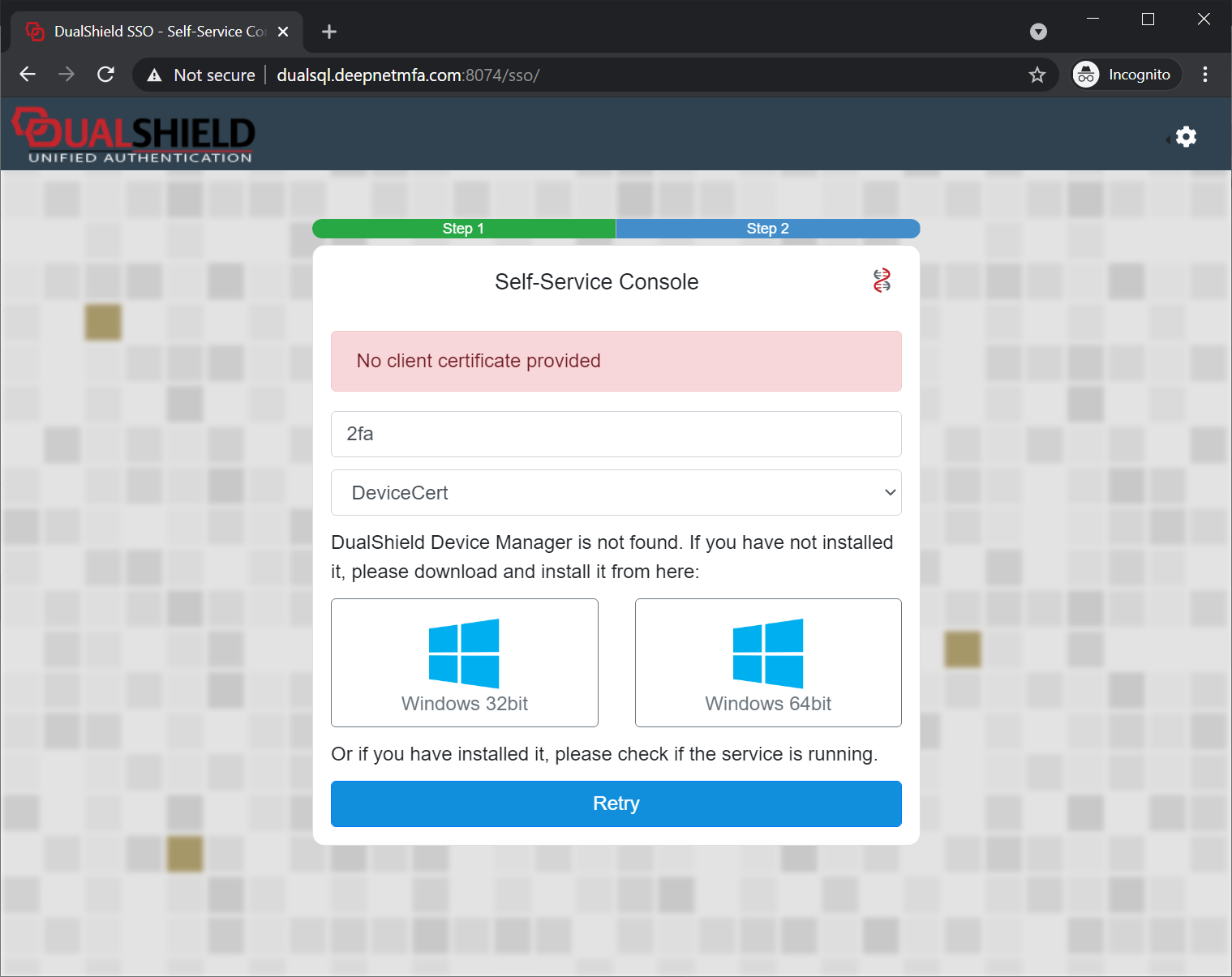
DeviceCert registration and renewal require an application called DualShield Device Manager.
If the DualShield Device Manager has not been installed on this computer, then you will be prompted:
Click on "Windows 64bit" or "Windows 64bit" to download the appropriate DualShield Device Manager:
...
Then, click the file that has been downloaded to start the installation of DualShield Device Manager
| Expand | ||||||
|---|---|---|---|---|---|---|
| ||||||
|
Once the DualShield Device Manager has been successfully instaledinstalled, go back to the logon page
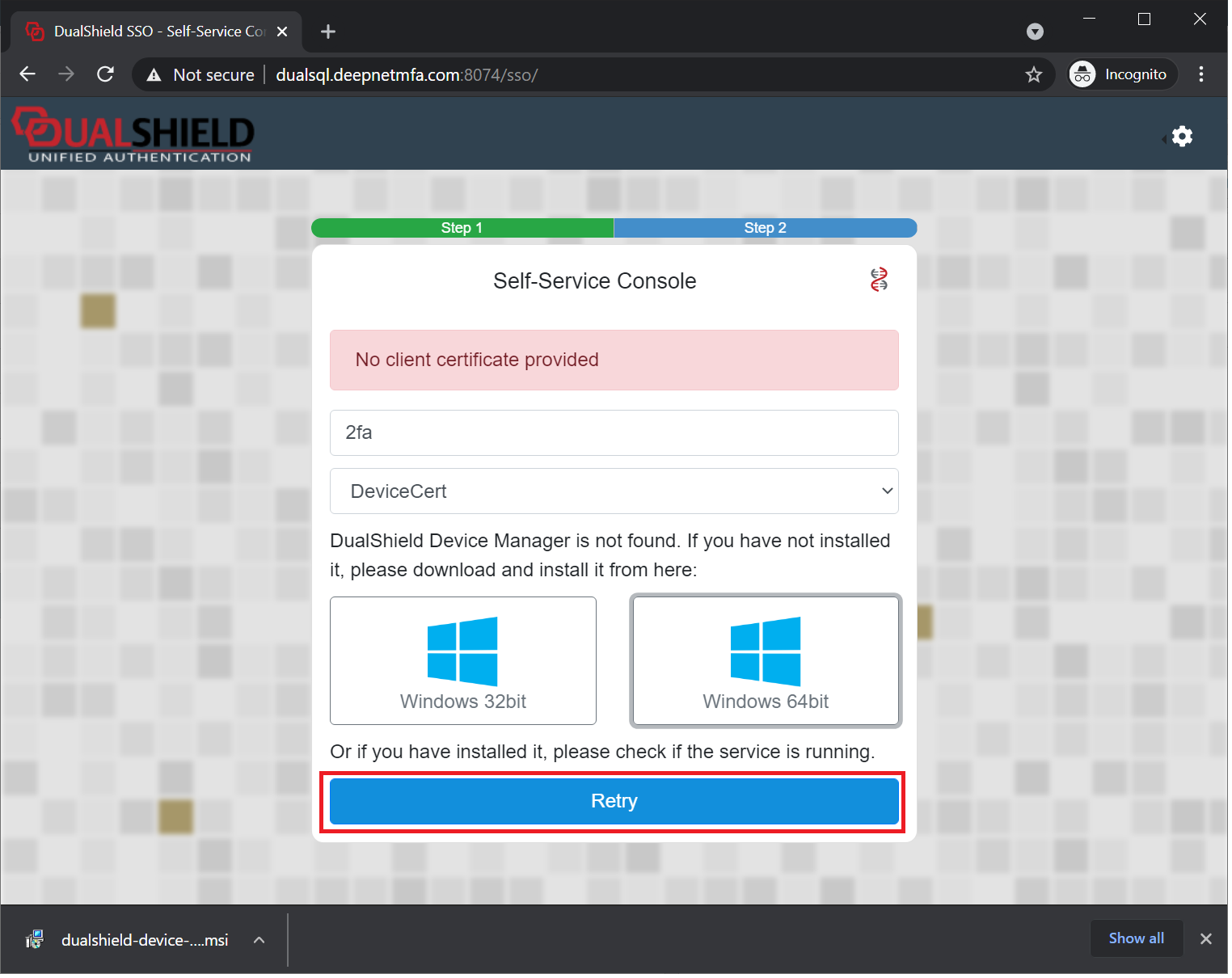
Click "Retry" button
Now, the user will be prompted below:
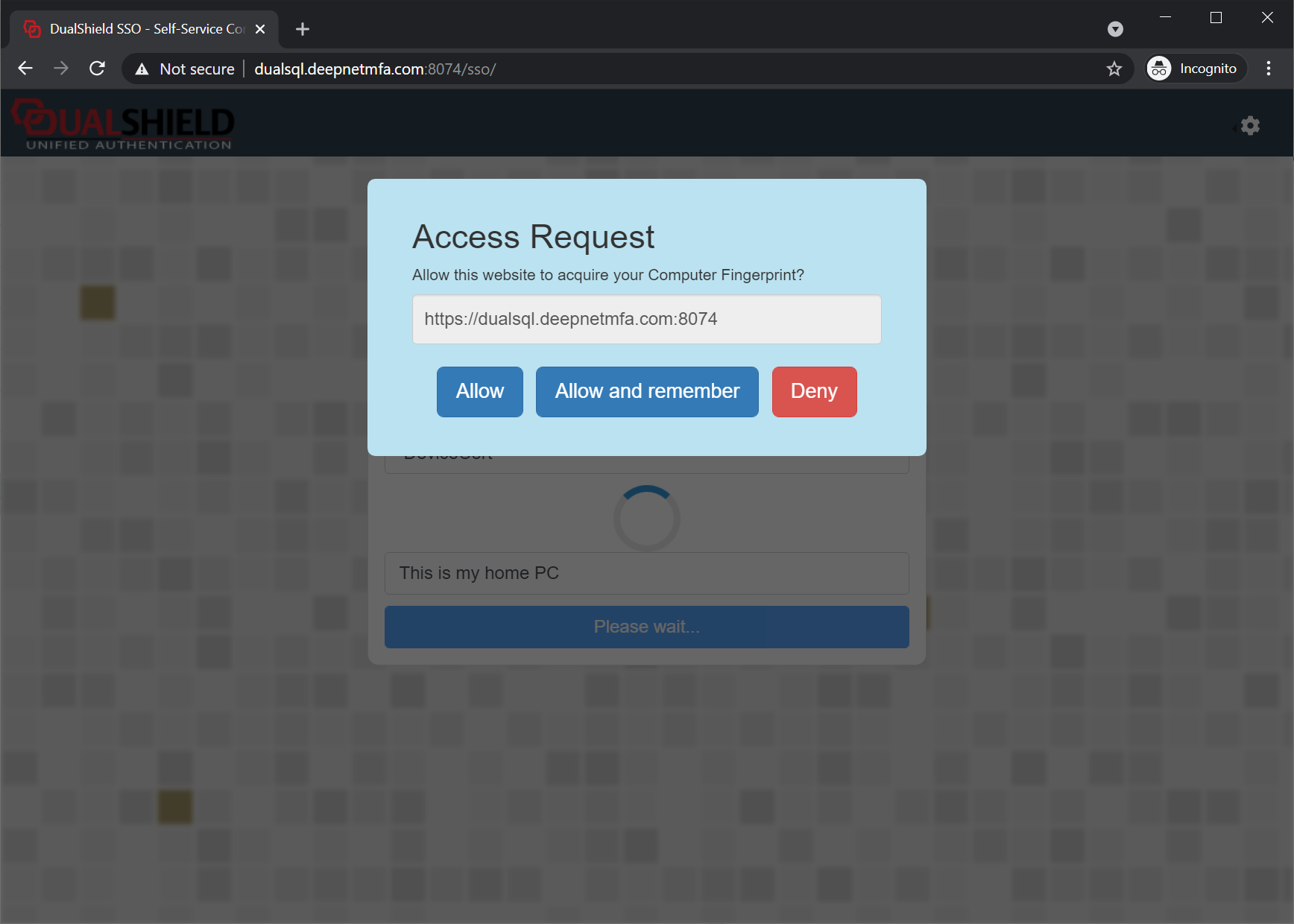
Click "Allow and remember"
Finally, the user will receive the message below:

This means that the user's device has been successfully registered this deviceon the server.
...
At this point, the DualShield server administrator can see in the admin console that the user has a new device registered that is pending for activation:
Now, close and reopen the web browser.
As soon as a user visits the website that enables the device certificate authentication, the user will be immediately prompted by the web browser to select a certificate:
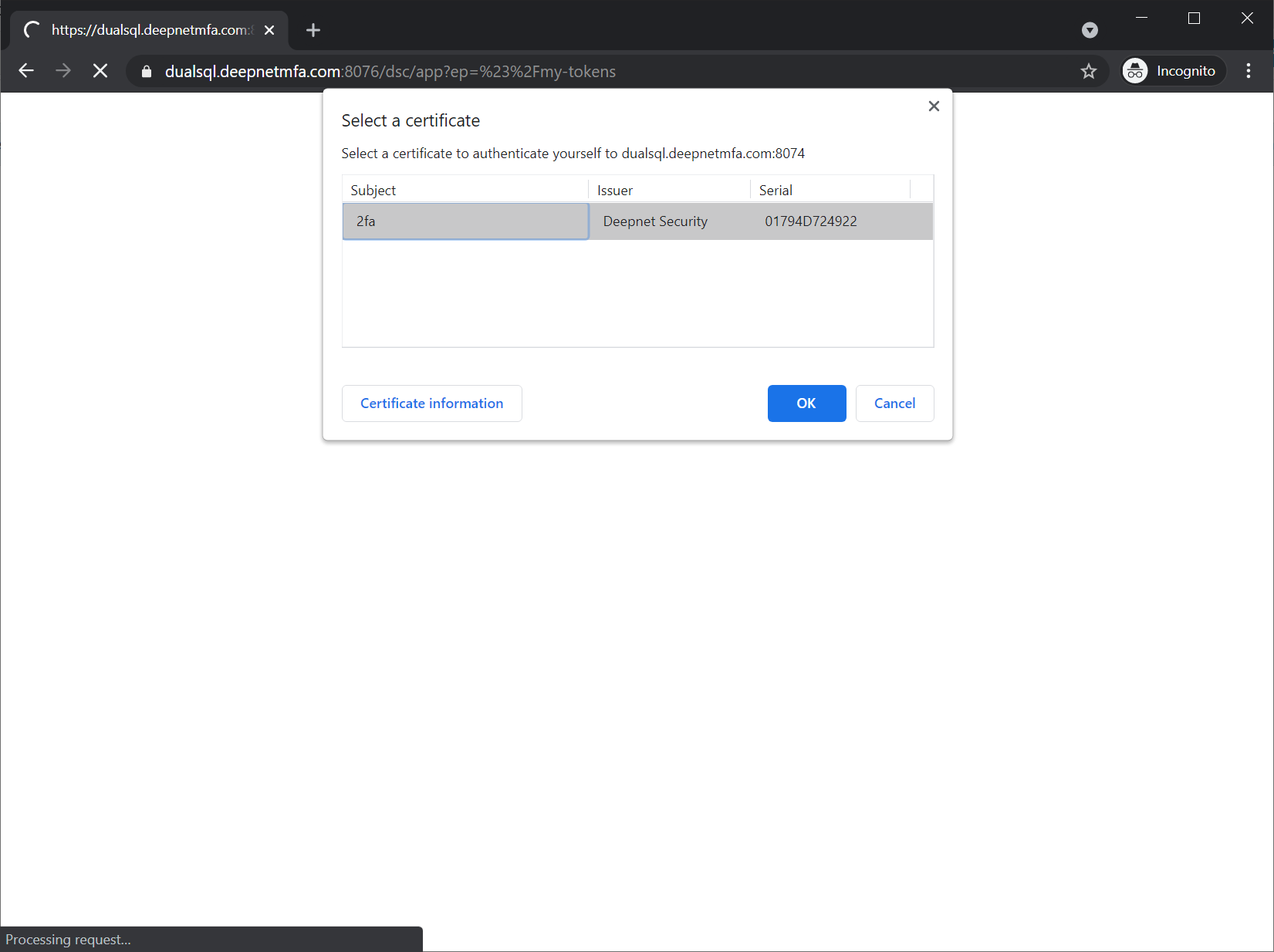
This means that the user's device certificate has been successfully installed on the device.
...