To create or edit a policy, we need to open the policy editor window first.
Select "Administration | Policies" on the side panel,.
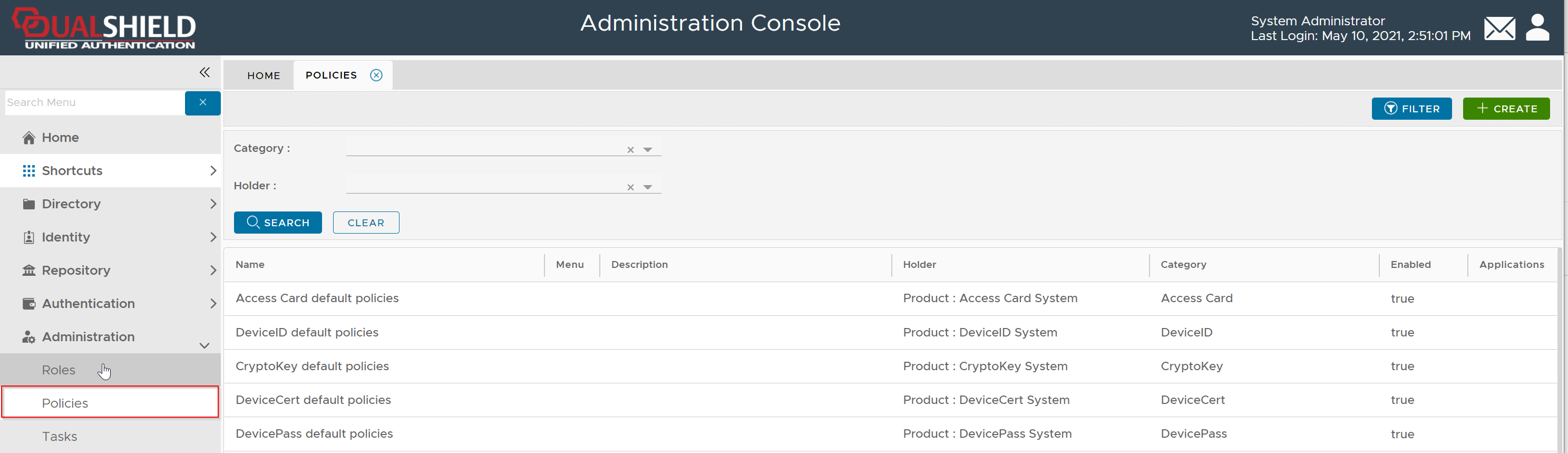
To create a new policy, click the "CREATE" button on the toolbar to open the policy editor window.
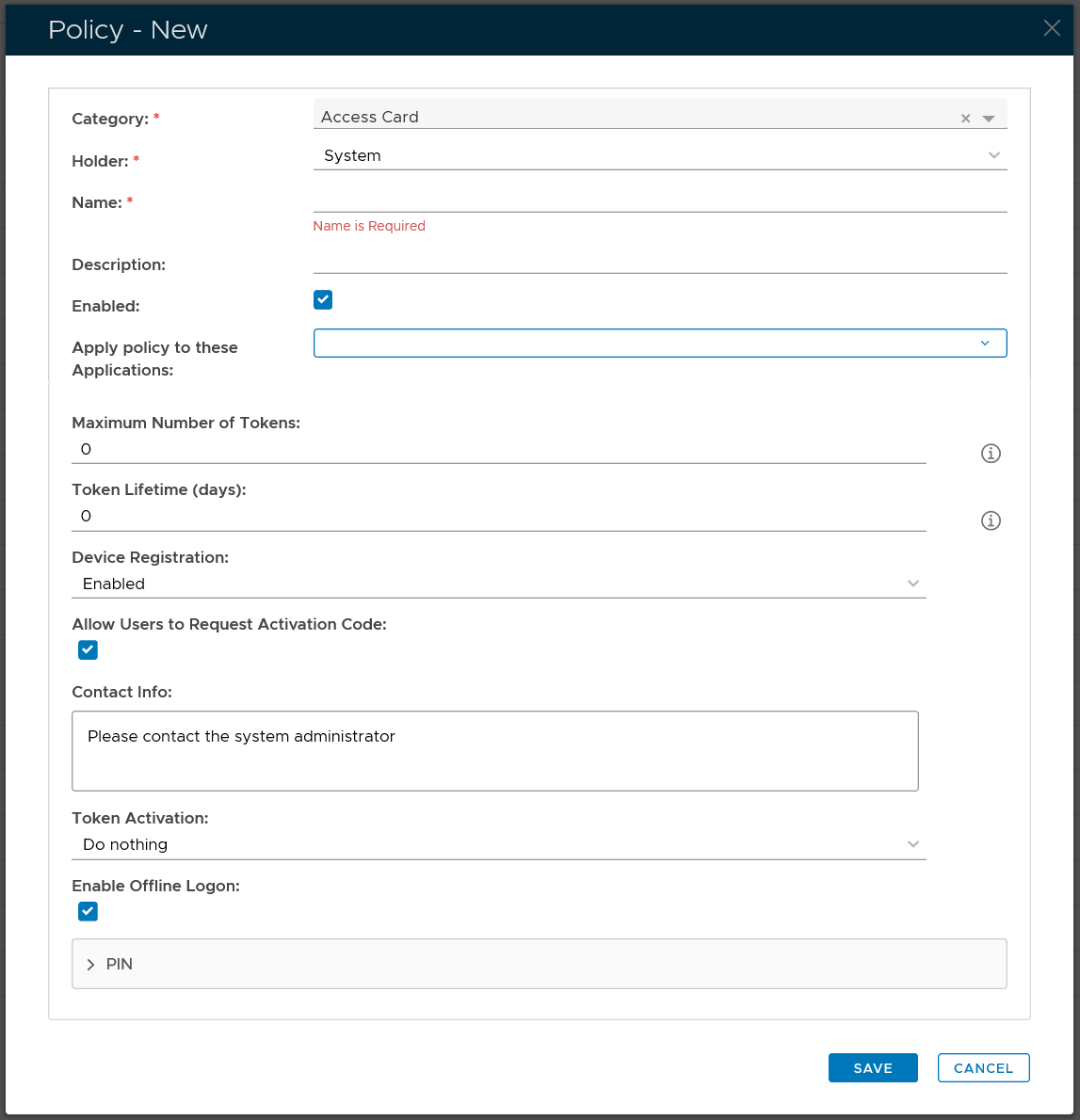
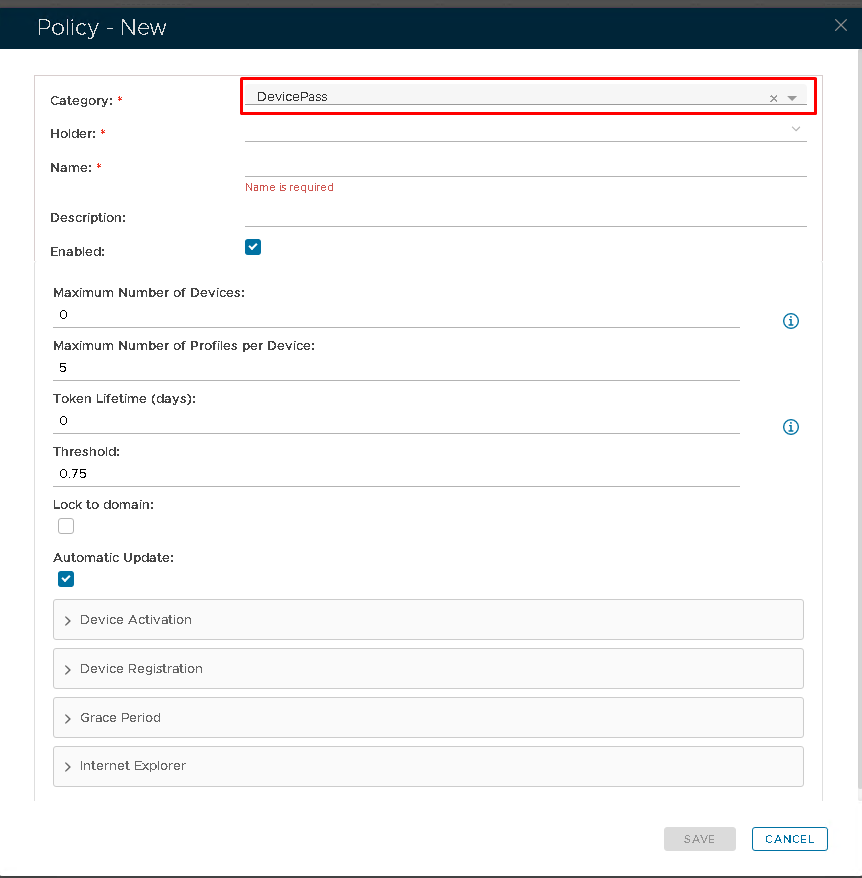
In the policy editor, firstly select DevicePass from the Category drop-down list
Policy Bindings
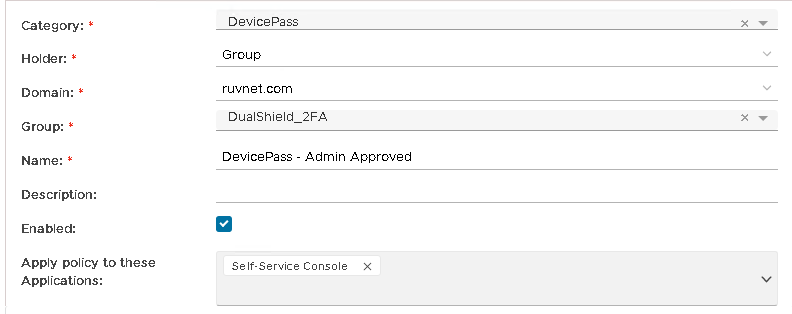
Enter or select the following policy bindings:
| Holder: | The policy holder defines the scope of the policy.
|
| Name: | An unique name that describe this policy |
| Applications: | Optionally, you can bind the policy to a specific applicaiton or a list of applications. To specify the application(s), select the field: Apply policy to these applications If the field Apply policy to these applications is left empty, then the policy will be applied to all applications. |

Policy Options
Option | Value or Selection | Remark |
|---|
Value | |
|---|---|
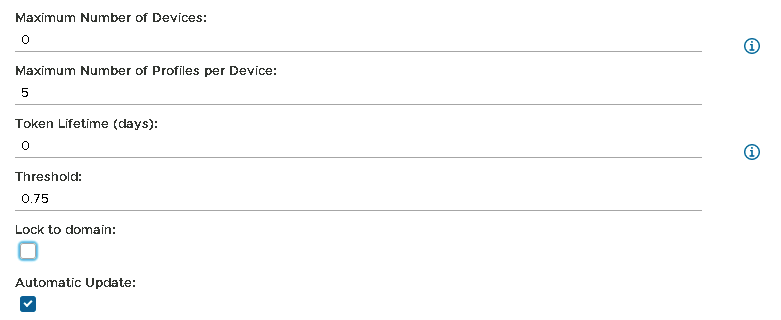
| Max Number of Devices | The maximum number of devices a user can connect to the exchange server from. '0' means unlimited |
| Max Number of Profiles per Device | The maximum number of fingerprint profiles per device. |
| Token Lifetime (Days) | You can set the DeviceID token to expire after a certain amount of days. |
| Threshold | The amount of Hardware component information recorded in the fingerprint |
| Lock To Domain | Device Fingerprint is bound to the domain of the device it is being registered to and can only be used for that domain |
| Automatic Update | Fingerprint Profile will be updated automatically |
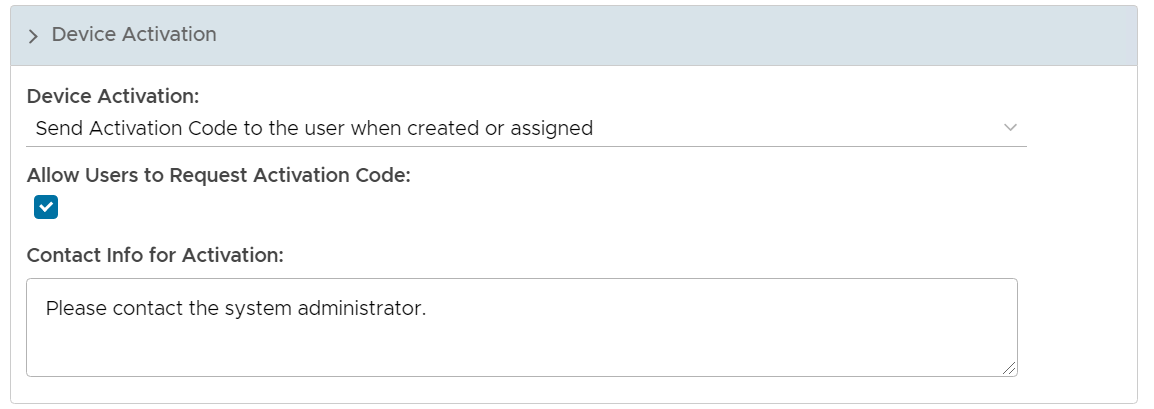
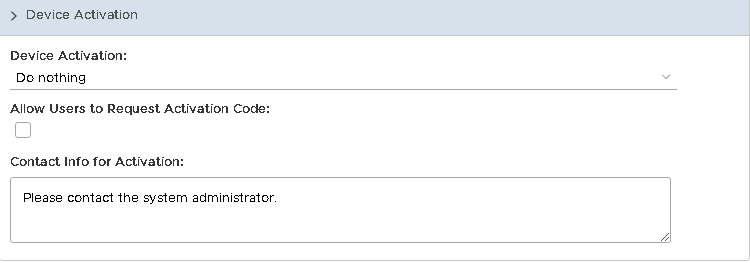
Device Activation Options
Set Device Activation to Do Nothing as it will be Admin who will be activating the DevicePass token on the Admin Console
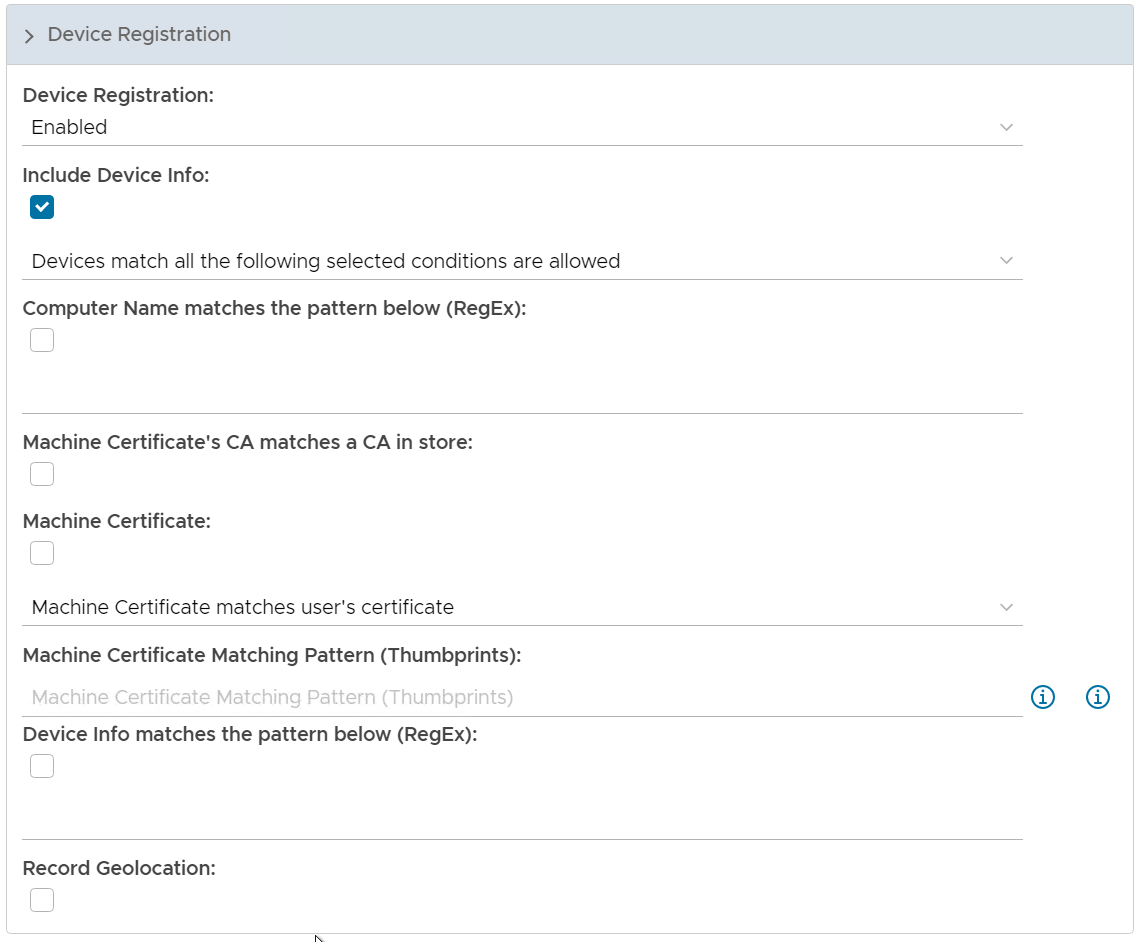
Device Registration Options
This can be left with the defaults.
Grace Period Options
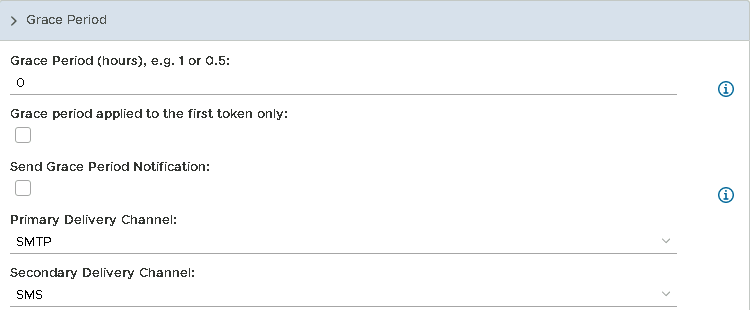
This can be left as default as Admin will be activating the token.