To use computer fingerprint, users must first register their devices into their accounts. For this section, we will use Device Onboarding by activation code (as that is the most common type of registration) and the application will be Self Service Consolea DevicePass token, to the end-user DualShield account.
In a web browser, navigate to the application URL.
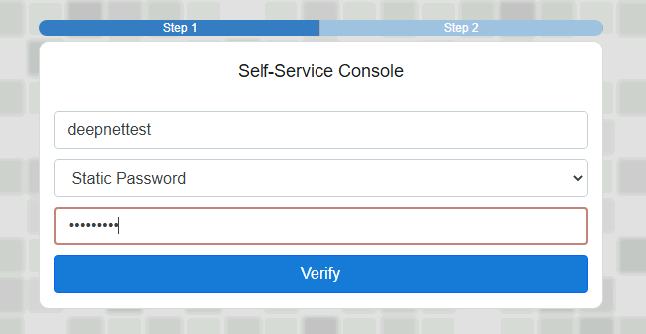
In this example, Static Password is the first Factor. Enter AD Username and Password and click on Verify.
This will then take you to the second factor, which is the Computer Fingerprint. You may then get an Access-Request prompt, like this...
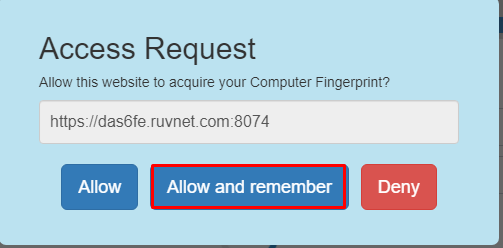
If you see this, click on Allow and Remember. You should then be presented with the following prompt...
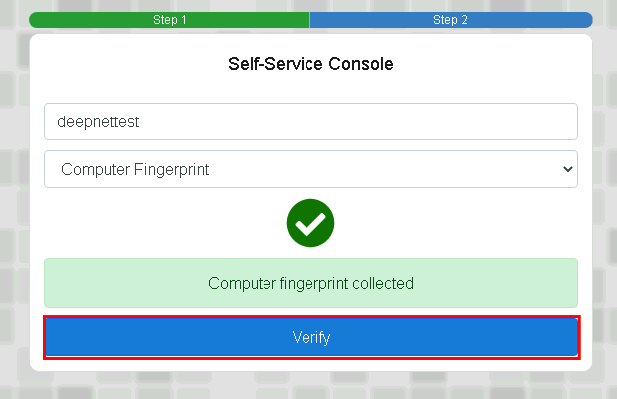
Click Verify.
You will then be prompted with a warning that Token is not found. This is perfectly normal. This is because as yet the DevicePass token has not yet been registered to the end-user account.
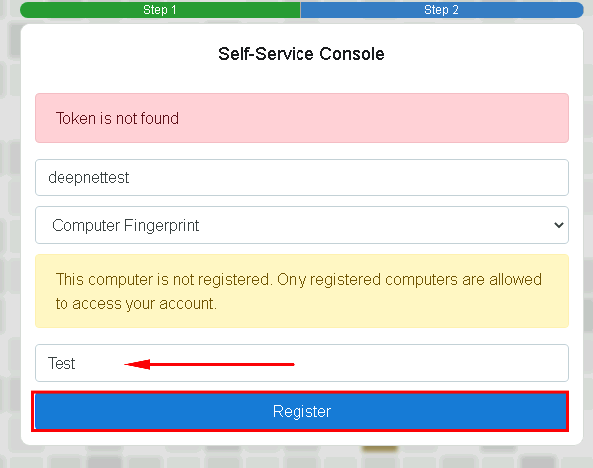
Type a friendly description eg 'Tom's main PC' and then click on Register
The new DevicePass token will be registered but it will still need to be activated before use.
Please click here for DevicePass Activation options.