If DualShield Administrators would like tighter control on who has access and the Devicepass policy has been set for admin approval only, then the user will be presented with the following activation screen
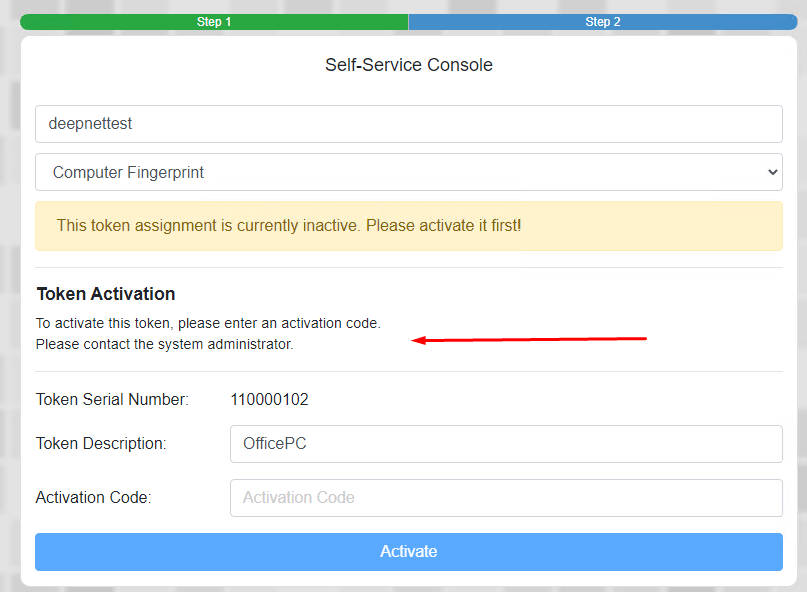
As you can see, on this screen there is no option to request for an activation code, only to contact an IT administrator for access.
If an alert has been set up (see https://wiki2.hopto.org/display/DualShield6/Enable+alert+for+DevicePass+Registration ) the IT helpdesk or admin will have already received notification..
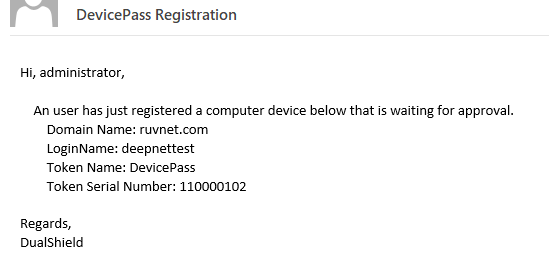
.. and proactively activated the devicepass token on your account, if approved.
Regardless of which notification the administrator gets there are in fact 3 ways the token can be activated.
1) administrator advises end-user of the activation code.
Currently, the token appears under the user's DualShield account as inactive...

The administrator should select Activation Code from the token's menu
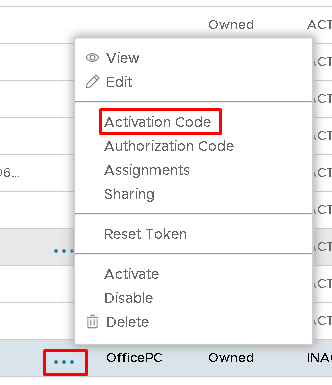
Click on Create on the popup dialogue box.
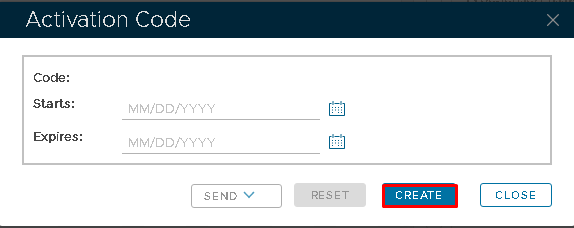
The code appears at the top, which can be relayed to the end user directly or over the phone.
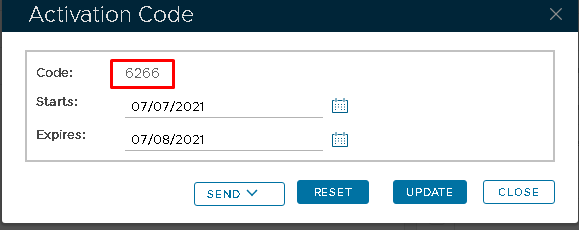
2) Send the code via email or SMS.
Depending on the communications channel that has been set up on DualShield a token can be sent to the user via email or SMS.
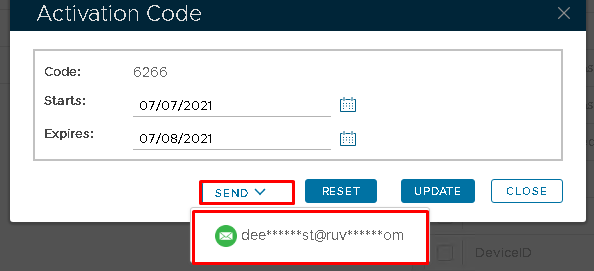
In this example, an email will be sent to the end user, by clicking on Send and the email address that appears below.
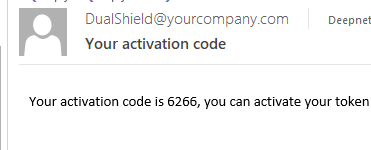
As in the previous section, the activation code can then be entered and the token activated.
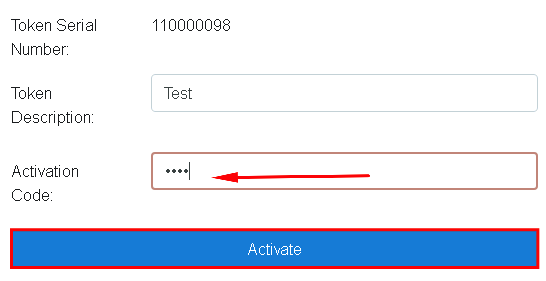
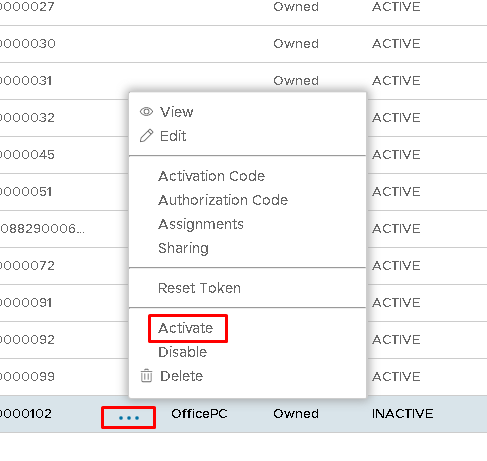
3) Activate the token on the Management Console
The above two methods rely on the end-user typing in the correct activation code. To avoid all unnecessary issues, the easiest method is just to activate the token in Admin Console.
This can be done by selecting Activate on the token's menu.

The end-user will then be required to close and reopen the browser and start the logon process again.