To apply for a new SSL certificate, follow the steps below
| Table of Contents |
|---|
Generate a Certificate Signing Request
Navigate to Repository | Certificates | Certificate Signing Request"
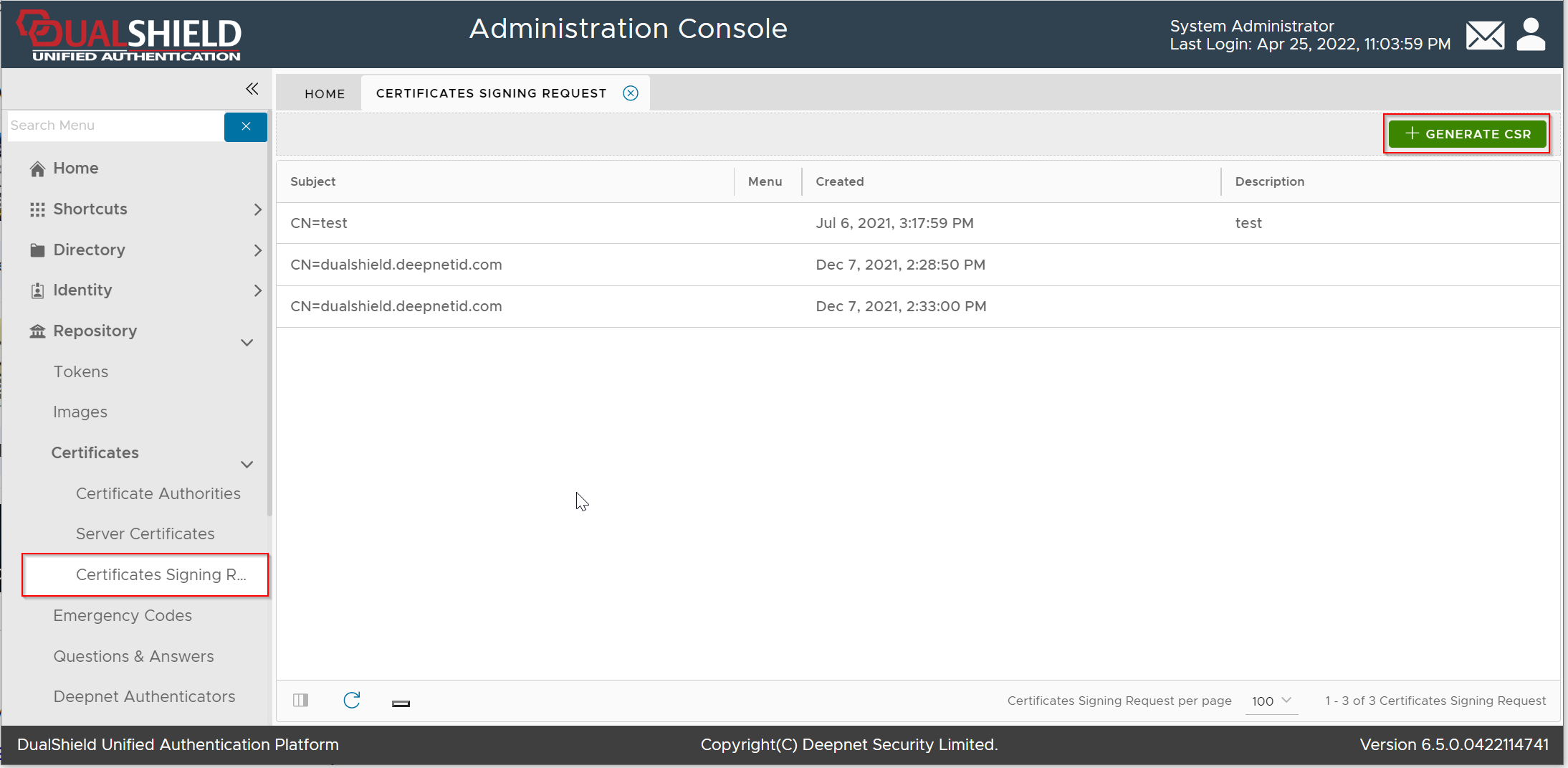
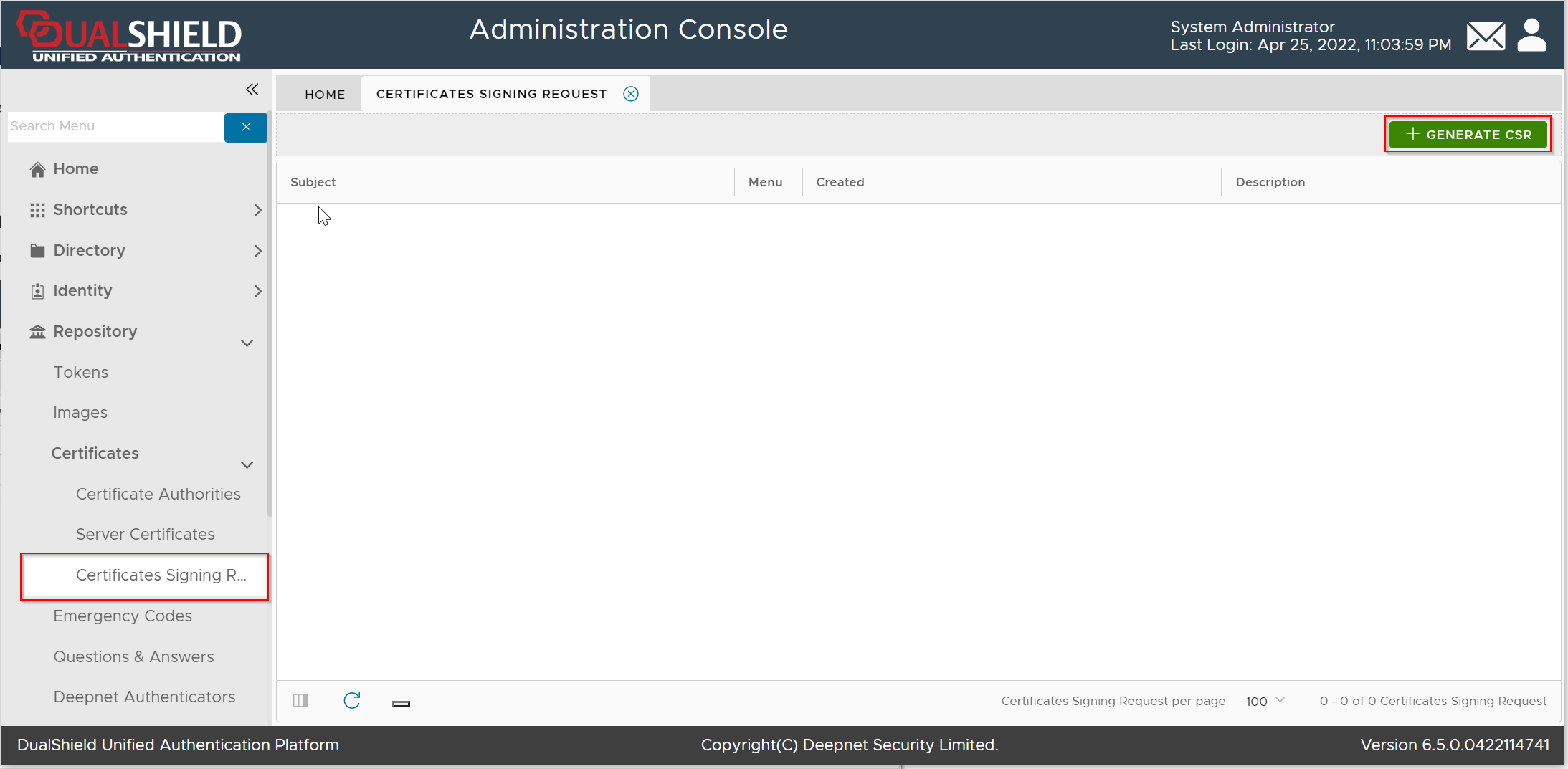
Click the "Generate CSR" button
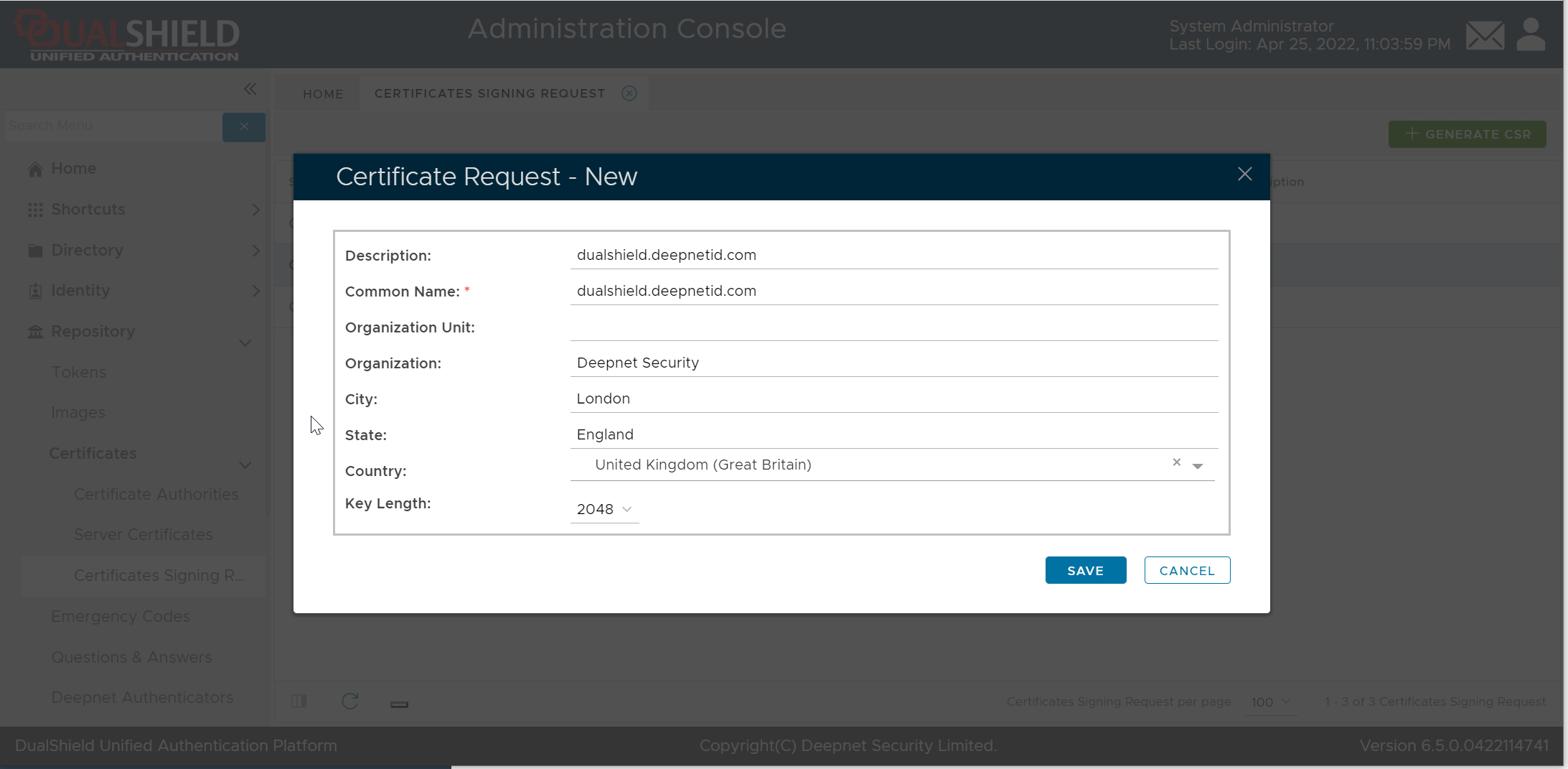
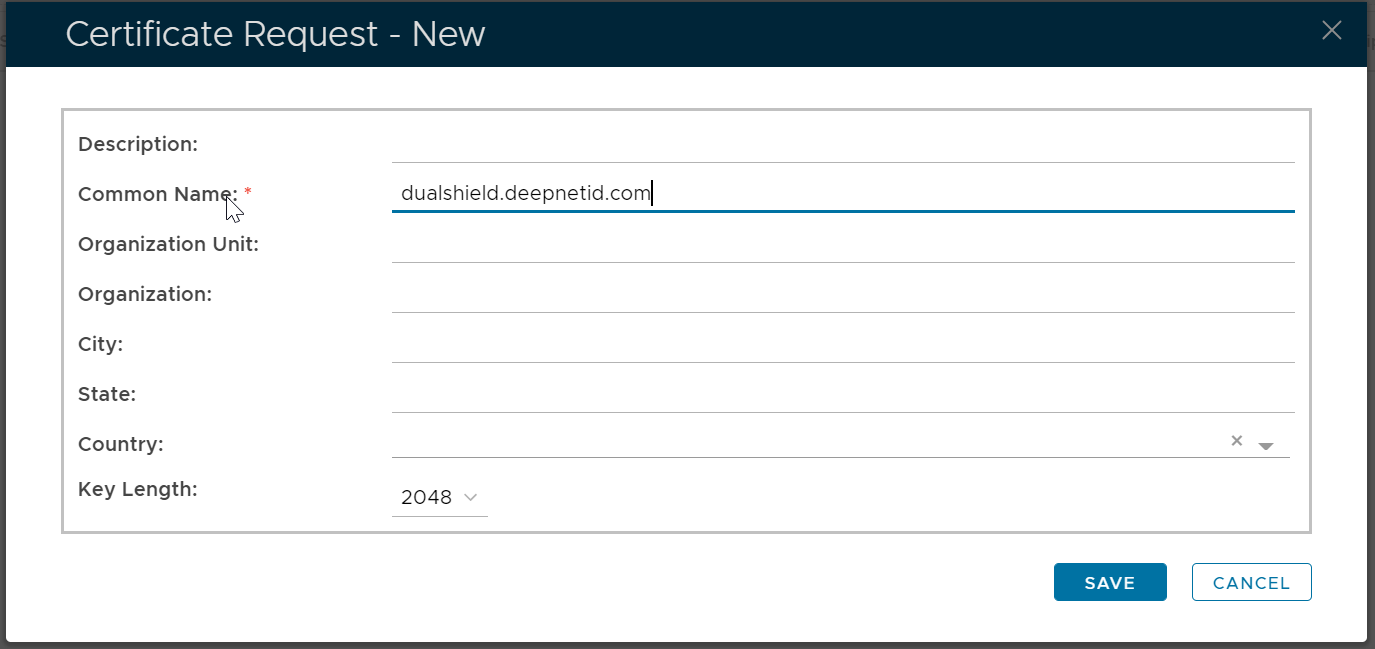
Fil Fill in the CSR form, click Save

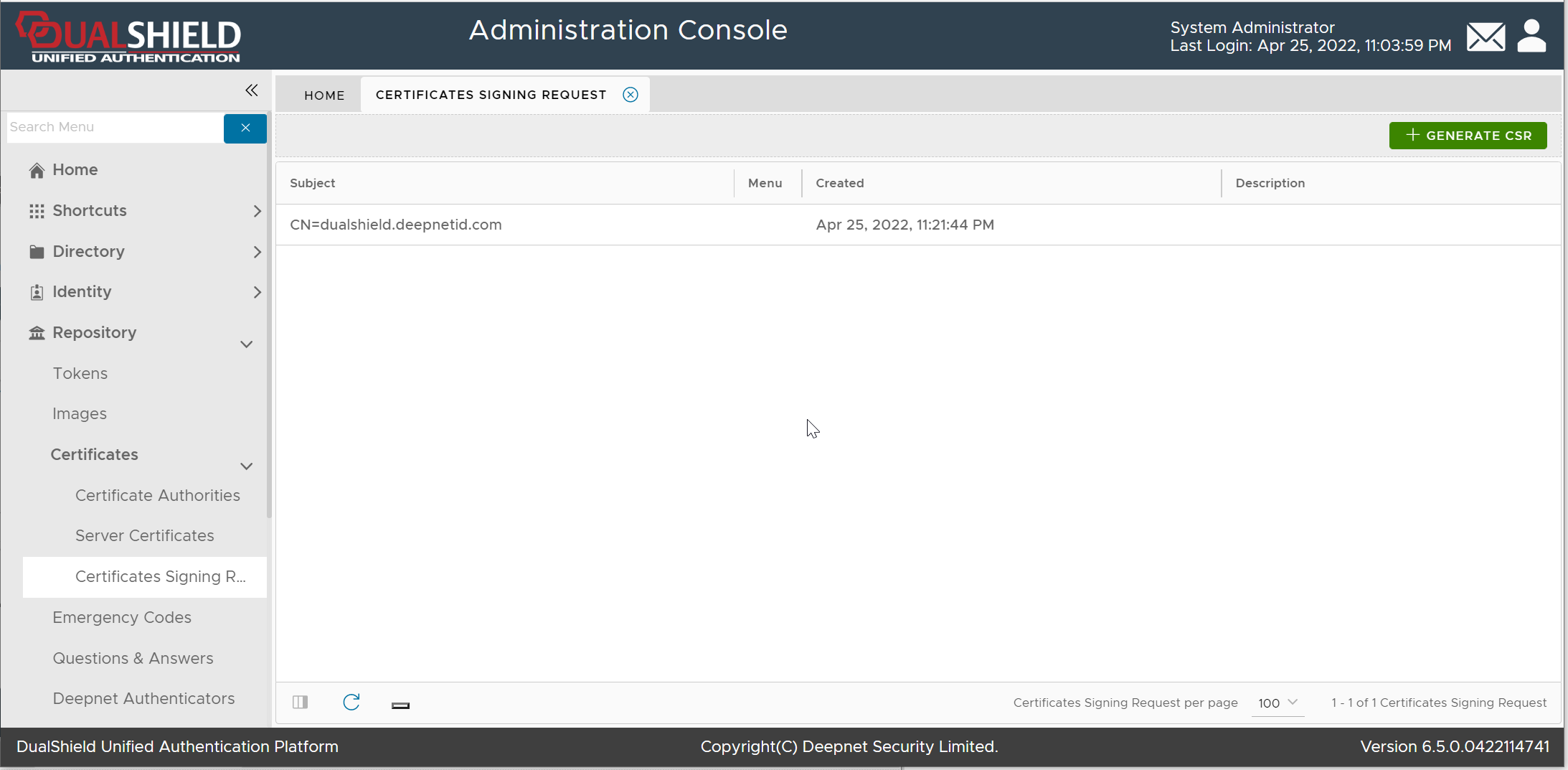
Submit the Certificate Signing Request
...
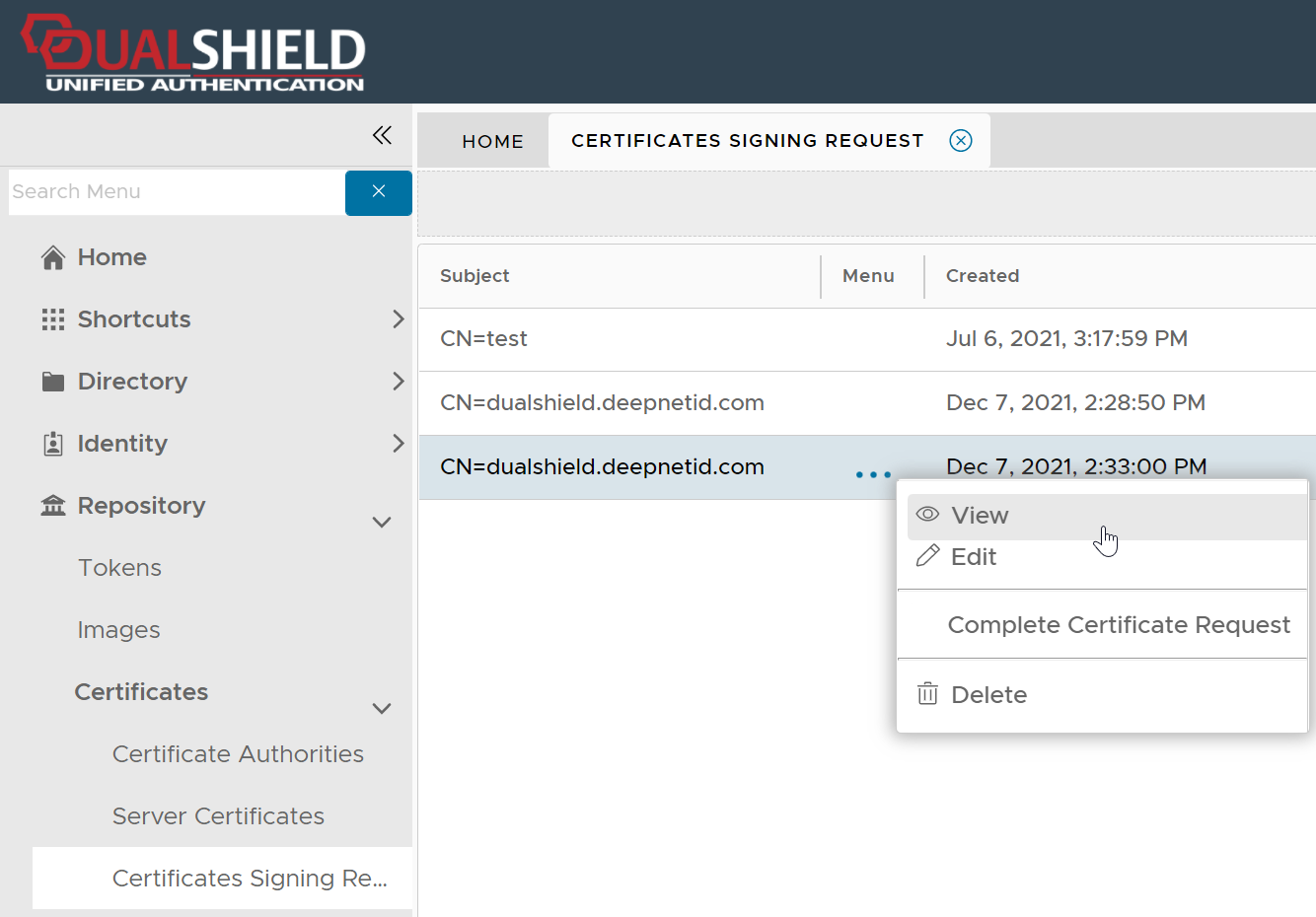
Now, you need to submit the Certificate Signing Request (CSR) to a Certificate Authority, e.g. GoDaddy, to be signed.
Click the context menu of the newly created Certificate Signing Request
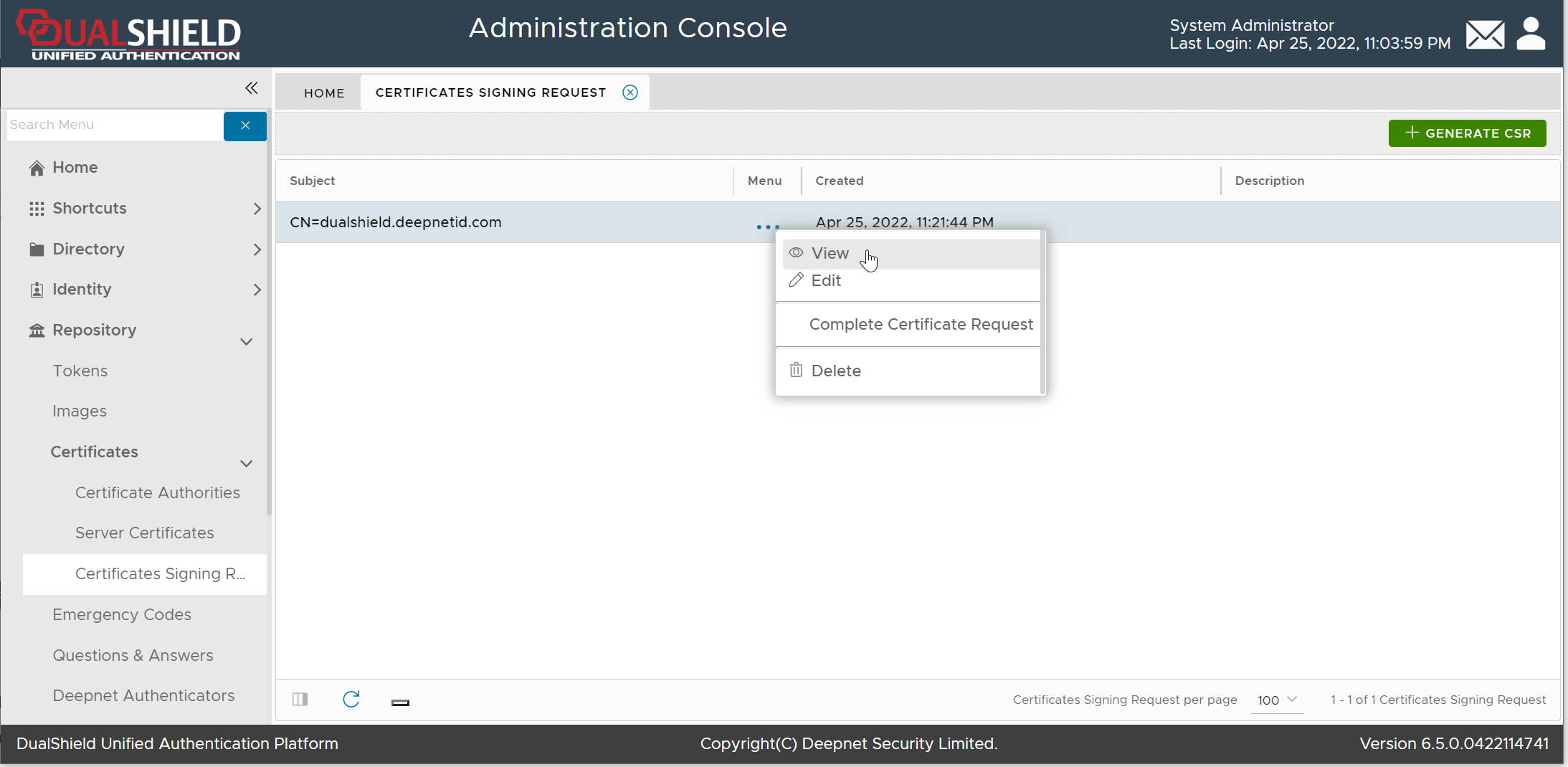
Select "View" from the context menu
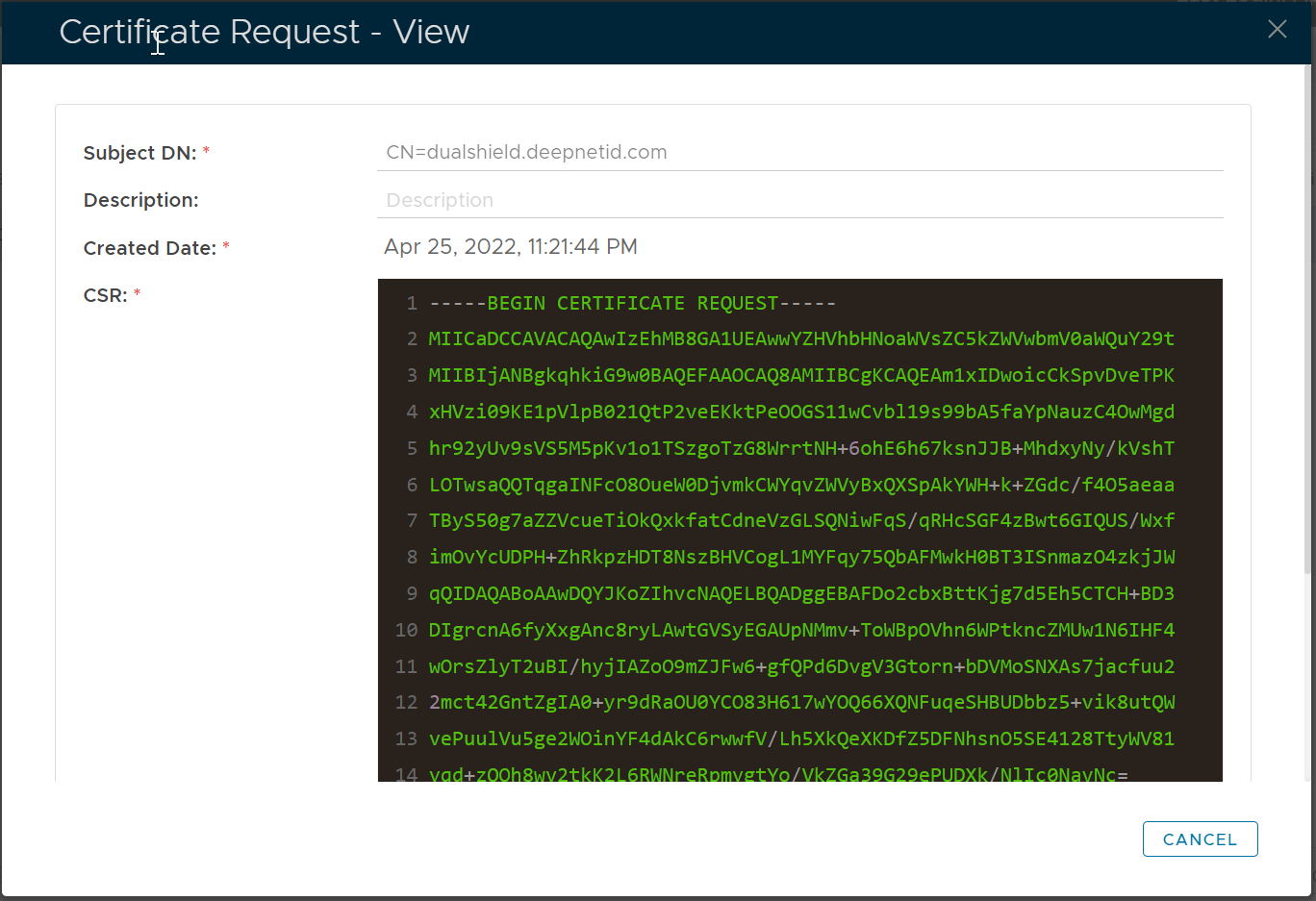
Copy the CSR text and submit it to your CA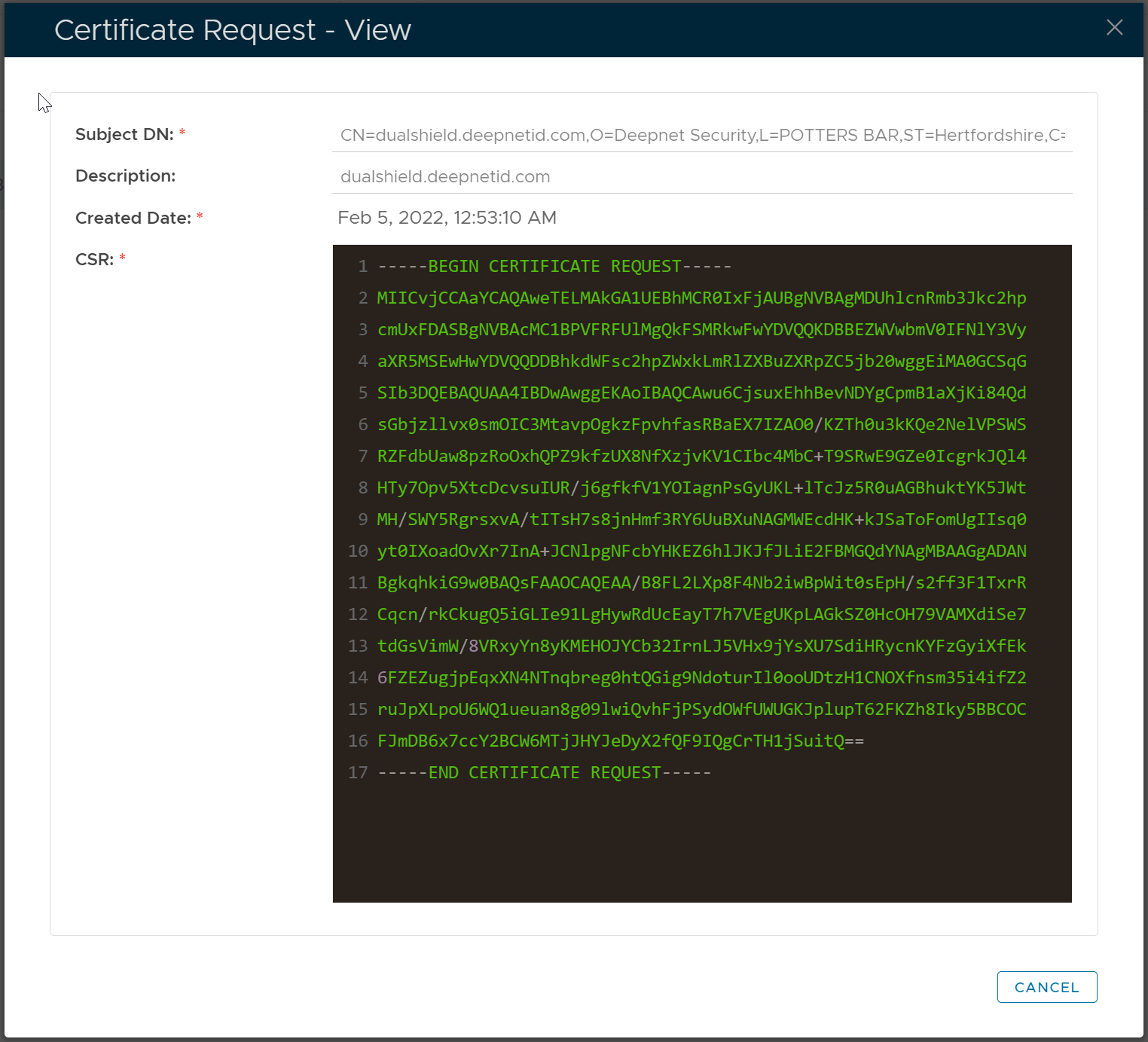
Download the Certificate from CA
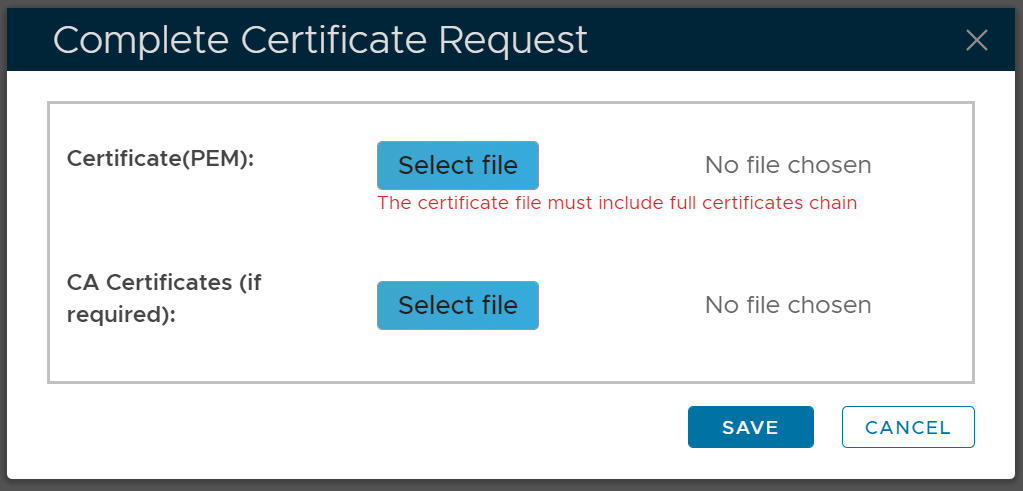

Complete the Certificate Signing Request
Once your CA has signed your CSR, it will issue you a certificate.
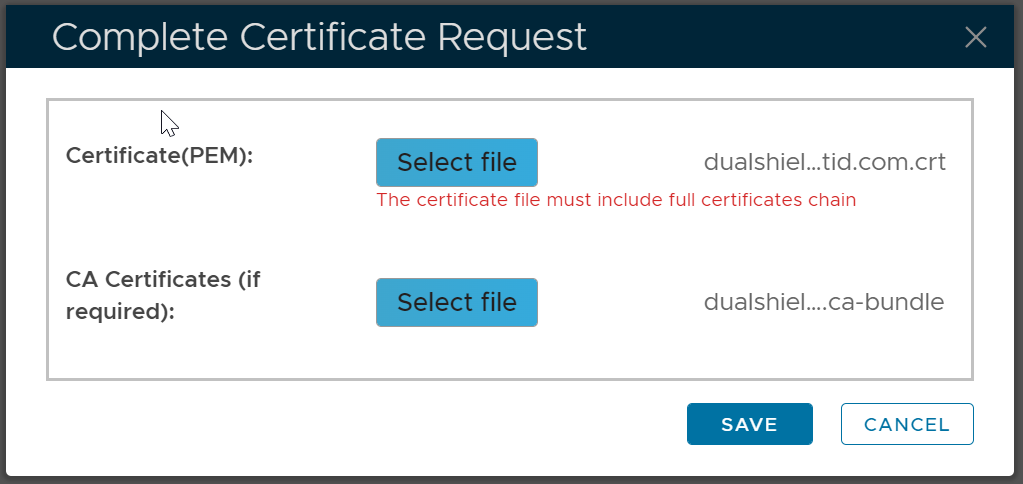
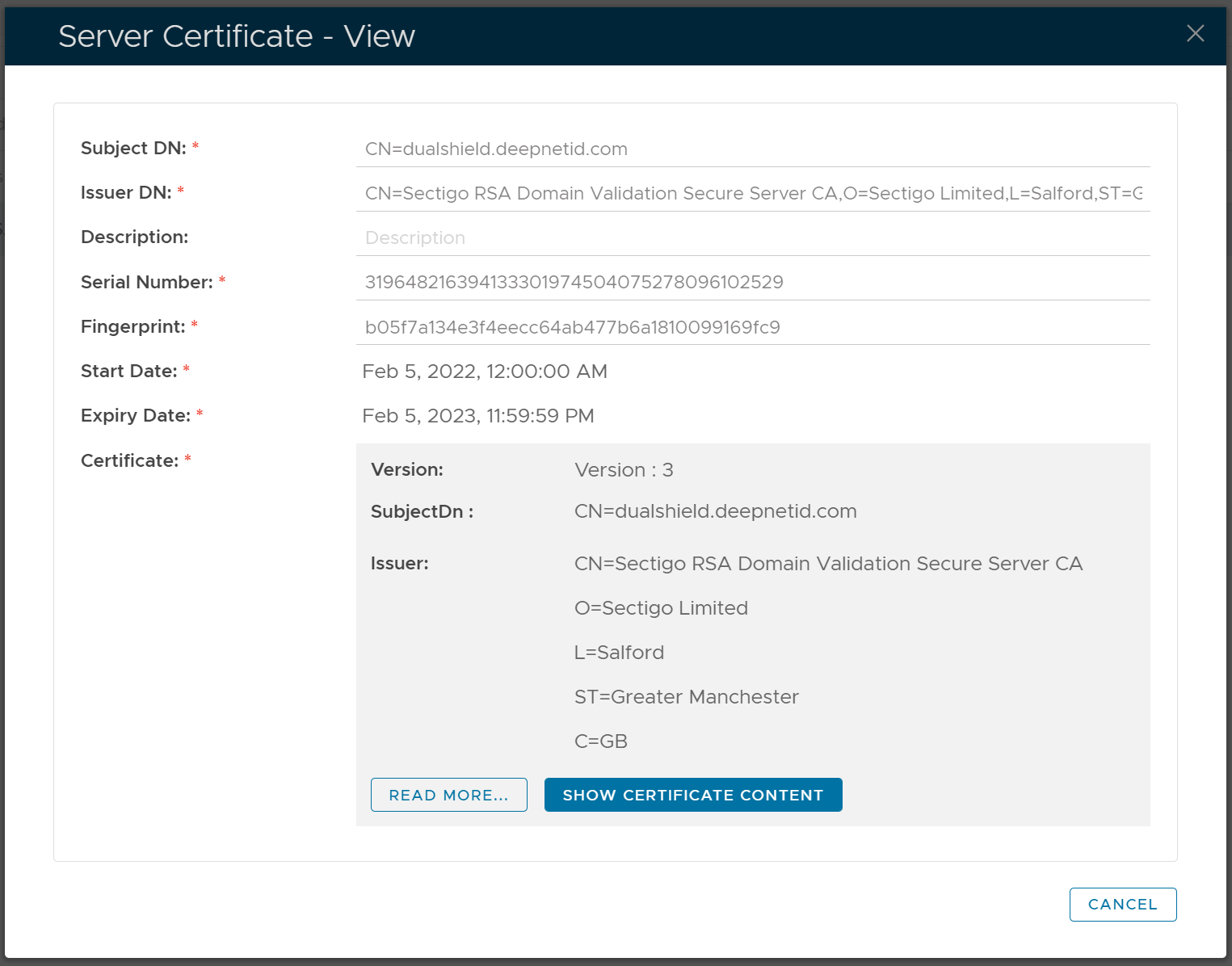
Download the SSL certificate. Commonly, the certificate is delivered in a CRT file, e.g. "dualshield.deepnetid.com.crt"
Also, a CA bundle file will be provided. The CA bundle file includes the certificate of the root CA and the intermediate CA, e.g. "dualshield.deepnetid.com.ca-bundle"
Complete the Certificate Signing Request
Finally, you need to complete the Certificate Signing Request using the certificate that you downloaded from the CA
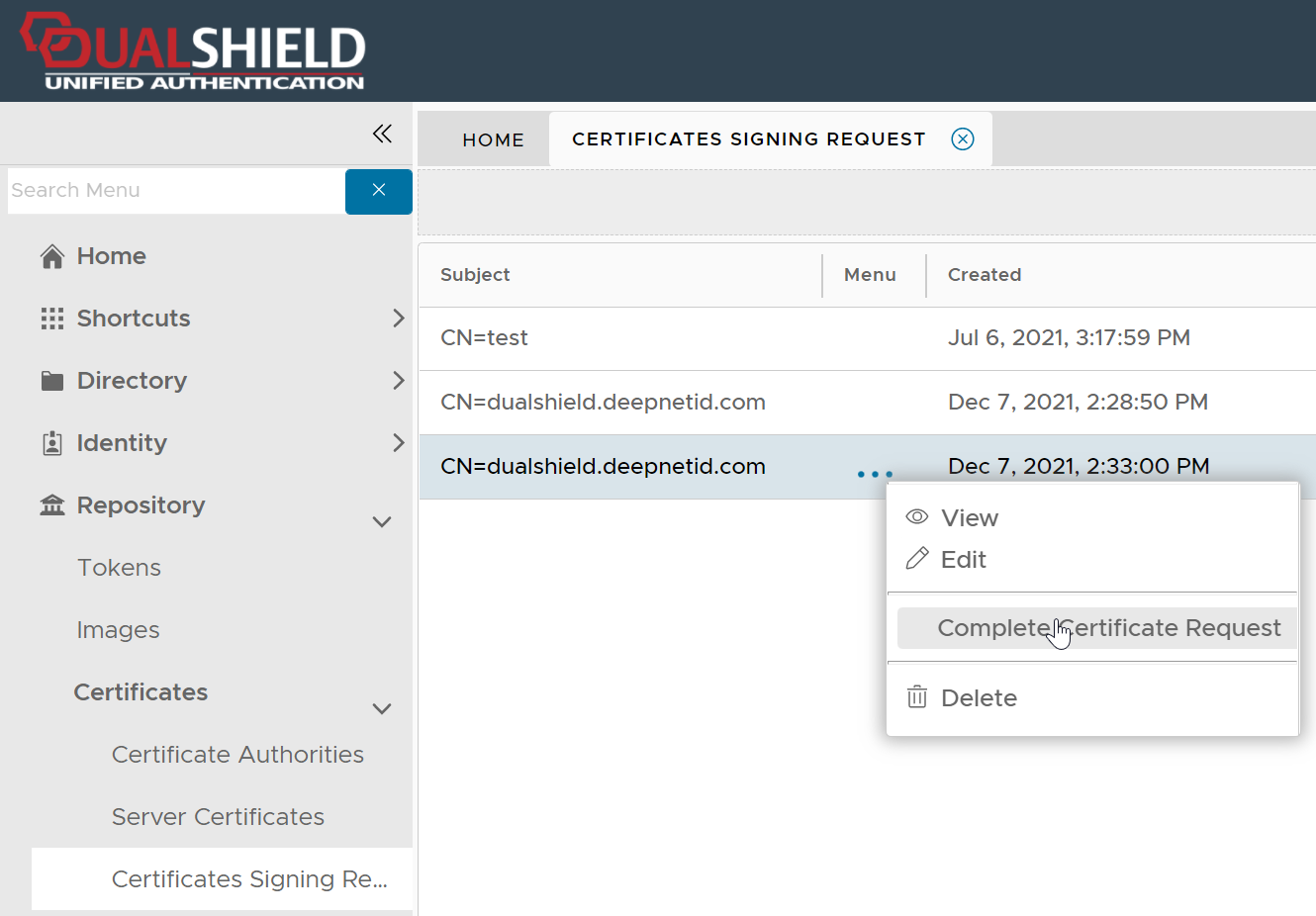
Click the context menu of the Certificate Signing Request
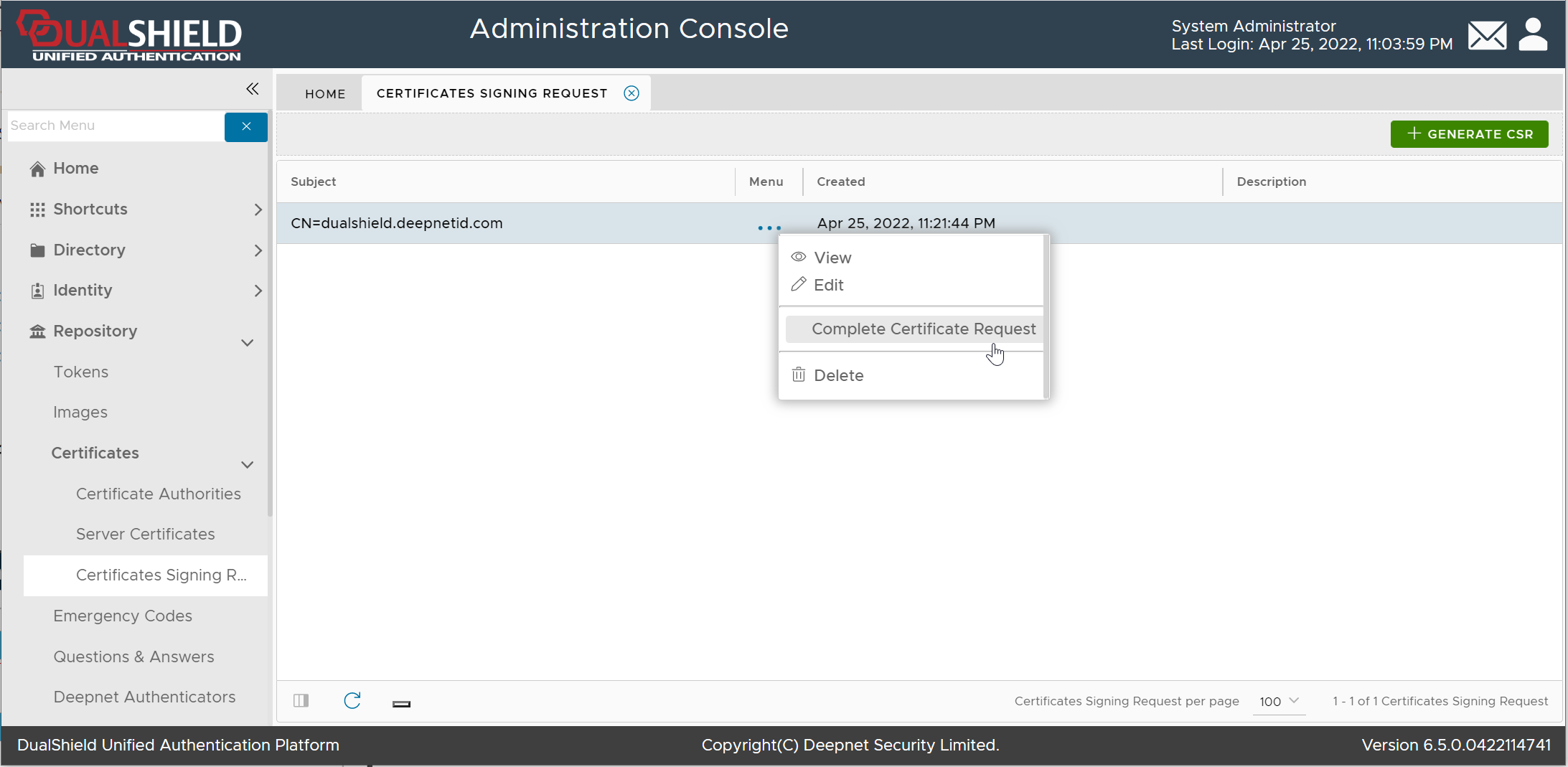
Select "Complete Certificate Request"
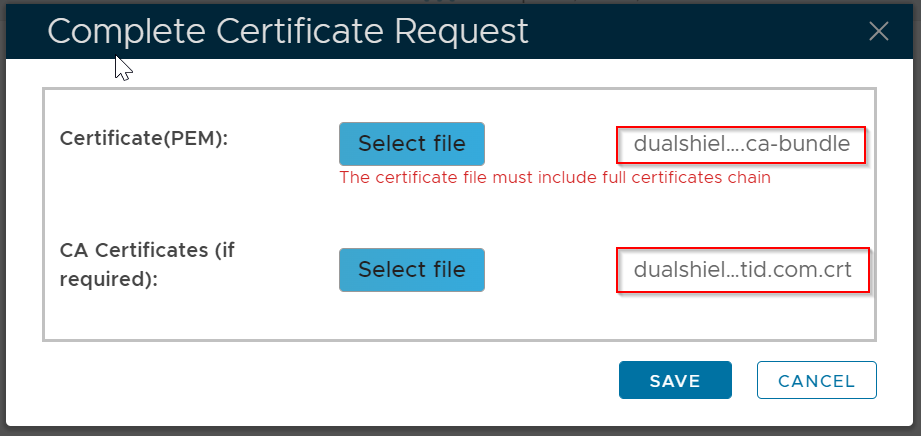
Select the CA Bundle file, and the certificate CRT file
Click Save
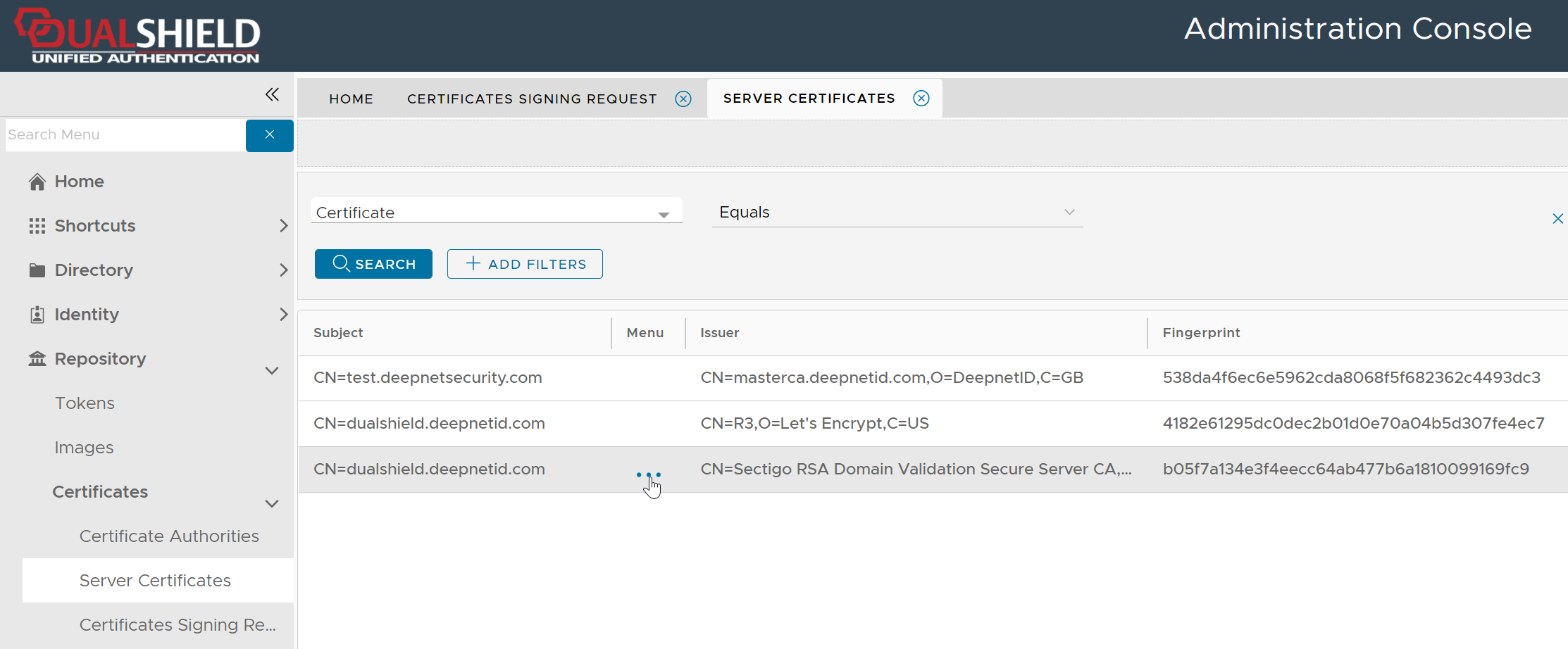
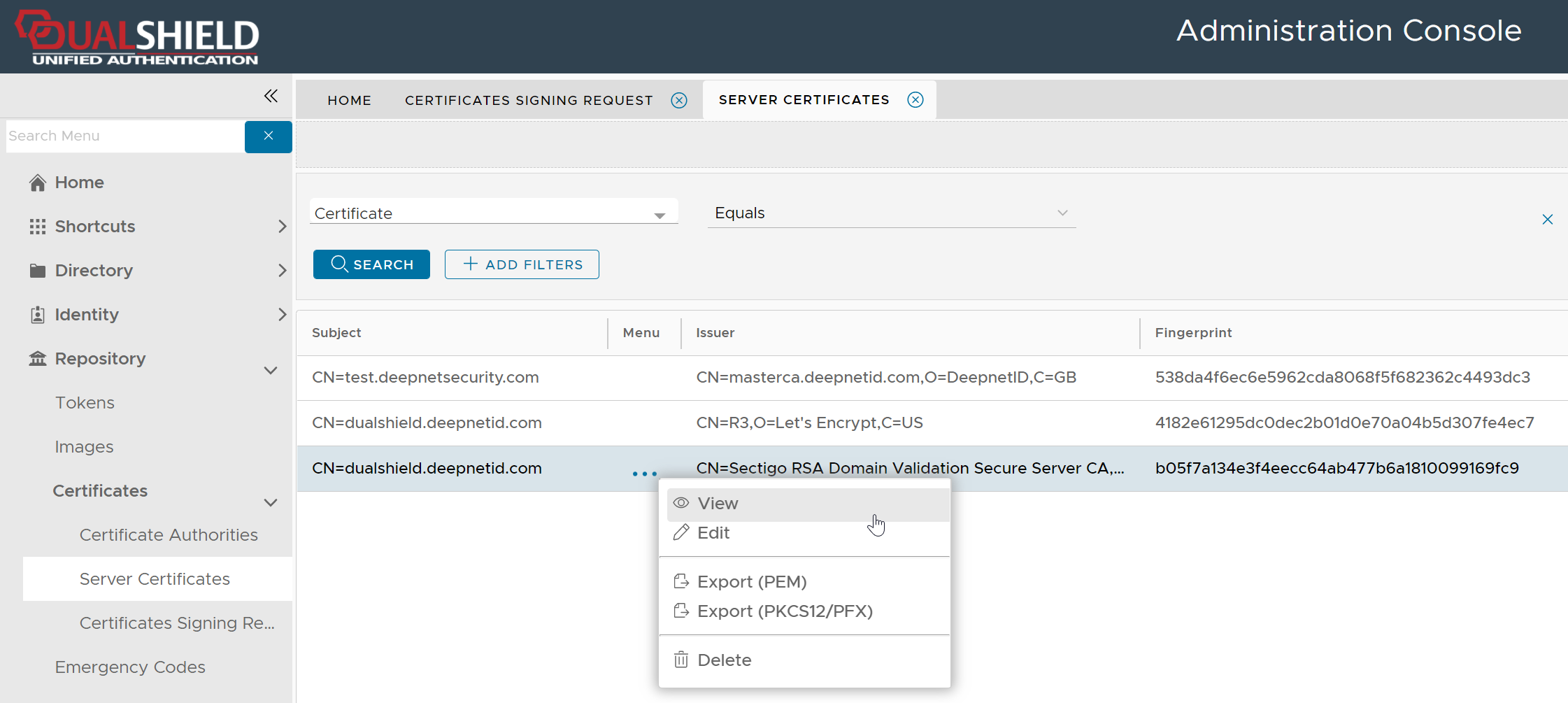
The certificate will be saved in the "Server Certificate" list
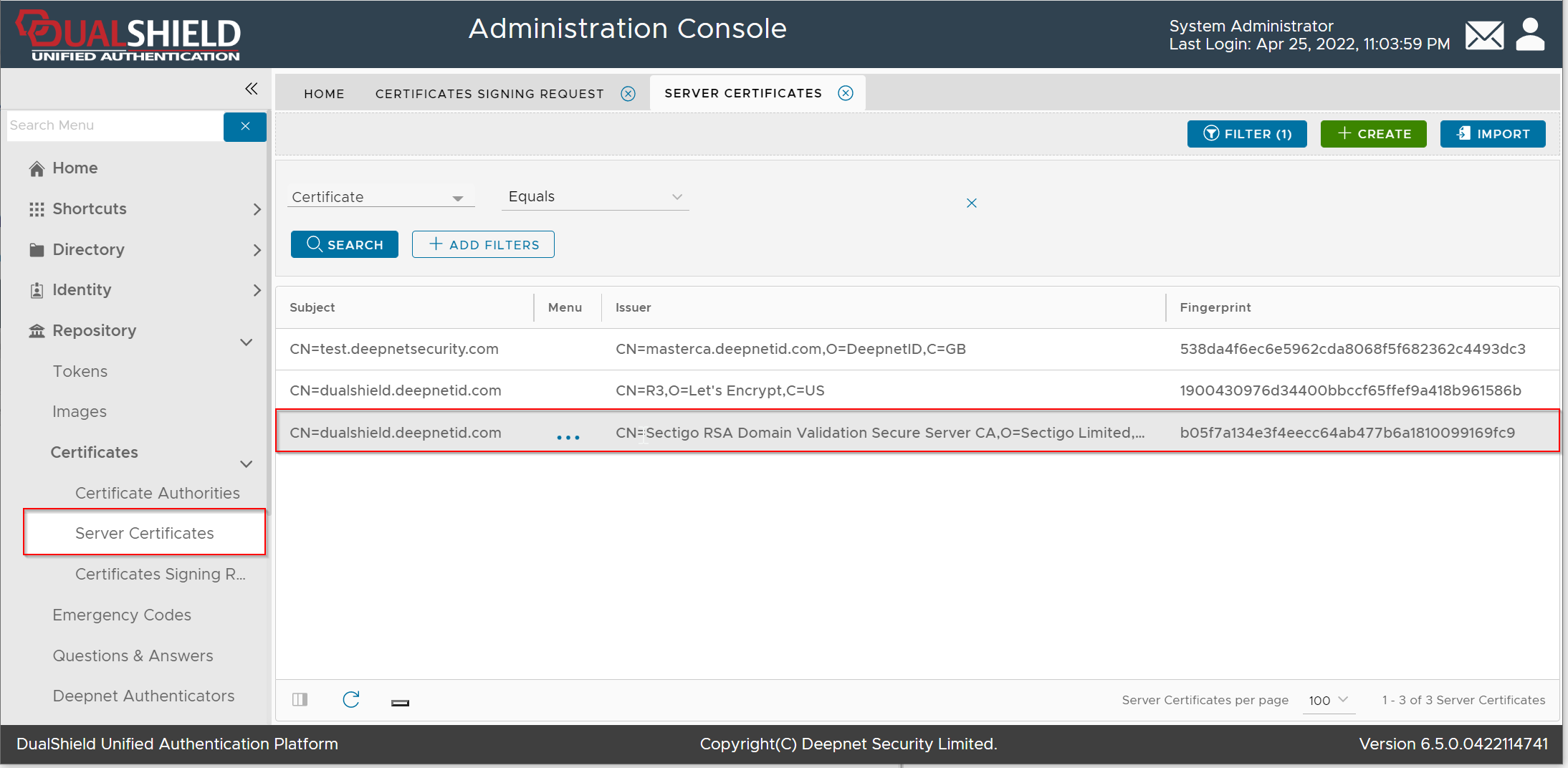
Please note that this does not automatically update the web certificate of your DualShield consoles. If you wish to do that then...
| Expand | ||
|---|---|---|
| ||
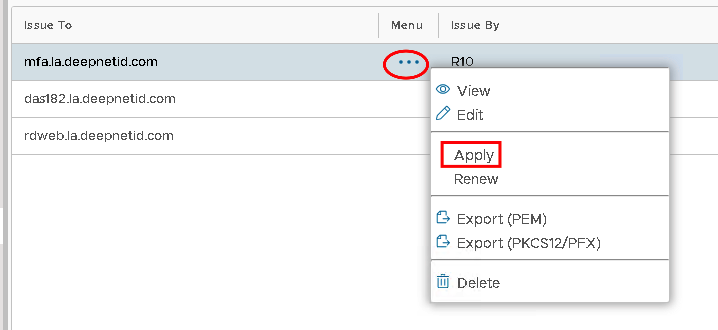
Click on the ellipses corresponding to the newly imported Server Certificate and select Apply
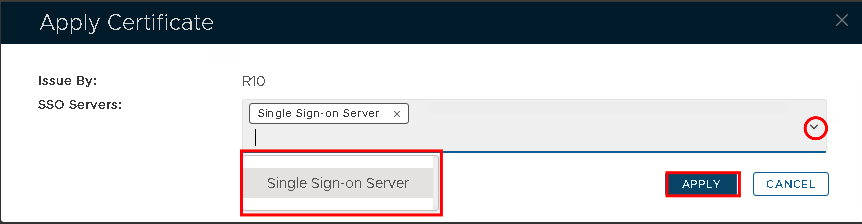
Select the correct SSO Server from the drop down...
Hit Apply
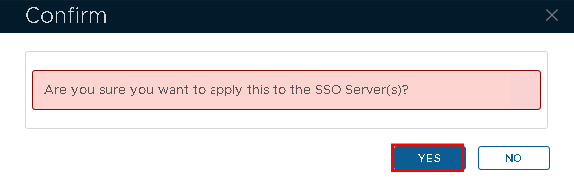
Click Yes. |
| Expand | ||||||
|---|---|---|---|---|---|---|
| ||||||
|
...