Log into the Dualshield Administration ConsoleCreate a Service Provider Profile for Secret Server on DualShield
| Section |
|---|
|
| Column |
|---|
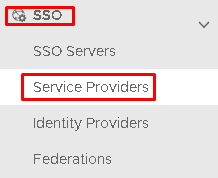
Log into the Dualshield Administration Console Go to SSO>Service Providers |
| Column |
|---|
|
| Panel |
|---|
| borderColor | #9EBEE5 |
|---|
| bgColor | #f0f0f0 |
|---|
| borderWidth | 1px |
|---|
| 
|
|
|
...
| Section |
|---|
|
| Column |
|---|
Fill in the details as per screenshot on right and make sure NameID Format is set to User Principle Name and you select SAML 2.0(Without Metadata) as Type. | | Column |
|---|
| | Panel |
|---|
| borderColor | #9EBEE5 |
|---|
| bgColor | #f0f0f0 |
|---|
| borderWidth | 1px |
|---|
| 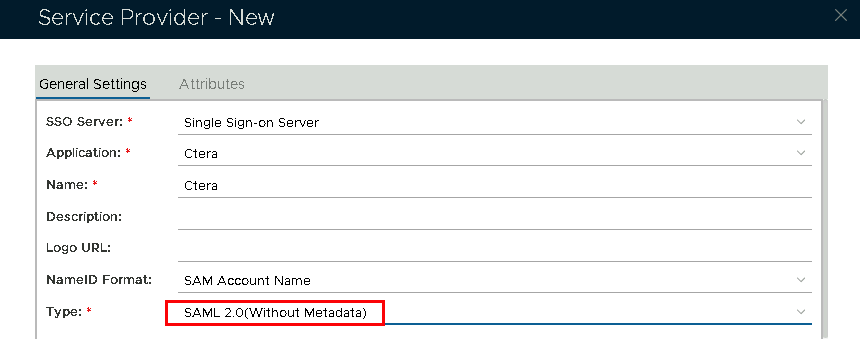 Image Removed Image Removed
|
|
| Section |
|---|
|
| Column |
|---|
| Column |
|---|
Now fill out Entity ID and ACS URL. | Option | Value |
|---|
| Entity ID: | | | ACS URL: | | | Column |
|---|
|
| Panel |
|---|
| borderColor | #9EBEE5 |
|---|
| bgColor | #f0f0f0 |
|---|
| borderWidth | 1px |
|---|
|  Image Removed Image Removed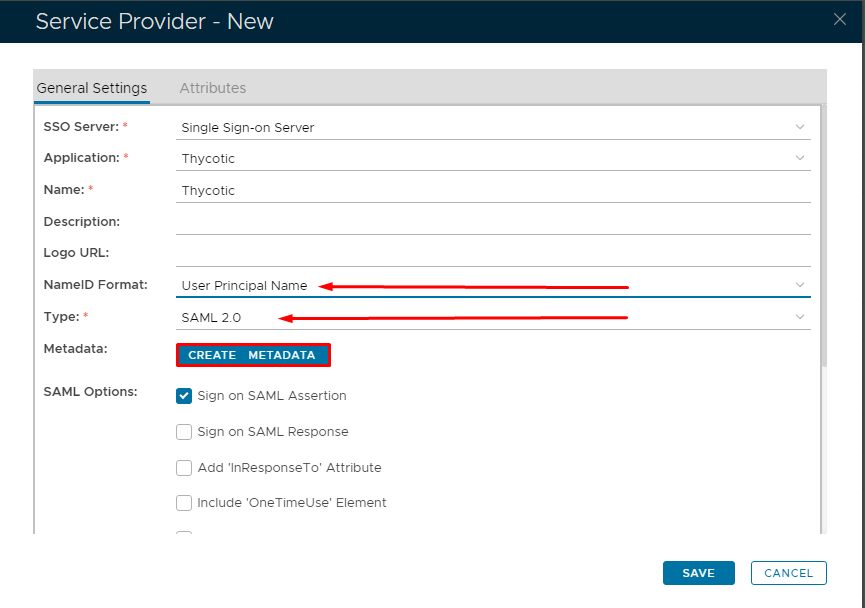 Image Added Image Added
|
|
|
| Section |
|---|
|
| Column |
|---|
Open the Service Provider Metadata file you obtained in Secret Server Setup. Copy and past the metadata into the Metadata dialog box,The completed Service Provider dialogue box will look like this:
|
| Column |
|---|
|
| Panel |
|---|
| borderColor | #9EBEE5 |
|---|
| bgColor | #f0f0f0 |
|---|
| borderWidth | 1px |
|---|
| 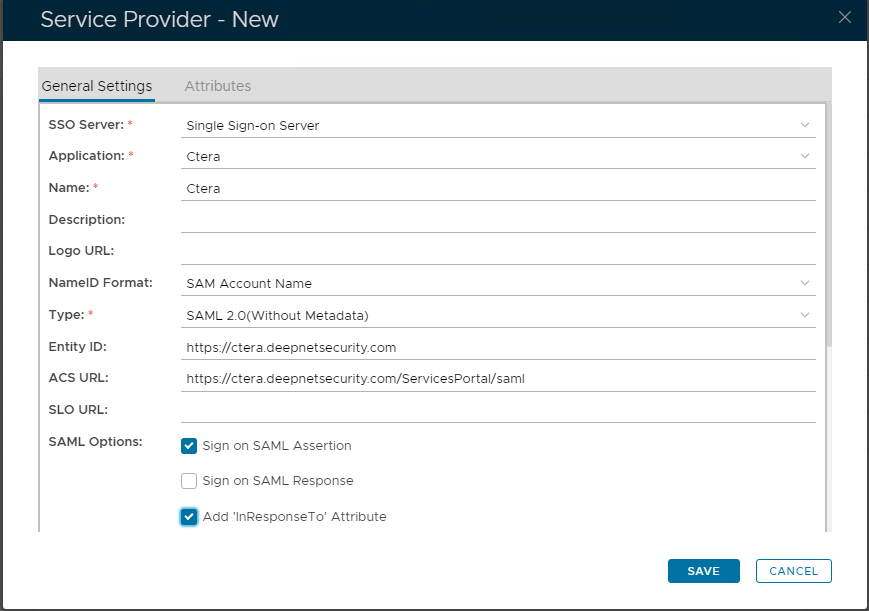 Image Removed Image Removed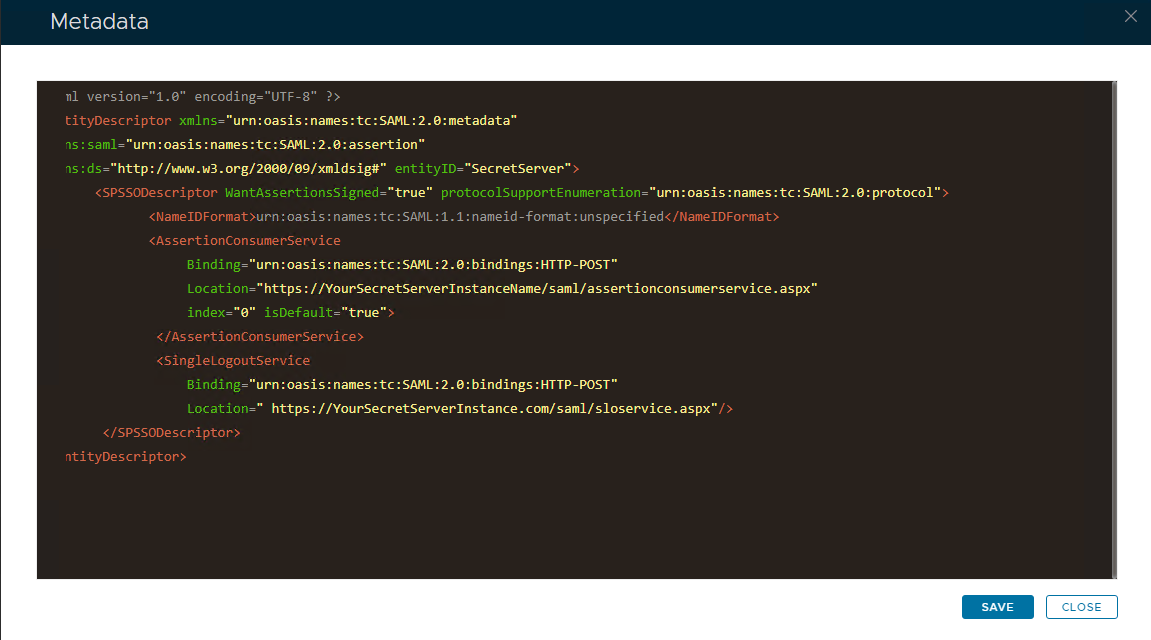 Image Added Image Added
|
|
|
Click Click Save.