Windows Logon Agent now only supports TLS1.2 for earlier versions and TLS 1.2 & 1.3 for the latest. The administrator may want to configure safer cipher suites for SSL connections.
| Expand | ||
|---|---|---|
| ||
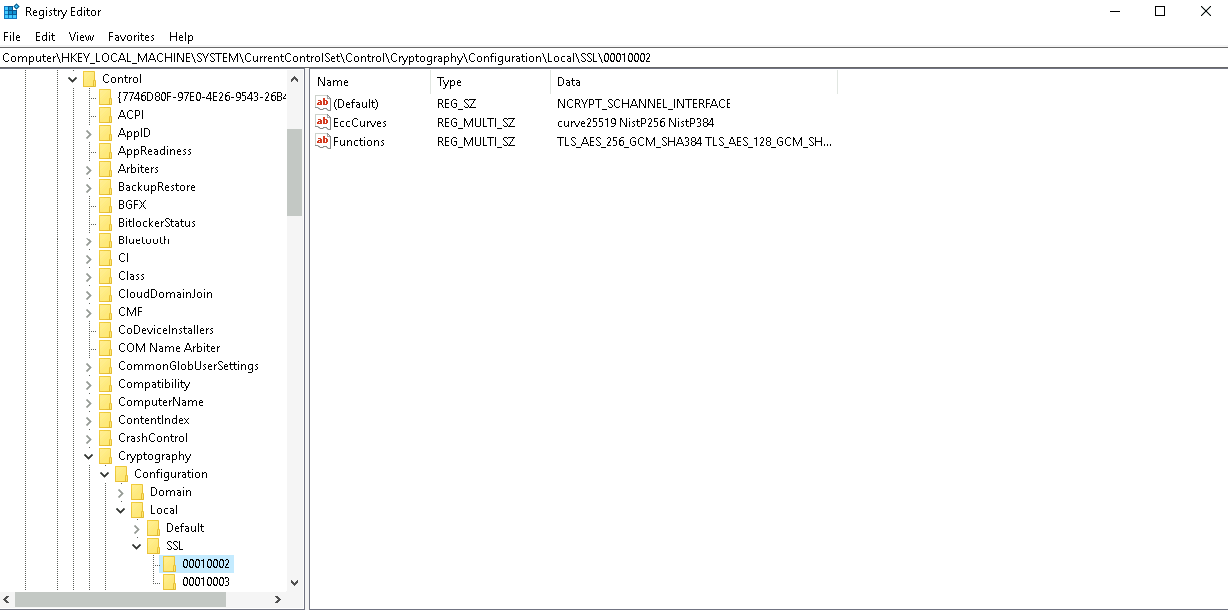
The general way for an administrator to configure is to add or remove cipher suites in the registry editor. The path to do this is "HKEY_LOCAL_MACHINE\SYSTEM\CurrentControlSet\Control\Cryptography\Configuration\Local\SSL\00010002" and configure ciphers for the multi-string value "Functions".
|
| Expand | ||
|---|---|---|
| ||
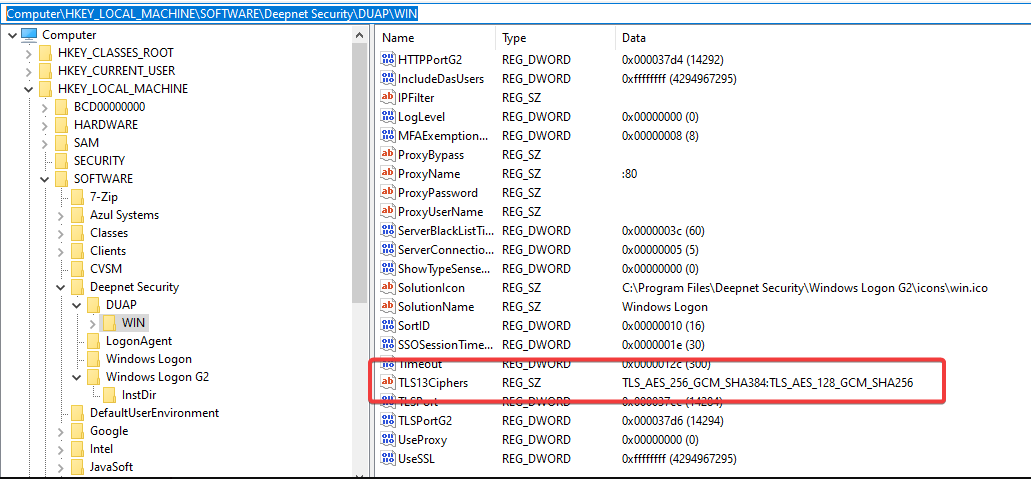
The general way for an administrator to configure is to add or remove cipher suites in the registry editor. The path to do this is "HKEY_LOCAL_MACHINE\SOFTWARE\Deepnet Security\DUAP\WIN" and configure ciphers for the REG_SZ values "TLS12Ciphers and TLS13Ciphers".
The supported OpenSSL ciphers can be seen in https://docs.openssl.org/1.1.1/man1/ciphers/#tls-v12-cipher-suites Seperate the Ciphers with a colon ":". Windows Logon Agent Version 6.9.0125 build 1112 upwards already includes stong ciphers such as TLS_AES_256_GCM_SHA384:TLS_AES_128_GCM_SHA256:TLS_CHACHA20_POLY1305_SHA256, howver if additional ciphers are required, these can be created in the registry, as per example above. |
After changing the settings, the agent service needs to be restarted.
...