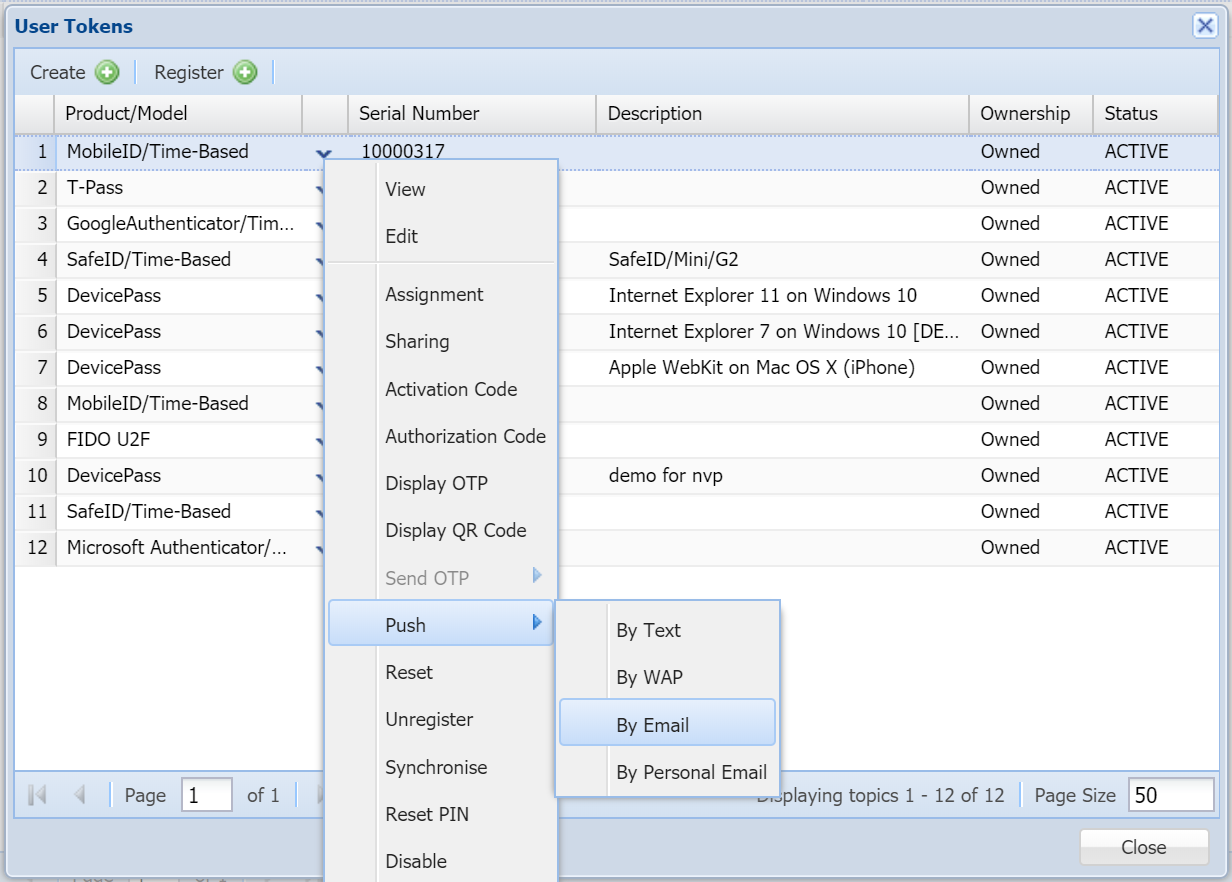
An OTP token's QR code can be sent to the user by email. This process is called "push token" to users.
A token can be pushed to the user by the server automatically or pushed to the user manually by the administrator in the admin console. Either way, a message template called "Push Token" will be used to create the email message. Therefore, you must customize the Push Token message temple first if you want users to receive their token's QR code by email.
Customize Push Token Message Template
| Expand | ||||||
|---|---|---|---|---|---|---|
|
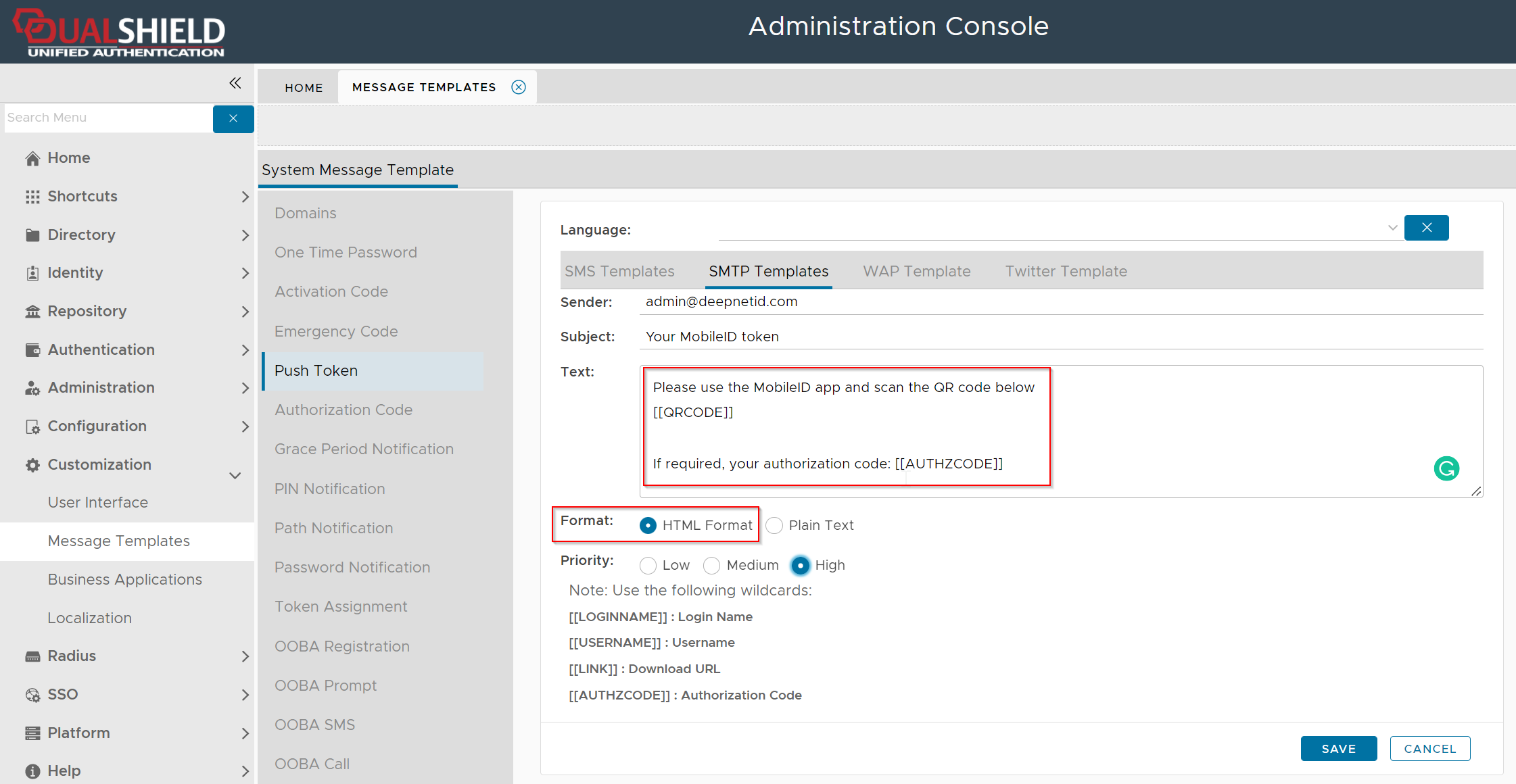
Below is an example of the Push Token SMTP message template
Push Token Manually
The following procedure demonstrates how the system administrator can send the QR code to users by emails
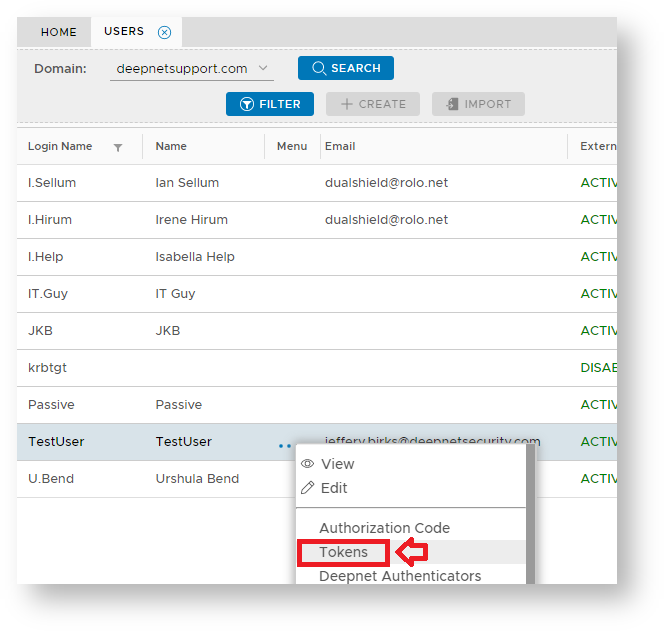
Navigate to "Directory | Users", select the domain for your external directory, then for a selected user left click on the context menu and select "Tokens";
The token details for the selected user will now be show, left click on the context menu of the token to be pushed to the user then select the message channel to send the token (normally "By Email");
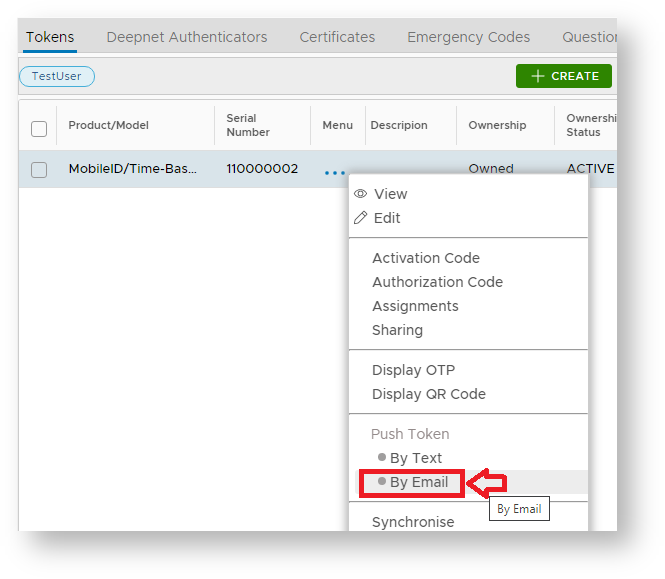
The QR code for the selected token will now be sent to the user by email.
End User Experience
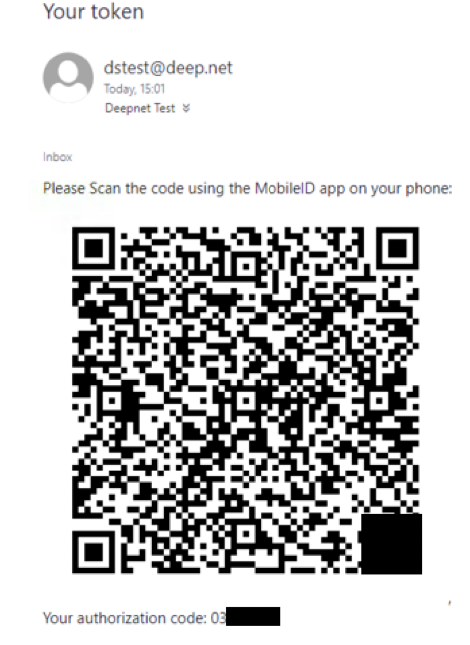
Once the token has been sent to the user an email will arrive that includes the required QR code (example below);
The following procedure demonstrates how the system administrator can obtain token seed data prior to manual deployment to a user's mobile device or computer.
...
| title | Navigate to the push token templates window |
|---|
...
| title | Navigate to Configuration | Templates |
|---|
...
...
...
To send out the token's QR code in an email, navigate to the user's token list. In the token's context menu, select "Push > By Email"