There is a feature in the MobileID app that enables users to download their MobileID token from their DualShield SSO server.
The administrator of the DualShield server can enable or disable this function by setting the "Downloading Token in the MobileID App" in the MobileID policy.
- Disabled
Downloading token from the MobileID app is not allowed - Allowed in local network only
Downloading token from the MobileID app is alowed in the local network - Allowed anywhere
Downloading token from the MobileID app is allowed from any location
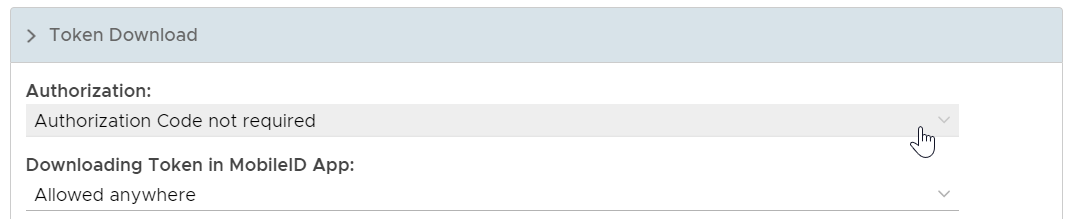
Also, the administrator can set the "Authorization" option as such that the authorization code is required or not.
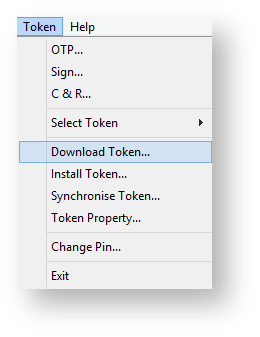
From the main menu select "Token" then "Download Token ..."
A new window will open that prompts for entry of the Service URL, the User Name and a Password;
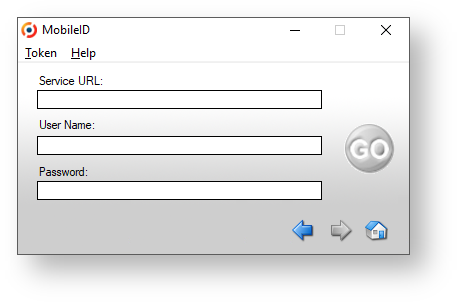
At this point you will need to provide a Service URL, User Name and a Password for downloading the application.
The Service URL or Download URL is the URL of your provisioning server in the following format:
https://your_provisioning_server_address:port/dps/m/your_domain_name?sn=serial_number
in which,
"your_provisioning_server_address: port" is the public internet address and port of your provisioning server.
"your_domain_name" is the DNS name of your domain
"serial_number" is the serial number of your mobile token
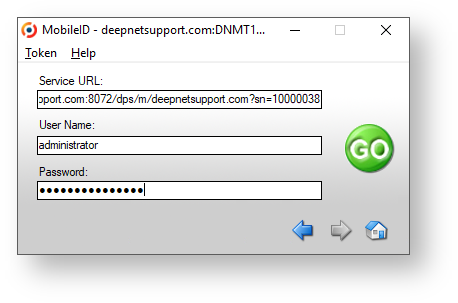
Enter the requested parameters then click on "GO".
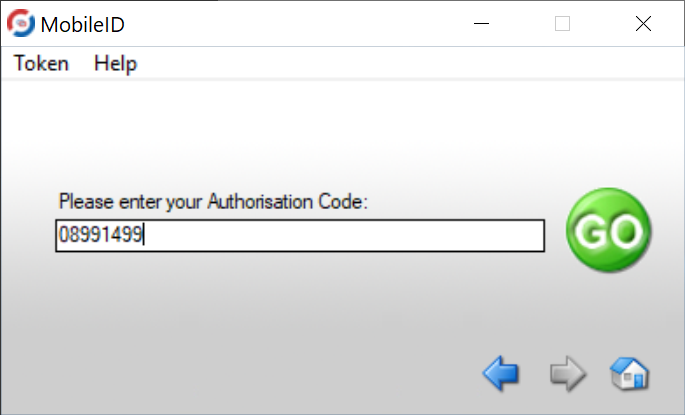
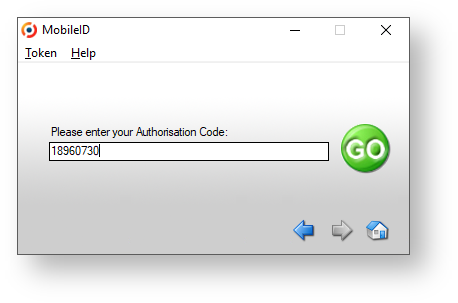
Before the token is downloaded, the user might be asked to enter an Authorisation Code (depending on the "Token Download" Policy settings).
Token Download Policy
- Authorisation Code not required
When the user attempts to download the token, no authorisation code will be required. The user will be able to download the token by simply providing his/her username and password. - Authorisation Code required. Send Authorisation Code
When the user attempts to download the token, an additional Authorisation Code will be required from the user. DualShield will automatically send an Authorisation Code via the specific Message Channel. - Authorisation Code required. Do not send Authorisation Code
When the user attempts to download the token, an additional Authorisation Code will be required from the user. DualShield will not send an Authorisation Code.
To download a token, in the MobileID app select "Token" then "Download Token ..."
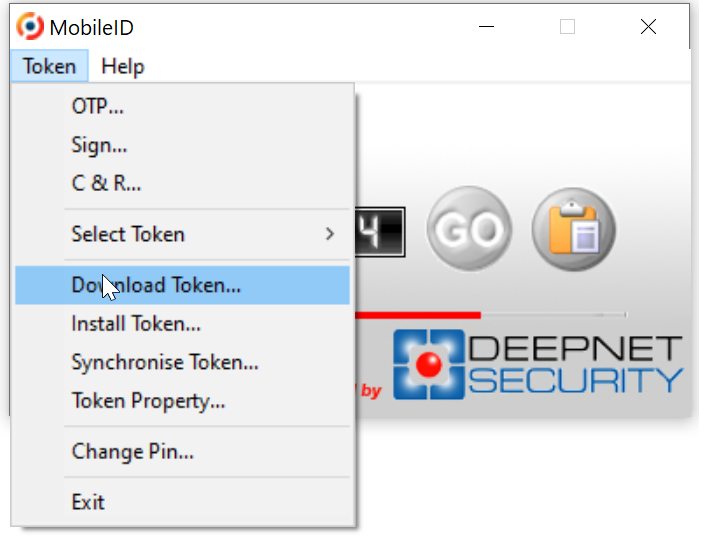
A new window will open and prompt you to enter the Service URL, User Name and Password
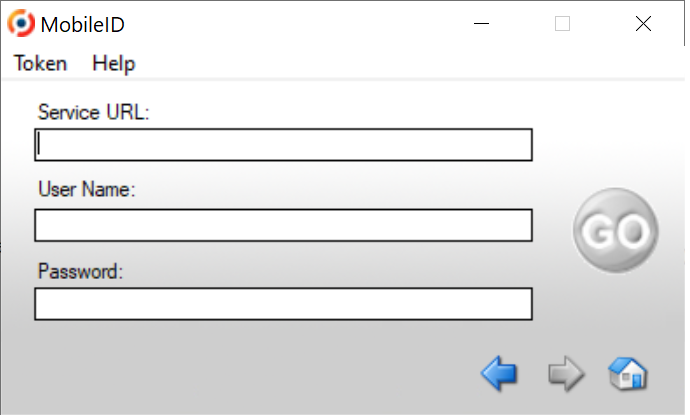
The Service URL or Download URL is the URL of your DualShield SSO server in the following format:
https://your_sso_server_fqdn:port/sso/service
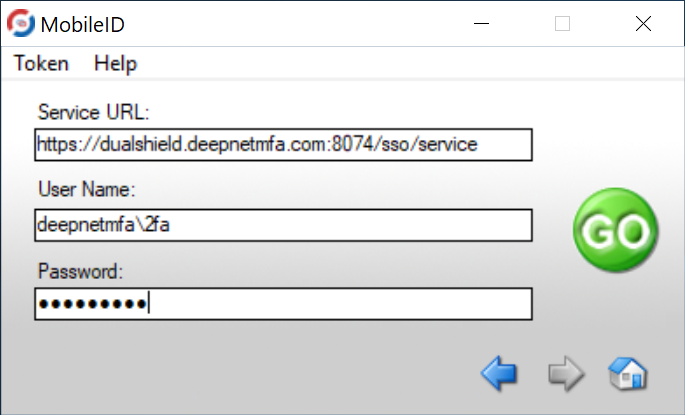
Enter the requested parameters If requested, enter your Authorisation code then click on "GO".
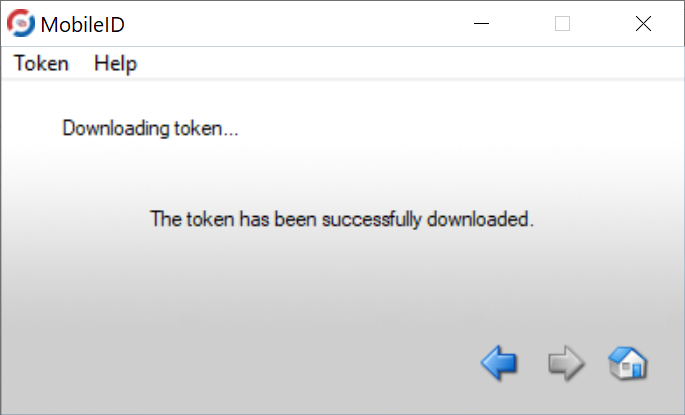
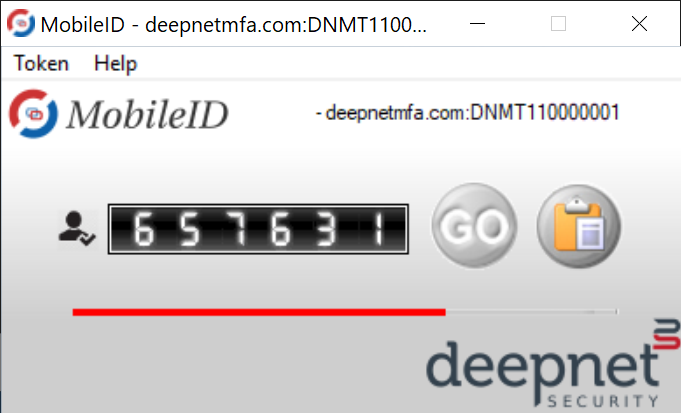
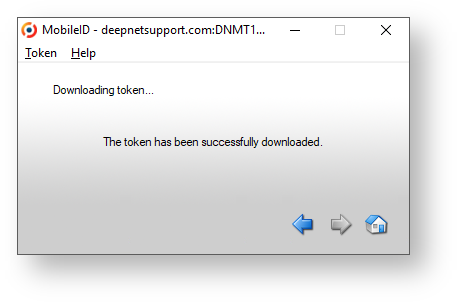
The token will now be downloaded, and you will be notified of if the download has succeeded.
If the authorisation code is required, the user will be asked to enter an Authorisation Code