Prerequisite:
| Section |
|---|
|
| Column |
|---|
Create the following global security groups in AD |
| Column |
|---|
|
| Panel |
|---|
| borderColor | #9EBEE5 |
|---|
| bgColor | #f0f0f0 |
|---|
| borderWidth | 1px |
|---|
| 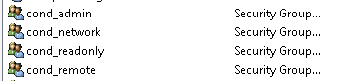 Image Added Image Added
|
|
|
LDAP Provider Setup:
| Section |
|---|
|
| Column |
|---|
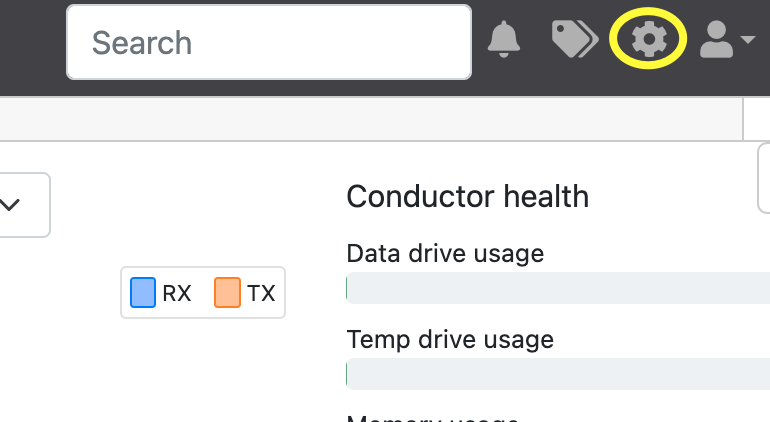
1) Log on to the Tempered Conductor Dashboard as Admin and click on the cogwheel on the top right-hand side to take you into settings. |
| Column |
|---|
|
| Panel |
|---|
| borderColor | #9EBEE5 |
|---|
| bgColor | #f0f0f0 |
|---|
| borderWidth | 1px |
|---|
| 
|
|
|
| Section |
|---|
|
| Column |
|---|
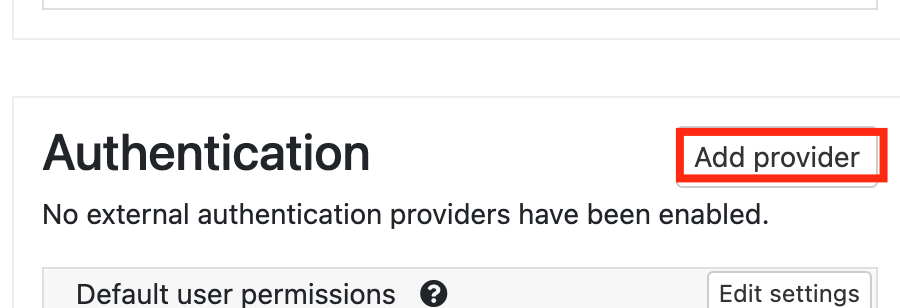
2) Scroll down to to Authentication (on the right) and click on Add Providers
|
| Column |
|---|
|
| Panel |
|---|
| borderColor | #9EBEE5 |
|---|
| bgColor | #f0f0f0 |
|---|
| borderWidth | 1px |
|---|
| 
|
|
|
| Section |
|---|
|
| Column |
|---|
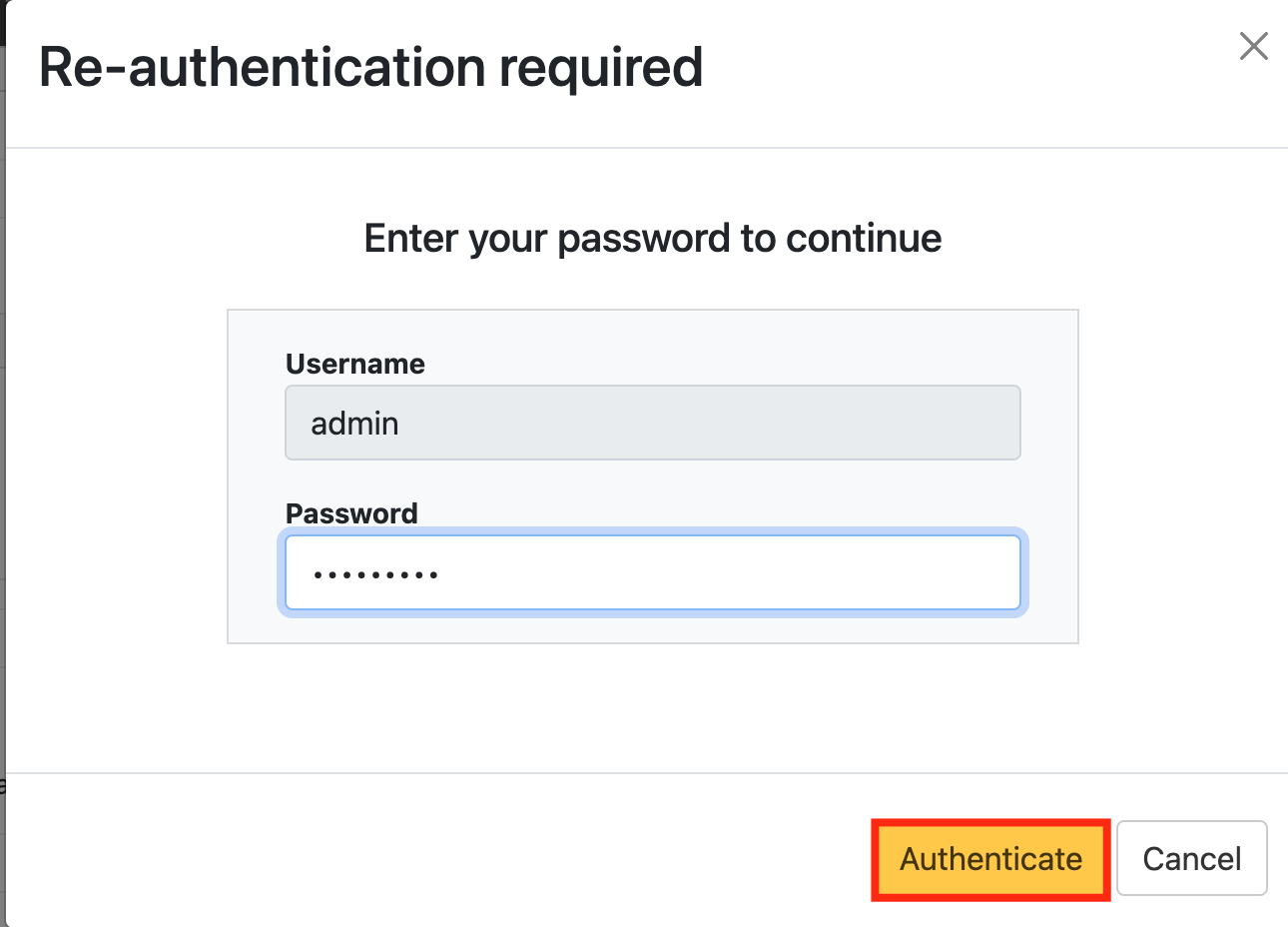
3) You will be asked to enter your admin credentials again. |
| Column |
|---|
|
| Panel |
|---|
| borderColor | #9EBEE5 |
|---|
| bgColor | #f0f0f0 |
|---|
| borderWidth | 1px |
|---|
| 
|
|
|
...
| Section |
|---|
|
| Column |
|---|
Tick the desired authentication method, e.g. Static PasswordUnder 'Add Authentication Provider' Select LDAP |
| Column |
|---|
|
| Panel |
|---|
| borderColor | #9EBEE5 |
|---|
| bgColor | #f0f0f0 |
|---|
| borderWidth | 1px |
|---|
| 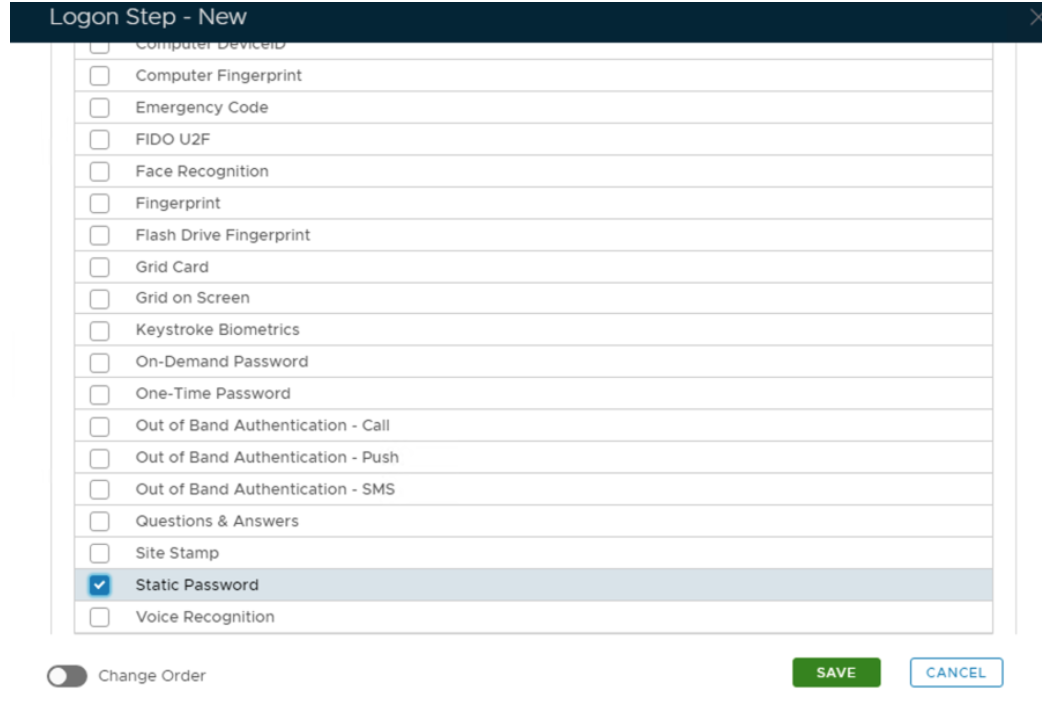 Image Removed Image Removed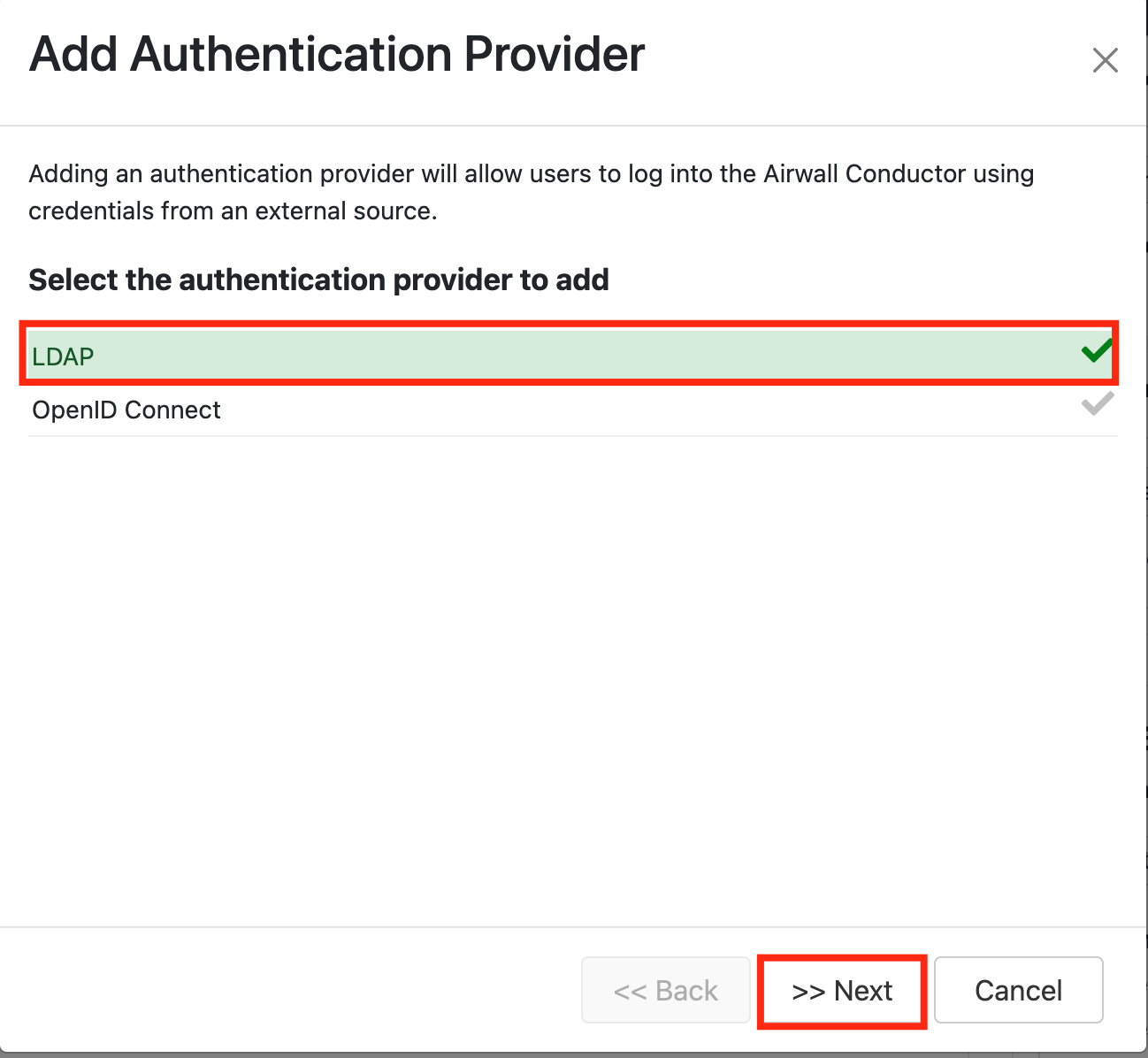 Image Added Image Added
|
|
|
Click Save.Repeat to add extra stepsNext.
| Section |
|---|
|
| Column |
|---|
LDAP host settings: (* your own settings) | Attribute | Value |
|---|
| Host* | IP address of LDAP Broker | | Port* | 389/636 | | Bind DN | cn=dualshield,dc=deepnetsecurity,dc=com | | Password | password | | Connection method* | Plain/SSL/TLS |
|
| Column |
|---|
|
| Panel |
|---|
| borderColor | #9EBEE5 |
|---|
| bgColor | #f0f0f0 |
|---|
| borderWidth | 1px |
|---|
| 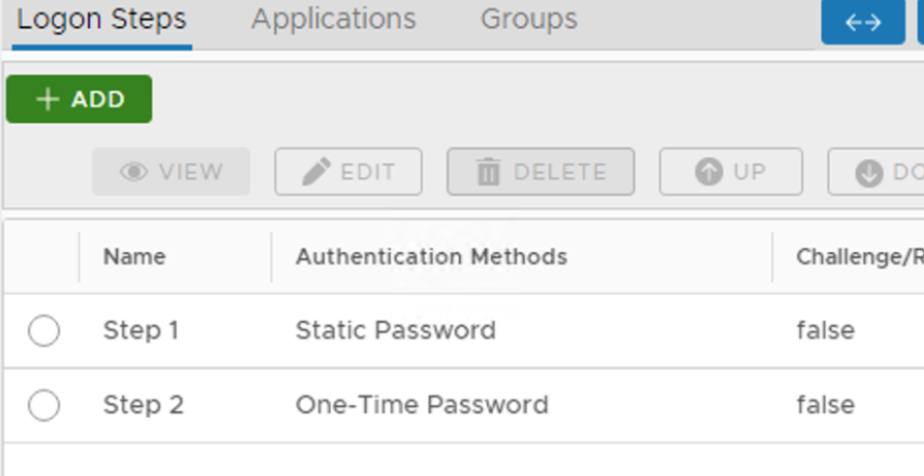 Image Removed Image Removed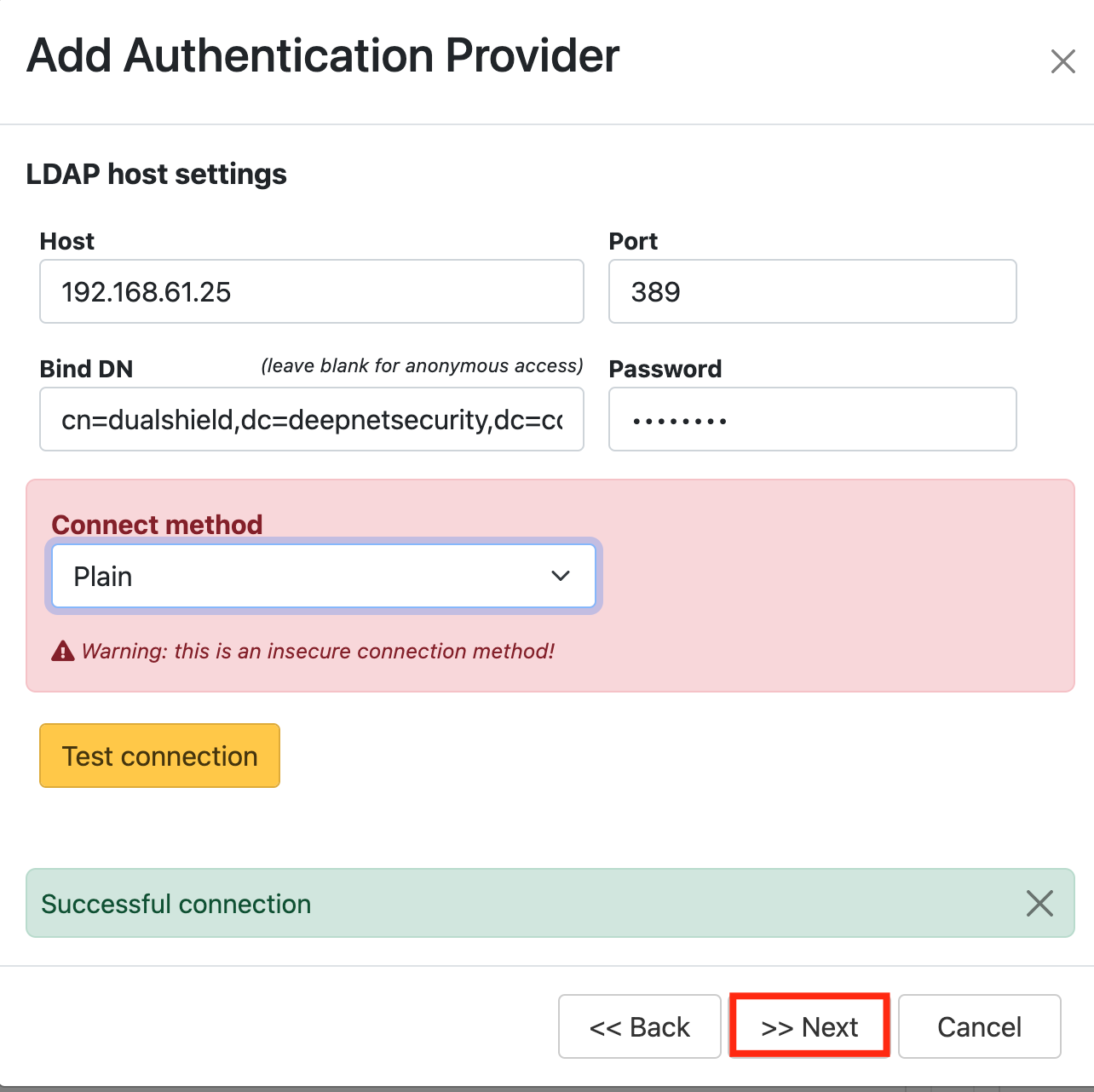 Image Added Image Added |
|
|
Test connection.
Click Next.Create an Application
| Section |
|---|
|
| Column |
|---|
LDAP search settings: | Attribute | Value |
|---|
| Base search DN | dc=deepnetsecurity,dc=com | | User UID Attribute | sAMAccountName (default) |
|
| Column |
|---|
|
| Panel |
|---|
| borderColor | #9EBEE5 |
|---|
| bgColor | #f0f0f0 |
|---|
| borderWidth | 1px |
|---|
| 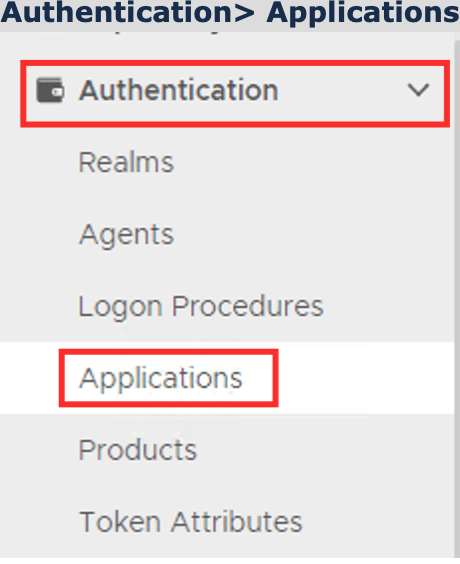 Image Removed Image Removed
| 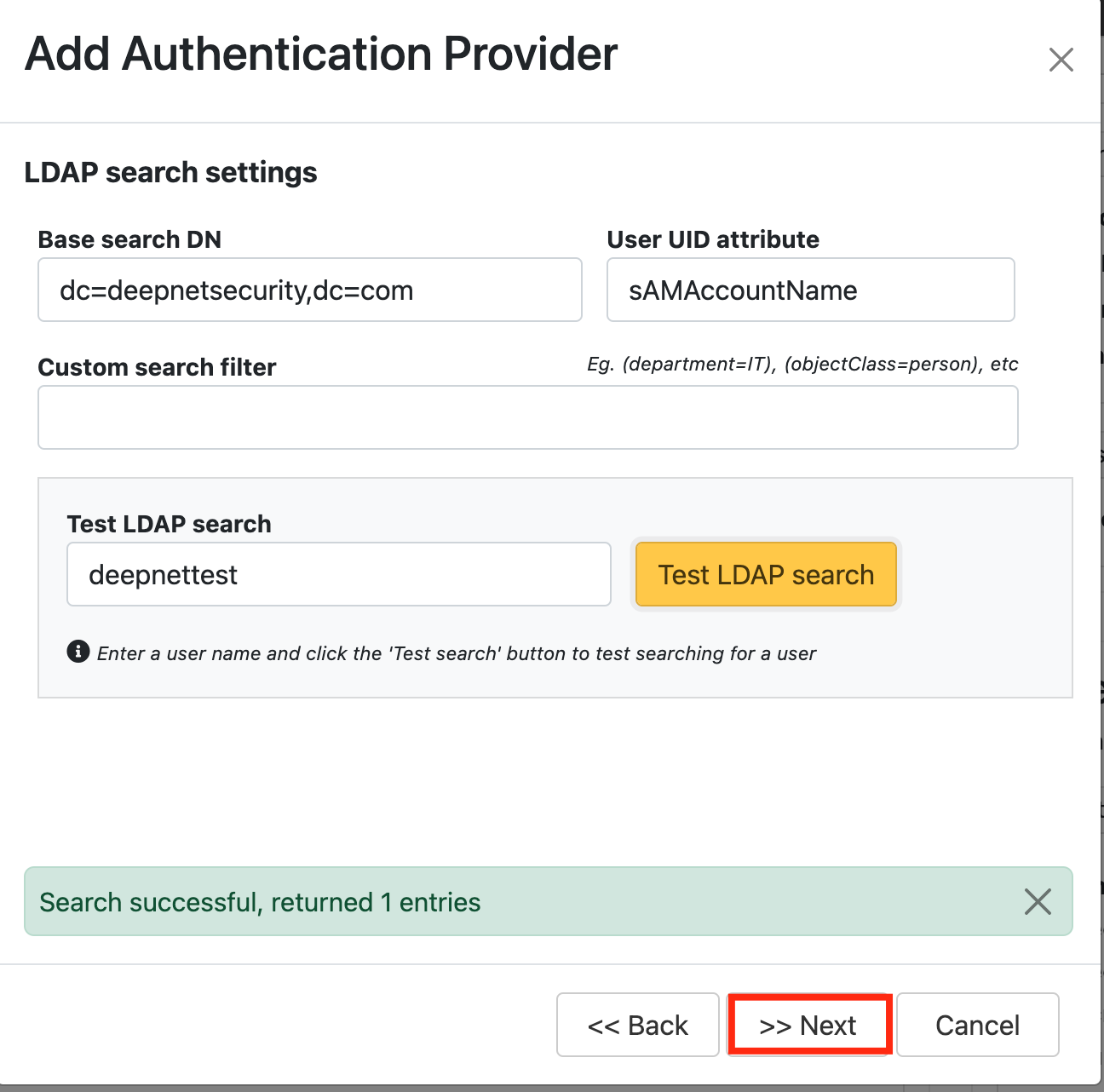 Image Added Image Added |
|
|
Type in an LDAP username and Test LDAP Search.
Click NextClick on  Image Removed on the top right.
| Section |
|---|
|
| Column |
|---|
For LDAP group settings make sure the group names correspond with the names of the AD Groups that were created as a prerequisite |
| Column |
|---|
|
| Panel |
|---|
| borderColor | #9EBEE5 |
|---|
| bgColor | #f0f0f0 |
|---|
| borderWidth | 1px |
|---|
| 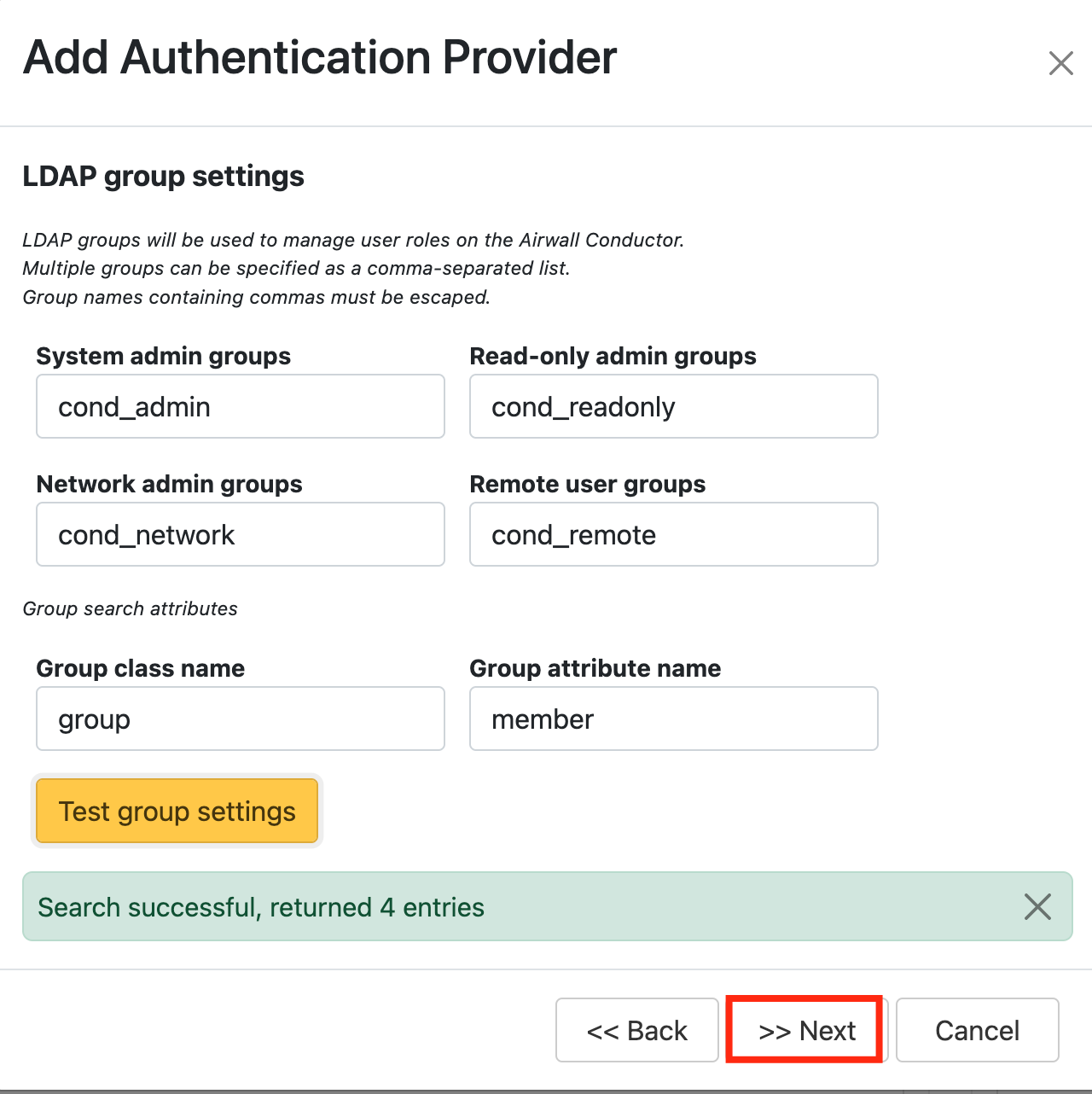 Image Added Image Added
|
|
|
Test group settings
Click Next.
| Section |
|---|
|
| Column |
|---|
Click: Finish In the new Application window, please enter the following information: | | Option | Value |
|---|
| Name: | Enter a friendly name | | Realm: | Select your Realm | | Logon Procedure: | Select the Logon Procedure you had created in the previous step | Click: Save
| Column |
|---|
|
| Panel |
|---|
| borderColor | #9EBEE5 |
|---|
| bgColor | #f0f0f0 |
|---|
| borderWidth | 1px |
|---|
| 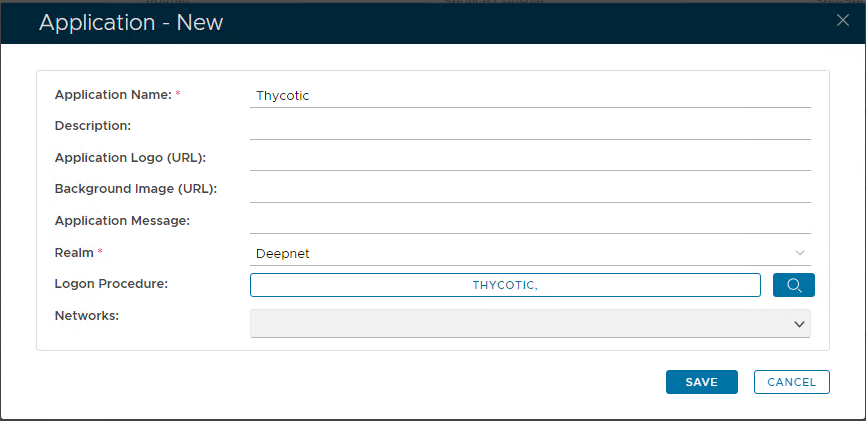 Image Removed Image Removed
|
|
|
...
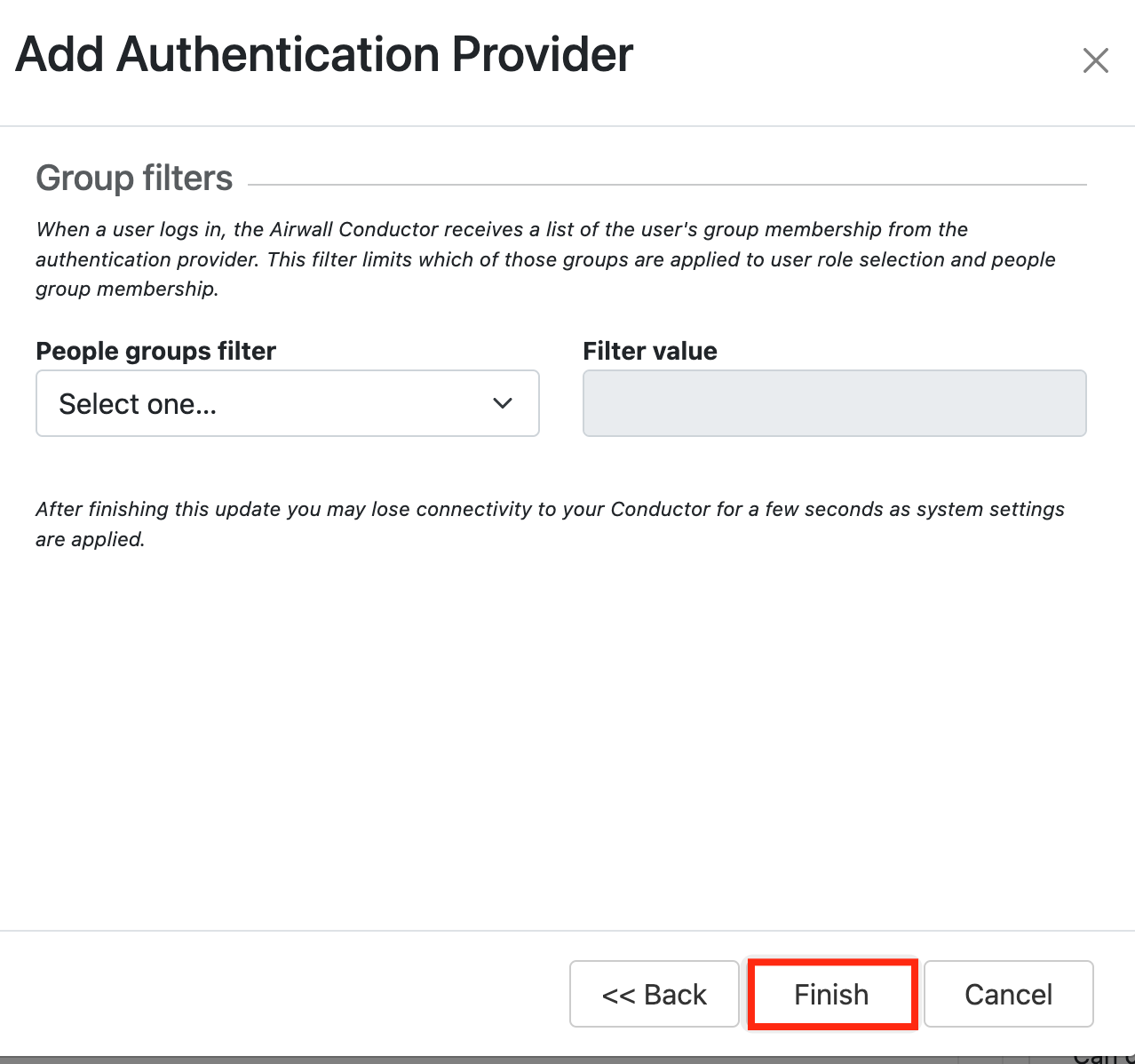 Image Added Image Added
|
|
|
Test LDAP logon:
| Section |
|---|
|
| Column |
|---|
Select the drop down menu corresponding to the Application you will be using and click on Agents.On the Sign in screen, select LDAP from the 'Sign in using:' drop down |
| Column |
|---|
|
| Panel |
|---|
| borderColor | #9EBEE5 |
|---|
| bgColor | #f0f0f0 |
|---|
| borderWidth | 1px |
|---|
| 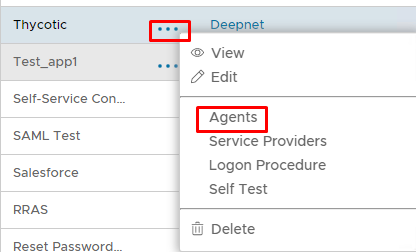 Image Removed Image Removed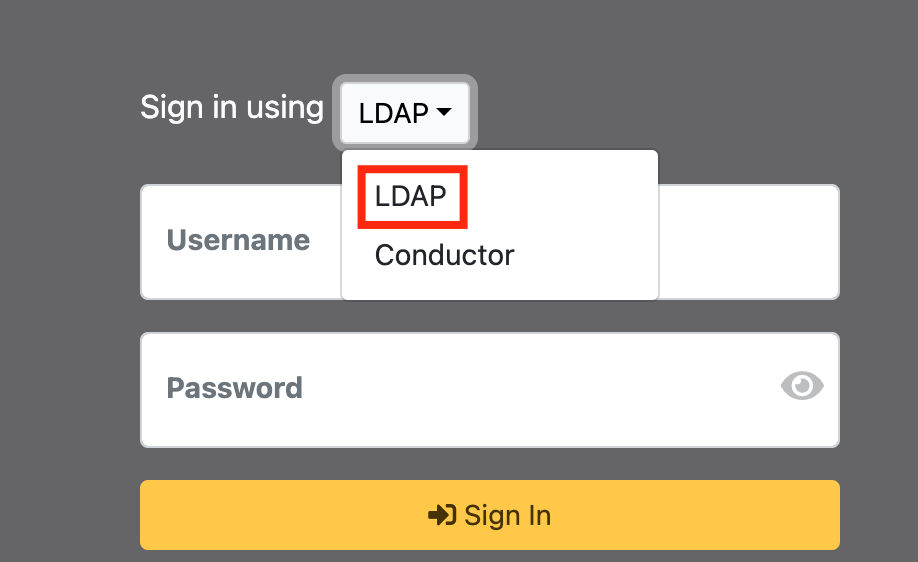 Image Added Image Added
|
|
|
| Section |
|---|
|
| Column |
|---|
Now enter the username and AD Password+OTP Click Sign inTick the box of the SSO Server you will be using and click Save below. |
| Column |
|---|
|
| Panel |
|---|
| borderColor | #9EBEE5 |
|---|
| bgColor | #f0f0f0 |
|---|
| borderWidth | 1px |
|---|
| 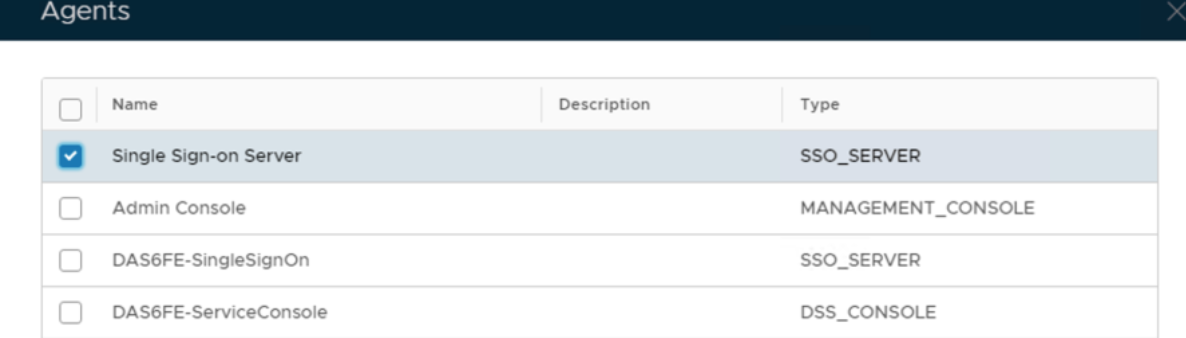 Image Removed Image Removed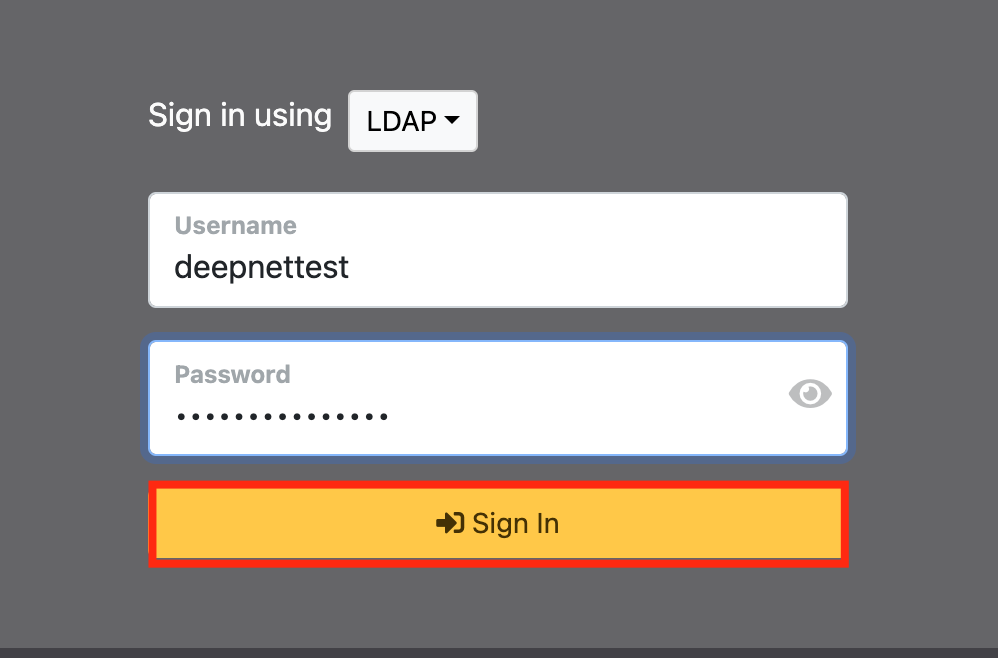 Image Added Image Added
|
|
|