This step is optional.
If you wish to set up user or group mappings to limit user or group access depending on who is logging on or which AD group they belong to you need to follow these instructions..
| Table of Contents |
|---|
Set up a Realm
Go to VPN>SSL-VPN Realms
Click on + Create New at the top
...
Enter the name of the new Realm..
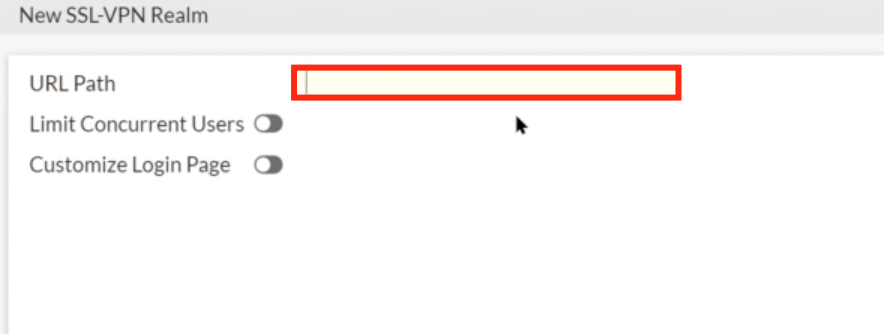
Click OK, but then right-click and edit the new Realm
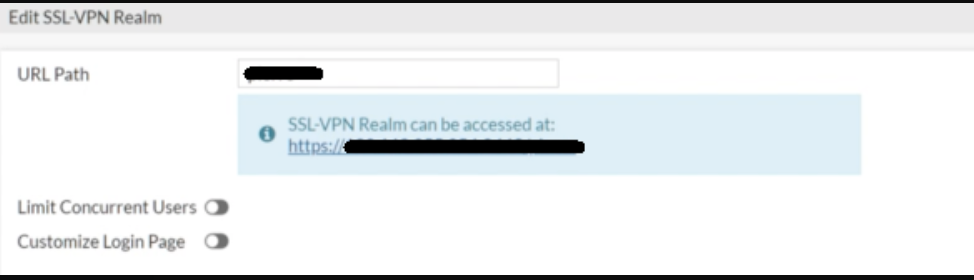
You will see that a virtual host IP address has been assigned. If you wish to modify this address this can only be done via the CLI. Please refer to the guide FortinetDocument library... https://docs.fortinet.com/document/fortiproxy/7.2.1/cli-reference/200620/config-vpn-ssl-web-realm
The URL path and virtual host will be listed.

Authentication/Portal Mapping
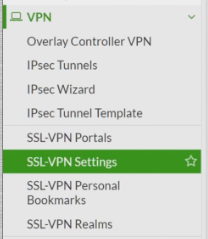
Go to VPN>SSL-VPN Settings
Locate Authentication/Portal Mapping and Create New
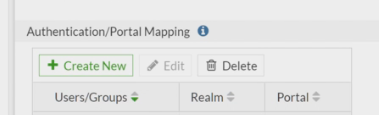
You can now either type in the name of a new group in Users/Groups or select an already existing group from the right-hand side
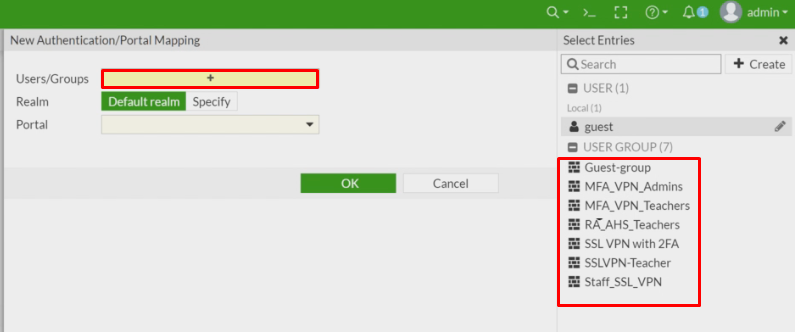
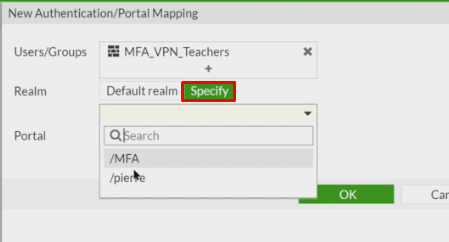
Once you have added/selected the group you need to then specify the realm, tat you created earlier.
Click Specify and then select the realm.
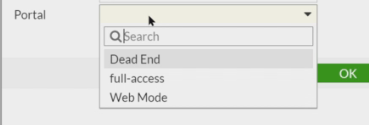
Finally, select the Portal you wish to use
Click OK
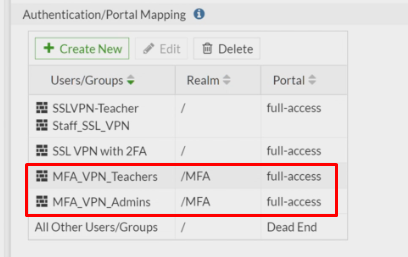
The Groups with the Realm and Portal will now be listed under Authentication/Portal Mapping
Configure Fortinet Client Console
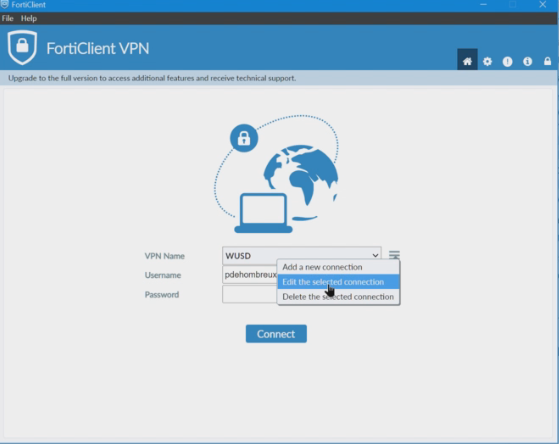
Launch FortiClinet VPN and Edit the Selected Connection
Append the Remote Gateway Address with \Realmname (This is case sensitive)
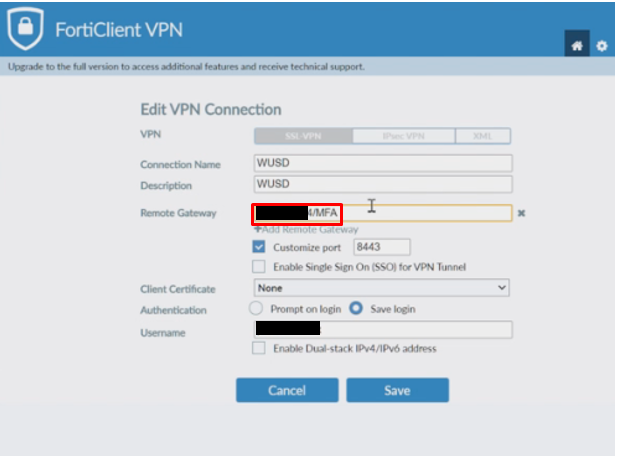
Click Save