...
| Section |
|---|
| Column |
|---|
| 
|
| Column |
|---|
|
| Expand |
|---|
|
| Panel |
|---|
| borderColor | grey |
|---|
| bgColor | #F8F8F8 |
|---|
| borderStyle | dashed |
|---|
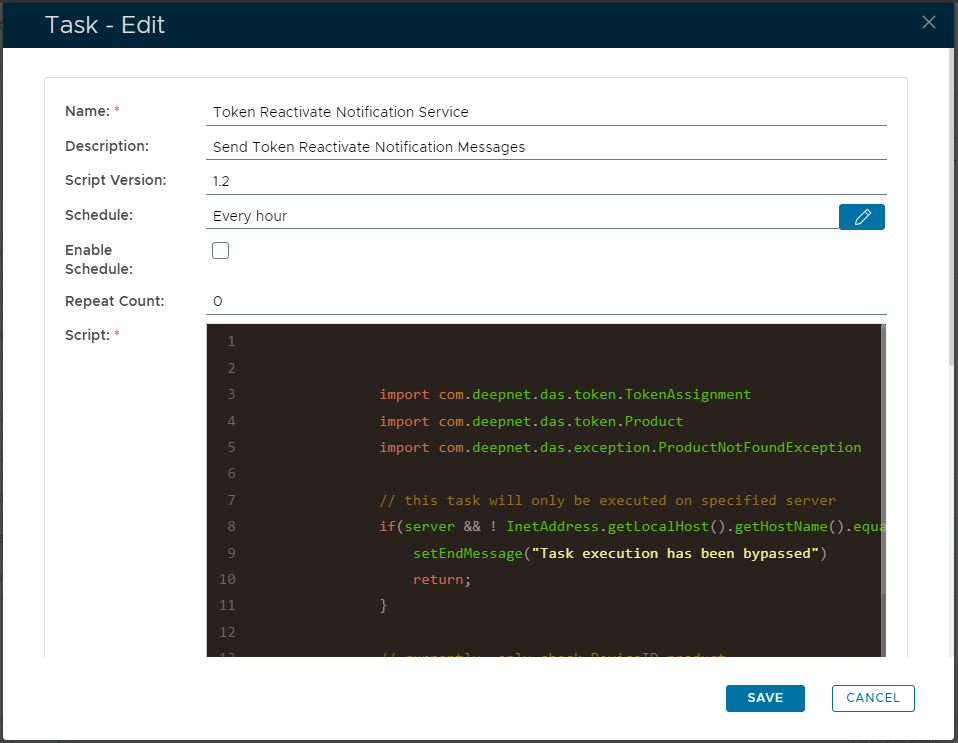
| Enter the name to be assigned to the task within the management console. |
|
| Expand |
|---|
| title | Description: (Optional) |
|---|
|
| Panel |
|---|
| borderColor | grey |
|---|
| bgColor | #F8F8F8 |
|---|
| borderStyle | dashed |
|---|
| Enter a description of what the task will do. |
|
| Expand |
|---|
| title | Script Version: (Optional) |
|---|
|
| Panel |
|---|
| borderColor | grey |
|---|
| bgColor | #F8F8F8 |
|---|
| borderStyle | dashed |
|---|
| The version number of the task. |
|
| Expand |
|---|
|
| Panel |
|---|
| borderColor | grey |
|---|
| bgColor | #F8F8F8 |
|---|
| borderStyle | dashed |
|---|
| This field is used to specify when the task is scheduled to executed. |
|
| Expand |
|---|
|
| Panel |
|---|
| borderColor | grey |
|---|
| bgColor | #F8F8F8 |
|---|
| borderStyle | dashed |
|---|
| This field will determine if the task schedule is enabled (if enabled the task will execute at the scheduled time). |
|
| Expand |
|---|
|
| Panel |
|---|
| borderColor | grey |
|---|
| bgColor | #F8F8F8 |
|---|
| borderStyle | dashed |
|---|
| Specifies how many times the task should be repeated after the task is executed. |
| | Expand |
|---|
| | Panel |
|---|
| borderColor | grey |
|---|
| bgColor | #F8F8F8 |
|---|
| borderStyle | dashed |
|---|
| import com.deepnet.das.token.TokenAssignment
import com.deepnet.das.token.Product
import com.deepnet.das.exception.ProductNotFoundException // this task will only be executed on specified server
if(server && ! InetAddress.getLocalHost().getHostName().equalsIgnoreCase(server)){
setEndMessage("Task execution has been bypassed")
return;
} // currently, only check DeviceID product
def product = Product.findByAlgorithm('DNS/ASDID')
if(!product){
throw new ProductNotFoundException()
} // find all ACTIVE token assignments of product
def query = {
eq('status', 'ACTIVE')
token{
eq('product', product)
}
} def count = TokenAssignment.createCriteria().count(query)
def criteria = TokenAssignment.createCriteria()
def scrollable = criteria.scroll(query)
def notified = 0 while(scrollable.next()){
def tas = scrollable.get(0)
if(tas.reactivateNotice(application))
notified++
onProgress(count, "Tokens checked: " + count)
} setEndMessage("Sent notice to tokens: " + notified + "/" + count)
|
|
|
Scheduling the Task
Select the "Enable Schedule" checkbox to ensure the task schedule is activated, then use the pencil icon (" ") to specify the time and frequency settings for automated task execution.
...
A new window will open titled "Execute Task" will then open (the window will be populated with the default task property settings);
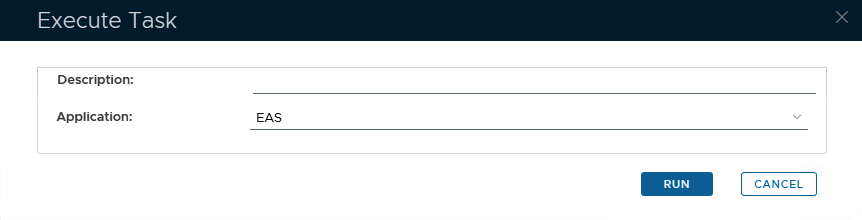
Ensure the parameters "Execute On Server" and parameter "Application" contains the computer correct name of the server the task is to be run onApplication, and the name of the corr3ect correct application that you are using for Excahange ActiveSync, then click the  button.
...
| title | Click here for more information on manually executing tasks |
|---|
...