Follow the steps below to create an Intune deploy package file for the Deepnet Computer Logon for Entra ID
| Table of Contents |
|---|
Download the Microsoft Win32 Content Prep Tool
https://github.com/Microsoft/Microsoft-Win32-Content-Prep-Tool
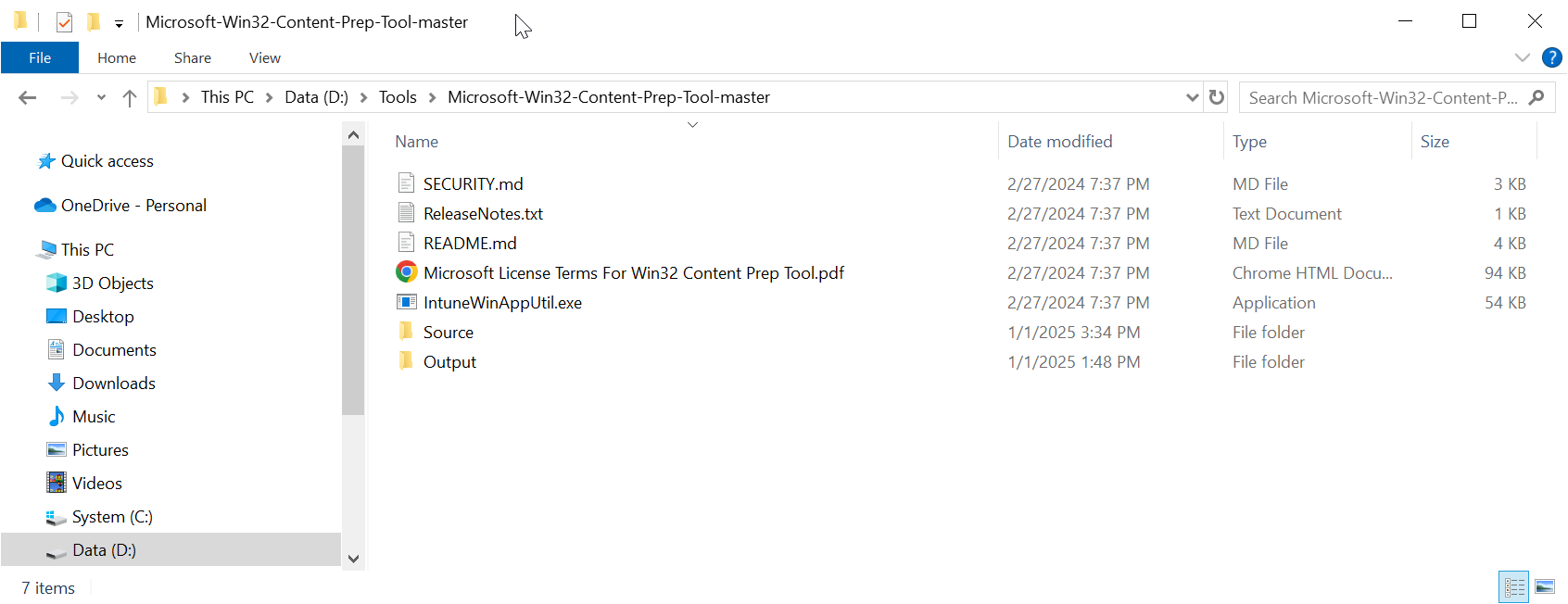
Unpack the tool to a local file folder. e.g. D:\Tools\Microsoft-Win32-Content-Prep-Tool-master
Copy the Deepnet Computer Logon
...
MA files
Create a subfolder called "Source" in the folder where you have unpacked the Microsoft Win32 Content Prep Tool, e.g. D:\Tools\Microsoft-Win32-Content-Prep-Tool-master\Source
Now, copy the files that you have prepared in the previous step
Prepare installation files for the Deepnet Computer Logon Agent for Entra ID
to the "Source" subfolder.
following files to the "Source" folder
- Installer File
- Config Files
- Intune Deployment Files
Install File
| Expand | ||||||
|---|---|---|---|---|---|---|
| ||||||
Navigate to "https://support.deepnetsecurity.com"
|
Copy the installer file "computer-logon-modern-authentication-x.y.z.msi" to the "Source folder
Rename "computer-logon-modern-authentication-x.y.z.msi" to "computer-logon-ma.msi"
Config Files
| Expand | ||
|---|---|---|
| ||
Navigate to the project directory of the Computer Logon MA created by the Deepnet Configuration Editor
Open the "config" folder
|
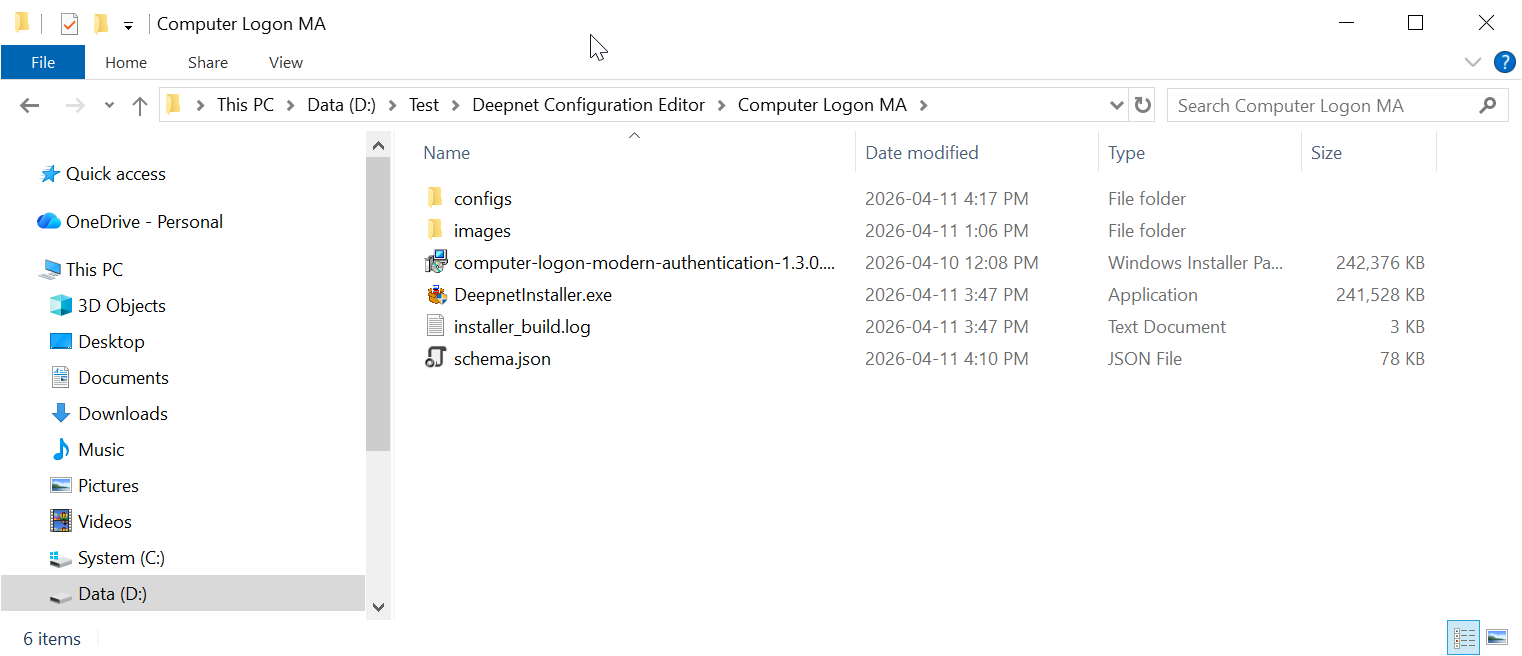
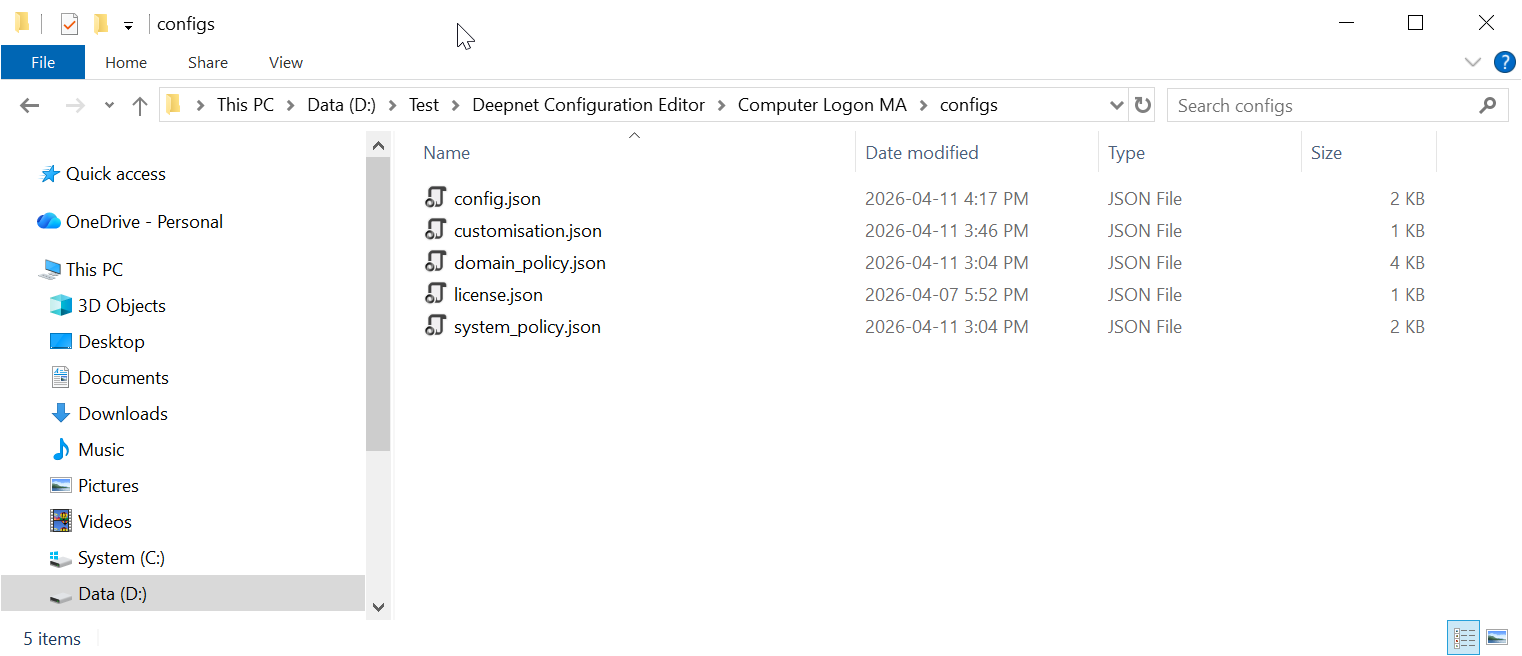
Copy all JSON files to the "Source" folder.
Intune Deployment File
| Expand | ||||||
|---|---|---|---|---|---|---|
| ||||||
Navigate to "https://support.deepnetsecurity.com"
|
Unzip all PS1 files in the Deployment.zip to the "Source" folder
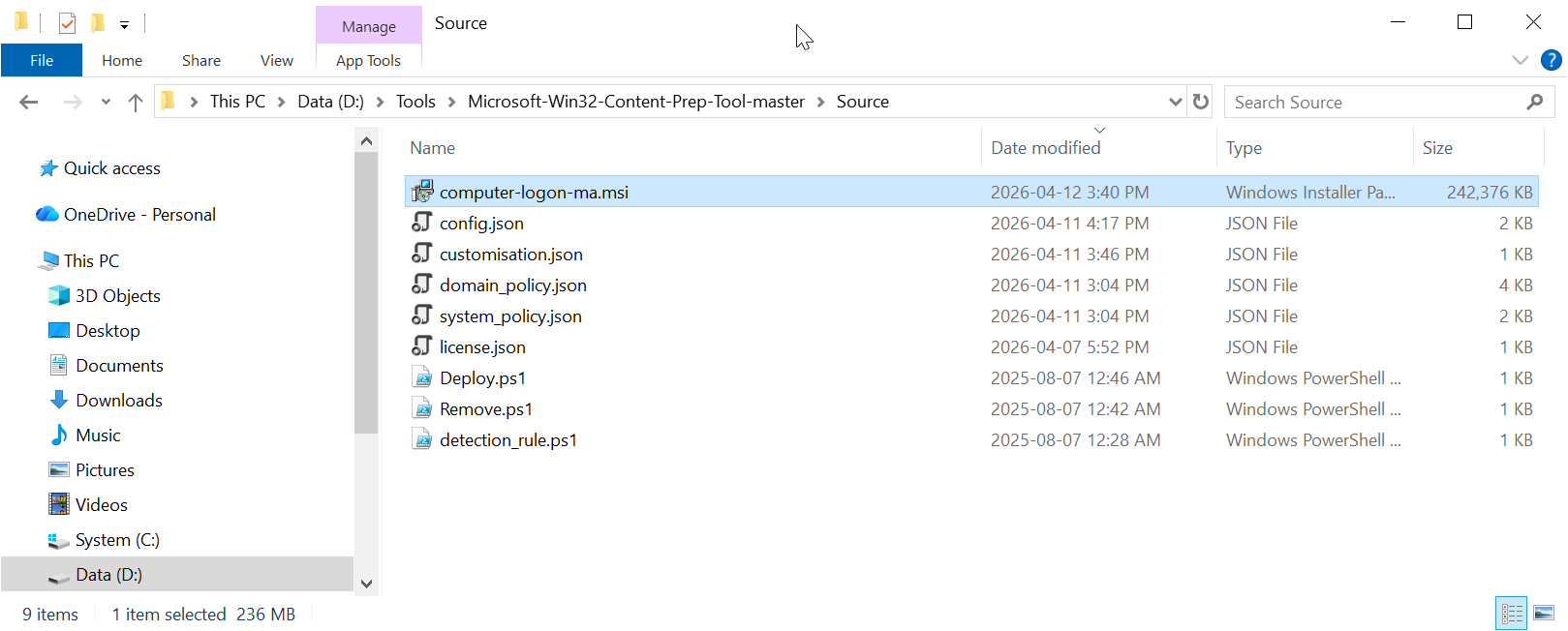
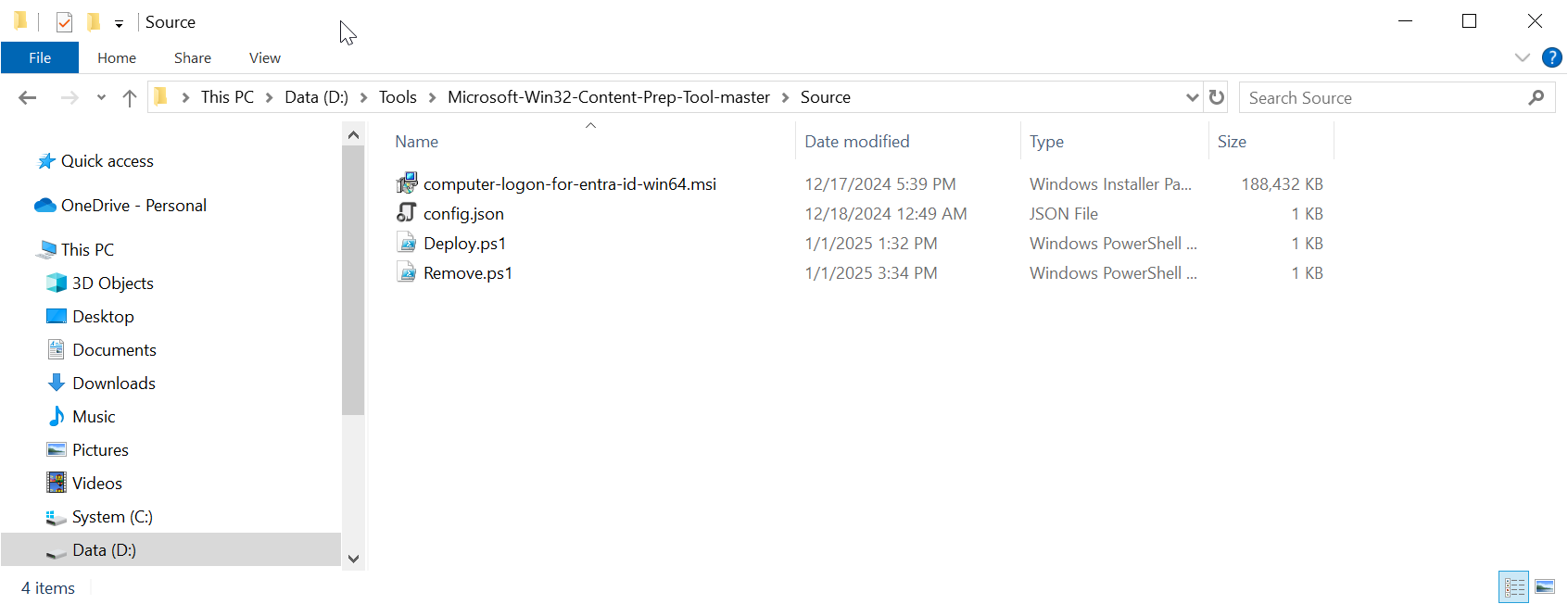
Now, the "Source" folder should have the following files:
Build an Intune deploy package
Open a Windows command shell, and run the command
IntuneWinAppUtil.exe -c "Source" -s "Deploy.ps1" -o "Output"
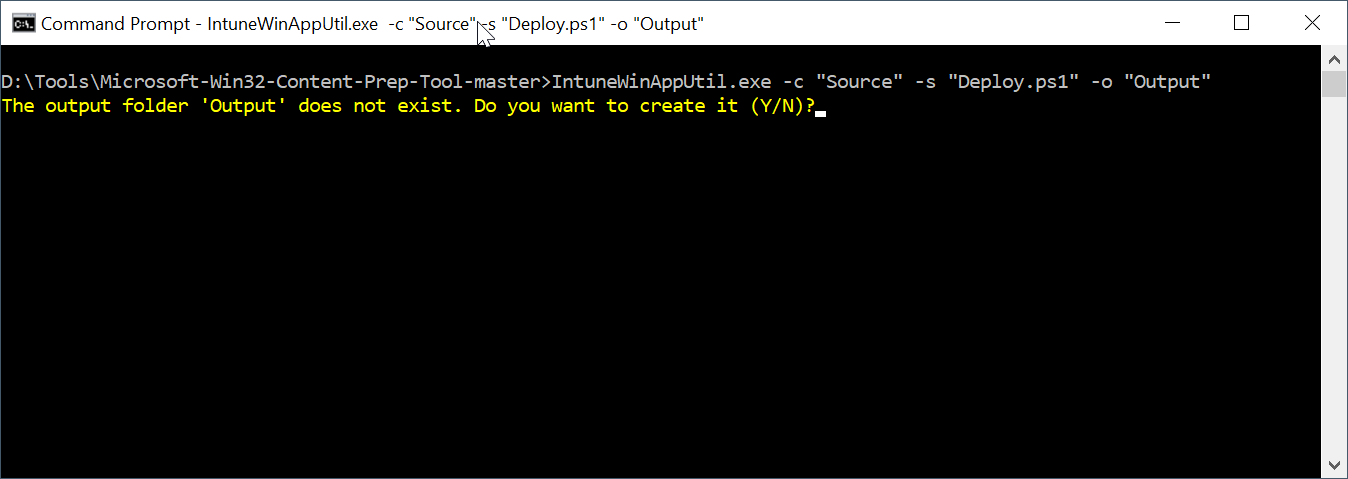
Enter "Y" to continue
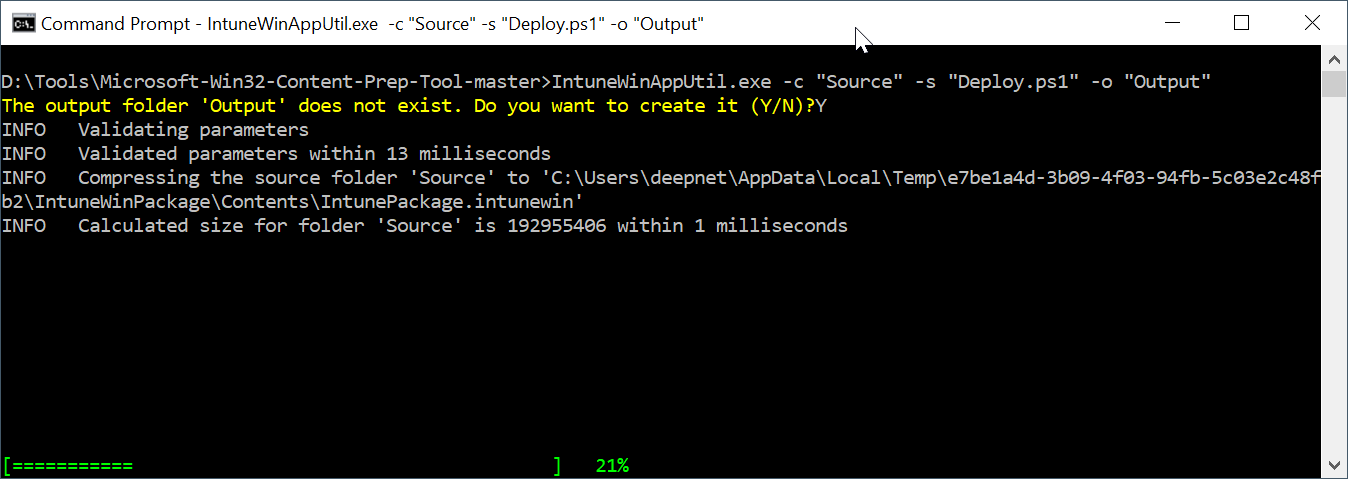
Wait for it to complete
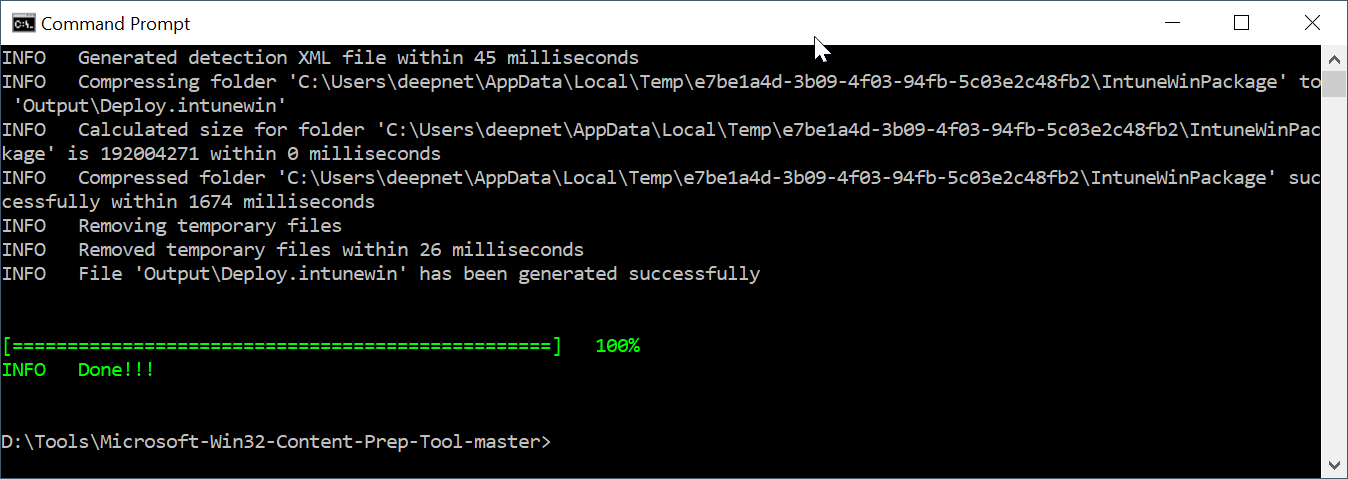
The package is named "Deploy.intunewin"
...