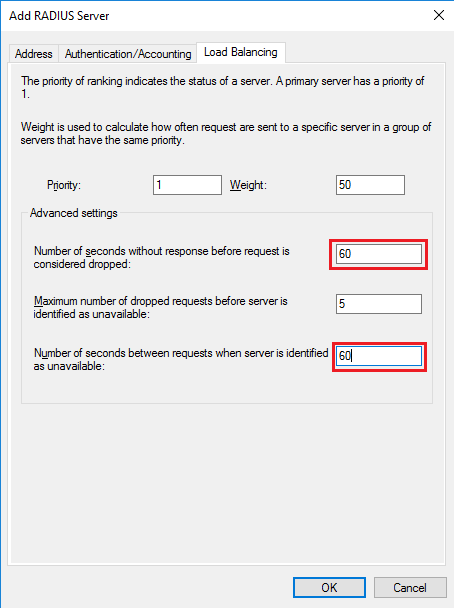
The RD Gateway uses NPS to send the RADIUS request to DualShield RADIUS server. To configure NPS, first you change the timeout settings to prevent the RD Gateway from timing out before the two-factor authentication has completed. Then, you update NPS to send RADIUS authentications to your DualShield RADIUS Server. Use the following procedure to configure NPS:
Modify the timeout policy
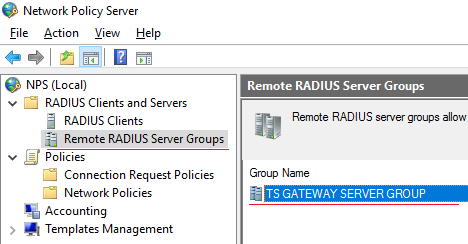
- In NPS, open the the RADIUS Clients Client and Server menu Servers menu in the left column panel, and select select "Remote RADIUS Server Groups".
- Select the "TS GATEWAY SERVER GROUP" in the middle panel.
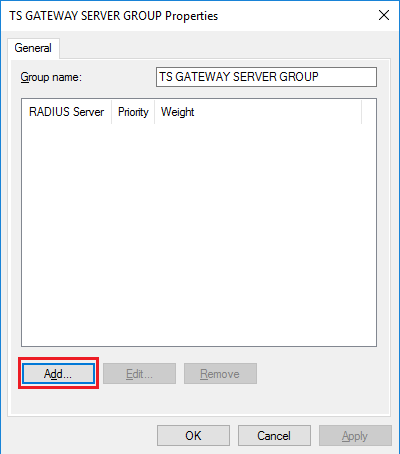
- Right click the "Properties" in "TS GATEWAY SERVER GROUP", and click "Add".
- Go to the Load Balancing tab.
-
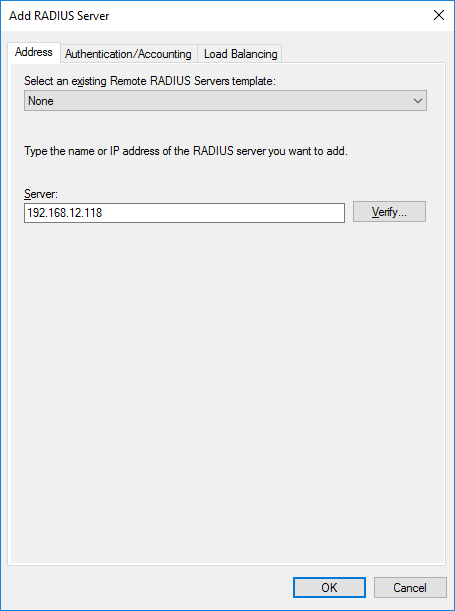
- In "Address" tab, add the DualShield RADIUS Server's address.
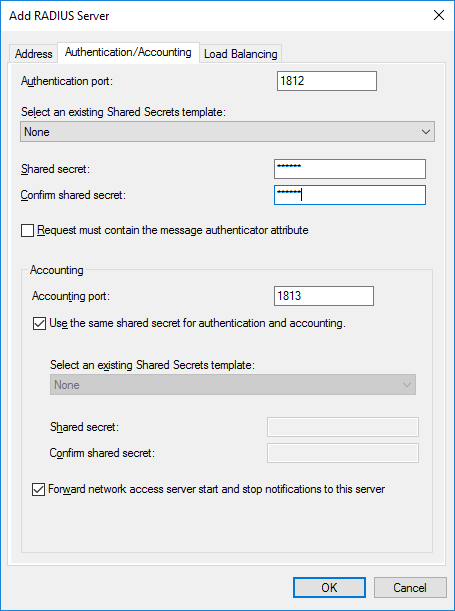
- In "Authentication/Accounting" tab, create a shared secret key.
- Change both the Number Change both the Number of seconds without response before request is considered dropped and the Number dropped and the Number of seconds between requests when server is identified as unavailable to unavailable to between 30 and 60 seconds.
(If you find that the server still times out during authentication, you can come back here and increase the number of seconds.) - Go to the Authentication/Account tab and check that the RADIUS ports specified match the ports that the DualShield RADIUS server is listening on.
Configure NPS to use DualShield RADIUS Server
This process is basically the same as NPS Configuration in RRAS integration as shown below (replace references to RRAS with RDG):
...
| title | NPS Configuration |
|---|
...