If your DualShield is using a MySQL database, follow the steps below to import "IP2LOCATION-LITE-DB3DB5.IPV6.CSV"
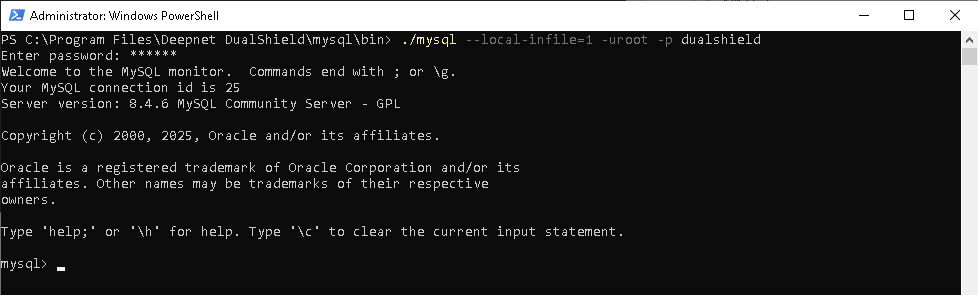
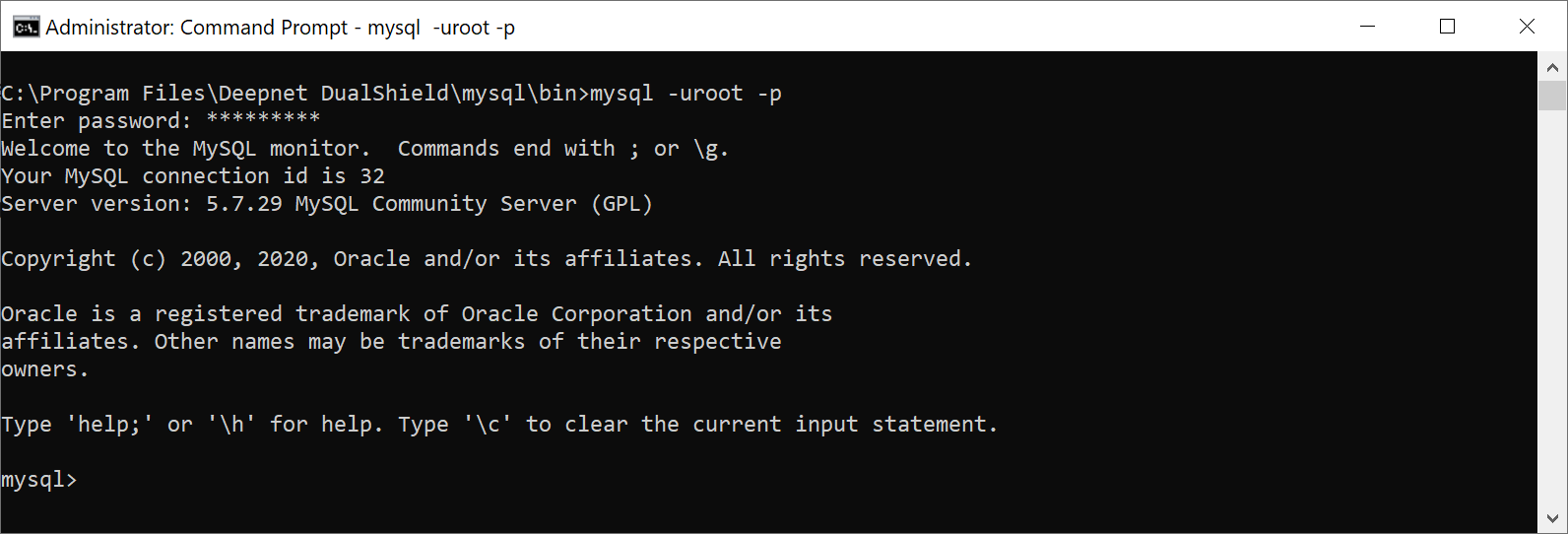
1 - Log into MySQL console
You have to use mysql command with --local-info=1 to login, e.g.
| Code Block |
|---|
mysql --local-infile=1 -uroot -p dualshield |
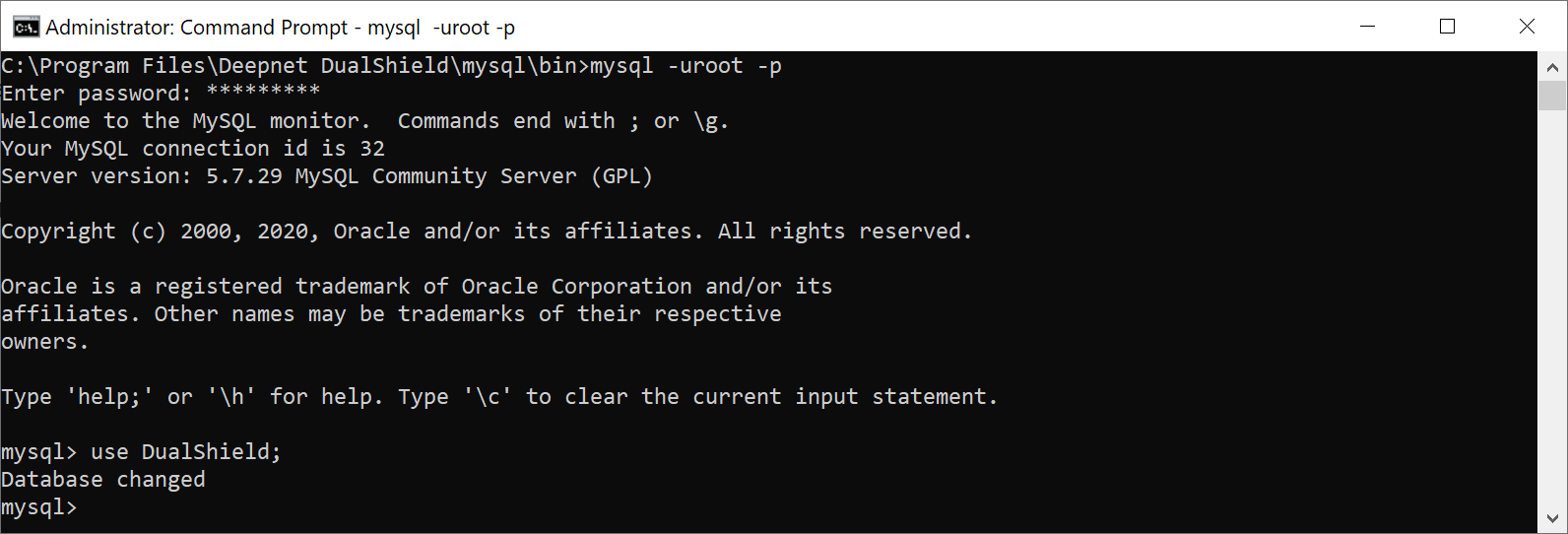
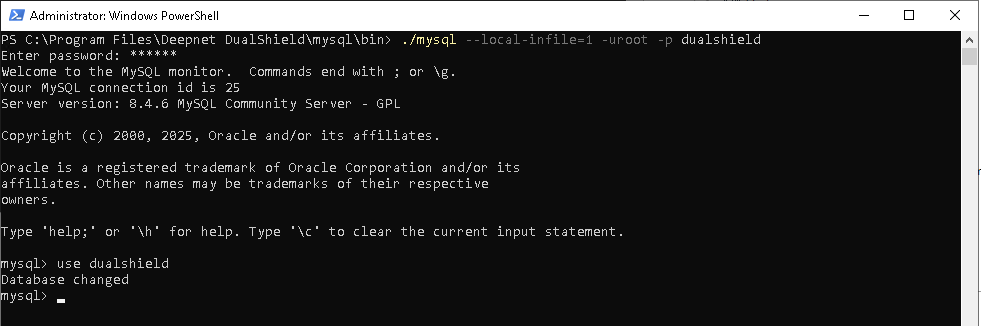
2 - Change to "DualShield" database:
| Code Block | ||
|---|---|---|
| ||
mysql > use DualShield; |
| Code Block | ||
|---|---|---|
| ||
set global local_infile=true; |
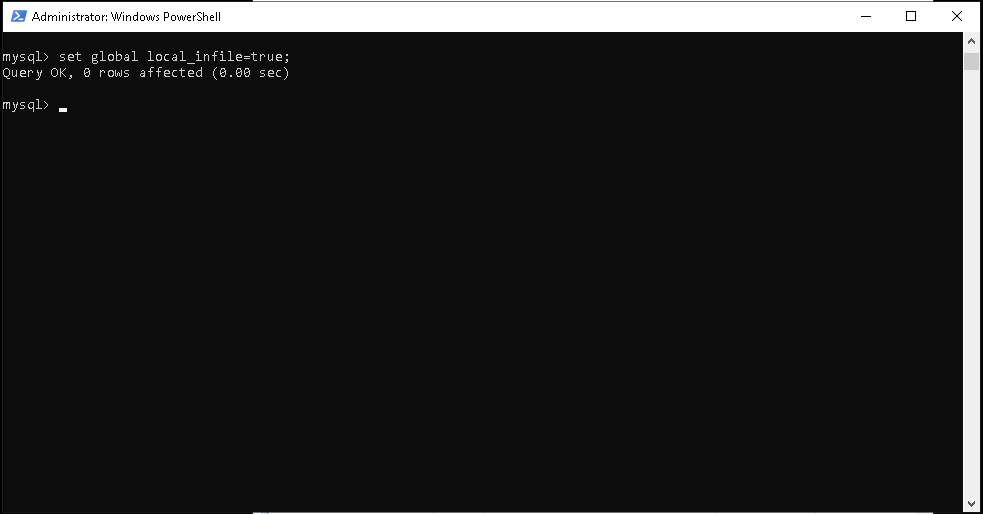
4 - Execute the script below to import the database
| Code Block | ||
|---|---|---|
| ||
mysql > LOAD DATA LOCAL INFILE 'FILE-PATH-TO\IP2LOCATION-LITE-DB3DB5.IPV6.CSV' INTO TABLE ip2location_db3_ipv6 FIELDS TERMINATED BY ',' ENCLOSED BY '"' LINES TERMINATED BY '\r\n' IGNORE 0 LINES (@col1,@col2,@col3,@col4,@col5,@col6,@col7,@col8) set ip_from=@col1,ip_to=@col2,country_code=@col3,country_name=@col4,region_name=@col5,city_name=@col6,latitude=@col7,longitude=@col8; |
* replace "FILE-PATH-TO" with the actual file path where the downloaded file is saved, e.g. "c:\downloadstemp"
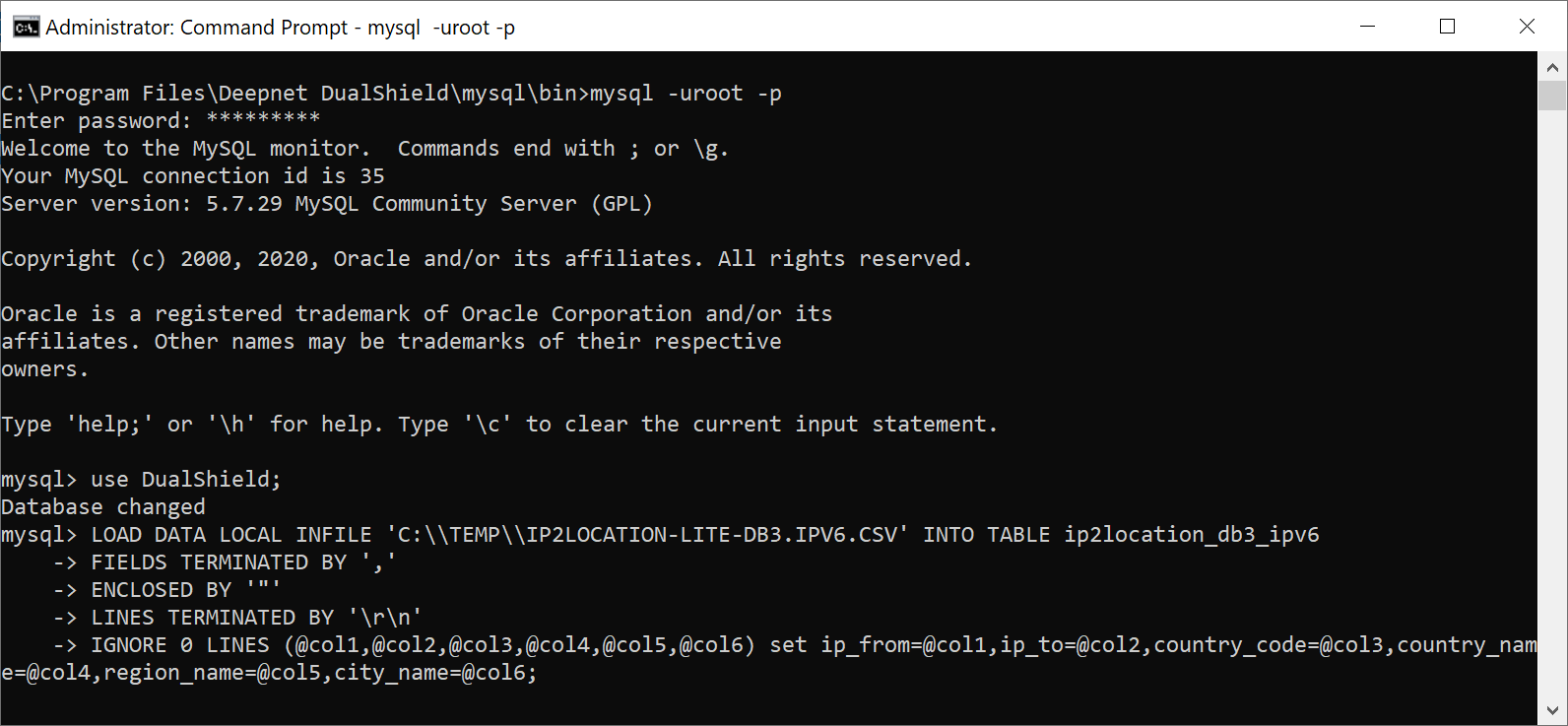
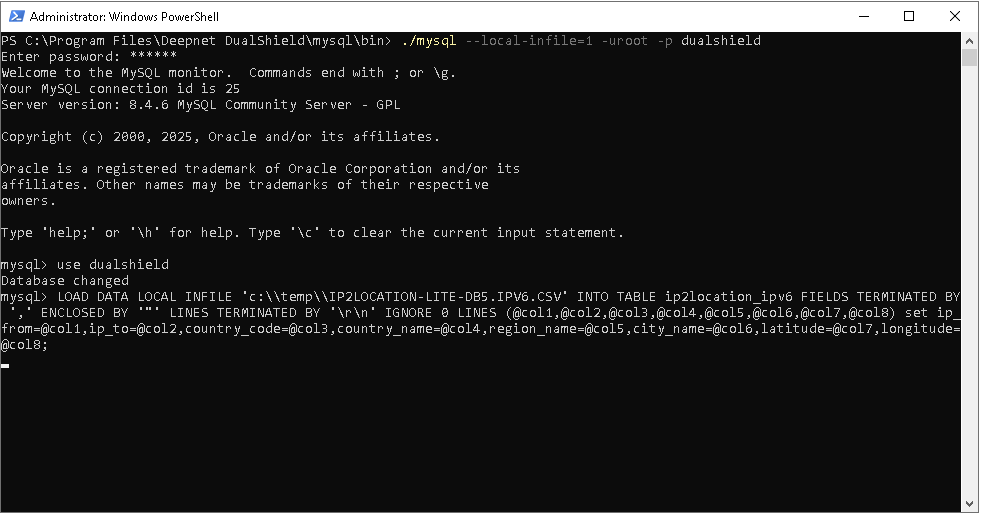
* Please note that it can take a long time, more than 1 hour if the server machine does not have powerful resources, to import the data.hours to import the data depending on the performance of the machine, as there are nearly 5 millions of records to be imported.
You can monitor the progress by checking MySQL's CPU usage in the Task Manager
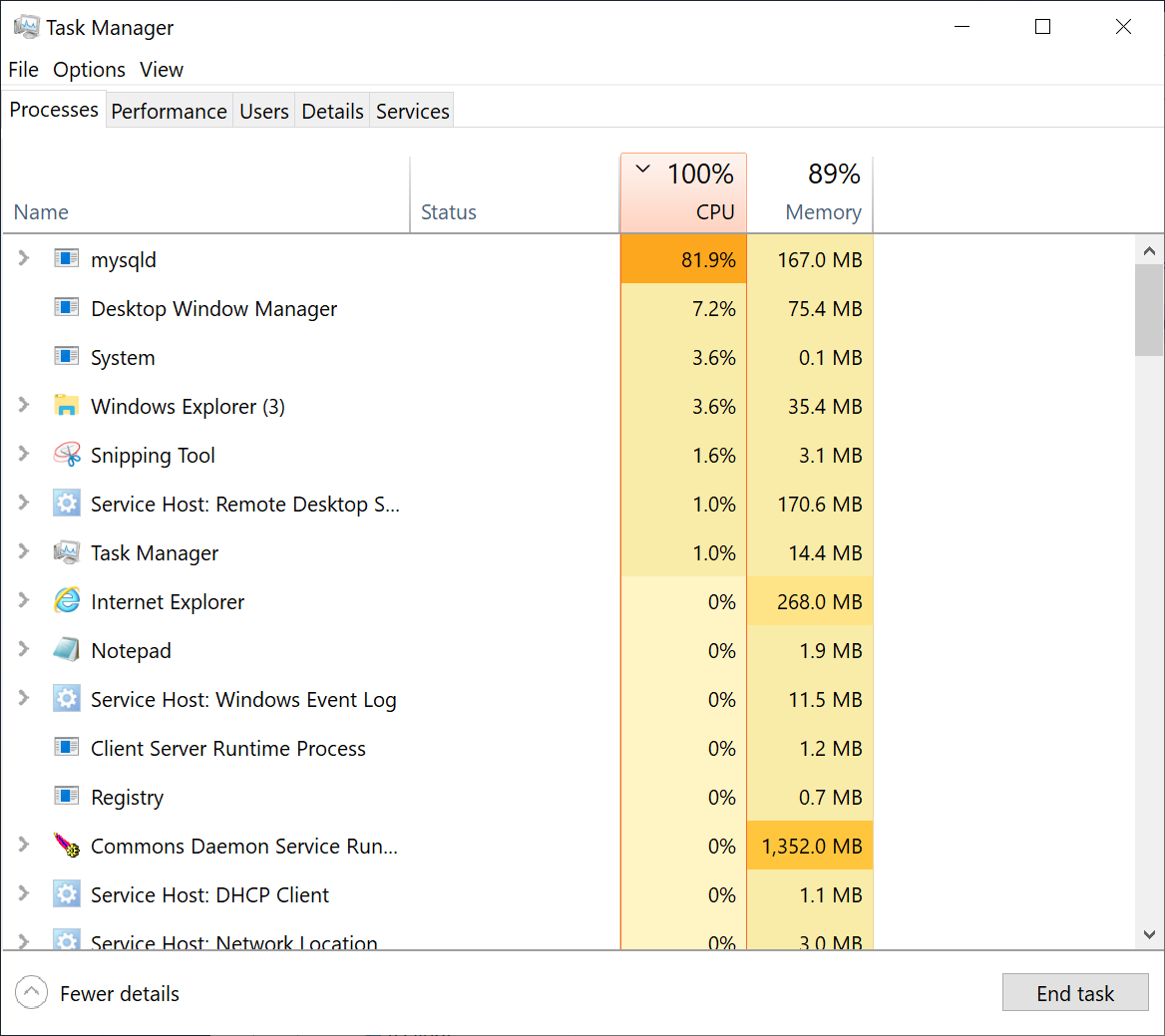
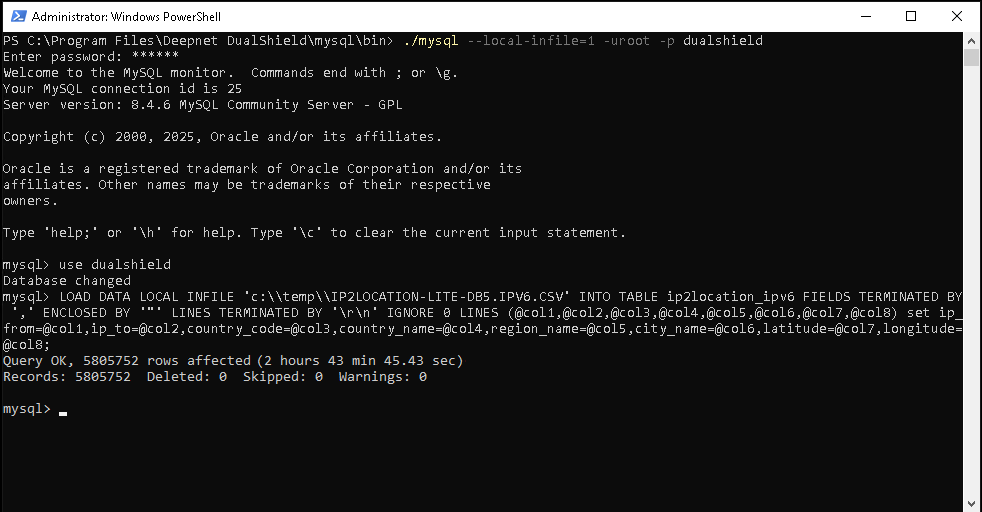
5 4 - After the ip2location data has been imported successfully, execute the script below to process the data
| Code Block | ||
|---|---|---|
| ||
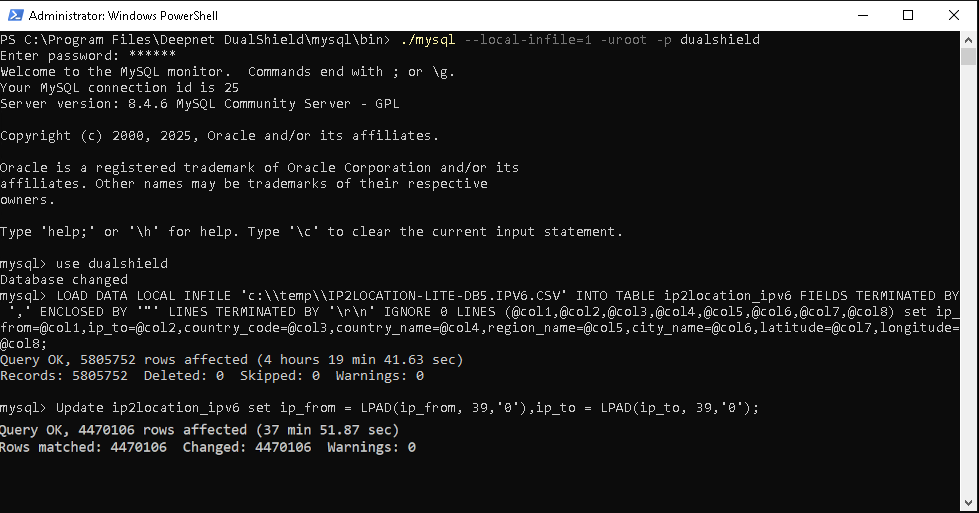
mysql > Update ip2location_db3_ipv6 set ip_from = LPAD(ip_from, 39,'0'),ip_to = LPAD(ip_to, 39,'0'); |
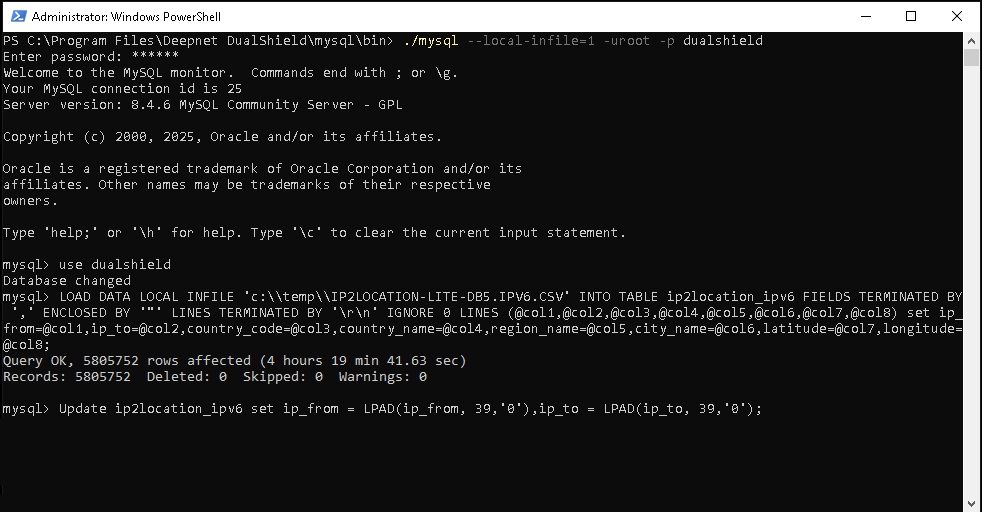
Again, this process will take some time depending on the machine power.
Note:
* For dualshield version < 8.0, the name of the table in the database is called "ip2location_db3_ipv6"