In the IIS console, select the web application to be configured, e.g. "OWA"
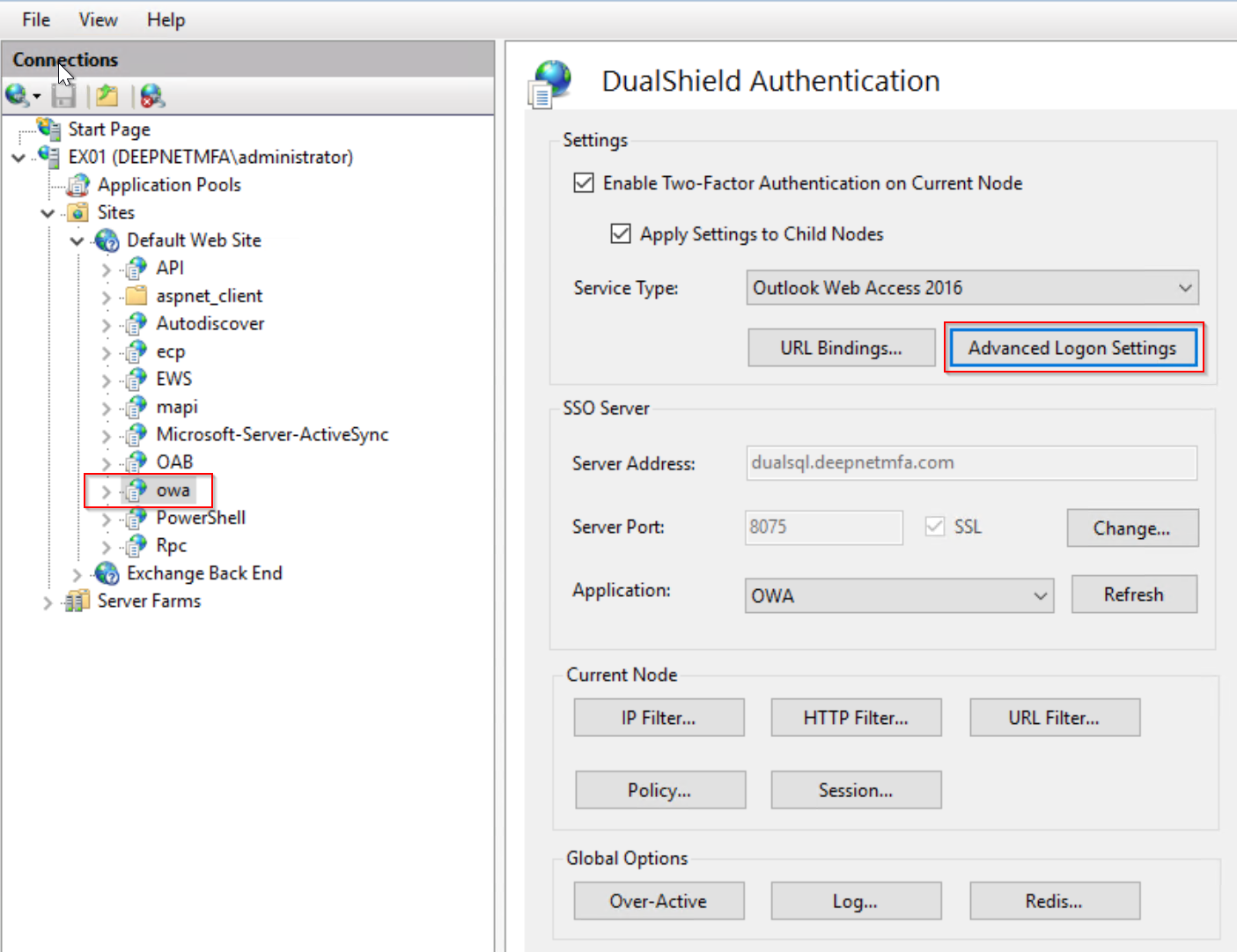
Click the "Advanced Logon Settings" button.
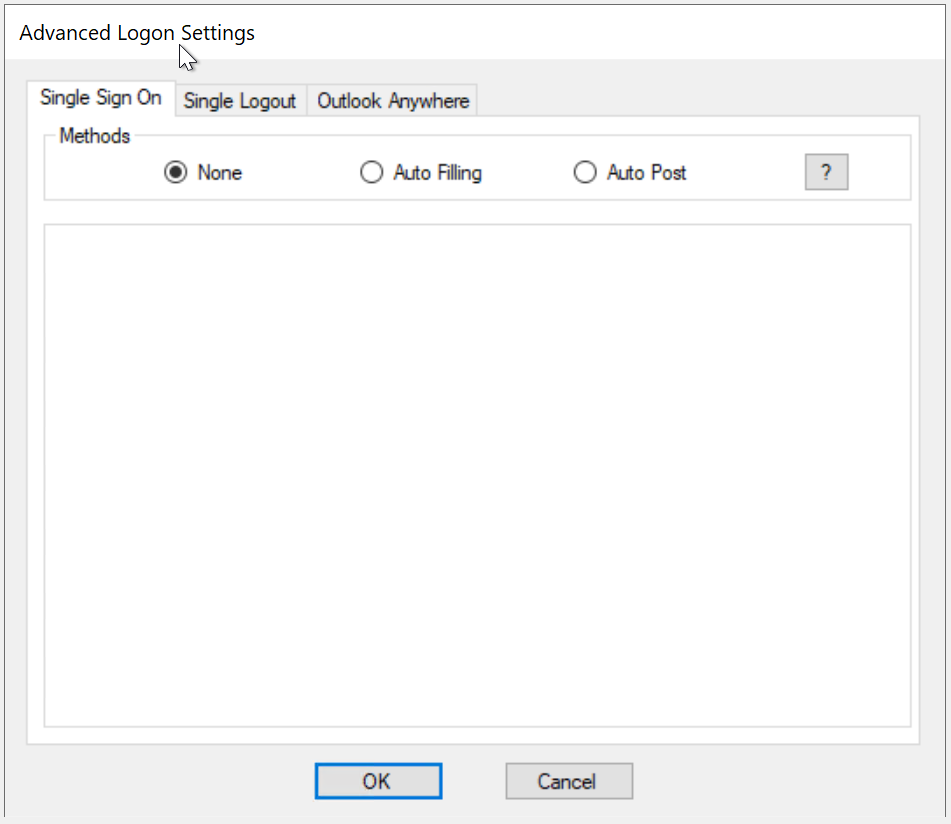
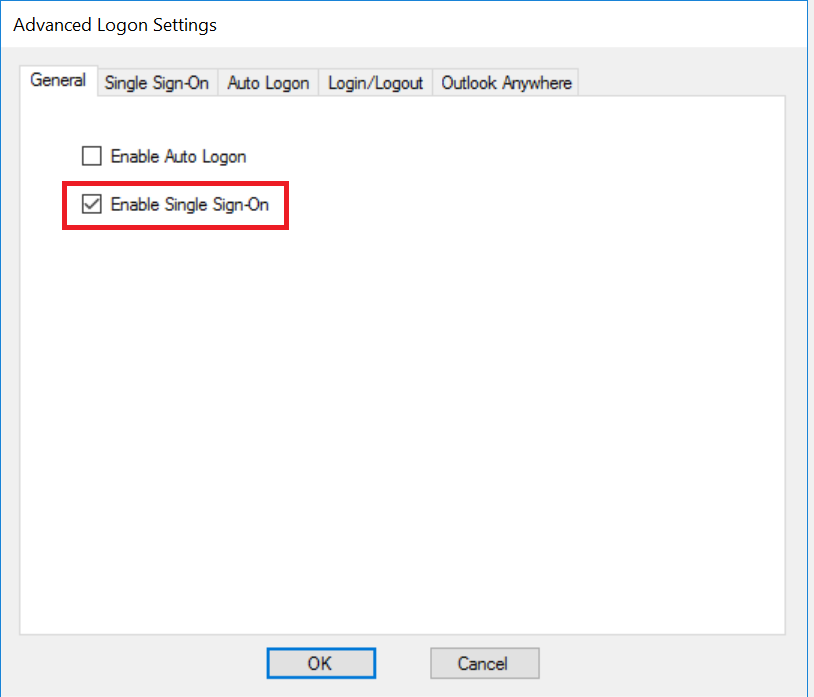
To enable Single Sign-On by Auto-Post, tick the option "Enable Single Sign-On" in the General tab
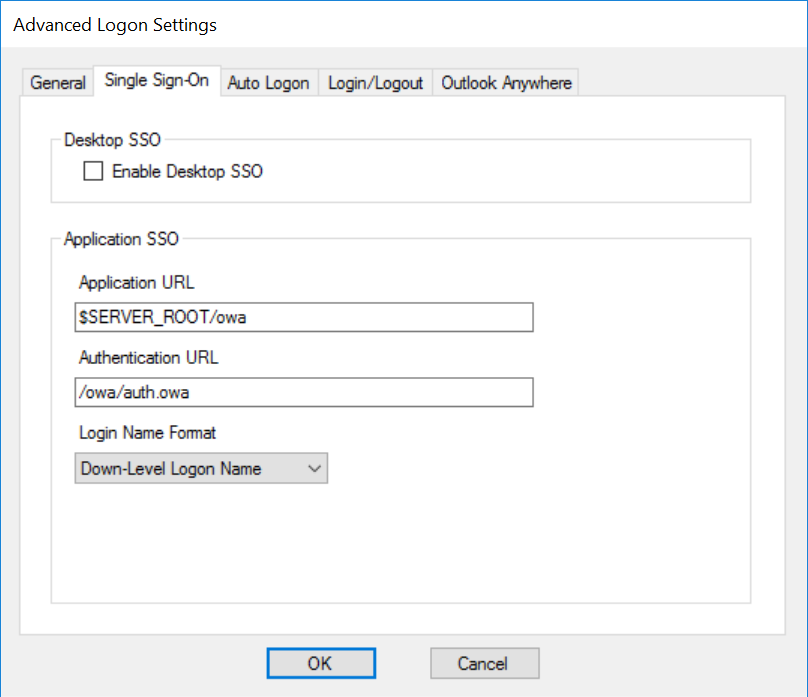
Then, click the "Single Sign-On" tab
...
Auto Post"
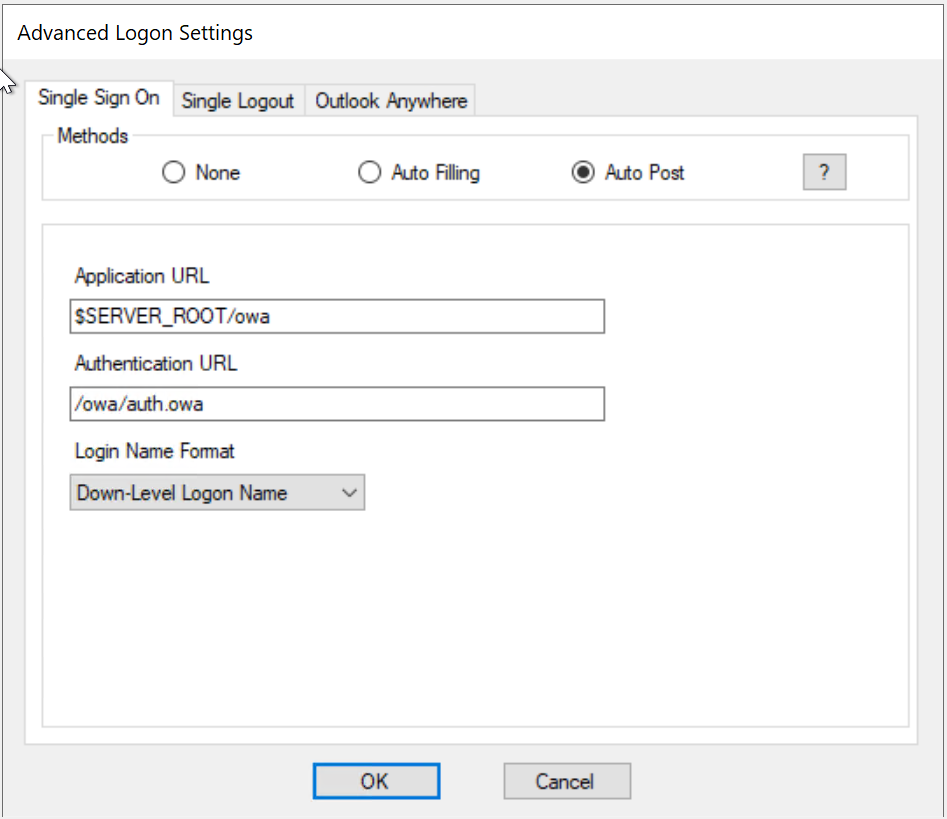
Set the following options accordingly
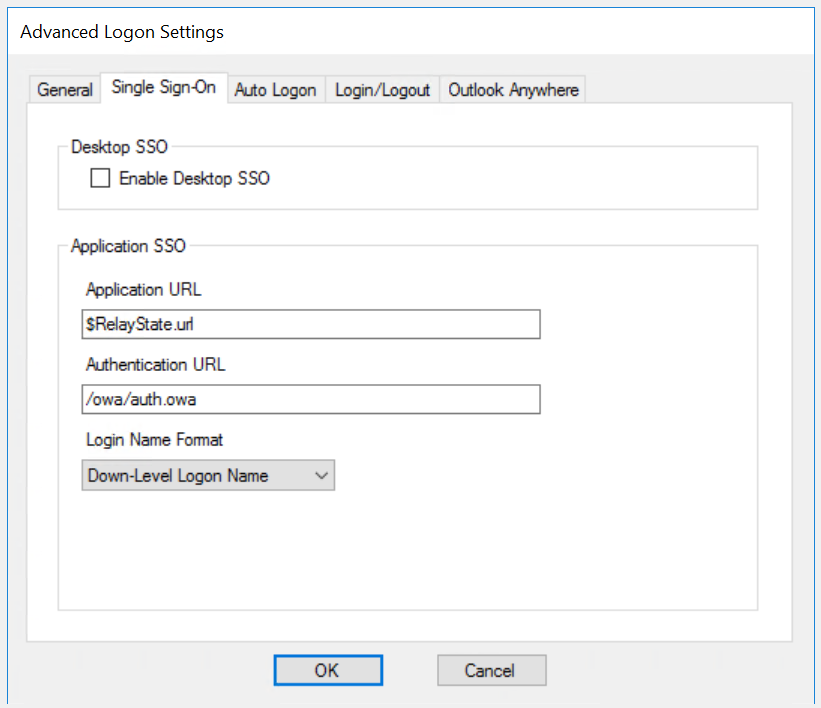
| Option | Remarks |
|---|---|
Enable Desktop SSO | If the web application is to be accessed by users from domain joined desktops or laptops, you can enable SSO from the desktop logon to web logon |
Application URL | When OWA is enabled with MFA, the ECP web UI is automatically enabled with MFA too, as ECP uses OWA as its logon process. If you |
use ECP web UI, then you | |
must change the Application URL | |
to: $RelayState.url | |
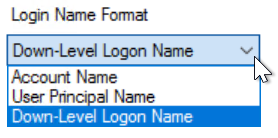
Logon Name Format | Select the appropriate login name format that your application server |
accepts.
|
...
Click "OK" to save the settings
...